


Participating Frequently
December 12, 2018
Question

LR 8.1 Update Ruins EOS R White balance!

  • December 12, 2018
  • 15 replies
  • 11557 views

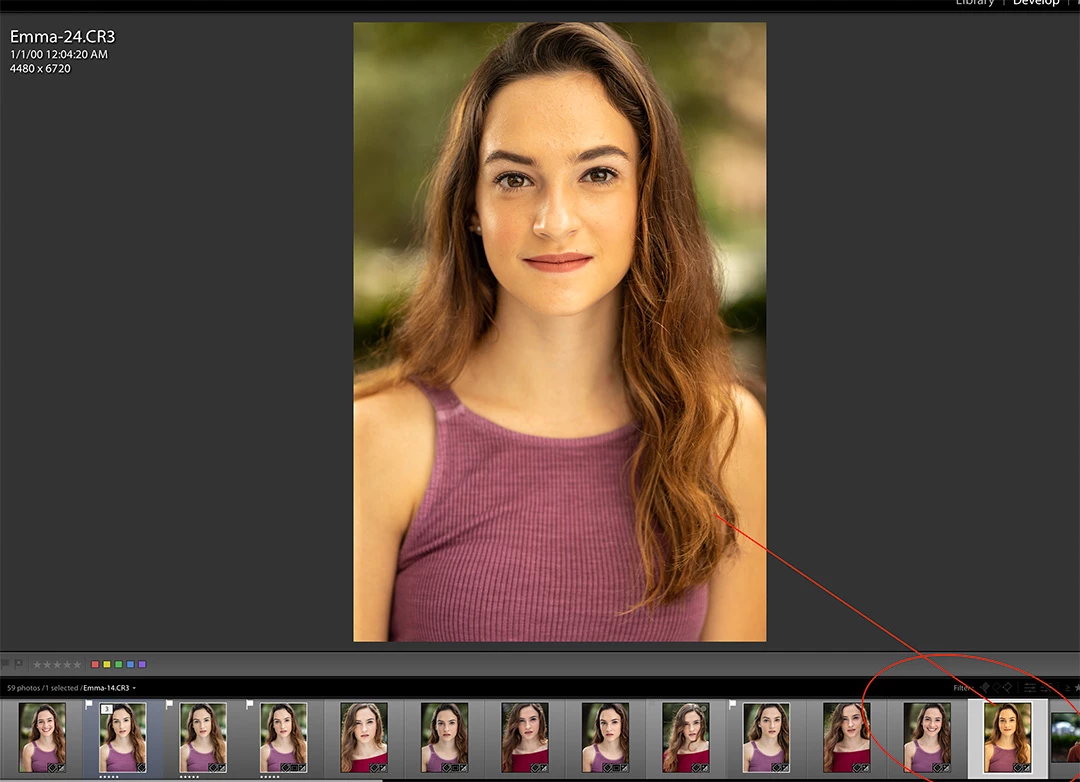
Just update to LR Classic CC 8.1 and Camera Raw 11.1.  Now anytime I mouse over or click on an existing image in a folder that is a .CR3 file from my EOS R, the white balance goes all out of whack.  I actually can no longer work on these files, for fear that every one will get messed up.  You can see below the two circled images have the exact same settings, but when i clicked on the one on the right it went all warm and yellow.  It seems temp increased on me...but i dont know what it was before and I don't know if anything else changed.  .CR2 files are fine.  FWIW most of their temps are in the 4800 range, not 6400.

Profile is Adobe Color, but it doesn't matter if I change it, and I don't believe it changed, but it's the same for .CR2 files and they don't change.

The white balance is just not accurate, and I don't know how to fix this.  Please help.
This topic has been closed for replies.

15 replies

jdavidbuerk
Participating Frequently
January 11, 2019

Adobe, if you're listening, this is a perfect scenario where it would be useful to have the ability to install multiple versions of an application concurrently like you could until that functionality was apparently removed last month.

If I could have Lightroom 8.1 installed concurrently alongside Lightroom 8.0, I could import all future files into a new catalogue under 8.1 (as EOS R files imported into 8.1 don't seem to suffer this issue), and edit previous EOS R photos in 8.0 until all photos from that version's catalogue are done.  Since you removed that feature to maintain multiple version installations, this is not possible.

If this Adobe Creative Cloud functionality was still there, this is what I would have already done to bypass the compatibility problems well-documented in this thread since the only break in radio silence from Adobe on this problem has been a non-functional band-aid.

Until something changes, users with EOS R files imported in Lightroom 8.0 are stuck unable to upgrade and edit those files in Lightroom 8.1.

Todd, I mentioned earlier in this thread that your Treatment & Profile synchronization idea does not work.  Nothing has changed.  Adobe needs to address this.

My current strategy / goal to work around this is to complete edits on all partially edited EOS R images in Lightroom 8.0, export them, then update to Lightroom 8.1, create a new catalogue, and import all the remaining EOS R files as if they’re brand new to continue editing without a problem.

I’ve closed out a major project this week that makes this strategy a possibility for me, but unfortunately this won’t be possible for many others, plus most people wouldn’t think to check a forum to find this obscure workaround.  Adobe needs to just roll out an update that fixes this problem automatically for everyone, the way it should have been from the get-go.

Todd Shaner
Legend
January 11, 2019

jdavidbuerk  wrote

Adobe, if you're listening, this is a perfect scenario where it would be useful to have the ability to install multiple versions of an application concurrently like you could until that functionality was apparently removed last month.

Adobe Engineering rarely monitors this forum. The best way to get their attention is post this reply in the Photoshop Family forum. It is monitored by Adobe Engineering staff.

Lightroom/Camera Raw: Canon EOS R white balance problem | Photoshop Family Customer Community

jdavidbuerk  wrote

Todd, I mentioned earlier in this thread that your Treatment & Profile synchronization idea does not work.  Nothing has changed.  Adobe needs to address this.

It works for me as I outlined in my reply #59 here using EOS R CR3 test files downloaded from the Web.

I suggest uploading an EOS R CR3 file that does NOT work (as I outlined) and place the share link in your reply at the above Photoshop Family post. Provide detailed step-by-step instructions how to reproduce the issue using LR 8.1 with your CR3 file. Thank you!

GoldingD
Legend
January 5, 2019

Ok, everyone, I think you all need to voice your complaint at : Lightroom Classic CC | Photoshop Family Customer Community

Place it their so the Adobe teas see it. They need to see that this is not isolated, the need to see that their fix in v8.1 actulay broke the WB more (looks like thy think it’s all great). They need to see that they must communicate better, they need to put out a document on the subject.

Thus needs to come from EOS  R owners.

examples of before and after, examples of how using Adobe Standard v2 (EOS R) breaks, does not fix. Previous imports. How the default Adobe Standard v2 breaks new imports.

Get bitchy at them

oh, P.S. I am probably being seen as a nag on other postings, for incisting proper software and OS info, but when you send your complaint to Adobe, prevent a bit of back and forth nagging by including Lightroom version, and OS version, you know, /help/system information/ probably first 10 or is it 12 lines. That way Adobe will not think, oh customer does not really have version 8.1, or customer does not know that latest version is not v 7.5, only thinks 8.1 is installed. Plain, in your face, info on version.

GoldingD
Legend
January 5, 2019

This added separately as the above got just too long, and this might have already been posted, so my apology if such. Following link example of Adobe thinking the have this issue fixed (not?)

Lightroom/Camera Raw: Canon EOS R white balance problem | Photoshop Family Customer Community

might be be a good thread to add onto.

jdavidbuerk
Participating Frequently
January 5, 2019

That thread was linked to by someone from Adobe earlier today just 11 posts up; that thread also links back to this one.  This is why I think Adobe isn't listening or actually reading.  It's like they don't have any EOS R users on their entire staff.  Nobody seems to be getting that the problem is with files imported in Lightroom 8.0, edited, then Lightroom updated to Lightroom 8.1, and edited further.  If they are just importing and testing files purely using Lightroom 8.1, there is no problem - it doesn't matter how many times we outline this process, it seems like only people who actually own the camera seem to be understanding it.  And I think some users have confused Adobe staff by suggesting their solution to them even after demonstration and input by multiple people that their solution doesn't actually work - they've listened to someone who seemingly doesn't even own the camera or have encountered the problem, and ignored those who do and are encountering it.  Really bizarre.

ruslanp
Participant
January 5, 2019

Hi All,

Like others, I have lots of projects going on. I decided to stay with version 8.0 at this point, but nonsense is that Adobe never officially responds to such of bugs, until they fixed them (if they ever fixed).  I hope they will fix it in future updates, but at this point I think community wants to hear from them that they acknowledge the problem and working on solution. It's very simply, just tell us what is your plans on this bug. If we'll hear such of announcement then we can plan our workflow accordingly.

Very upset with their work around....

catchingmoments
Participant
December 23, 2018

Same issues overhere!

Reverting to version 8.0 solves problem for now.

Same problem in Photoshop however...

Reverted PS to 20.0 but no luck there.

Todd Shaner
Legend
December 23, 2018

The issue here is that Adobe added new v2 camera profiles for the EOS R and implemented the 8.1 upgrade to "automatically" replace the original assigned profile with the new v2 profile. In the past when v2 camera profiles were added in a LR update the user had to "manually" assign the v2 profile to help prevent things like this from happening! One solution is to rollback to LR 8.0 and ACR 11.0 and wait for Adobe to remove the profile "hijack" in a later update or provide v3 profiles. Unfortunately no one has reported this as a 'Problem' on the Photoshop Family site, which is monitored by Adobe Engineering. I suggest someone with an EOS R camera do so and provide a share link to a sample CR3 file: Photoshop Family Customer Community

Another solution is change images with the hijacked v2 camera profile back to their original profile as I outlined in my reply #31 here: Re: LR 8.1 Update Ruins EOS R White balance!

All new EOS R CR3 files imported into LR should have correct 'As Shot' white balance.

Todd Shaner
Legend
December 23, 2018

A problem report has been entered at the below link. Please add your 'Me To' vote and 'Follow' to help get Adobe Engineering's attention. Thank you.

LR 8.1 Update Ruins EOS R White balance! | Photoshop Family Customer Community

Participant
December 17, 2018

+1 on this super annoying WB / profile bug.

EOS R

LR 8.1 on Mac using cRAW files imported via LR 8.0 (everything was fine during the 8.0 time) then upgraded LR to 8.1 and those (previously imported) files now have wacky WB, but the sliders nor the history do not indicate any change to WB.

Reverted back to LR 8.0 and it only partially fixes the problem in that the main photo in Develop module no longer has incorrect WB, but the previews in the filmstrip grid or in Library Module grid do. In other words, the previews do not match the developed photo - by a significant amount making the previews nearly unusable. Tried rebuilding previews. No improvement.

I never tried importing new images directly into LR 8.1, as I quickly reverted back to 8.0.

Manually managing, changing, setting profiles to and then fro as you bounce and chase versions of LR to work around this is unacceptable. Adobe -- please fix this ASAP. Thank you.

jdavidbuerk
Participating Frequently
December 20, 2018

Here to report the same problem.  I also had to revert to LR 8.0 to fix the issues 8.1 introduced to White Balance on EOS R CR3 files.  Haven't heard a peep about this from Adobe.  A fix is desperately needed ASAP.

rudiw56793963
Participant
December 17, 2018

I had the same issue when i updated my LR on my Windows 10 Computer last week. No issues on my MacBook.

Today a friend told me to make a second account on my Windows Computer to have a look if the colormanagement is wrong. On the other account it was okay with the same cr3 Files.

So the problem wasnt LR its more the Color Management of Windows.

I went to color-managment in windows (Farbverwaltung in German)  and set it to a random Color Profile. I had a look to LR and it seemed to be better.

Than I switched back to the original ICC Profile in the "Farbverwaltung"

LR was showing the same warm and wrong whitebalance but I could set it right again and the Kelvin was also on a normal amount.

I throw the last import out of LR and import the files agin into LR.

After that it works normal again....

Participating Frequently
December 14, 2018

I just discovered this issue too after updating to 8.1. If a CR3's white balance was left 'as shot', it looks fine, but if I set it to anything else, they look about 1000k too warm. This is using either the Adobe Color or Canon Standard profile.

It appears my CR2 files and Fujifilm RAF files are not affected by this.

Opening the same CR3 files in ACR instead of Lightroom with the same numeric white balance settings and profile renders the file correctly.

MacOS Mojave 10.14.1

Lightroom 8.1 build 1200465

Camera RAW 11.1

Participating Frequently
December 15, 2018

Where did these v2 profiles come from? I don't recall seeing any documentation about that when reading about the updates. If Adobe (or Canon) did update the profiles, why arent the originals also included so like when Adobe added all the new profiles, so people's edited images don't change all of the sudden?

This is what I see across prior version of LR (8.0 I think) to LR 8.1 and ACR:

Also viewable here:

https://i.imgur.com/arOyILt.jpg 

TheDigitalDog
Inspiring
December 15, 2018

Went to my MAC Book,

In Finder, in Applications. In Adobe Lightroom Classic CC, Double click, on the Adobe Lightroom Classic CC.app right click,select "Show Package Contents" Look in Camera Profile, then Adobe Standard


davidg36166309  wrote

Went to my MAC Book,

In Finder, in Applications. In Adobe Lightroom Classic CC, Double click, on the Adobe Lightroom Classic CC.app right click,select "Show Package Contents" Look in Camera Profile, then Adobe Standard

Nope. No such V2 profiles I can find. This set of profiles is also duplicated outside the package.

Author “Color Management for Photographers" & "Photoshop CC Color Management/pluralsight"
pMarcigAuthor
Participating Frequently
December 13, 2018

Is anyone even acknowledging this issue???LightroomLightroom Classic CC — The desktop-focused app

pMarcigAuthor
Participating Frequently
December 12, 2018

FWIW - reverting back to the old version 8.0 fixes the issues, as it no longer has the new color profile changed.  Any image that had been changed (by me in the new version) to Adobe Standarc v2 - it will show as Profile Missing when you switch back to 8.0, but it can be changed to the original Adobe Color or standard and look like it was.

Can not update to the latest version of LR however.  :-(

pMarcigAuthor
Participating Frequently
December 12, 2018

First level CSR support has not been able to help.