


New Participant
June 14, 2022
Answered

P: Gray / Negative image display in the Develop module

  • June 14, 2022
  • 65 replies
  • 64515 views

Bonjour,

Je viens d'installer la dernière version de Lightroom Classic (11.4) sous Windows 11 et mes fichiers RAW ne peuvent plus s'afficher correctement dans le module "Développement". Je ne rencontre pas le problème dans les autres module, l'affichage de la miniature est bon, tout comme l'histogramme qui semble cohérent. Seul l'affichage dans la zone de travail est blanc (cf. copie d'écran dessous). 

__________________________________________

Hello,

I just installed the latest version of Lightroom Classic (11.4) on Windows 11 and my RAW files can no longer display correctly in the "Develop" module. I don't encounter the problem in the other modules, the thumbnail display is good, as is the histogram which seems consistent. Only the display in the working area is white (see screenshot below).
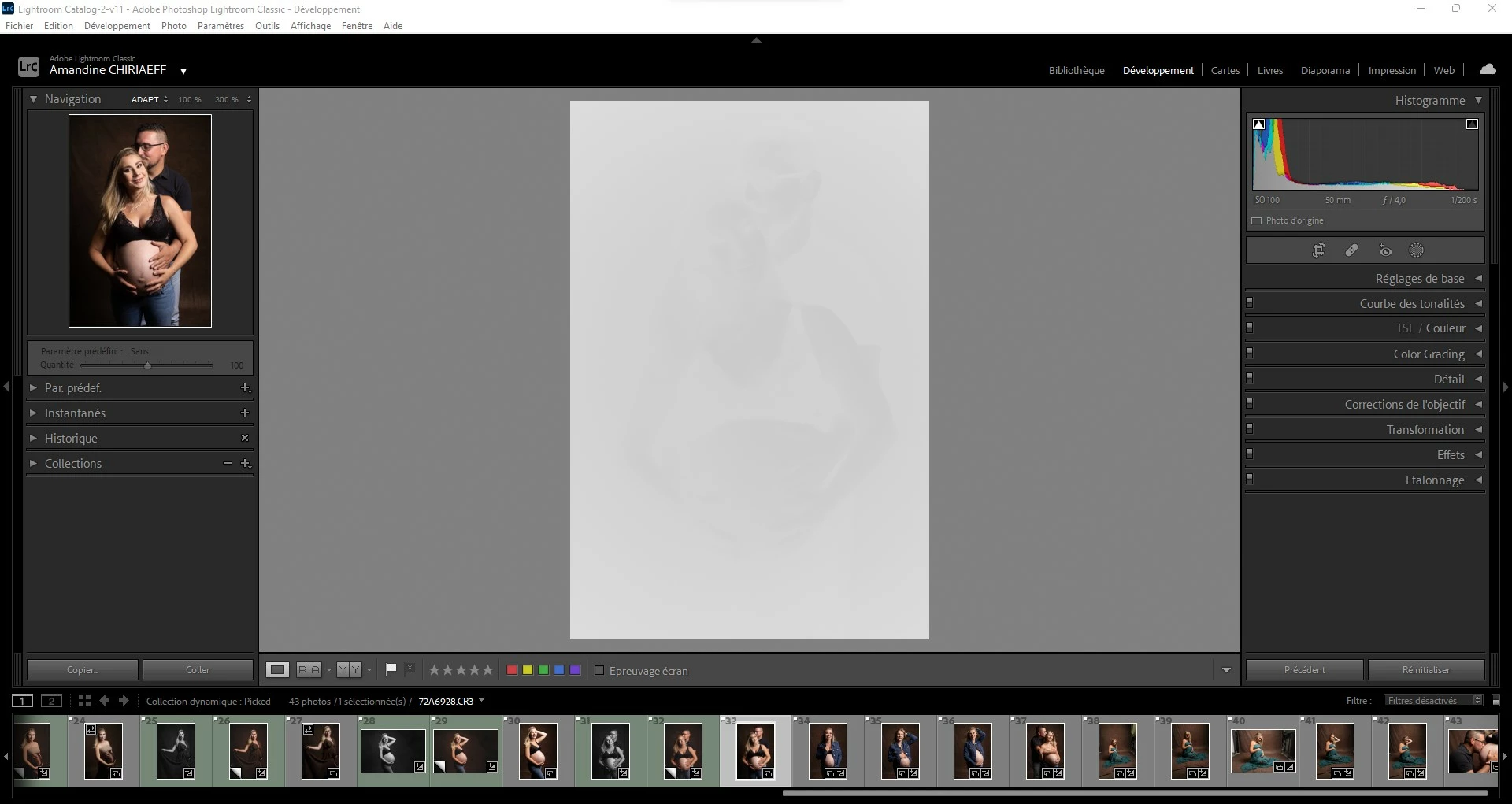
This topic has been closed for replies.
Correct answer AxelMatt

I've heard about this issue for two users here in the forum.

Please try to update the driver for your graphic card.


See also here: Gelöst: Re: P: Gray image display in the Develop module - Adobe Support Community - 13006731


65 replies

New Participant
June 28, 2022

Hi how are you all ?


I have issue in Adebe Lightroom classic 11.4....Develop module is not working photos shows in just library module once i go to develop section there is just blank screen.....Kindly share you experience how i can solve this issue.....


New Participant
June 28, 2022

Hi how are you all ?


I have issue in Adebe Lightroom classic 11.4....Develop module is not working photos shows in just library module once i go to develop section there is just blank screen.....Kindly share you experience how i can solve this issue.....

Oops Sorry i forget to inform that is Mac Mini M1 Chip that i am using kindly help me....

jessdonnelly32
New Participant
June 27, 2022

This is a first in over 10 years of using LRC. When I imported my images into LRC, they show up white in develop mode. They show up normal in library mode. The white images actually appear to be there, but extremely overexposed looking. You can faintly see the image. Some of my black and white presets work. When I apply a preset to the image, it shows the dark areas of the image slightly. I have included some images to show you what I am seeing. I have already tried turning off the graphics processor in the performance section after reading this may help. It didn't help. Things to note, this is my first time loading images from my new A7IV. I previously used my A7III and Nikon D800 for years without anything like this happening. Is there anyone that can help me? I have several shoots lined up and need advice! Thank you!!!

Latest Version of LRC

Windows 11 Up to Date 

jessdonnelly32
New Participant
June 27, 2022

HAHAHA! I figured it out! Its a new feature in LRC that lets you adjust the amout of preset to your image. A tiny little slider that is below the preview image. DUHHH. Sorry to waste anyone's time...

jessdonnelly32
New Participant
June 27, 2022

Me again. HELP! The presets lost all their color. The adjustment slider only makes them show up in black and white. This is driving me nuts. 

New Participant
June 27, 2022

After recent update to 11.4 "Developer Mode" stopped working. Switching to it leads to blinking grey-white rectangle instead of the photo, however, all photos are diplyaed ok in "Library Mode". They are definitelly not corrupted files. I also tried import a new folder the results was the same. Re-installation of the LRC didn't help either.


{Thread title updated by moderator}

Sameer K
Community Manager
Community Manager
June 29, 2022

Hi there,


Thanks for reaching out. We are sorry for the trouble with Lightroom. I’ll need a little more information. We are here to help.


Does this happen when editing images from a specific set or collection? What kind of images do you work with? RAW or JPEG? Have you tried signing out of the Creative Cloud app and signing in again? Have you tried any troubleshooting steps?


Please go to Lightroom Classic > Preferences > Performance > Use Graphics Processor > Set it to Off if it is on Custom or Auto. If this shows you any differences in performance, please check this article to troubleshoot further: https://helpx.adobe.com/lightroom-classic/kb/troubleshoot-gpu.html


Let us know if this helps,

Thanks!

Sameer K


New Participant
July 22, 2022

>>Does this happen when editing images from a specific set or collection?
No, it happened for all files after update.
>>What kind of images do you work with? RAW or JPEG? 
NEF and CR2.
>>Have you tried signing out of the Creative Cloud app and signing in again?
Yes.
>>Have you tried any troubleshooting steps? 
Yes. I removed all the Adobe apps and re-installed only LRC, which is only one I actually use.

>>Please go to Lightroom Classic > Preferences > Performance > Use Graphics Processor > Set it to Off 
Thanks a lot! This helped. DevMode works.

New Participant
June 26, 2022

Seit Kurzem werden meine raws im Entwickeln Modul alle in "Graustufen"/invertiert angezeigt. Die Bildanzeige funktioniert im Modul "Entwickeln" nicht mehr richtig.


In der Bibliothek werden die Bilder (und auch alle jpgs) richtig angezeigt.


Kennt jemand dieses Problem?

Participating Frequently
June 26, 2022

Lightroom 14.4, updated today, images in Develop mode are like opaque outlines. Like looking through fog. Images appear fine in Grid mode. I tried several folders with same results. Using Windows 10.

Brainiac
June 26, 2022
Participating Frequently
June 24, 2022

I HAVE LIGHTROOM CLASSIC 11.4. (MAC OS 10.15.7 CATALINA) I HAVE BEEN USING MY LOGO (ONE WHITE AND ONE BLACK) FOR AT LEAST 6 YEARS BUT AROUND THE LAST UPDATE, THE WHITE ONE LOST HIS OPACITY. I HAVE TRIED WITH A GRAPHIC DESIGNER TO SEE IF MY LOGO HAS A PROBLEM BUT IT DOES NOT SEEM SO. HOW CAN THIS PROBLEM BE FIXED?? THE BLACK ONE STILL WORKS FINE. THE OPACITY IS AT 100. I  RE-IMPORTED IT BUT IT DID NOT CHANGE ANYTHING.

THANK YOU.

DANIELLE

New Participant
June 23, 2022

In Windows LR CLassic the latest update to it and Camera Raw have an issue.When I import Fuji .raf files they are fine in the library module, but when in the develop module the main screen comes up almost completely white with a slight negative image showing. No presets work. But the image at the top left in the navigator is fine and shows the preview of the preset. Only the main screen does not cooperate. Everything was fine before the automatic update.

New Participant
June 23, 2022

Disabling GPU, getting new driver and turning GPU back on worked. Thanks!

New Participant
June 23, 2022

I imported as usual. I can see the previews of the images. I haven't adjusted anything and this is what I see. Please help!

GoldingD
Brainiac
June 23, 2022

1. Do you have the option in preferences to use graphics processor on? If so, does the problem go away if off?

2. Does a update exist fir your GPU driver?

Rikk Flohr_Photography
Community Manager
Community Manager
June 22, 2022

If your video card was nVidia and you've updated your driver and things are cured can you please post your nVidia driver version here:

Rikk Flohr: Adobe Photography Org
DdeGannes
Adobe Expert
June 22, 2022

I have not experienced this issue on my PC laptop running Win 11, NVIDIA GTX 1650.

Updated the video driver a couple days ago with an update released in May 2022 and there were two versions one for Gaming and one for Studio, I choose the Studio version. No issues for me.


Regards, Denis: iMac 27” mid-2015, macOS 11.7.10 Big Sur; 2TB SSD, 24 GB Ram, GPU 2 GB; LrC 12.5,; Lr 6.5, PS 24.7,; ACR 15.5,; (also Laptop Win 11, ver 24H2, LrC 15.0.1, PS 27.0; ) Camera Oly OM-D E-M1.
New Participant
June 21, 2022

When importing photos after the new update, photos in develop are grey with just slight contours of the photo. When pressing "before" it goes back to normal colours, but as soon as I try to edit, it goes grey again.. I've reset all develop settings, but still grey.. What to do?? 

Kanaiaupune
Participating Frequently
June 21, 2022

This thread helped me. I'm copying it and pasting it here:

All of the customers reporting this issue are using Windows. For each of you, as a test, please go to Edit>Preferences>Performance and disable GPU then restart your instance of Lightroom Classic. 

Does the problem go away? 

If so, then you will need to check your Video Card Manufacturer's website for an updated driver. Perform a clean install of the latest video driver. Go back to Edit>Preferences>Performance and renable GPU. 


If not: then post back here that "Turning off GPU and restarting has no effect"

If the problem is no longer there, great. Please post here and let us know. 

If you are still experiencing the problem post back here with your

  • GPU/Video Card Model 
  • GPU Driver Version Number


I will me marking this answer correct so that it appears at the top of this thread so that newcommers will hopefully see it immediatly. 


Rikk Flohr - Customer Advocacy: Adobe Photography Products
Participating Frequently
June 22, 2022

Hi good morning
After updating my graphics card Nvidia GeForce GTX 1050 this problem is solved!

Christoph