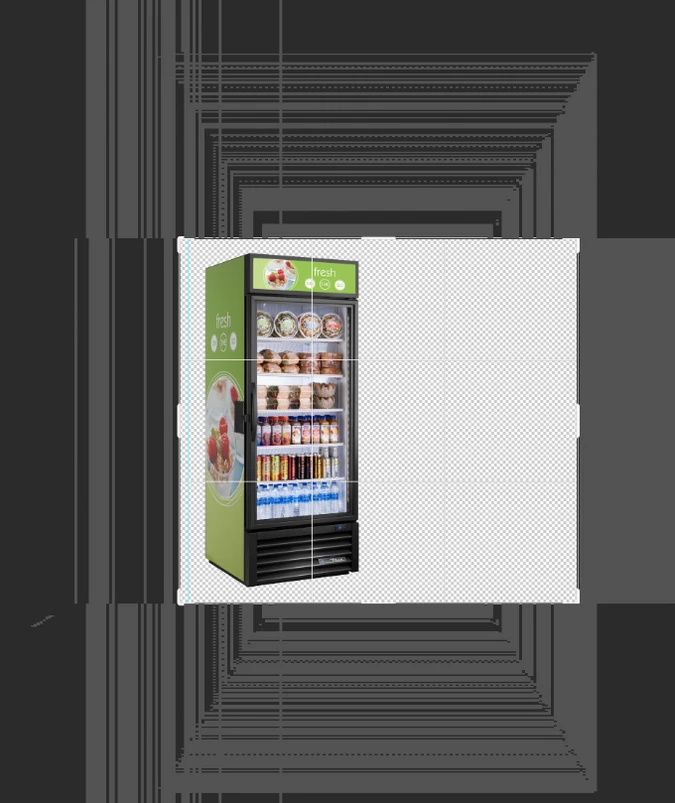
Snce the last download of Photoshop, when i open a file, in the background of Photoshop apear a strange things like pixels, when I use the zoom tool is worst.
I think this is the most annoying problem i've ever had. A few days ago Creative Cloud automatically updated Photoshop and I guess that started happening after that. When you zoom in or zoom out on the screen or move the layers the whole screen is distorted. I reinstalled the program but it didn't work. It gets better when you turn off the GPU, but this time it's hard to design because it's so slow, which makes it impossible to design. If you choose CMYK instead of RGB color mode, it will be resolved. But of course single color mode is not enough to work. I need to solve this problem urgently, please help.
How did you update the driver on the AMD Radeon Pro 5500 XT 8GB? When I go to the AMD website, I don't see any options to update the driver for an iMac. So I tried to click the "Deactivate Native Canvas" option, and Photoshop just chugged, there was a super annoying delay whenever I resized my brush or moved the canvas around. (and yes, I remembered to restart Photoshop whenever I made a change)
So... I reverted back to Photoshop Version 22.4.3 and it works perfectly with no issues. So, that means the issue is 22.5.0
After the latest update, whenever i open a new document, these weird pixels appear. They stay still at the exact position, no matter i zoom in or out. Does anyone know how to fix this? I'm using Macbook Pro 16" 2019. Thanks.
Does turning on »Deactivate Native Canvas« (Photoshop > Preferences > Technology Previews) and restarting Photoshop have any bearing on the issue?
Does turning off »Use Graphics Processor« in the Performance Preferences (Photoshop > Preferences > Performance > Graphic Processor Settings) and restarting Photoshop have any bearing on the issue?
I'm experiencing the same problem with Intel HD Graphics 4600 on an Intel Core i5-4310M (Windows 10 Pro 21H1). Deactivate Native Canvas seems to have solved the issue.
This problem did not reproduce on all systems here, and we had a fix that addressed the problem on the customer's systems that had the issue, so we thought we had it fixed; sorry for the inconvenience; the range of GPU hardware is vast and some combinations (that we don't have readily available to us) can exhibit issues.
@mark_dahm Same issue happening with my Windows 10 program. Running a 1070 ti graphics card. Turning off the native canvas fixed it, but I'm pretty upset that a program update could make it through testing with this large of an issue.
OMG! Thank Jeff the Deactivate Native Canvas under Preferences worked I didn't have to update to Big Sur. Thanks again I really appreciate your quick response.

 AdChoices