


Inspiring
April 12, 2023
Question

Cannot completely disable snapping. Free Transform always snaps to the pixel grid.

  • April 12, 2023
  • 4 replies
  • 3211 views

I'm trying to understand if this is the correct behavior or if my preferences have been somehow corrupted.

I've disabled "Snap Vector Tools and Transforms to Pixel Grid" in the Preferences > Tools section:
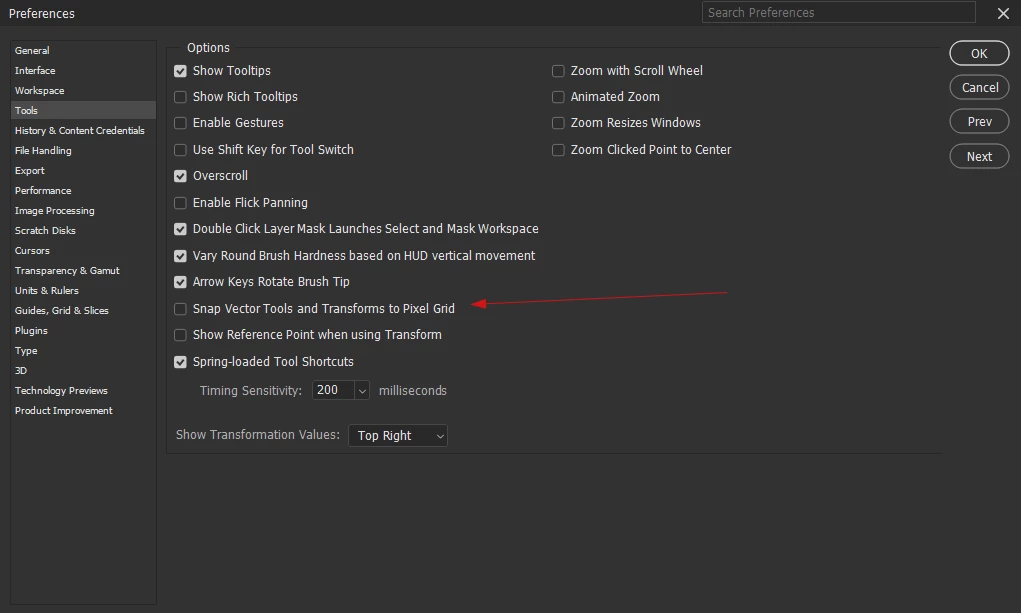


I have snap completely disabled and extras hidden:
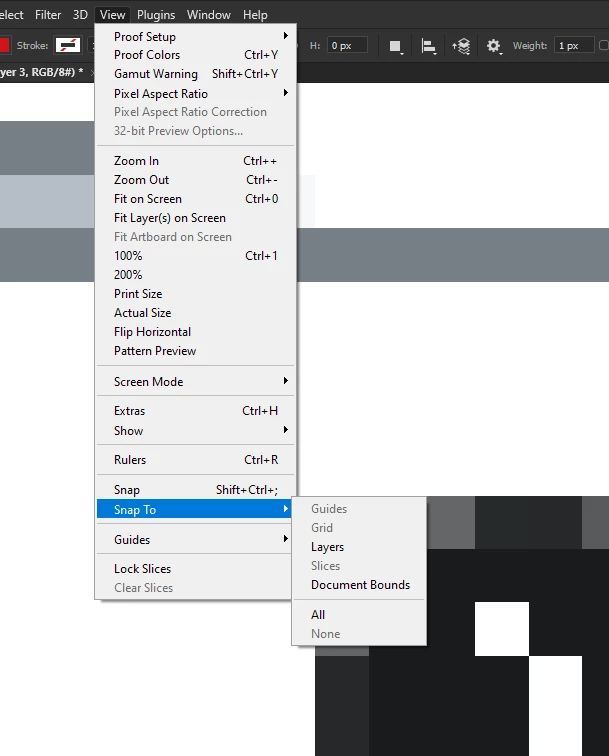


And yet despite all this ... vector shapes and even raster elements are snapping to the pixel grid when I am free transforming them. Sometimes elements snap to fractional coordinates too which is weird as well.

I've created a video of the behavior here:
https://www.youtube.com/watch?v=zIbVNdjAzhA

1. Can someone possibly confirm that this is the correct (intended) behavior?
2. Can someone supply a solution that disables this behavior?

EDIT: I've created a feature request for this functionality here:

https://community.adobe.com/t5/photoshop-ecosystem-ideas/please-implement-free-transformation-of-vector-shapes-without-snapping-when-snap-settings-are-off/idi-p/15138227

If you want this, please vote!

4 replies

Inspiring
September 14, 2024

I want to bump this issue. It's still present in the latest versions of PS. Can we please have a way to completely disable snapping to the pixel grid when free transforming?

EDIT: I've created an issue / feature request here:
https://community.adobe.com/t5/photoshop-ecosystem-ideas/please-implement-free-transformation-of-vector-shapes-without-snapping-when-snap-settings-are-off/idi-p/15138227

jane-e
Community Expert
September 14, 2024
quote

Can we PLEASE have a way to completely disable snapping to the pixel grid when free transforming?

By @futuremotion6798557


You chose "Discussions" when you created this post.
For Feature Requests that the product team will track, choose Ideas and follow the format in this post:

https://community.adobe.com/t5/photoshop-ecosystem-ideas/how-do-i-write-a-feature-request/idi-p/12384447


Jane


New Participant
June 11, 2024

It is a bug that appeared long time ago. I remember the times when you could move shapes smoothly. But now no one pays attention to it. But you can use some trick to make it little bit smoother. You can use X: Y: W: H: names of fields in the top bar. These names work like sliders when you place cursor over them, and you can hold Ctrl while tweacking them.

Inspiring
June 13, 2024

Thanks for the reply, and yeah I've been using that little tweak as well. It's really a shame that there is no attention to this. When designing icons that need pixel perfect shapes at small sizes it's such a pain. CS5 handles it perfectly. Go figure.

davescm
Community Expert
April 13, 2023

Photoshop is a pixel editor so always works in units of single pixels when displaying an image. There are no half or quarter pixels when displaying an image.

Paths can cover partial pixels but the display of a shape created by a path is always displayed using whole pixels (although the value of those whole pixels can be changed to give the impression of partial pixels, for example when anti-aliasing is used).

For the same reason although the transform handles can move in smaller increments than a pixel, the transformed content will always fill whole pixel units.


Dave

Inspiring
April 14, 2023

I understand what you're saying, but if you're free transforming a vector shape, the final bake to pixels should always get anti-aliasing to properly account for the areas of the shape that fall inbetween whole pixel boundries. AA gets applied consistantly for vector elements (shapes and text) in Photoshop. I don't see any reason why a user shouldn't be able to transform a vector shape completely unconstrained.

The problem I'm facing is that the size of the vector circle I'm transforming is snapping to completely arbitrary values. There is no need for this and it's undesirable behavior since PS is obviously capable of anti-aliasing areas of the path that cross beyond or between whole pixels.

c.pfaffenbichler
Community Expert
April 14, 2023

As a work-around you could mark the scaling-numbers in the Options Bar and use the up- and down-arrow-keys (adds/subtracts 1 percent but with an object that small that should provide fairly fine stepping). 

Participating Frequently
April 13, 2023

Hi, I tested it here for you on Mac with PS 2022 and 2023. What I notice is that the bounding box does not snap to the pixels(although it is not smooth as you would expect. Even though it does not snap it is jumpy) . It doesn't either in your video. What does snap is the actual image, so the pixels keep jumping to the next pixel. If I think about it that would make sense since it is rasterised so a pixel will always be snapping to another pixel even though the bounding box of your transform would not. Maybe someone else could confirm or explain this better? 

Inspiring
April 14, 2023

For me, the bounding box is definitely snapping to something. I can't figure out exactly what it's snapping to since part of it is jumping to coordinates that are not whole pixels. The circle I'm transforming is a vector shape, so from my understanding, the path itself doesn't need to obey any rules regarding pixel rasterization. Once the shape's transform is committed Photoshop should only then translate the vector data to a rasterized result with appropriate antialiasing.