


atthecshore
Inspiring
June 7, 2019
Answered

How to correct wide angle lens blurring and stretching?

  • June 7, 2019
  • 1 reply
  • 622 views

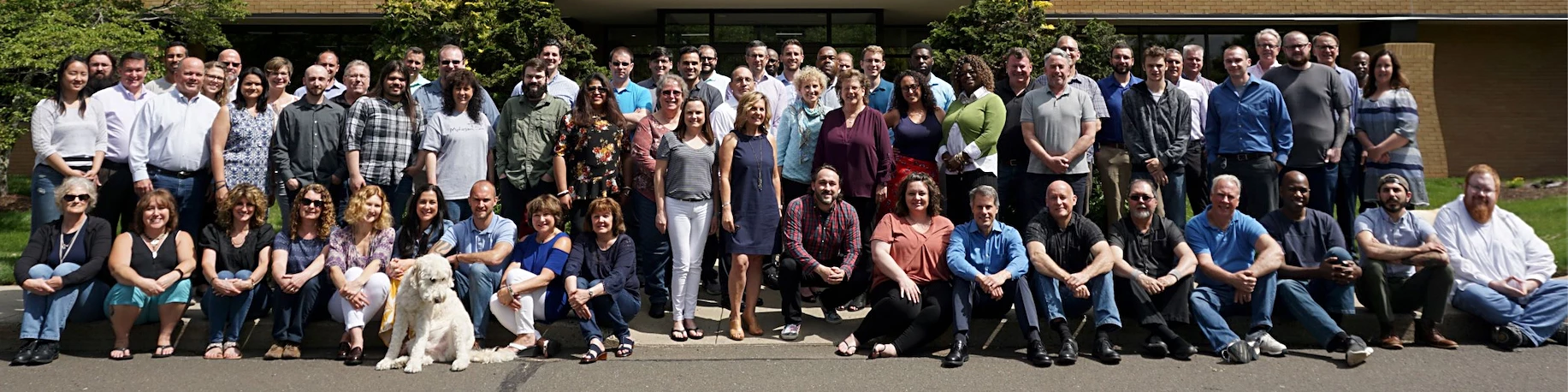
I have a group photo taken with a wide angle lens. The people on the right and left edges are slightly out of focus and stretched out a bit (makes them look fatter than they really are).

Any tips on a quick way to correct this?

Thanks.
    This topic has been closed for replies.
    Correct answer hatstead

    I used the Liquify filter on the man with the white shirt on the right. Use the bracket keys next to the letter P on the keyboard to Increase ]. Decrease [  the size of the cursor. so as to embrace the object. You may have to try it several times to get it so that it does not look fake.

    I sharpened globally with unsharp mask via the Enhance menu.

    1 reply

    hatstead
    Inspiring
    June 7, 2019

    atthecshore  wrote

    I have a group photo taken with a wide angle lens. The people on the right and left edges are slightly out of focus and stretched out a bit (makes them look fatter than they really are).

    Any tips on a quick way to correct this?

    Thanks.

    It would help if you post a representative picture for us to look at. If you are so inclined, you can proceed via the Insert Image icon at the top of the reply box here on the forum. You can not do it in an e-mail reply.

    PSE has the Liquify filter (Filter>Distort>Liquify>Warp) which may do it with a large circular cursor.

    Will be pleased to give it a shot and advise further.

    atthecshore
    Inspiring
    June 7, 2019

    Here's the image. Note the slightly out-of-focus people and distortion on the left and right sides.

    hatstead
    hatsteadCorrect answer
    Inspiring
    June 7, 2019

    I used the Liquify filter on the man with the white shirt on the right. Use the bracket keys next to the letter P on the keyboard to Increase ]. Decrease [  the size of the cursor. so as to embrace the object. You may have to try it several times to get it so that it does not look fake.

    I sharpened globally with unsharp mask via the Enhance menu.