


Inspiring
December 18, 2022
Answered

Shortcut to Elements Photo Editor only

  • December 18, 2022
  • 7 replies
  • 3831 views

Shortcut to 2023 Elements Photo Editor directly - without opening the Elements home screen.  I don't use anything but photo editor 98% of the time and I get irritated at having to make a selection on the main screen between 3 programs.  I am starting to wish I had never gotten the video editor/photo editor package.  I could do it in 2021 - is there no way to make a shortcut directly to the Photo Editor exe file if I can't locate it?
This topic has been closed for replies.
Correct answer Walter_H

Hi Pug_luv,


What you want IS doable, but you're looking in the wrong location.


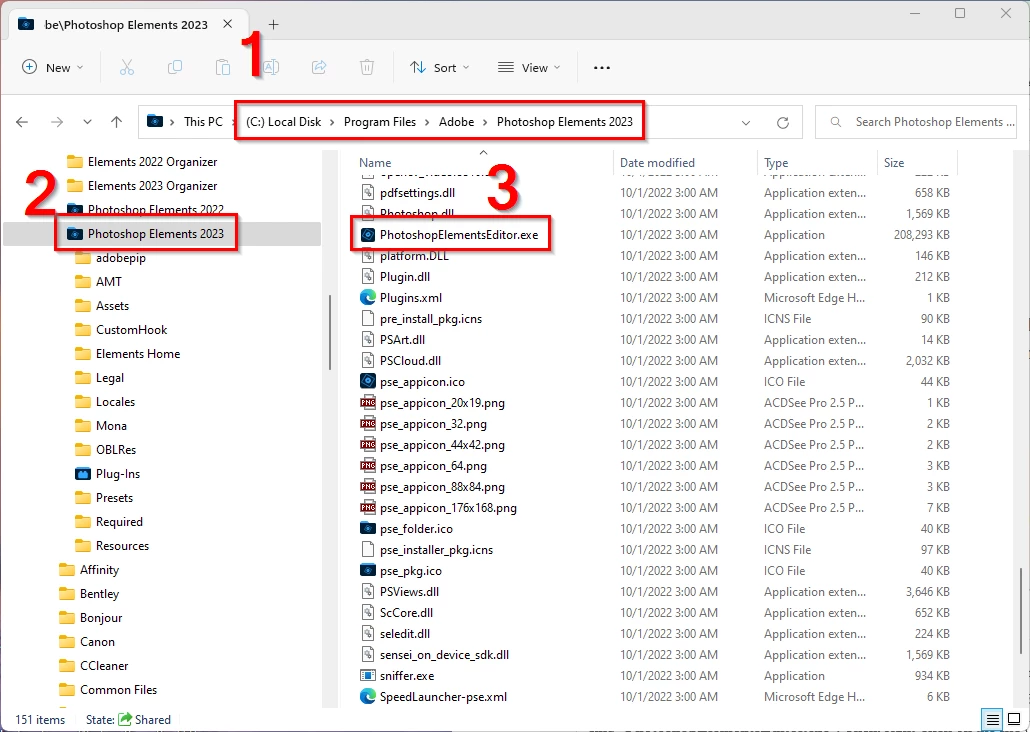
In the left-hand panel of Windows Explorer, you need to navigate to "C:\Program Files\Adobe\Photoshop Elements 2023" - or, copy/paste this into the Explorer address bar and tap enter. Be sure the folder "C:\Program Files\Adobe\Photoshop Elements 2023" is selected and highlighted.


Then in the right-hand panel scroll down to find "PhotoshopElementsEditor.exe". Then, right-click on the file ("PhotoshopElementsEditor.exe") and choose "Send to > Desktop (create shortcut)".


7 replies

New Participant
March 13, 2024

Hi

New Participant
February 15, 2023

Anyone here know how to open directly to Editor on a Mac?  I just installed Photoshop Elements 2023 on an m1 Mac running OS 12, and will be using it also on another one running OS 13.

Thanks!

Jeff Arola
Community Expert
February 16, 2023

After you launch the PSE 2023 Editor from the Home Screen. you'll see two shortcuts in the dock, one

being to the Adobe Photoshop Elements Editor. Right click on that shortcut icon, click Options, then

click Keep in Dock.


After you quit the photoshop elements editor, only that shortcut dirctly to the editor will remain

and you can drag to move in anywhere in the dock.


Greg_S.
Community Expert
December 18, 2022

@Pug_luv, said:

This is my view on Win 11 of the Elements Home folder which contains Adobe Premiere Elements 2023.exe file


You are looking in the wrong folder and searching for the wrong EXE file!!!

For Photoshop Elements, you need to look in:

C:\Program Files\Adobe\Photoshop Elements 2023 and create a shortcut from:

PhotoshopElementsEditor.exe


For Premiere Elements look in:
C:\Program Files\Adobe\Adobe Premiere Elements 2023 and create a shortcut from:

PremiereElementsEditor.exe


There are no spaces in either file name.  The exe file you have found is the one for the Home Screen. So, naturally, you are being sent back there if you click on it.


I don't know what method you are using to search for files but I highly recommend that you use a free utility called Everything.  It is much faster and easier to use than any Windows search engine.


Pug_luvAuthor
Inspiring
December 18, 2022

"C:\Program Files\Adobe\Photoshop Elements 2023\Elements Home\Adobe Photoshop Elements 2023.exe"

I made the shortcut to here


 When I click on it it takes me to the main page, does not open just the photoshop elements program for phoro editing.  That is why I am so confused. (And probably appearring really dumb right about now!)


 I am trying to open Photo Editor without having to open the ?splash screen or whatever it is called, so I was looking for a Photo Editor shortcut.  I'm not sure if I am just not getting it or if what I am trying to do is not possible.  Thanks for your patience

Walter_H
Walter_HCorrect answer
Brainiac
December 18, 2022

Hi Pug_luv,


What you want IS doable, but you're looking in the wrong location.


In the left-hand panel of Windows Explorer, you need to navigate to "C:\Program Files\Adobe\Photoshop Elements 2023" - or, copy/paste this into the Explorer address bar and tap enter. Be sure the folder "C:\Program Files\Adobe\Photoshop Elements 2023" is selected and highlighted.


Then in the right-hand panel scroll down to find "PhotoshopElementsEditor.exe". Then, right-click on the file ("PhotoshopElementsEditor.exe") and choose "Send to > Desktop (create shortcut)".


--Walter in Davie, FL
Greg_S.
Community Expert
December 18, 2022

@Pug_luv did you look at my screenshot which shows that the program folder icon is colored and not the standard Windows yellow icon?  If you are confused by this, you are not alone.

Pug_luvAuthor
Inspiring
December 18, 2022

I know what you mean.  This is my view on Win 11 of the Elements Home folder which contains Adobe Premiere Elements 2023.exe file

 The entire Adobe folder looks like this before it is expanded:

 I was able to make a shortcut to Adobe Photoshop Elements 2023


But when I click on it, It still opens this page


 Which means I am still stuck with having to click on the Photo Editor to get it to open.  I guess there must not be an exe program where I can get Photo Editor to open directly - appears to always have to go through the start page. 


Jeff Arola
Community Expert
December 18, 2022

Can you show us a screenshot of the entire expanded Adobe Photoshop Elements 2023 folder?

(like the screenshot i posted above)

Jeff Arola
Community Expert
December 18, 2022

If in the Windows File Explorer Folder options you have Hide extensions for known file types checked then you won't see many extensions like .exe which can make looking for files more difficult.


Pug_luvAuthor
Inspiring
December 18, 2022

Thanks for that tip - it is the first thing I do when setting up a new computer!  I really like my specific shortcuts - couldn't live without being able to see everything.  Thats why I am so frustrated I can't find a photo editor specific exe file.

Walter_H
Brainiac
December 18, 2022

Hi Pug_luv,


If you're running Windows, you have two options.


  1. Start the Editor via the main Home screen and, when it's open, r-click on the taskbar icon and choose "Pin to taskbar'.
  2. Via Windows Explorer, navigate to "C:\Program Files\Adobe\Photoshop Elements 2023" and scroll down the list of files to find "PhotoshopElementsEditor.exe". R-click on the file and choose "Send to > Desktop (create shortcut)"


If you create the desktop shortcut via #2, You can drag and drop one or more image files onto the shortcut to open them in the PSE Editor.

--Walter in Davie, FL
Pug_luvAuthor
Inspiring
December 18, 2022

I can pin it and I can make a desktop shortcut, but both of those open up the main page where I have to pick which of the 3 programs I actually want to use.  What I want is to open the  Photo Editor only with a one click shortcut as I have on past versions.  Right now the only way I can get around it is to use "open with" on right click.  If it can open it that way, why can't I find a photo editor exe file?  The photo editor and video editor components must have separate exe files located somewhere don't they?  Or is that just me thinking it should be that way to make sense?  Thanks

Greg_S.
Community Expert
December 18, 2022

Here are two ways to bypass the Welcome Screen:

  • create a desktop shortcut to the PhotoshopElementsEditor.exe file (found in the C:\Program Files\Adobe\Photoshop Elements 2023 folder) or
  • Pin the taskbar icon when you have the Editor open (right-click on the taskbar icon and choose to pin it).


Pay attention to the name of the exe file I have identified.  I'm not sure why you can't find the Editor exe file.  Perhaps you are unaware that the Photoshop Elements program folders have a coloried icon instead of the standard Windows yellow icon:

Pug_luvAuthor
Inspiring
December 18, 2022

Yes thank you, I do know that.  It just seems like instead of having to go thru the main screen and select which program I want,  there should be somewhere that separate photo editor, video editor and organizer exe files are hidden so I can make the shortcut to the specific one I want.  Thanks for the help.