Francis-Crossman17221443
Community Manager
Community Manager
October 20, 2020
Question

DISCUSS: New Captions Workflow in Premiere Pro

  • October 20, 2020
  • 147 replies
  • 114607 views

UPDATE: January 29, 2021

Since the innitial post back in October of last year we have made a ton of progress and some of the details originally posted here are no longer acurate.  I have updated the post to be more accurate to the state of things today.  


Here are some important changes to be aware of

  • The Premiere Pro beta is now version 15 (starting January 26, 2021)
  • The captions workflow in on by default - no need to enable it
  • The beta menu has been removed (because you don't need it anymore - the advanced beta features are always on)
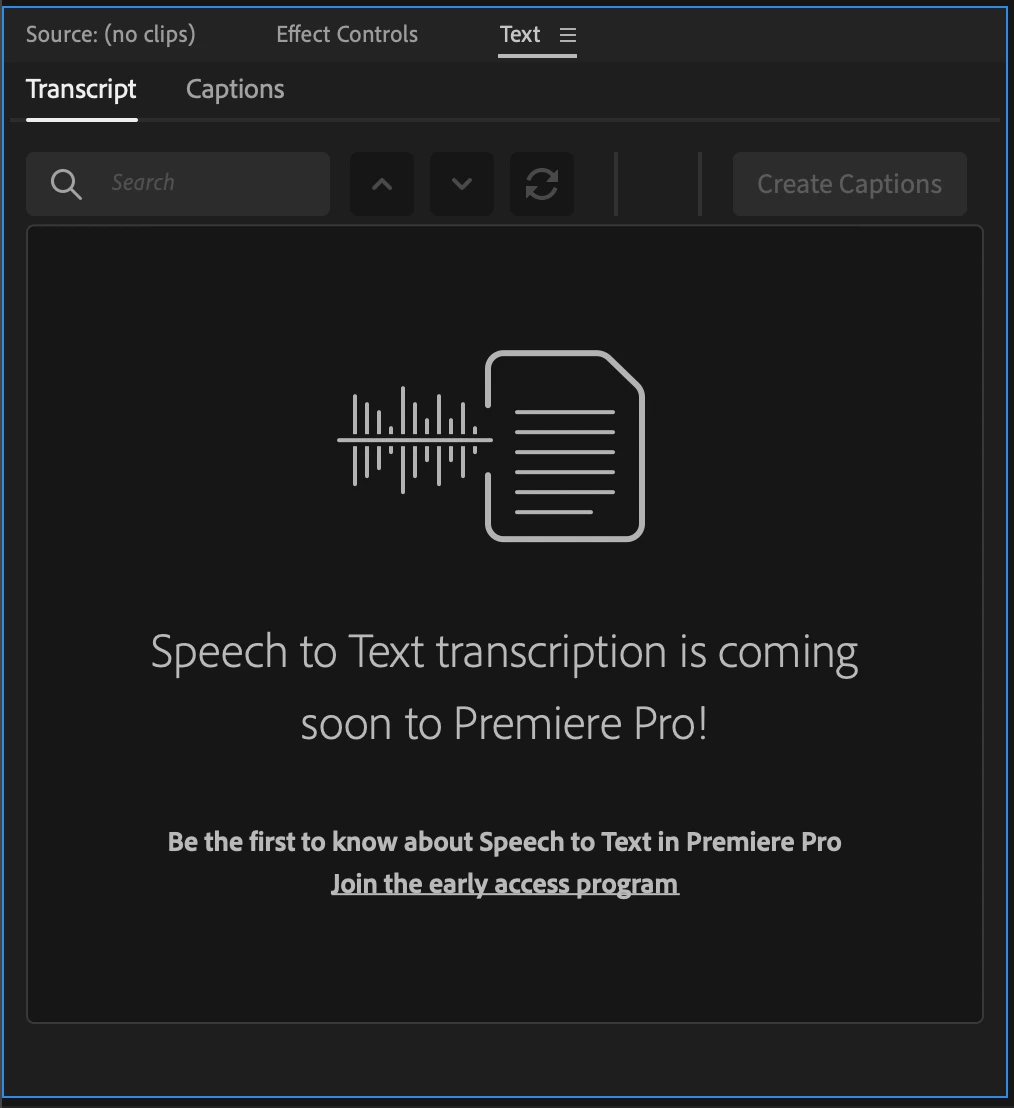
  • Applications for speech to text early access has closed and those who have been accepted should have recieved an email.  The email you used to apply needs to match the email (Adobe ID) you use to log into creative cloud. If you did not recieve an email stating that you have been accepted, or if you are logged into creative cloud using a different email you will contininue to see the message stating that speech to text is coming soon.
  • Broadcast closed captions are now supported CEA 608/708, OP47, Teletext, EBU Subtitles.
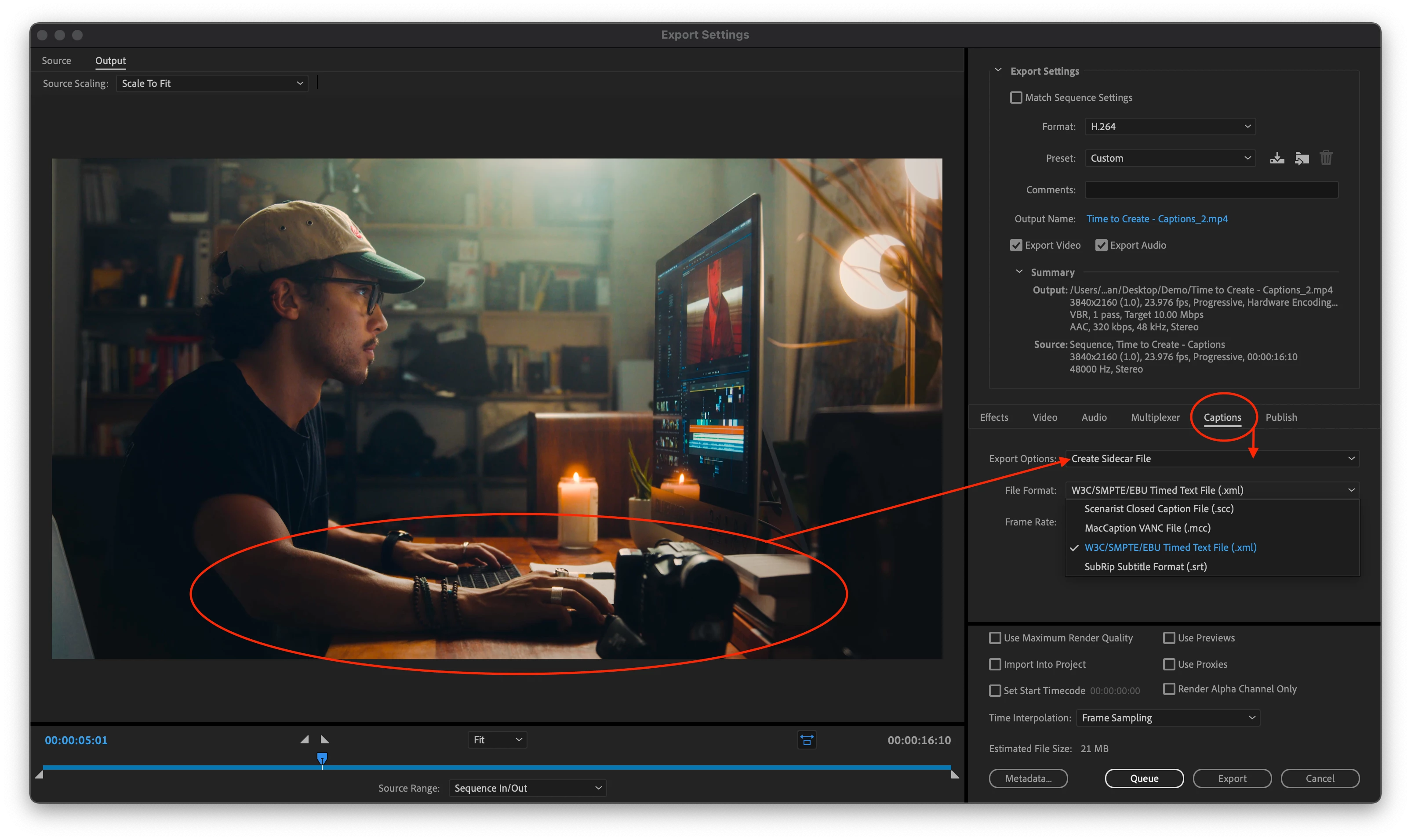
  • Exporting is working (burned-in, sidecar, embedded) and queue to Media Encoder is working too now.


Thanks to everyone for testing and for all your awesome feedback! - Francis


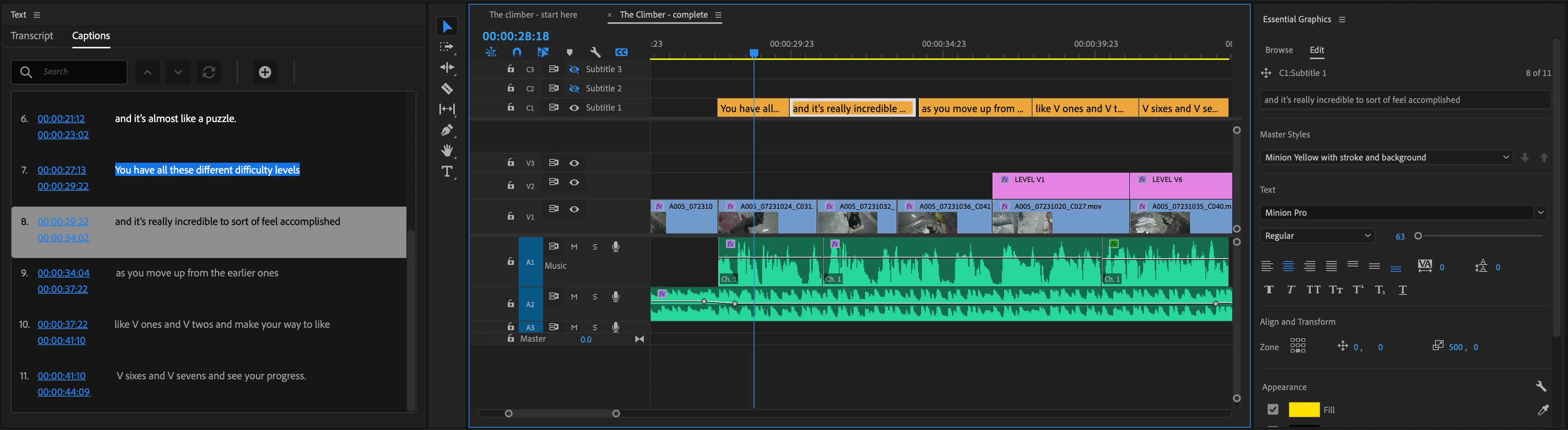
The captioning workflow in Premiere Pro is getting a complete makeover and you can be the first to try it out!  We have a new text panel for editing and viewing your captions as text.  Captions now have their own track on the timeline so they can be edited just like video.  Styling uses the power of the Essential Graphics panel so you can make fantastic looking captions. 


Best of all – we will be adding speech to text and auto captions powered by Adobe Sensei – coming later.
 

Some important things to know before you start testing this feature

  1. Just like any beta software, we do not recommend using this for mission critical projects since features are likely to change over time. 
  2.  The Premiere Pro beta has been updated to the next major version – 15.  This means your projects will NOT be backwards compatible with the current shipping version of Premiere Pro – 14.x.  All projects created in Premiere Pro Beta, even if you don’t use captions, will be saved as version 15. 
  3. Opening existing projects in Premiere Pro Beta will ask you to save a copy of your project in the new project version. Take extra care with Team Projects since you do not get a version update warning and you can mess up the project for your entire team!
  4. If you have existing captions in a project that gets upgraded, we will convert from the old style captions to the new style.  We will do our best to match the styling, but do not guarantee a pixel-perfect transition. 


So, if you’re good with all that, read on . . .


Enabling the Feature:

  1. Update to the latest Beta version - you're done.  It's on by default now


Quickstart Guide: 

Download this sample project to follow along PR New Captions Workflow quickstart.zip


  1. Open the sequence The climber - start here and familiarize yourself with the spoken dialog.
  2. Open the Text panel from the window menu and make sure it’s showing the Captions tab.
  3. Locate the SRT file in the project panel The Climber - subtitles.srt
  4. Drag the SRT file into the sequence and drop it anywhere. 
  5. A new caption track is created, and all the caption items are placed at the correct time.
  6. Place the playhead over one of the caption items to select it.  This should activate the Essential Graphics panel into editing mode.
  7. Change the Style in the Essential Graphics panel by choosing a different preset from the Style dropdown.
  8. Notice the font, size, color, and background have been updated.
  9. Play the sequence and watch the captions follow along in the Text panel.


Play around with visual styles in the Essential Graphics panel and try editing the text in the Text panel.  Read on for more detailed info on the various pieces of the workflow.


The Text Panel
Open the Text panel from the Window menu.  This is where you interact with text and it has two tabs – Transcript and Captions
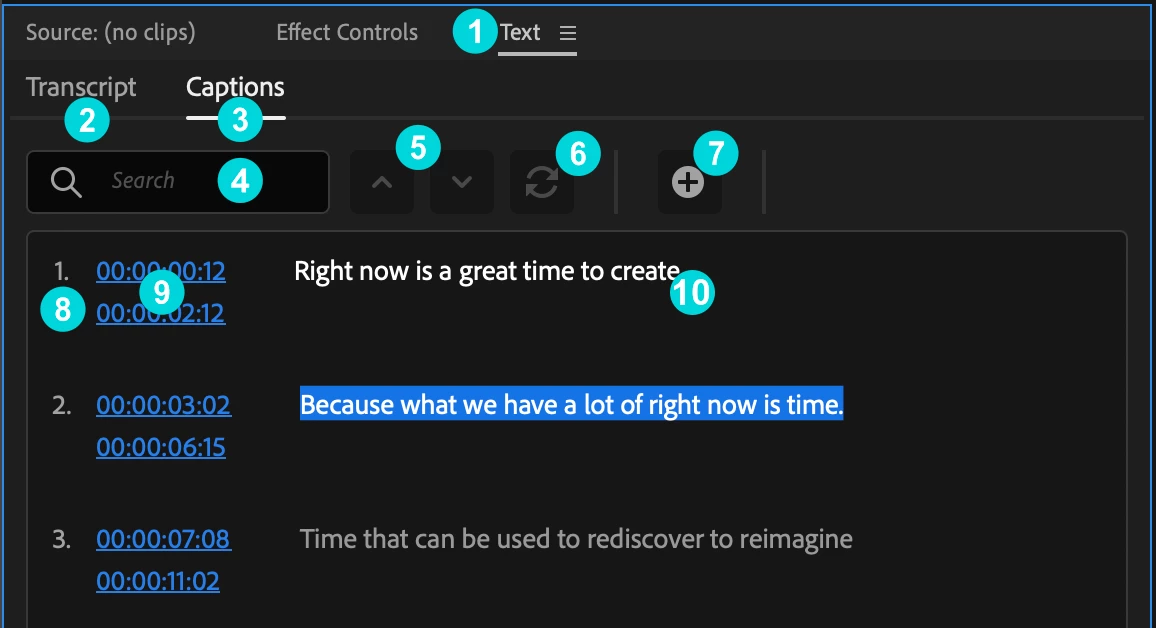
  1. Text panel – open from the Window Menu
  2. Transcript tab – This is where you can create automatic speech to text transcriptions, navigate the transcript, and create automatic captions.  This is only available to those who been accepted into the eary access program for speech to text.  All others will continue to see the "coming soon" graphics.
  3. Captions tab – Navigate and edit caption text.
  4. Search – find characters, words and phrases in your captions.
  5. Next / Previous search result – use to navigate search results.
  6. Replace / Replace All – used to replace search results with new text.
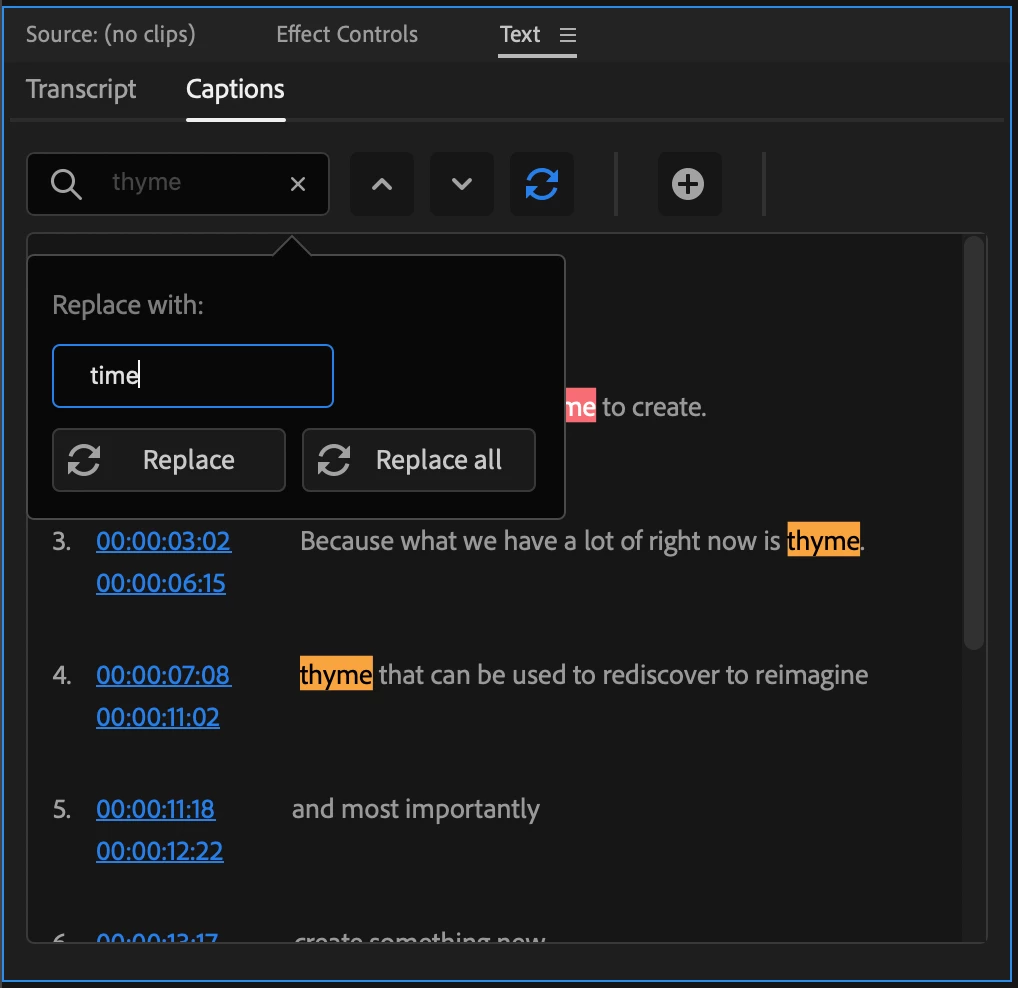
  7. Add Caption – this will place a blank caption at the playhead in the current sequence
  8. Caption number – a sequence number to count your captions
  9. Timecode – TC start and stop of the current caption item.  This is not editable.  To change the timing of the caption, edit it in the sequence.
  10. Caption text – the text of the caption itself.  Double click to edit.


The Caption track - working with captions in the Sequence

We have completely reimagined the way captions work in Premiere Pro. If you have used captions previously in Premiere Pro, this is totally different – much better we think. Please tell us what YOU think by leaving a public comment below.
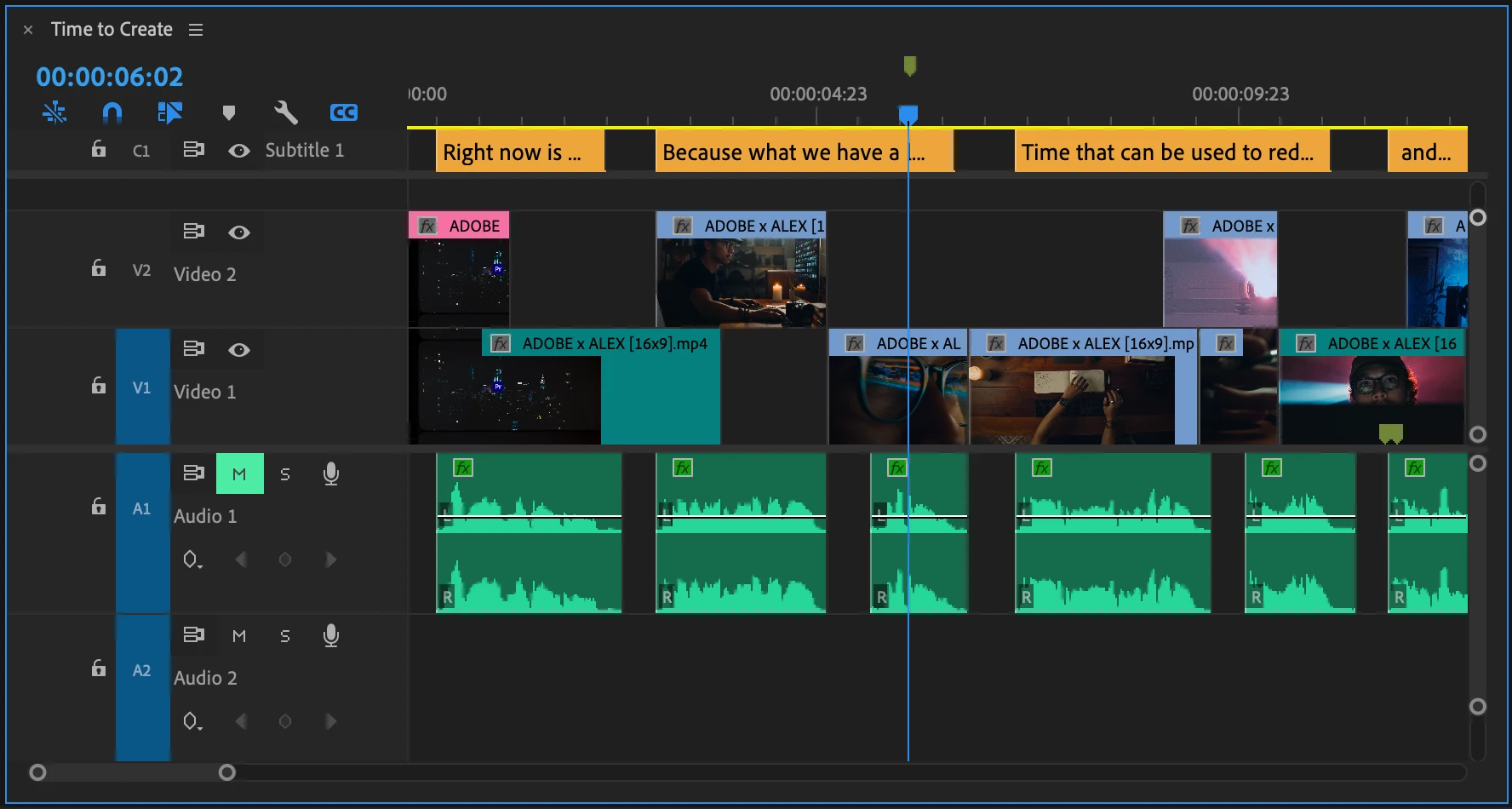
Create and delete caption tracks

There are a few ways to create a new caption track.  You can drag an SRT file onto the Sequence or use the “Create new captions track” button in the Captions tab of the Text panel. To delete a caption track, right-click on the caption track header and choose “delete track”


Drag an SRT file on the sequence

Dragging an SRT caption file onto the Sequence will automatically create a new caption track at the top of the Timeline.


Keyboard Shortcuts

To see all the keyboard shortcuts available for captions, open the keyboard shortcuts menu from the Premiere Pro menu and search for "caption".  Here are some notable ones.  There are many other which do not have default assignments.

  1. Add a captions track - option/alt + command/ctrl + A
  2. Add a new caption segment at the playhead- option/alt + command/ctrl + C
  3. Go to next caption segment in the timeline - option/alt + command/ctrl + UP
  4. Go to next caption segment in the timeline - option/alt + command/ctrl + down


Captions tracks
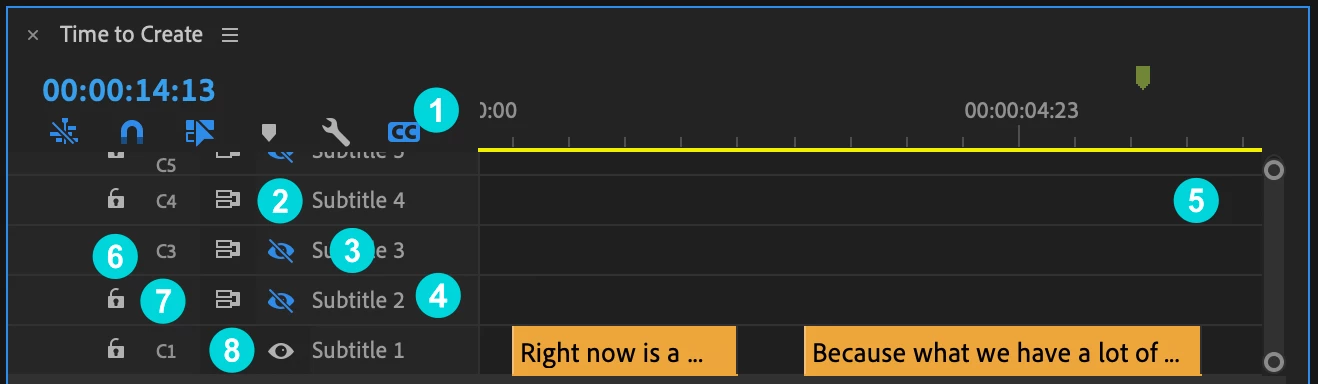
  1. Caption track setting – the CC button

This can hide the caption track area or solo just the active caption track if you have more than one.  It is useful if you want to declutter your timeline. It does not turn off the active caption track from rendering in the program monitor, however. 

  • Hide all caption tracks
  • Show all caption tracks
  • Show active caption track only 


  1. Active Track/Visibility – the eyeball icon

This will enable/disable Program Monitor viewing of the Caption track selected. Only one Caption track can be active at a time, so when you make one track active, the other tracks will automatically be disabled. You can also choose to disable all Caption tracks. Inactive Caption tracks will dim making it easier to note your active Caption track. 


  1. Label

By default, this will show the caption track format (eg Subtitles, CEA-708, CEA-608, etc.) You can right-click the Caption track header and choose Rename to choose a custom name (same functionality as A/V tracks)


  1. Right-click the caption track header

Additional caption tracks can be added by right-clicking in the caption track header – choose “Add Track”. You can also delete or rename a caption track in the same way.

  1. Caption tracks area

Caption tracks will always be at the top of the sequence. Additional caption tracks are added on top. This will continue until you have reached 25% of the Timeline vertical space, then the tracks will stop “growing” and scroll bars will appear to the right. Caption tracks will never take up more than 25% of the upper space of the Timeline. This is dynamic, so if you increase or decrease the Timeline panel height, the 25% will adjust accordingly.


  1. Track Lock

Lock the track to prevent editing.  This functions the same as A/V tracks.


  1. Track Targeting

The Caption track header has a ‘Toggle the track targeting for this track’ button with same functionality as A/V tracks.


  1. Sync Lock

The Caption track header has a ‘Toggle Sync Lock’ button with same functionality as A/V tracks.


Editing timing of caption items on the track

You can use all the familiar editing tools that you are used just like editing video and audio.
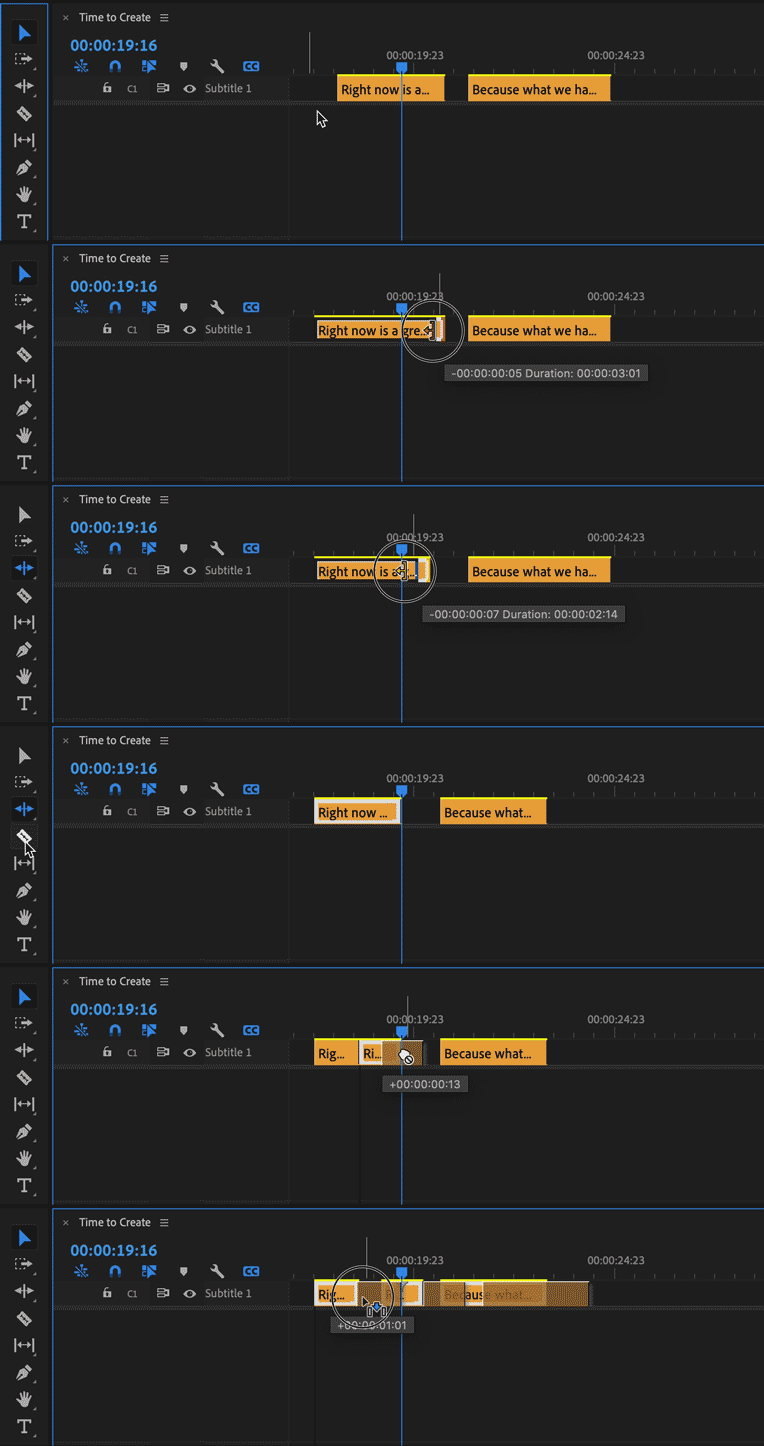
  • Select (one or many) You can select multiple Caption track items by Shift-selecting each item or marquee/lasso select items or use Select All (which will also include other items in tracks like video, audio, etc.)
  • Trim
  • Ripple Trim
  • Razor/Add Edit: You can add an edit/razor a Caption item as you would with any Timeline item and Track Targeting is supported. The difference is that when you razor a Caption item, both items will have the same text which you can then modify in the Text panel
  • Copy/Paste: paste of Caption item(s) follows Track targeting which allows you to copy and paste captions items between tracks.


Styling with the Essential Graphics panel

Open the Essential Graphics panel from the Window menu.  This is where you choose things like font, size, color and position. Make sure you have at least one caption selected. This will activate the Edit tab of the Essential Graphics panel. If you have created and stylized text in Premiere Pro before, the following should be very familiar to you. However, for captions we are adding small enhancements such as zones, and vertical text alignment.
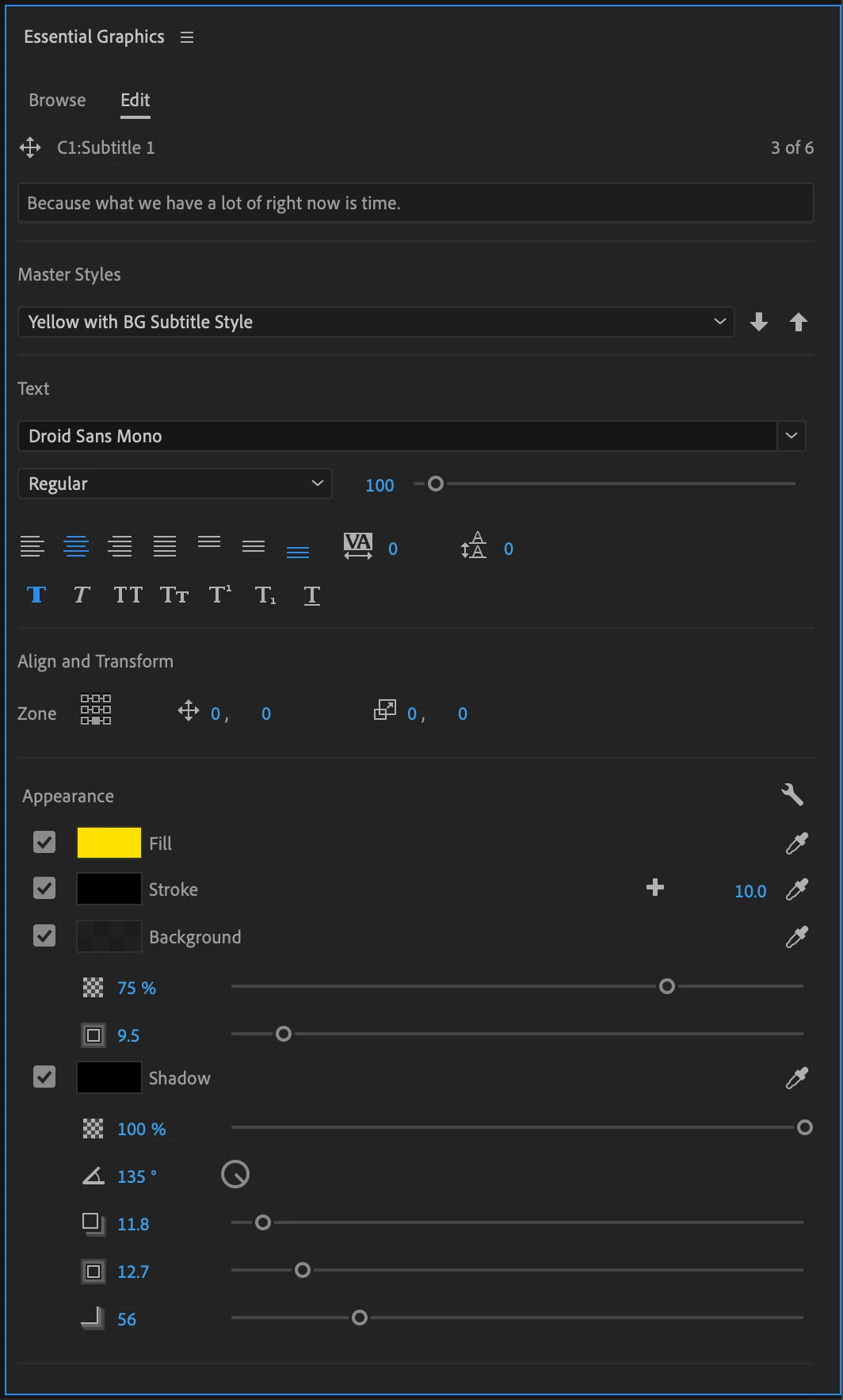
Styles

  • Create Master Text Styles for consistent styling across the entire captions track. A style saves all the settings made in the Essential Graphics panels, including font, alignment, color and more. Setting a Master Text Style to one caption applies it to all captions on the track. You can have different styles for different tracks.
  • Sync from Master Style and Push to Master Style: When changing the look of a caption you may want to push this change to the entire track for consistency, that’s were Push to Master Style comes into play. Or you might want to revert an edit to a caption back to the Master Style. Then use Sync from Master Style.
  •  

Text

  • Font: Set font, font style and font size.
  • Paragraph Alignment: For horizontal alignment use Left align text, Center align text, Right align text and Justify. We have now also added Vertical alignment with Top align text, Center text vertically and Bottom align text. This defines how a caption grows when adding additional lines. As an example, there is a good chance you will want a caption to be bottom aligned, this way a single line caption and the second line of a two-line caption will always be in the same vertical position.
  • Tracking: Loose or tighten the space between characters.
  • Leading: Loose or tighten the vertical space between lines.
  • Faux Styles: Bold, Italic, All Caps, Small Caps, Superscript, Subscript, Underline.


Align and Transform

  • Position captions with zones: You can choose from different zones to position your caption in different areas on screen, e.g. bottom center.
  • Fine tune position: Through Set Horizontal and Set Vertical Position you can add an offset to your zone setting.
  • Change the text box size: If you want to shrink or expand the text box size you can do this through Set Horizontal Scale and Set Vertical Scale. This will affect text wrapping and paragraph align settings.


Appearance

  • Fill: Change the color of your captions.
  • Stroke: Add single or multiple strokes. The Graphics Properties menu under the wrench menu gives you more control over stroke styling.
  • Background: Add a background box. You can choose the color, add additional padding and change the opacity.
  • Shadow: You can add a shadow and fine tune with controls such as opacity, angle, distance and more.


Transcribing the dialog into captions

You have three options for transcribing your audio and creating captions: speech to text, use a third-party service, or do it by hand.


Speech to text

  • Text Panel > Transcript tab
  • Only available for those who have applied and been accepted to the speech to text early access program.  Other will not have access to this feature.


Use a third-party service

If you already have a workflow that uses a third party transcription service, you can bring in that file.  SRT is the best option.

  1. Import the SRT file into your Premiere Pro project just like any piece of media
  2. Drag the SRT from the project panel into your sequence and let go anywhere
  3. A new caption track is automatically created, and the captions are placed on the track


Do it by hand

For short sequences, doing it by hand may not too much trouble.

  1. Open Text panel from the Window menu
  2. Go to the Captions tab of the Text Panel
  3. Press the “Add Captions Track” button – a new captions track is added to your current sequence
  4. Place the playhead at the beginning of your first piece of dialog (hint – use the waveforms in the audio to help align)
  5. Press the “+” button near the top of the Captions tab of the Text Panel to add a blank caption
  6. Double click on <Type your caption here> to go into edit mode
  7. Type out the caption text
  8. Trim the end of the caption in the timeline to align with the end of the spoken dialog
  9. Repeat for each caption you wish to add
  10. See the other sections on Working with captions in the Sequence and Styling with the Essential Graphics panel for more details on editing and styling.


Exporting your sequence with captions

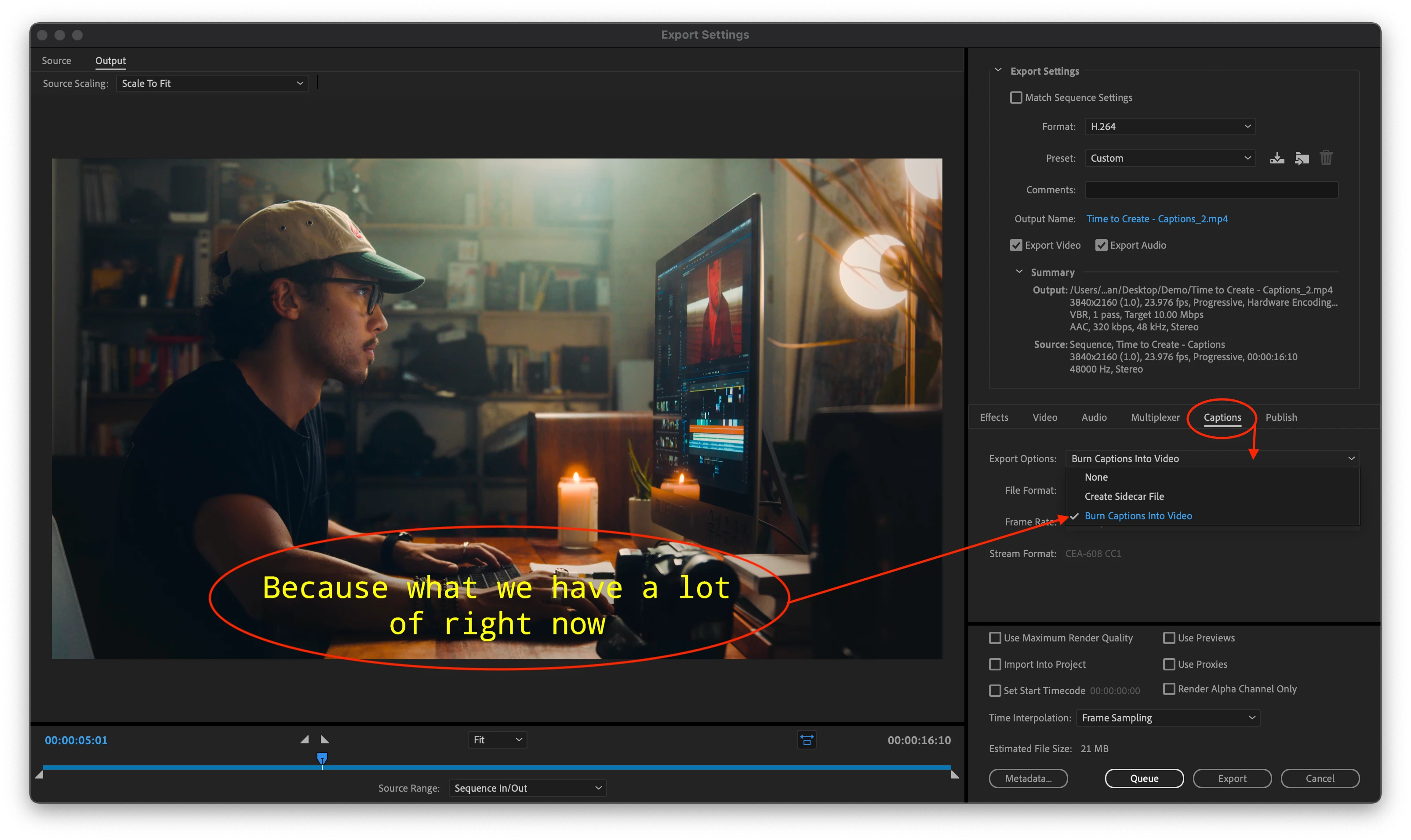
There are three options for exporting captions: burned in, sidecar file, or embedded into the video file.  

  1. Make sure the caption track you want exported is visible by toggling the eyeball on (Toggle Active Captions Track).
  2. Choose File > Export
  3. Open the Captions tab in the export settings and choose burn in, sidecar or embedded
  4. Burned in and sidecar are supported with any encoding preset
  5. Embedded is limited to pro codecs like MXF OP1a, DNX, and Prores and requires that the caption track format be set to one of the broadcast standards like CEA-608
  6. Click Export
  7. Sidecar files will be saved next to the video file with the same name
  8. Queueing to Media encoder is supported too
 

Happy captioning!  Once again, we welcome your feedback.  Please leave comments below.


147 replies

Participant
January 29, 2021

This feature will save me hours round tripping audio files to transcription service and hours placing captions. I'm really impressed with this feature at some point I'm assuming this will be premium feature that cost more. Well done Adobe.

Chris_Olson
Participating Frequently
January 28, 2021

I've been messing around with the captions feature and noticed a few bugs related to keyboard shortcuts. I've made a video to demo more clearly: https://www.youtube.com/watch?v=KrbpYcZiQ44&feature=youtu.be


Bug:

If you use the keyboard shortcuts "go to previous edit point" and "go to next edit point" to hop between captions and then use the new keyboard shortcut for "edit selected caption text" you can start typing, but the timeline will still react as if you never entered the text box. Even though the box is highlighted and often types at least one piece of text. For example, once I hit space bar in the text panel, my playhead starts playing. if I hit O it places an out point instead of typing O in the text box.


I've noticed that this issue goes away if instead of using go to previous/next edit point shortcuts, you use the "go to previous/next caption segment" and then use the shortcut for "edit selected caption text" it works exactly as you would expect. There's also one additional bug in the video that is a bit hard to explain through text.


Happy to provide project files or any other additional information that might work with getting this solved. I would love to never have to take my hands off the keyboard to edit all my captions and right now it is too wonky to efficiently do that.

vilacron
Participating Frequently
January 28, 2021

I just did a test of the beta speech-to-text workflow. The transcription is pretty accurate, so it's a very helpful feature so far. After the transcription is completed, I split segments of the dialog in the 'Transcript' tab before creating the captions track, thinking it would create the captions based on the splitting I already did, however it did not. It would be intuitive if the 'Create Captions' would reflect the splitting I've done the step before.

SpikeSpiegel
Participating Frequently
January 28, 2021

Tested out the transcription feature in Premiere beta, works a treat! Quite amazing how accurate it is! But big question, how do I spit out the transcribed page of text into a text file? I can't even select anything to copy paste it. 


I'm not interested in captions, i'm interested in the overall text that got transvcribed. Why does premiere not have any ability to COPY paste the master text that was transcribed from the timeline??

Ann Bens
Community Expert
Community Expert
January 28, 2021

Moved to beta forum.

Nate McFadden
Adobe Employee
Adobe Employee
January 28, 2021

First off, thanks everyone for providing such great feedback. It is helping us decide where to focus efforts to make sure all of you are getting what you need!

So, we have a bunch of new stuff in development right now:
*Closed Caption support - 608/708/Teletext/OP-47 is all online now for testing of sidecars and embedded caption workflows

*On Screen Controls in the Program Monitor

*Styling in the EGP - this has been in for awhile, but now the shadows/boxes etc... are fully implemented
*Switching Caption Formats by dragging captions from one track to another

*Multiple Closed Caption blocks

As always give them a whirl and let us know what you think!

Franck Payen
Inspiring
January 29, 2021

> *On Screen Controls in the Program Monitor
Can you elaborate on what we're looking for here ? I didn't notice an update on the original post.


I tried previous version, I love how it was done, and how fast it was.


Small feature that I would appreciate… during testing only maybe, but I could find interesting after is to display 2 captions properties at the same moment, maybe 2 languages, or moving one character voice in a different color. Right now I would mostly use this to compare transcription/speech to text between my original edit of a google speech to text, with Adobe's version. (I think that the dragging to change formats doesn't work if you can't display 2 tracks…)

I don't know how to suggest improvements in the speech to text engine, in french.
I had rather good results, some grammar issues, and sometimes, pauses that would be cut before some other words.


Here, pink is google+me, blue is Adobe S2T.
Text is "Ouvrir les compositions de calque et, via les compositions de calque…"

The issue is the "et" (and) in the middle. It is specifically after a breath that I manually decreased in volume, but the pause set by your engine put it after.

Gramatically fits better, but reading + hearing makes it funny…


Nate McFadden
Adobe Employee
Adobe Employee
January 29, 2021

The on screen control refers to the text box for captions that you can drag around the Program Monitor. 

Participating Frequently
January 27, 2021

I've just tried the transcript function in the beta and it works really well...quicker than I was expecting and pretty accurate, just the odd mistake to ammend. I've had an issue creating a captions track from the transcript panel. On choosing create captions and picking default subtitles from the drop down I get a spinning blue circle which never stops (certainly not within 10 minutes). Is this functionality not working yet or am I doing something wrong?

nbechere
Adobe Employee
Adobe Employee
January 27, 2021

Did you try that with todays Beta Build? (Should be 15.0.9) there was an issue with auto captioning but that should be fixed today. Please let me know if it does not work for you after updating to the latest beta build. 

Participating Frequently
January 28, 2021

Hi..thanks for the reply. I've just updated the beta with 15.0.0 which is the latest version on the cloud for me. I've just had a quick go and the create captions is now working for me. I will have a play tomorrow and let you know how I get on. Thanks again.

Neil

Franck Payen
Inspiring
January 23, 2021

Eventually worked with the New Captions Workflow, more than just a quick test, this time, 2 minutes video on 14.9 build 38[R].

Aside from a nesting reopening sequence issue (see bug there) it sort of works as advertised.


What I'm missing now is a good workflow, with shortcuts and a UX that feel more Premiere Pro :

- in the timeline panel, up and down arrows dont move to previous /next caption, just on rushes, that doesn't help, when specifically doing captions.

- i'd love that, when my text cursor is at a certain place, my playhead is somewhere in the middle of the caption item, and I press the divide button (or hopefully a keyboard shortcut), all the text BEFORE the text cursor is kept in the first caption item, and ONLY the text AFTER the text cursor is sent to create the second caption item.

(I had weird bugs with self-dividing captions at random places while playing the video).

- Navigation in the text panel requires the TAB key to go from one caption to the next and SHIFT TAB to go to the previous tab so I can quickly edit the text.

Community Manager
January 23, 2021

Thanks again for the feedback.


Don't have immediate answers for everything reported here, but I do have some information for navigating caption segments in the Timeline.

- Make sure to have the Caption track targeting enabled to have Up/Down arrows go to next/previous Caption segments

- Coming soon, we will have a new shortcut that will go to and select next/previous Caption segments

Known Participant
January 23, 2021

Pr Version 14.9.0 Build 43[R]  Windows 10


Hi Trent,


Just want to add my voice that I agree 100% with Franck Payen that there should be shortcuts for jumping from one caption to another.  Tab and Shift Tab would be ideal for this!  Shift-Enter would also be a great complimentary shortcut for jumping to the next caption.  When jumping from one caption to another, it should do so in text entry mode, meaning the user can just go ahead and type their text rather than Pr just selecting the caption, forcing the user to double click it in order to enter text.


I tested out the updated text select and replace tools.  The design is so much better than the first version and appears to be flawless.  Congrats!


BUGS:

Bug 1: When Shift-selecting a range of captions in the Text window, doing so does not work if the first selected caption is the first one at the top.  For example, with 5 captions, if the user selects Caption 1 and then Shift-clicks on any of the other 4 captions to select the range, no other captions get selected.  Shift-selecting any other range of captions works: Caption 2-5, 3-5, or even in reverse, from Caption 5 to Caption 1. (see video)


Bug 2: Pasting texts into a caption causes the text to paste over and over in a non-ending loop.  Exiting the caption and entering another one causes the same pasted text to paste endlessly.  Clicking outside of Pr (on the desktop or any other program) and then back into a caption stops the pasted text from automatically pasting in a loop.  (see video)

https://www.youtube.com/watch?v=1gIcG8e1gb8&feature=youtu.be


Bug 3: Bringing up a caption's context menu, and then clicking on the Program Monitor or Timeline while the context menu is still visible turns the Text window into this error message:

Curriously, this error message does not show up if the user clicks on other windows such as Lumetri Color, Project window, Effect Controls, Effects, etc.


SUGGESTIONS:

1. Shift-Select Caption in Timeline: It's GREAT that users can shift-select a range of captions in the Text window!  It would be even better if Pr respected its own selection norms program-wide however, allowing for ranges of clips or captions to be shift-selected in the Timeline as well.  The many selection discrepancies between how things get selected in the Timeline, the Text window and the Project window isn't helpful and only causes confusion.  Ctrl and Shift selecting should work the same way in all Pr windows (and all Adobe Programs for that matter), by respecting the global software conventions: Ctrl-select=select one by one, Shift-select=select range between first and last selected item.


2. Text=>Captions Window: Why is the new captioning window called the 'Text' window?  Unless there is a specific reason for this, it would be far more logical and intuitive for the window in which users create captions to be called the 'Captions' window!  Think about the user who wants to create captions for the first time and goes to the 'Window' option in Pr's top menu.  I bet they'll soon be wondering "Where's the window for Captions?!"  If the window was not named 'Captions' to avoid the repetition of a Captions tab inside a Captions window, I think it's a valid point, but the solution was poorly implemented.  In this case it would make a lot more sense to have a Text tab inside a Captions window!  If you're not convinced, just do a quick poll to see what people call the window.  My guess is the vast majority refer to it as the Captions Window rather than Text window or Captions tab.


3. Improve button/tooltip names: The tooltip names for the buttons in the Text window are awful, and I presume that unless they're fixed, these tooltips will reflect the names of the buttons themselves.  Why does this matter?  Because it will make a mess of Help files and confuse users when they want to reference them.  Here is how I suggest these buttons and matching tooltips be named:

  • Add new captions segment => New Caption (far more concise!)
  • Split Segment => Split Caption (more accurate)
  • Merge Transcript => Merge Captions (much more accurate!)

I already pointed this out in a previous post, but thought it's worth repeating since although it's an easy fix, it hasn't been done yet.  Case in point, CTI (Current Time Indicator) was an overly verbose/complex/unintuitive way of calling the playhead what it is, and therefore almost everyone ended up calling it: playhead!  It would be to everyone's benefit if new tools were always named using the most concise and relevant terms possible to avoid confusion.


4. Don't move Playhead: When entering text into a caption, the playhead jumps to the beginning of the caption. The playhead should always stay put!  Why?  So that Franck's (and my prior) suggestion of splitting captions can work properly: text splits at the location of the cursor in the text entry box, and the caption clip in the Timeline simultaneously splits at the location of the playhead.  This would be a far more helpful and logical workflow that the current "repeat all text" method!


5. Logical Merge Captions function: The current Merge Captions (i.e. Merge Transcript) button is terribly confusing and does not work as expected.  If a user selects 2 or more captions, it should combine the text of all the selected captions into a single caption.  Unfortunately it doesn't work like this.  If the user selects Caption 4, then selects Caption 5 and then hits the Merge button, Caption 4 gets merged with Caption 3!  Selecting Caption 5 first and then Caption 4 ends up merging the two together as expected.  This is completely unexpected and nonsensical.  If, and ONLY IF the user selects a single caption, then it might make sense to merge the selected caption with the previous one, but I would argue against this.  I suggest graying out the Merge Captions button unless 2 or more consecutive captions are selected, at which point clicking on the button merges all of the selected captions.


6. Select All (Ctrl-A) in Captions tab: It would be nice to be able to select all captions at once when inside the Captions tab.  This shortcut works in the Program window and Timeline, so why not in the Captions tab?


7. Gray out 'Delete Text Block': The context menu for captions is handy, but one of the options doesn't make much sense: Delete Text Block.  If a caption has a single block of text, deleting it with this menu option isn't helpful since in addition to deleting the text, it prevents the user from inputting new text unless the 'Add new captions segment' button is pressed first.  This is confusing!  Unless a caption contains 2 or more blocks of text, the 'Delete Text Block' option should be grayed out, OR... when a single block of text is present, using this button should delete the text in the caption WITHOUT deleting the block of text, so that the user can easily add new text.  After all, what's the point of a user having a caption on their timeline that doesn't contain any text, nor can have any text inputted into it without resorting to the unintuitive step of first clicking on the 'Add new captions segment' button?


That's it for now.  I hope this feedback helps!


MrSenpai
Inspiring
January 19, 2021

One major downside to captions. It doesn't allow us to add effects and transitions. For example, lets say I want to add a slide transition, the captions don't allow it

Richard TOULON
Legend
January 19, 2021

Hi John,

I don't think it's a major downside. Caption are not made to be distractive and I don't think this is a real deal for captions and particularly for Closed captions. Don't forget you can use normal text ( so you can use transitions and so on ) to add subtitles if it always stays on the video.


Participating Frequently
January 12, 2021

I do find the captions workflow easy and intuitive.

But I am confused about how to distribute Master styles - I am sure you have some thoughts on this:

If a user in our organization creates a new project, our company text styles with the exact fonts, text positioning, etc. should be easy to choose. I do not see any options to save text styles across projects or how to import them from Finder.


So user creates project, user creates captions track, - and then user does what to start typing text with our company text style?


Participating Frequently
January 12, 2021

...I guess it would make sense to save the Master Text styles as settings files like keyboard .kys files and custom made sequence presets.

Just a suggestion 🙂


andymees@aje
Legend
January 9, 2021

Hey Team

Just downloaded and tested this in the 14.9.0 Beta (29R) ... great job.

I have just one small(?) request which would greatly enhance the chances of pushing it's adoption here (for burnt-in subtitling) : could you please add an option for non-adaptive backgrounds for the subtitle instances?

All our onscreen text must strictly adhere to our house style, and that style requires a static background box/strap behind our subtitle text... the text changes but the strap does not. This new captioning workflow allows me to quickly and easily import / create subs for our programmes using srt files, and the flexible positioning tools mean that I can ensure those subs fit with our house text and non-stanadrd positioniong requirements exactly ... but having done that, if I have to thereafter manually edit in a separate essential graphics background box/strap element for each subtitle instance, then sadly the otherwise clear advantage of the new workflow is, for me, lost.

For reference, at present I use a custom coded extension (panel) which reads plain text/srt files, and from that creates, imports and places legacy titler instances accordingly... its super fast and works perfectly... but it would be great to be able to finally drop our dependency on the legacy titler.

Cheers

Andy