




Now in Beta: New Masking Tools
We’re excited to push an early development preview of new masking workflows to Premiere Pro (beta). Whether you are color grading, applying effects, or cutting objects out from the background, these new masking tools are built to help editors work faster, smarter, and more creatively without needing to go to After Effects for simple tasks.
Note: This beta is an early look at upcoming Premiere Pro workflows and is not intended to reflect general availability performance or polish. Please contact us with bugs, feedback, and feature requests to improve these features.
- Object Mask – Automatically identify objects and people in your footage using AI and isolate them with a single click. Plus mask refinement tools and fast tracking throughout clips.
- Redesigned Shape Masks – the traditional shape mask tools (ellipse, rectangle, pen) have been rebuilt from the ground up with many performance and UI improvements.
- Faster Shape Mask Tracking – the tracking algorithm has been completely rebuilt too. It’s significantly faster than before, more accurate, and offers more precise control for correction.
- Compositing tools – blend any combination of Object and Shape Masks to create complex masks with new blend modes: add, subtract, intersect
Quick Start guide
Follow these steps to get started with New Masking.
- Make sure you have enabled New Masking (see above).
- Select a clip on the timeline.
- Find the new Mask Tool group in the toolbar. Long-press to see all the masking options. Choose the Object Mask tool.
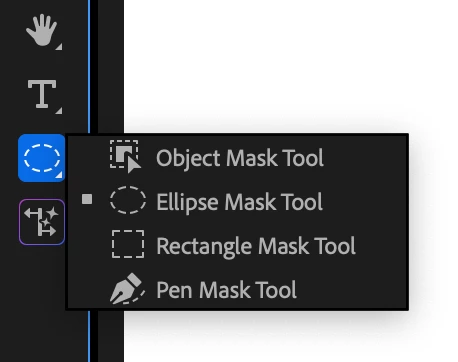
- Hover the mouse over the program monitor, watch as objects are identified, and click. This will draw a static mask around the object or person.
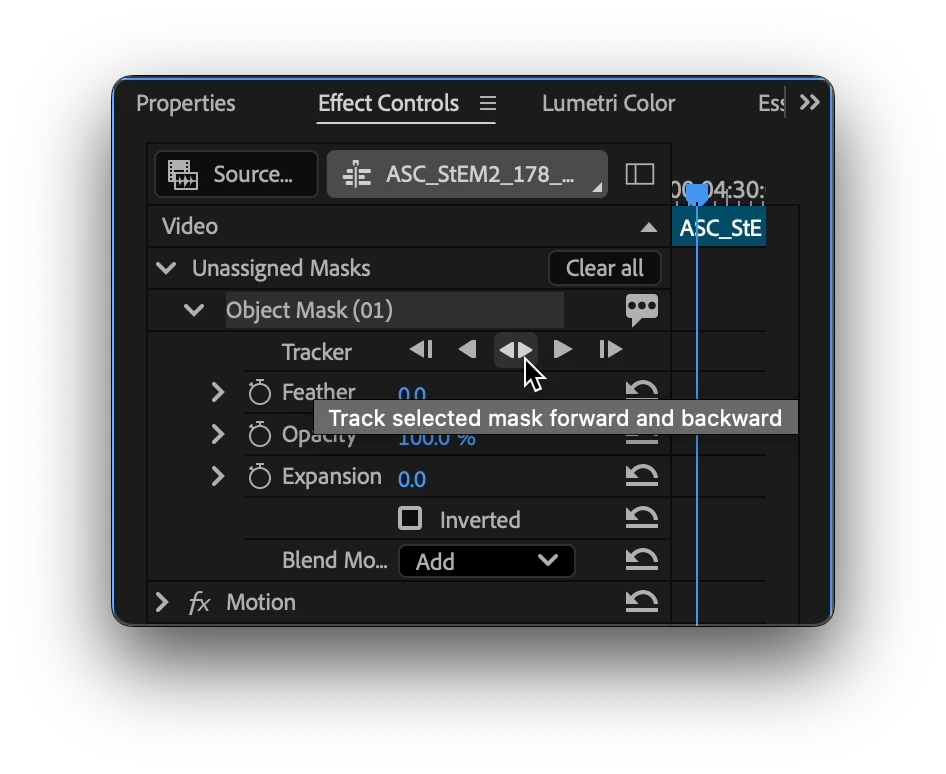
- Track the motion. Find the new “Object Mask” in the “Unassigned Masks” section of the Effect Controls Panel. Click on the forward and back button.
Tip: the Effects panel is a different panel from the Effect Controls Panel. Find it in the Window menu.
- Add an effect. Find the Gaussian blur effect in the Effect Panel. Drop it on the clip in the timeline. The mask will automatically be applied to the effect.
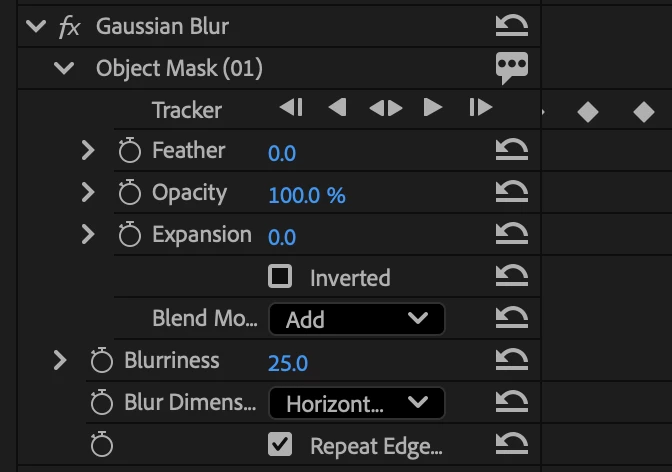
- Congratulations, you just used Object Mask to blur an object!
- Now, try to use the other tools in the group in a similar manner.
Visit here for the complete documentation. https://helpx.adobe.com/premiere-pro/using/object-masking.html
We want to know what you think. Join the conversation below.
 AdChoices