



Copy link to clipboard
Copied
Hi guys,
seriously stressing out over this. I have messed up by editing a shorter video out of a longer one. I have everything complete and ready to go, the footage is just over 10min long. However, when I export it, the video I get is 46min log due to a lot of blank space on the time line at the end of the footage I want to keep.
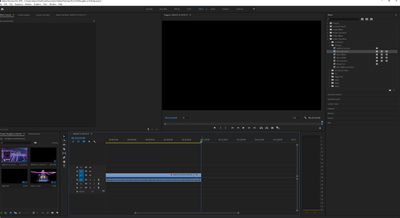
I know I messed up the editing originaly and I am still learning, but I cannot delete the blank area at the end of the time line and I don't understand why. I have marked in and out, tried ripple deleting and there is no good info online for this particular problem. There are no extra clips or anything, I just want to make the video the right length for the footage! attached a pic of the timeline too!
Please help!
[Moderator note: please do NOT attach images ... as that forces users to download strange files to their computer before helping you. This discourages replies between wasting their time and the danger of unknown files. Please drag/drop images directly into the text area of your reply box so they appear in your post. I've fixed this post for you.]



 1 Correct answer

I just set the export option at the bottom of the monitor section of the Export dialog to entire sequence, and it exports the sequence ... and never exports any of the extra working area.
How about drag/dropping a screen-grab of your export dialog box for us to see with the settings you're using?
Neil

 3
Replies
3
3
Replies
3

Copy link to clipboard
Copied
I just set the export option at the bottom of the monitor section of the Export dialog to entire sequence, and it exports the sequence ... and never exports any of the extra working area.
How about drag/dropping a screen-grab of your export dialog box for us to see with the settings you're using?
Neil

Copy link to clipboard
Copied
With your playhead sitting at the end of your edited clips, as shown in your picture, press the down arrow on your keyboard (Go to Next Edit). That should take you to where the stray clip is on the timeline and you can delete it. Repeat as necessary.
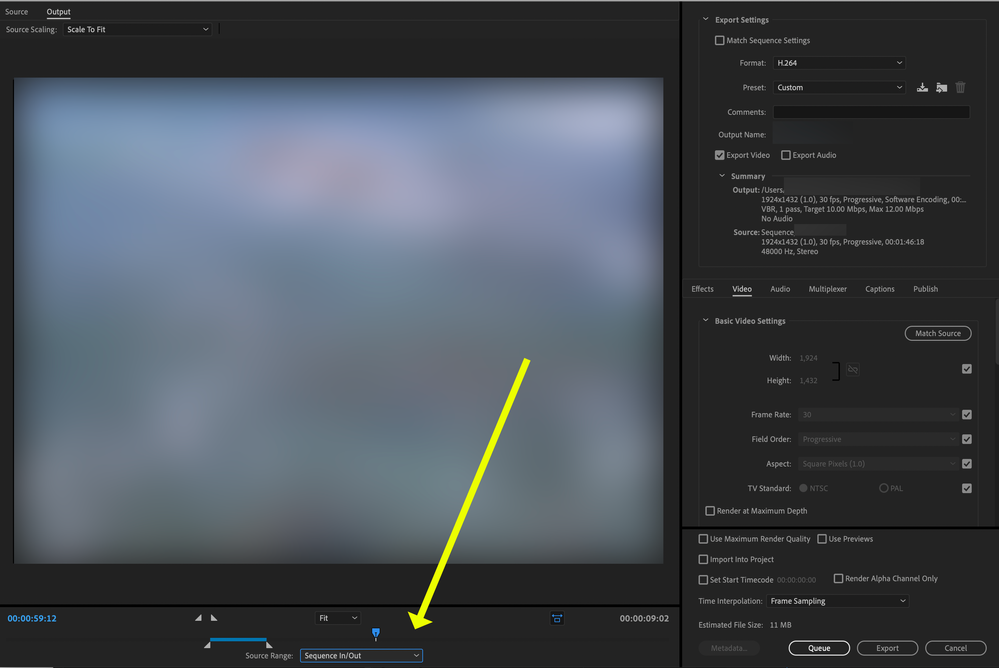
If that does not find an extraneous clip, then as a workaround move the playhead to the beginning of the timeline, and mark and in point, the move the playhead to the end of the edited clips and mark an out point.
Go to File > Export > Media and when the Export Settings pane opens, set the source range to Sequence In/Out:
MtD
Copy link to clipboard
Copied
Thank you for your tips, I must not have been able to see the wood for the trees so to speak! its sorted now with setting the export to entire sequence, thank you so much, can't believe it was so easy and I missed it!


 AdChoices