
agness19145023
Participant
January 8, 2019
Answered

Not able to batch re-link video files after converting team project to regular project

  • January 8, 2019
  • 2 replies
  • 1771 views

Hello!

I have recently converted some team projects to regular premiere projects and am finding that once that is done the file path is missing and batch re-linking is not possible. The only way I am able to re-link seems to be clip-by-clip (I named the bins in the project by camera so I am still able to easily find my clips despite the file path being missing - however since batch re-link is disabled it is proving to be way too time consuming to re-link clip by clip).

Has anyone found a resolution to this issue?! Thanks in advance!!!
[Here is the list of all Adobe forums... https://forums.adobe.com/welcome]

[Moved from generic Cloud/Setup forum to the specific Program forum... Mod]

Correct answer Alan30000807nz9o

Just coming back on this thread in case it might help anyone.  I had the same problem this week on Premiere 24.  I had copied the files from one project at the office on to a HDD for remote working and in that process the file paths changed to the media.  Not an issue in most cases as we know.  But when opening the project I was asked to relink and faced the one by one file relinking issue.  I fiddled around with varios different check boxes ticked on the relink and then suddenly all relinked in one click when I selected the check boxes in the screen shot attached.  Hope it might help someone down the line 🙂

2 replies

Vinay Dwivedi
Adobe Employee
Adobe Employee
January 11, 2019

Check clip ID in link Media panel and check if it helps.

Alan30000807nz9oCorrect answer
Participant
August 20, 2024

Just coming back on this thread in case it might help anyone.  I had the same problem this week on Premiere 24.  I had copied the files from one project at the office on to a HDD for remote working and in that process the file paths changed to the media.  Not an issue in most cases as we know.  But when opening the project I was asked to relink and faced the one by one file relinking issue.  I fiddled around with varios different check boxes ticked on the relink and then suddenly all relinked in one click when I selected the check boxes in the screen shot attached.  Hope it might help someone down the line 🙂

Participant
October 9, 2024

Unbelievable. You just saved my life.

Kevin-Monahan
Community Manager
Community Manager
January 8, 2019

agness,

Sorry for the frustration.

I have recently converted some team projects to regular premiere projects and am finding that once that is done the file path is missing and batch re-linking is not possible.

The clips might be missing metadata. Which camera did they come from? Did the media come from a CF card? Did you transfer the entire contents of the CF card to the computer's media drive? Did you import via the Media Browser?

Let us know.


Thanks,
Kevin

Kevin Monahan - Sr. Community & Engagement Strategist – Pro Video and Audio
agness19145023
Participant
January 8, 2019

Hi Kevin,

It's not an issue with a particular camera - I'm using various cameras (A7sii, C100, etc) - it's happening to any and all capture files and assets once the converted project (from team project to regular premiere project) and associated assets are moved to a different drive.

So for example, I convert from a team project to a regular premiere project and everything relinks so long as I keep my footage and assets in the same place. However, If I try to move this content to a different drive either for archiving purposes or to share with another editor, the file paths are lost (even though I have not changed the file structure of the folders).

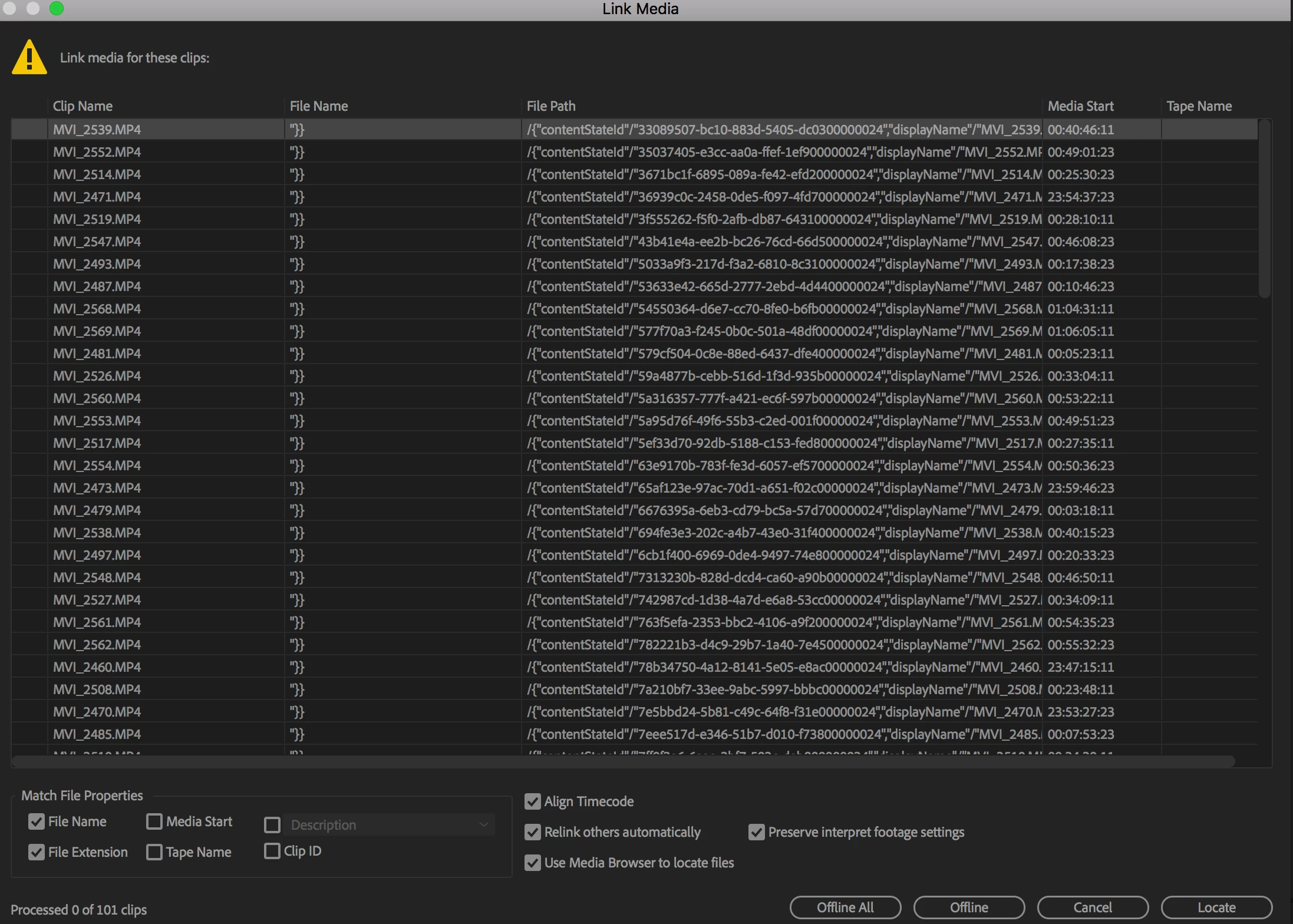
To clarify, *a* file path still shows up (but it manufactures a bunch of extra characters in the front of the file path name which is stopping it from finding the path to the clip  - for instance if "Display Only Exact Name Matches" is checked, no clips come up even though they typically would in a non-converted premiere project). Please see screenshot below.

Again, the main issue is not being able to batch relink because it's unable to auto-locate the media.

To answer your other questions: yes, everything came from CF cards, and yes the entire contents of the CF card was transferred to the drive, and yes I do import via media browser.

Thanks for any help you're able to offer!

PGZ@Mobibase
Inspiring
January 11, 2019

Hi, try this :

-backup your prproj file or duplicate it

-unzip your prproj file

-open the extracted file with Notepad++

-search for <RelativePath> and <FilePath>

-change directly there to the adequate path

-make a "search and replace" (all)

-save

-recompress to gzip format

-open in PP

Hope that works