


ttran325
Participant
July 29, 2017
Answered

Error code: -1609629695 PREMIERE AND MEDIA ENCODER WON'T RENDER

  • July 29, 2017
  • 6 replies
  • 43785 views

Hi there!

Premiere and Media Encoder have been giving me a lot of trouble lately, both returning the same error code.

Here's a screenshot of the error:
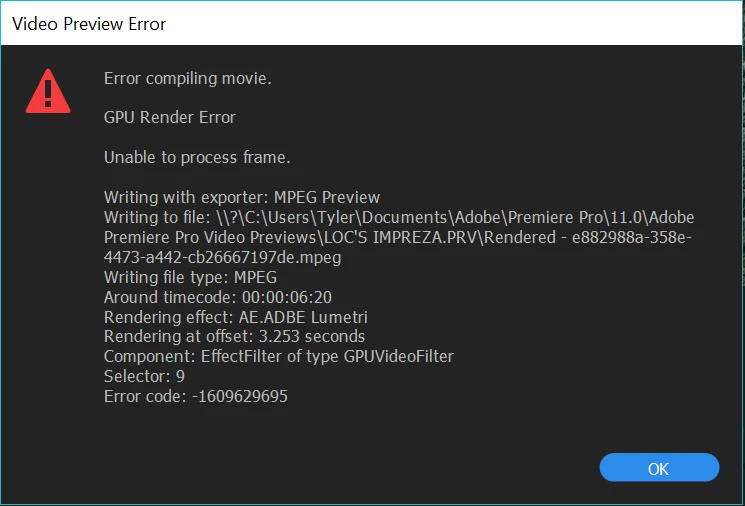
My sequence is a 4K 24p created directly from the "New Sequence from clip" feature. I heavily used Warp Stabilizer and Lumetri Color. I've disable the stabilizer, yet it still crashes when I'm trying to work on color grading.

Here are my computer specs:

i5-6600K

GTX 960 3GB VRAM

16GB DDR4 RAM

Windows 10

OS on an SSD, everything else on separate HDDs.

Can someone please help me identify the source of my problem? And let me know if you need more information about my project sequence or anything!

Thank you in advance! : )

This topic has been closed for replies.
Correct answer R Neil Haugen

Ok ... first question ... is this the same on different projects, or have you only been working the one project?

If only on this project, create a new project, via the Media Browser panel import a few assets, and test there. If on multiple projects created in this version of PrPro, well ... skip that.

Next, what's the media involved in your projects? Frame-size/rate and created by what ... camera, phone/device, screen-capture?

And last ... do you have the same problem if you go into the project settings and set Mercury Acceleration to "Software Only"?

Neil

6 replies

Kevin-Monahan
Community Manager
Community Manager
January 11, 2021

The underlying reason for this error is running out of VRAM for your GPU accelerated effects. The "Around Timecode" is usually the failure point. If you are working with big resolutions, you simply need to throw a bigger GPU at it and your issue will be solved. Using a smart rendering workflow, you can workaround your underpowered system by attacking at a different angle (rendering up front, and then using those renders for output - therefore, bypassing any GPU limitations that crop up during export). I hope that makes sense.

Thanks,
Kevin

Kevin Monahan - Sr. Community & Engagement Strategist – Pro Video and Audio
Participant
April 14, 2021

Hi, we are also having the same problem.

Here is the error code.


Encoding Time: 00:15:40
04/13/2021 08:05:53 PM : Encoding Failed
------------------------------------------------------------
Export Error
Error compiling movie.

Accelerated Renderer Error

Unable to produce frame.

Writing with exporter: H.264
Writing to file: \\?\L:\1_Clients\UP\Graduations\Graduation 2021\Autumn Gradution\Project\Export\Part 6\Part 6 - VETERINARY SCIENCE.mp4
Writing file type: H264
Around timecode: 00:01:49:02 - 00:01:50:09
Rendering at offset: 109,080 seconds
Component: H.264 of type Exporter
Selector: 9
Error code: -1609629695


Export Error
Error compiling movie.

GPU Render Error

Unable to process frame.

Writing with exporter: H.264
Writing to file: \\?\L:\1_Clients\UP\Graduations\Graduation 2021\Autumn Gradution\Project\Export\Prof Kupe Speech_E2.0.mp4
Writing file type: H264
Around timecode: 00:00:29:11 - 00:00:30:18
Rendering effect: AE.ADBE Cross Dissolve New
Rendering at offset: 29,440 seconds
Component: TransitionFilter of type GPUVideoFilter
Selector: 9
Error code: -1609629695


We are experiencing it on multiple different computers. We are unable to set to software only for rendering as it causes glitches in the export (strangely it causes those on an mp4 file in the sequence). This problem persists even if we move to a hard drive or work from the NAS device or directly from an SSD.

Here are the specs for the PCs:


PC-1 & 2:

i9-9900k

RTX 2080TI

32 GB DDR4 RAM

Windows 10 Pro 64 bit


PC - 3:

i7-4790

Quadro P5000

16GB RAM DDR4

Windows 10 Pro 64 bit


PC - 4:

i9-9900k

RTX 3060

32 GB DDR4 RAM

Windows 10 Pro 64 bit


PC-5:

i7-6700

GTX1070

32 GB DDR4 RAM

Windows 10 Pro 64 bit


There are 3 different projects both have dynamic links to after-effects, lumetri colour, and warp stabiliser on some clips:

Project 1: Only renders on PC 2 but does not render on PC 1 at all. All the settings were identical for export and in the project and the computers are identical.

Project 2: This has dynamically linked after effect files and green screen in the after effects. Unable to render on software only as there are colour glitches (it discolors the image on certain sections) on mp4 files in the sequence that has no effects on it at all. The project is unable to render on PC-1, 2 and 3 and only renders on PC- 4. When set to render on PC 2 is complete;y unable to render from the start and then PC 1 starts rendering and says 4 hours to complete the render but always fails. PC 4 has no problem. This project does not even open on PC 5.

Project 3:

This had no green screen and only some dynamically linked after-effect files. It was a 4 hour long sequence. It was unable to render on any of the PCs GPU or software, and this rendered on PC 5 only.


Please assist. These are top-of-the-line CPUs and GPUs on various machines with various projects. I don't understand why the smallest PC is able to export while the larger ones are absolutely useless. The rules are never the same for these errors. It might export happily on the one PC then the next day it refuses on that one and only exports on another. No regard for size of GPU or CPU.


Participant
January 11, 2021

I have the same problem trying to r5ender a after effects file with media encoder. or render with a linked comp in premiere.

I try to export in 6k prores422. but that didn't work 4k didnt work eiteher. Even an other machine didnt help.

Computer specs are AMD Ryzen 5 2600 6 core 32gb gddr4 ram an rtx2070 8gb vram.

R Neil Haugen
Legend
January 11, 2021

No clue what's happening on your machine, as you haven't included any details.


What media are you working with, what are you doing to it for effects, is this direct from Ae or a dynamically linked comp from Ae on a Premiere sequence, does it render directly from Premiere, and when whatever doesn't work doesn't work, what were you doing, and what potential error message or behavior occurred instead of what you expected?


Neil

Everyone's mileage always varies ...
R Neil Haugen
Legend
December 12, 2020

Tim,


Where are your LUTs stored on the computer?


What made them ... ?


Neil

Everyone's mileage always varies ...
Participant
December 12, 2020

The LUTs are custom made by the company I am editing for. I dropped them in C:\Program Files\Adobe\Adobe Media Encoder 2020\Lumetri\LUTs\Creative and in the same spot for premiere. Other people editing with these luts haven't reported issues. I was able to use them successfully up until yesterday for some reason when using premiere. I tried exports with them disabled and had the same issue. I also have a blackmagic effect on masterclips that I disabled (but since I'm working with proxies, the black magic reader is not important for my editing)

R Neil Haugen
Legend
December 13, 2020

Never, ever, EVER put LUTs in the program/package folders! It's asking for all sorts of headaches. The app uses relative use of those folders ... as in, the 15th one down in computer-sorted order. NOT by name!  And it expects the same things to be in the various apps.


Use the system provided for adding LUTs into the system. The following chart shows the areas to use, and for some reason they make you add the final folders, the Technical (Basic tab use) and Creative (Creative tab use). Park them there, and they will pop up in the appropriate list drop-down.


I add a prefix system to mine so they always come up grouped as I want at the top of the list.


So remove them from those folders, put them in the proper ones, and apply from there.


The other thing ... is if you're using the BlackMagic plugin, well ... that one can be problematic at times. I finally gave up and got the Autokroma BRAW Studio plugins. So ... realistically, this could be an issue also.


Neil

Everyone's mileage always varies ...
Participant
December 12, 2020

I have this issue as well. Using custom LUTs for a project. I've tried disabling the LUTs and the issue still arises. At first I only had the issue in AME so was exporting from Premiere, but now I am also getting it from Premiere. Both are updated. When I monitor the export in Task Manager, the GPU is maxing out in the 80-99% level. 

I've tried many different things to figure out the issue, only thing that has worked is exporting in pieces and stitching together to reexport. These are only 10-30 min videos. I have some simple effects like luma curve masks, blur, cross fades, some audio denoise effect. That's it. I'm working with multicam sequences and 1080 proxy files.


The error messages I get are -1609629690 and -1609629695

Here are my computer specs:

CPU Intel Core i7-8700K

GTX 1060 Mini

16GB DDR4 RAM

Windows 10


Here is an example error messages:

 - Encoding Time: 00:10:37

12/10/2020 12:26:32 PM : Encoding Failed

------------------------------------------------------------

Export Error

Error compiling movie.


Render Error


Render returned error.


Writing with exporter: H.264

Writing to file: \\?\C:\Users\...\.....\........_CH2.1_RC2_201209.mp4

Writing file type: H264

Around timecode: 00:04:08:20 - 00:04:09:20

Rendering at offset: 249.082 seconds

Component: H.264 of type Exporter

Selector: 9

Error code: -1609629695


……………………………………….


 - Encoding Time: 00:00:02

12/12/2020 08:54:10 AM : Encoding Failed

------------------------------------------------------------


Offline media was encoded using proxies.

Missing Asset: A001_11221357_C003_......braw

Missing Asset: B001_11221357_C003_.....braw

Export Error

Error compiling movie.


GPU Render Error


Unable to process frame.


Writing with exporter: H.264

Writing to file: \\?\A:\...........\......._CH2.2_RC2_201211.mp4

Writing file type: H264

Around timecode: 00:00:00:08 - 00:00:01:01

Rendering effect: AE.ADBE Opacity

Rendering at offset: 0.000 seconds

Component: EffectFilter of type GPUVideoFilter

Selector: 9

Error code: -1609629695


------------------------------------------------------------

 - Encoding Time: 00:02:03

12/12/2020 08:56:31 AM : Encoding Failed

------------------------------------------------------------


Offline media was encoded using proxies.

Missing Asset: A001_11221357_C003_MICROHZ.braw

Missing Asset: B001_11221357_C003_MICROHZ.braw

Export Error

Error compiling movie.


Accelerated Renderer Error


Unable to produce frame.


Writing with exporter: H.264

Writing to file: \\?\A:\......_RC2_201211.mp4

Writing file type: H264

Around timecode: 00:00:17:02 - 00:00:18:02

Rendering at offset: 17.100 seconds

Component: H.264 of type Exporter

Selector: 9

Error code: -1609629690

Participant
October 28, 2020

Here is the solution! It has to do with GPU. You must change in File->Project Settings->General->Renderer to ...Software only, next delete preview files in a project folder and here you go!

https://youtu.be/dB5SJEH3mlY


Inspiring
December 1, 2020

I tried this and the error still pops up


Export Error
Error compiling movie.

Render Error

Render returned error.

Writing with exporter: H.264
Writing to file: \\?\C:\Users\Herman\Desktop\Who Are We_AME\Main.mp4
Writing file type: H264
Around timecode: 00:07:00:27 - 00:07:01:05
Rendering at offset: 420,900 seconds
Component: H.264 of type Exporter
Selector: 9
Error code: -1609629695


Any help please??

R Neil Haugen
R Neil HaugenCorrect answer
Legend
July 29, 2017

Ok ... first question ... is this the same on different projects, or have you only been working the one project?

If only on this project, create a new project, via the Media Browser panel import a few assets, and test there. If on multiple projects created in this version of PrPro, well ... skip that.

Next, what's the media involved in your projects? Frame-size/rate and created by what ... camera, phone/device, screen-capture?

And last ... do you have the same problem if you go into the project settings and set Mercury Acceleration to "Software Only"?

Neil

Everyone's mileage always varies ...
ericfrankcinema
Known Participant
July 26, 2018

I have had the same issue periodically over the last while -

Originally, this was happening to me when I used LUTS that i had made myself, and imported into Premiere. This was fixed, when I exported my colour settings as a Premiere LUT. I now use Premiere LUTS that I made myself, and have been for about a year.

As of this week, (premiere was recently updated to Version 12.1.2 Build 69 ) I've been getting the error code again. My issue isn't with rendering or exporting (for now, it was in the past), it's that random clips in the timeline will go blank until I remove effects, and reapply them again. Issue temporarily resolves if I restart Premiere, but doesn't fix it. Creating a new project and importing the sequence does not change anything either. Switching to software rendering gives me the lovely red and white checkerboard, instead of just blank clips. What's very weird is that I exported this project, and have now gone back to it to make changes, and these errors are suddenly all over my timeline.

Any help would be much appreciated!

R Neil Haugen
Legend
July 26, 2018

Update,

Now, if I have a clip selected in my timeline, and just click in to the Lumetri module, the clip disappears. But it's not every clip, and there doesn't seem to be a pattern. If I remove all effects, it returns - but if I simply just click to adust exposure (no LUTS or other effects at all) it goes blank in the timeline.


Um ... wow ... that's so unique I've never heard of that behavior before. An engineer approach might be to say you should feel special as he/she sits down to examine this.

Most editors would prefer to deal rather harshly with such thoughts however.

Kevin-Monahan  ... assistance please?

And I do hope you update your UserVoice filing with this information. This is so bizarre, want this puzzled out.

Neil

Everyone's mileage always varies ...