


Toxxyc
Inspiring
August 22, 2018
Answered

RH2017 Indigo - Multiple levels of custom TOC tile icons?

  • August 22, 2018
  • 3 replies
  • 4464 views

Good morning ladies and gents, it's me again, promising another highly annoying question (sorry)...

First off, sorry for all the censoring on the images, I simply have to, I have no choice.  TO BUSINESS!

So since Willam van Weelden​ and PeterGrainge​, among others (excuse me please if I forget someone) helped me to get custom TOC icons again in my landing page using the Indigo layout after Update 2, my documentation has really taken off.  People are impressed and everybody loves it.  It looks brilliant, and I'm really happy it turned out so well.

However, I now have a new idea, and I would like to build on this idea of mine, if you would be so kind as to give it a read.  Our product is to be sold as a suite, comprising of 3 different sections:  A design studio, a customer portal and an online marketplace/app store.  Each one of these three "sections" will end up having it's own documentation, and I would like to connect them somehow.  This is what I have in mind:

A landing page with 4 custom TOC images, looking something like this (ignore the images for now, they're just what I had lying around):
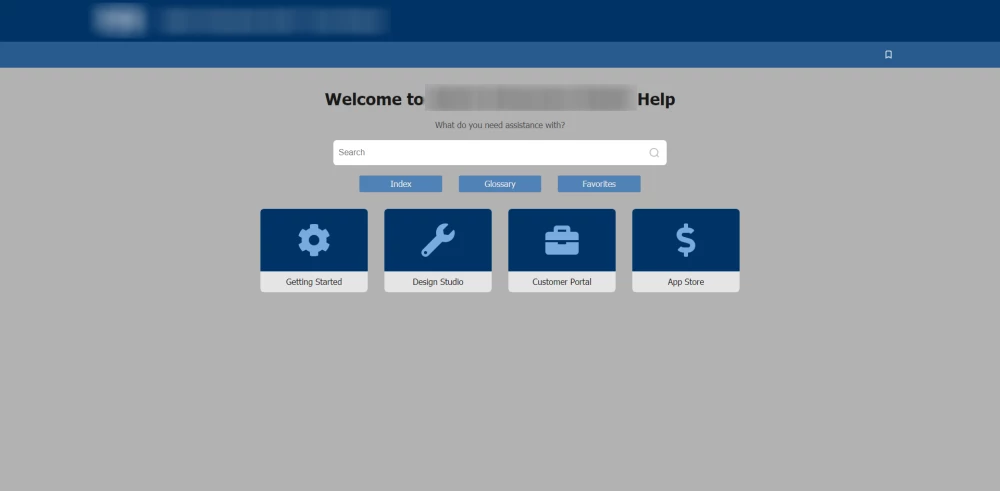
Now here is where I wonder if what I want will be possible.  When I click on any of the icons I want to open up the design studio's own custom icons, like so:
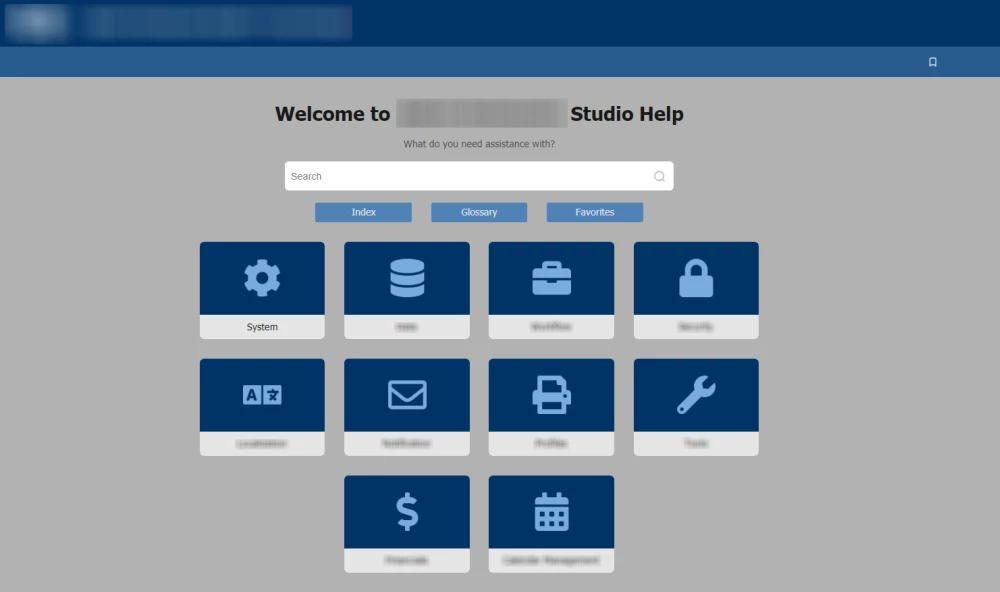
And the same for the other three icons as well.  Now I know this is probably not an existing feature for the layout, but I was wondering if the following could work:

1.  Create a separate project for each of the main screen's icons, in other words a new project for Getting Started, another for Design Studio, another for Customer Portal and the same for App Store.

2.  Set up "hyperlinks" on the main screen icons to navigate to the published HTML5 layout for each of the projects' index.html files.

Now, this is what I have an issue with - I can't seem to link the icon or book to a different HTML file.  I have also tried to set up a permanent redirect on the page to redirect to a different URL for now, but it's not working like it should (I use a JS command on page load).  I was just wondering if someone could help me to redirect to the correct file, or if someone has a better idea for me?

This topic has been closed for replies.
Correct answer Toxxyc

OK so a friend of mine came along, and helped me with this.  I managed to get it working, and it's amazing.  I can now basically go infinite levels deep, all with custom TOC icons with a simple script.  I'll share it here:

<script type="text/javascript">

function redirPage() {

window.parent.location="../../../RelURLOfYourOtherProjectFiles/index.htm";

}

window.onload = redirPage;

</script>

This works fine, and when the page loads it redirects to the other project's index.htm which contains the published documentation and the custom TOC images as set up.

Sorry for wasting the space a bit, but I decided that instead of deleting my question I could just post the solution and someone else might find it useful!

Do take note that this method will FIRST load the page and then redirect, so include a redirect message on the page and don't just leave it blank to make it look better.

3 replies

Inspiring
April 29, 2019

Hi,

in case anybody is interested and maybe this can help someone - I have solved the multi-level custom image issue with the following approach:

Each toc item has a unique ID which contains the level and item counter (e.g. toc_item_0_0 for the first TOC item on the first level). I just inspected each level of the TOC in the developer tools and specified the unique IDs in the merged help's parent project Indigo Layout's toc_c_images.css file.

The advantage is that I can go down all the levels and specify for each item by its unique ID which color and icon it should have. No redirects, no additional JS or anything necessary.

The drawback is, of course, that I need to change the CSS whenever I change the order of books in the TOC.

You can see the final result here: https://help.celum.com

Cheers, Birgit

Peter Grainge
Community Expert
Community Expert
April 29, 2019

That looks really good and thanking you for posting the solution.

Be aware that in RoboHelp 2019 the same level of customisation is not possible so do test how it upgrades using the trial version on a spare machine before you upgrade.

You may be able to achieve what you want by different means.


See www.grainge.org for free RoboHelp and Authoring information.

@petergrainge

Use the menu (bottom right) to mark the Best Answer or Highlight particularly useful replies. Found the answer elsewhere? Share it here.
Peter Grainge
Community Expert
Community Expert
April 29, 2019

If you can share the project, I will open it in 2019 to see how it takes there. To be clear on the issues when upgrading, it should upgrade OK in 2019 Classic but I'm not sure about the new UI.

If you can share, see the Contact page on my site and send the project as instructed there. Do make sure you include a link to this thread and please do not email the project direct.


See www.grainge.org for free RoboHelp and Authoring information.

@petergrainge

Use the menu (bottom right) to mark the Best Answer or Highlight particularly useful replies. Found the answer elsewhere? Share it here.
Toxxyc
ToxxycAuthor
Inspiring
January 16, 2019

After some back and forth with Willem van Weelden, I managed to get this issue fixed.  The problem is that the custom icons overwrite the default icons for the Back button.  This only happens on the Back button's default icon, and not on the icon defined with the :hover attribute, which is why the correct icon displays when you hover over the button.

To fix this, go to your theme-1.css file in the Indigo folder.  If you open up the file in a code editor like Notepad++, you'll see the code lines.  Around line 592~598 there are two instances where the Back button's icons are defined for default view and when you hover with the mouse over the button.  The way to fix the issue is to change this:

background-image:url("theme-1-toc-back.png");

And this:

background-image:url("theme-1-toc-back-over.png");

To this:

background-image:url("theme-1-toc-back.png") !important;

And this:

background-image:url("theme-1-toc-back-over.png") !important;

This forces the icons back into use, and they'll work like they should again!

Cheers, Toxx

mjjhhc
Known Participant
January 16, 2019

sweet!

Toxxyc
ToxxycAuthorCorrect answer
Inspiring
August 22, 2018

OK so a friend of mine came along, and helped me with this.  I managed to get it working, and it's amazing.  I can now basically go infinite levels deep, all with custom TOC icons with a simple script.  I'll share it here:

<script type="text/javascript">

function redirPage() {

window.parent.location="../../../RelURLOfYourOtherProjectFiles/index.htm";

}

window.onload = redirPage;

</script>

This works fine, and when the page loads it redirects to the other project's index.htm which contains the published documentation and the custom TOC images as set up.

Sorry for wasting the space a bit, but I decided that instead of deleting my question I could just post the solution and someone else might find it useful!

Do take note that this method will FIRST load the page and then redirect, so include a redirect message on the page and don't just leave it blank to make it look better.

Peter Grainge
Community Expert
Community Expert
August 22, 2018

Check that works in all browsers, Firefox in particular. It looks like a method I used some years back that failed in merged help after a Firefox update.

There is another method on my site under Add a Redirect in Merged WebHelp and HTML5 Help

You are right about adding a redirect message for anyone whose load is slow but in practice most users should not see it.


See www.grainge.org for free RoboHelp and Authoring information.

@petergrainge

Use the menu (bottom right) to mark the Best Answer or Highlight particularly useful replies. Found the answer elsewhere? Share it here.
Toxxyc
ToxxycAuthor
Inspiring
August 22, 2018

Thanks for this, appreciate it!  Maybe I'm not seeing it though, but I don't seem to find an indication on your page that explains how to trigger a redirect on page creation so I can redirect without asking the reader to click on a hyperlink?  That's what I was trying to avoid altogether.