


tordolsen
New Participant
February 14, 2018
Question

Linking LocatorID error

  • February 14, 2018
  • 18 replies
  • 9372 views

Hi!

We tested out the team project-function a while back. It worked great. We also used the attach proxies, and that also worked.

But now, a few updates later I'm trying to open the team project and it doesn't work. It starts to load inn the projects (blue bars), but then closes down and nothing happens.

Luckily we have a backup. However in the backup file, we have problems with the linking of the raw material. It shows up like this in filename when trying to re-link:

{"locatorID":"numbers and letters"............
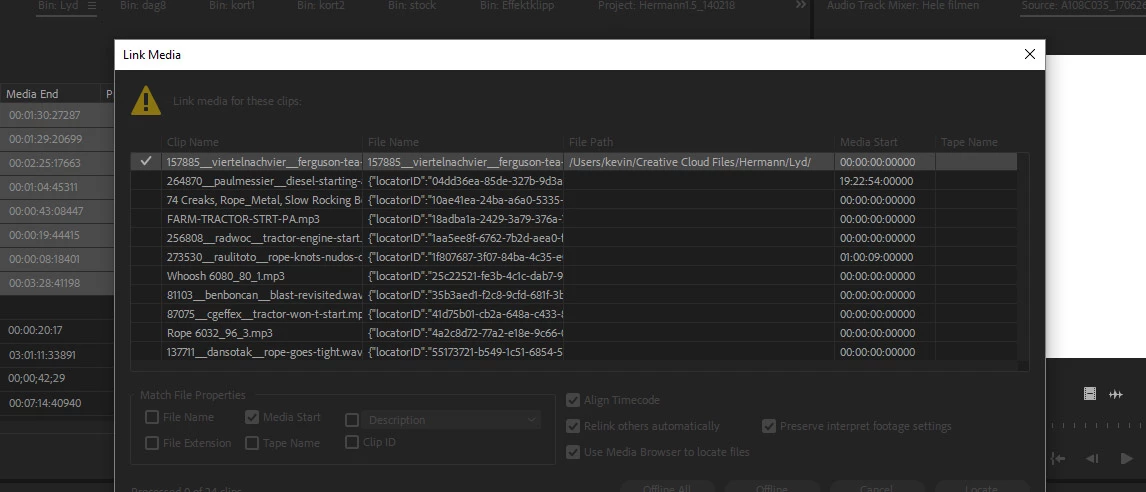
So I would have to link one by one to get it in. The only solution I have come up with is to re-attach the proxies. That works but takes a lot of time, and we will not be able to switch back to the raw before grading.

Do you know any solutions?

I will be very careful to use any new features in premiere in the future. This is very very expecive.

Tord

This topic has been closed for replies.

18 replies

mooksimpson
New Participant
March 3, 2019

SOLUTION CONFIRMATION: Version 13.03 Buld 9. We had the same problem with this LocatorID replacing the file path. It also destroyed the name so the find media / relink multiple wouldn't work. After scanning the above, I tried opening the project with offline material, converting to Team Project, closing project and quitting Premiere, then reopening and it's all magically OK. Then we convert back to local file.

What a shamozzle Adobe. After more than a year, still happening. Madness.

Good luck to all of you who are suffering.

PeterELee
Adobe Employee
Adobe Employee
February 15, 2019

Fixing these issues is one of our team's highest priorities. In every case we have seen so far with Premiere CC 2019, they have been triggered by copying assets from a Team Project to a standalone Premiere project, and only manifest in the Premiere project, usually after quitting and relaunching Premiere. The problem also occurred sometimes in Premiere CC 2018 when saving a Team Project as a standalone project.

We believe the project conversion bug is fixed in the current Premiere CC 2019 build. We have identified the source of the copy/pasted/import problems in CC 2019 and earlier, and are working on a fix for the next version of Premiere, as well as code to let Premiere handle media from project files that already have damaged file paths.

In the mean time, the best approach is generally to either work entirely in a Team Project or a standalone project file. If you need to move selected assets between a Team Project and a standalone project, first upgrade to the latest Premiere build, then use a two stage process of copying the selected assets into a new Team Project, then converting that Team Project to a standalone project file. That approach seems to be working reliably.

willrogan1
Participating Frequently
May 31, 2019

This is happening for my team with XML exports for all Team Projects as of Premiere Version 13.1.2 Build 9 macOS 10.14.5. Every XML export that we do from a team project completely borks the <pathurl> to something like this:

<pathurl>file://localhost/{"contentStateId"%3a"3ca5ef04-5d84-d9a8-386a-845a0000002c","displayName"%3a"[WCAS-CyS]%20Ropple_Burkart_B_T002.MOV","docId"%3a"630d5f90-314d-0d4c-4de7-765f0000002c","fileProperties"%3a{"mCreationTime"%3a"2019-01-09T14%3a22%3a35","mFilePath"%3a"/Volumes/CTE%20Productions/Online%20Courses/WCAS/[WCAS-CYSEC]/02%20Assets/01%20Video/01%20OG/[WCAS-SyC]%20Ropple%20and%20Jain%20Interviews/[WCAS-CyS]%20Ropple_Burkart_B_T002.MOV","mModificationTime"%3a"2019-04-04T19%3a40%3a04","mSize"%3a12453678488},"href"%3a"eamedia%3a//media/Online%2520Courses/WCAS/%255BWCAS-CYSEC%255D/02%2520Assets/01%2520Video/01%2520OG/%255BWCAS-SyC%255D%2520Ropple%2520and%2520Jain%2520Interviews/%255BWCAS-CyS%255D%2520Ropple_Burkart_B_T002.MOV","mediaSourceDescription"%3a{"mAudioStreams"%3a[{"mAudioChannelLayout"%3a[{"channellabel"%3a0}],"mAudioFrameRate"%3a{"ticksperframe"%3a5292000},"mAudioSampleType"%3a4},{"mAudioChannelLayout"%3a[{"channellabel"%3a0}],"mAudioFrameRate"%3a{"ticksperframe"%3a5292000},"mAudioSampleType"%3a4},{"mAudioChannelLayout"%3a[{"channellabel"%3a0}],"mAudioFrameRate"%3a{"ticksperframe"%3a5292000},"mAudioSampleType"%3a4},{"mAudioChannelLayout"%3a[{"channellabel"%3a0}],"mAudioFrameRate"%3a{"ticksperframe"%3a5292000},"mAudioSampleType"%3a4}],"mDuration"%3a{"ticks"%3a354007429776000},"mInstanceString"%3a"{/"locatorID/"%3a/"c71ab17f-2f57-8f6f-80b5-922b53bce9c7-3ca5ef04-5d84-d9a8-386a-845a0000002c/"}","mStreamGroups"%3a[{"mAudioIndex"%3a0,"mFilePath"%3a"/Volumes/CTE%20Productions/Online%20Courses/WCAS/[WCAS-CYSEC]/02%20Assets/01%20Video/01%20OG/[WCAS-SyC]%20Ropple%20and%20Jain%20Interviews/[WCAS-CyS]%20Ropple_Burkart_B_T002.MOV","mTitle"%3a"[WCAS-CyS]%20Ropple_Burkart_B_T002.MOV","mVideoIndex"%3a0},{"mAudioIndex"%3a1,"mFilePath"%3a"/Volumes/CTE%20Productions/Online%20Courses/WCAS/[WCAS-CYSEC]/02%20Assets/01%20Video/01%20OG/[WCAS-SyC]%20Ropple%20and%20Jain%20Interviews/[WCAS-CyS]%20Ropple_Burkart_B_T002.MOV","mTitle"%3a"[WCAS-CyS]%20Ropple_Burkart_B_T002.MOV"},{"mAudioIndex"%3a2,"mFilePath"%3a"/Volumes/CTE%20Productions/Online%20Courses/WCAS/[WCAS-CYSEC]/02%20Assets/01%20Video/01%20OG/[WCAS-SyC]%20Ropple%20and%20Jain%20Interviews/[WCAS-CyS]%20Ropple_Burkart_B_T002.MOV","mTitle"%3a"[WCAS-CyS]%20Ropple_Burkart_B_T002.MOV"},{"mAudioIndex"%3a3,"mFilePath"%3a"/Volumes/CTE%20Productions/Online%20Courses/WCAS/[WCAS-CYSEC]/02%20Assets/01%20Video/01%20OG/[WCAS-SyC]%20Ropple%20and%20Jain%20Interviews/[WCAS-CyS]%20Ropple_Burkart_B_T002.MOV","mTitle"%3a"[WCAS-CyS]%20Ropple_Burkart_B_T002.MOV"}],"mVideoStreams"%3a[{"mCodecTypeFourCC"%3a"apcs","mFieldType"%3a0,"mHasFields"%3atrue,"mPixelAspectRatio"%3a{"denominator"%3a1,"numerator"%3a1},"mVideoFrameRate"%3a{"ticksperframe"%3a10594584000},"mVideoFrameRect"%3a{"mBottom"%3a1080,"mLeft"%3a0,"mRight"%3a1920,"mTop"%3a0}}]},"volumeProperties"%3a{"mFriendlyName"%3a"CTE%20Productions","mHostName"%3a"169.254.100.116","mNetworkMountURL"%3a"smb%3a//169.254.100.116/CTE%2520Productions","mPath"%3a"/Volumes/CTE%20Productions/","mVolumeType"%3a1}}</pathurl>

Instead of this:

<pathurl>file://localhost/Volumes/CTE%20Productions/Online%20Courses/WCAS/[WCAS-CYSEC]/02%20Assets/01%20Video/01%20OG/[WCAS-SyC]%20Ropple%20and%20Jain%20Interviews/[WCAS-CyS]%20Ropple_Burkart_B_T002.MOV</pathurl>

I don't know what all that business in the top example is, but it is wreaking havoc with media linking for going to a color session in Resolve.

I even did a test to see if Premiere could read its own language from the top example, and on import it has no idea where the media is and the relink dialogue shows the same "LocatorID" wacky string for the location as in earlier posts to this thread. This occurs even when importing the XML back into the same project it came from with the referenced media already online in the project.

Newly created Team Projects exhibit this same behavior, on all 4 machines in our team.

AAF and EDL exports also exhibit this same difficulty in locating media.

Luckily, there is at least a workaround: copy the sequence into a "local" Premiere Pro Project (drag and drop) and then export the XML, AAF or EDL from there. This seems to fix Premiere's ability locate the media (which is actually online in the project anyway... ¯\_()_/¯ ) We send a lot of sequences to color, so this is not really an ideal solution!

Anyone else seeing this problem?

Does Adobe have any ideas about this particular issue? Any help would be greatly appreciated!

Thanks

Adobe Employee
May 31, 2019

We discovered this file export issue post release and are aware of this bug, a fix is forthcoming in one of the next updates.
In the meantime, copying the sequence to a local project (as you already did) or converting the entire Team Project to a local project before exporting to XML is the recommended workaround.

Thanks for your post and passing along the workaround that works for you.

labild@gmail.com
New Participant
January 3, 2019

As a workaround for relinking, I have found, that choosing only clip ID, I can select multiple offline files with the locatorID-issue, and then I only need to find one filename match manually - after that, it automatically links the others. (as a sidenote I am doing this on CC2019 on a windows 10 machine).

I hope you guys find a way!

PeterELee
Adobe Employee
Adobe Employee
January 3, 2019

Great find! We're still working on a fix for the underlying problem, but we've just tested your workaround in-house and confirmed that it works for most files that we tested. When only "Clip ID" is checked under "Matching Properties," the Locate code will search the XMP metadata of your media files, looking for one with the same Dublin Core "identifier" field as the clip had when the project file was last updated.

Daniel Hoover
Inspiring
January 7, 2019

PeterELee​ When you say it searches the XMP metadata of the media files, will that only work if "Write XMP ID to files on import" has been checked?  We don't have that checked on our workstations.

PeterELee
Adobe Employee
Adobe Employee
July 20, 2018

Thanks, Daniel Hoover​! tomd97245452​: the bug in Pr 12.1.1 does, indeed, seem to strike mostly on OS 10.11.6. I would strongly suggest upgrading to Pr 12.1.2, though, instead of (or in addition to) upgrading your OS. Pr 12.1.2 fixes the issues on 10.11.6. It also improves load times significantly for large Team Projects, and has several other significant bug fixes.

RJHanlon
New Participant
November 21, 2018

This is absolutely insane. I am on the 10th month of editing a feature length documentary on adobe. Tried multiple versions of team projects and after hundreds of hours lost to troubleshooting and headaches we recently switched back to a solo project. Now this locator ID problem just happened and the entire project (50 days of shooting, over 30k individual files) went offline. Spent money out of pocket to hire extra assistants over the weekend to try and manually relink while I tried these other work throughs to reconnect. None of them are working. Once everything is connected again we just have to hope that no other bug comes up to wreck our schedule again.

I have no questions. Only infuriation that adobe has singlehandedly derailed this project. It is a great editor. CC is a good idea to be able to continually update tools but the rollout has been atrocious. Release a stable platform for professionals whose livelihood depends on this software working, because CC has clearly been a nightmare that has ruined many productions, and once I am done with this project I don't think I can ever trust the software again. Severely disappointed.

Known Participant
November 21, 2018

Really sorry to hear that. You might want to try the method that worked for us. See my previous message in this thread.

What OS and Premiere version are you running?  

HollywoodUnknowns
New Participant
July 17, 2018

Still have this problem...  We had our entire project go offline with this locator ID problem and I fixed it relinking everything and two weeks later I am getting complaints from my boss and the editor and this problem is royally screwing us. ADOBE PLEASE FIX THIS JUNK SOFTWARE!

Known Participant
July 17, 2018

My scenario exactly. It's a basic bug that Adobe won't fix. If you move clips around to different folders and such, the directory gets corrupt and you have to manually re-link every file in a folder. This is a basic editing workflow that they are making next to impossible. The whole reason people are on team projects in the first place is they have a tight deadline so this loss of productivity is crushing to business. It's been 2 weeks and I still haven't heard a reply by one of the staff.

PeterELee
Adobe Employee
Adobe Employee
July 17, 2018

I'm sorry for all of the issues you've been encountering. The issue shown in your screenshot, with the strange file paths, should be fixed in Premiere 12.1.2, released last night. I don't believe the fix will help media that was relinked using the "Link Media" dialog in a Team Project, but it should apply to any media that was simply imported, or moved using the Team Projects "Media Management" dialog.

"Link Media" doesn't really work in Team Projects, and the menu item is normally disabled in a Team Project. To move files in a Team Project so that all of your collaborators can find them, too, please use the Media Management dialog, as described here: Add and manage media in a Team Project  Another bug in Premiere 12.1.1 caused certain h.264 media to be incorrectly listed as off-line, or to be listed as audio-only instead of A/V. This bug caused additional problems in Team Projects, and may be related to why the "Link Media" dialog was shown in a Team Project. The h.264 bug should also be fixed in 12.1.2.

Known Participant
July 6, 2018

I've got a workaround that worked for us.

1) Take your local project with $locatorID... and convert it to TEAM. You'll get rid of $locatorID in File name column and get it clean.

2) Then, relink your files as usual using Search. Auto-relink neighbouring files works also.

3) As you get all your assets online, convert project to LOCAL and forget Team projects till Adobe make it stable. OR drag contents to a new local project, which is more safe.

I will continue to monitor media connections in the fixed project next week.

Oh.. and Nate Boerman​ I would appreciate if Adobe would have come with that workaround to this thread. The topic has been started half a year ago. You are aware of that since May 10.

Adobe has got a lot of business customers which expect rapid help in this type of emergency issues.

ianmackenz
Participating Frequently
July 6, 2018

I just tried that, converting to team, then re-inking via search and am now getting this error message

HunterH_HM
Participating Frequently
July 6, 2018

That might be unrelated, is that for every clip or just the one? Also are your clips now showing online or they still show the Locator ID error?

Known Participant
July 4, 2018

Considering Premiere mixes up File name and Path

Re: Team Project randomly unlinks media?

Known Participant
July 4, 2018

I confirm exactly the same scenario. Working in Team project, then switching to solo leads to unpredictable links loss.

We tried saving sequences as a separate project, opening it on another machine. Autosave also seems to have these links corrupt.

What is more frustrating, is that as you open and close project, you get more and more files lost.

We are quite serious about that. Imagine 10 people work on 3 huge documentaries getting their projects slowly destroyed.

Apparently Premiere mess up 'File name' and 'File path'. 'File name' seems to have content of 'File Path', which references some IDs, possibly from Team Project paths.

Please at least post some workaround. 

jamesh16694669
New Participant
June 29, 2018

I'm having the exact same issues as above. Start my project as a Team Project and then after a week or so decided to save as an offline solo project. Everything was working fine, finished my project, saving every 30 minutes as I went, that was until yesterday when I went to export the 1hr 40m project and it crashed about an hour into the export. I reopened the project to find everything is offline, and instead of just re-linking one of the files and then having Premiere auto re-link everything else, I get this stupid LocatorID issue.

The only current solution I have is to relocate every single individual file, this is beyond a joke, it's an 1h 40m DVD for a Premier League Football Club, it's deadline is Monday, I simply do not have the time to sit here and re-link everything tiny bit of Media. To say I'm angry would be the understatement of the century!

This issue has been reported since Feb. GET IT SORTED!!

HunterH_HM
Participating Frequently
June 29, 2018

Hey Jamesh, Are you able to go back to an autosave hopefully one that is not corrupt?  That's the only way we were able to solve ours without linking each file and just redoing the hours of work instead of days of relinking.  But once you get a file that works, save it in a few places and try to make a new Premiere project and import that working project into it, hopefully this will fix it.  It took us a while to figure out a solution and even then it is a mix of luck and trial and error.

Guimlbx
New Participant
June 14, 2018

Hi!

We've experienced the same problem, with the added problem of merged files.

Our team project started with linked R3D files, of which we created in-premiere proxies.

Then, we merged audio and video and created several hundreds of clips.

The process started seamlessly until a point in time when our sequences started getting offline media.

When we exported the project to an offline premiere file, the "locator ID" problem started.

We can't connect our clips without it being manually, one by one.

Have you got any suggestion or workaround?

Thank you!

JG_THE_EDITOR
Participating Frequently
June 14, 2018

Is it still a team project or is it converted back to a regular project?  I went back to an autosave that was working and Imported that project into a new one and it seems to be ok now. But it took a few tries. The "LoactorID" issue came up a lot until I got the project imported into a new one.

Good luck.  I think Adobe should remove this feature  until they figure it out.