Known Participant
August 25, 2024
Answered

How-To Write on the margin of a circle without outline of the circle under the text

  • August 25, 2024
  • 3 replies
  • 1844 views

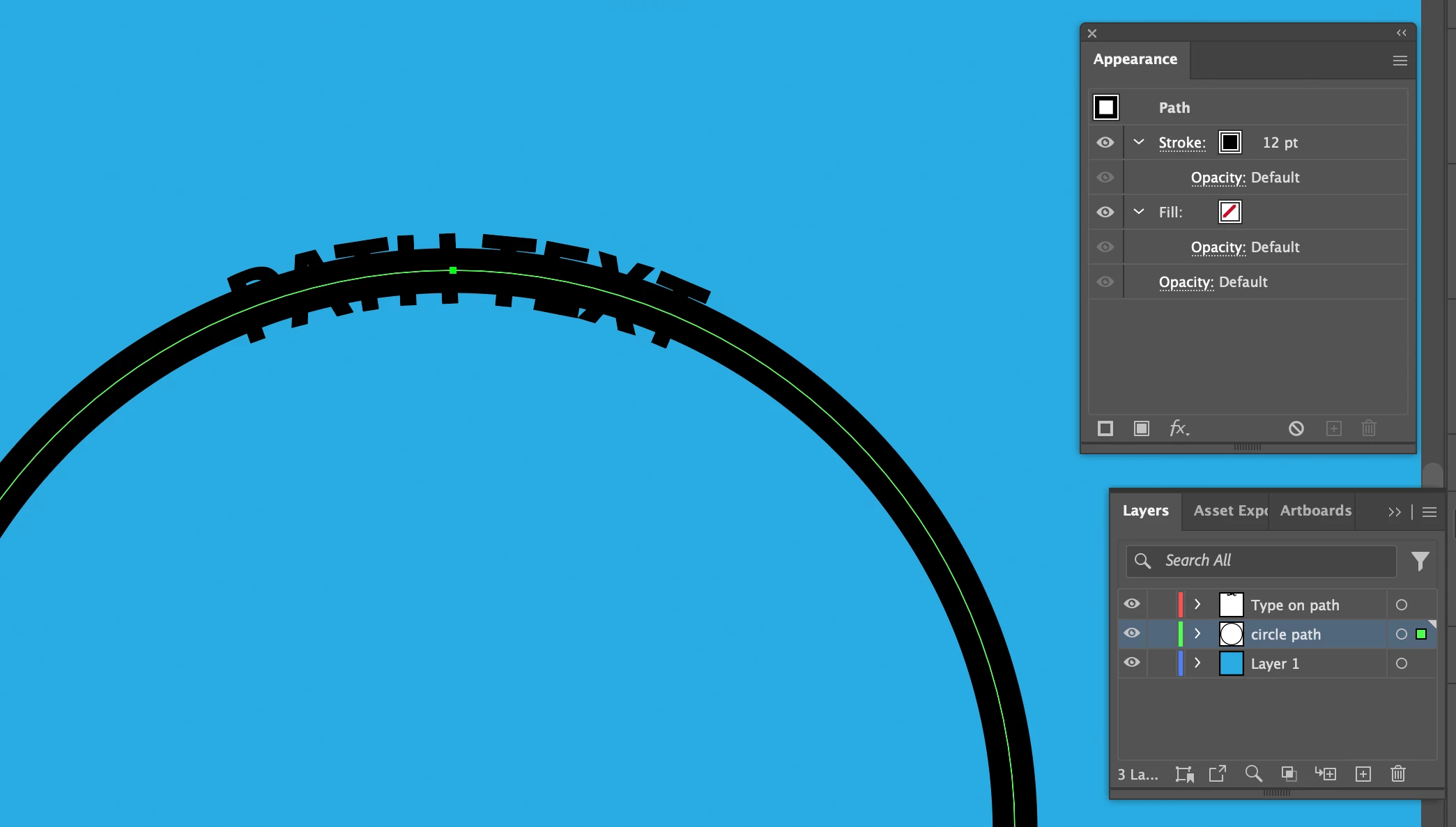
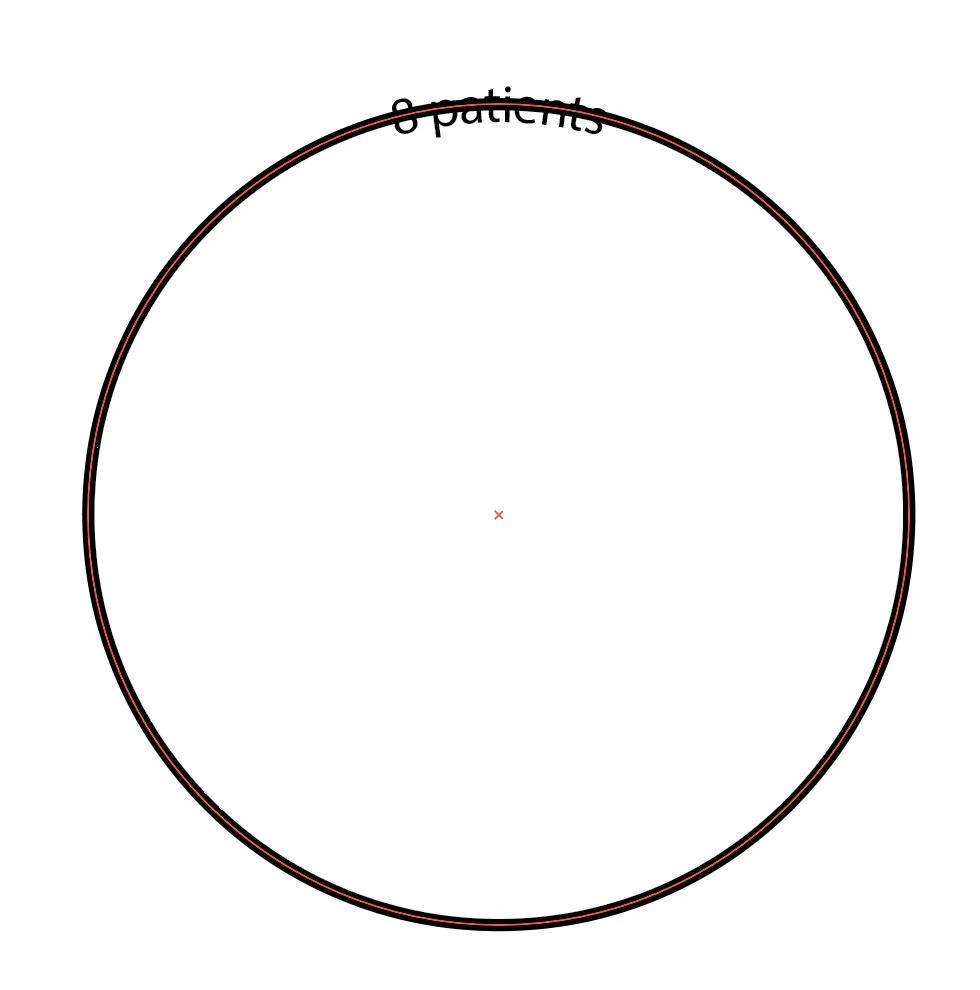
How do you not have the outline of the circle behind the letters?


I drew a circle --> copied it --> locked the first layer --> typed on the path of the second layer --> centred it -->set path's baseline to centre.


I would appreciate your advice. 
 

This topic has been closed for replies.
Correct answer Ton Frederiks

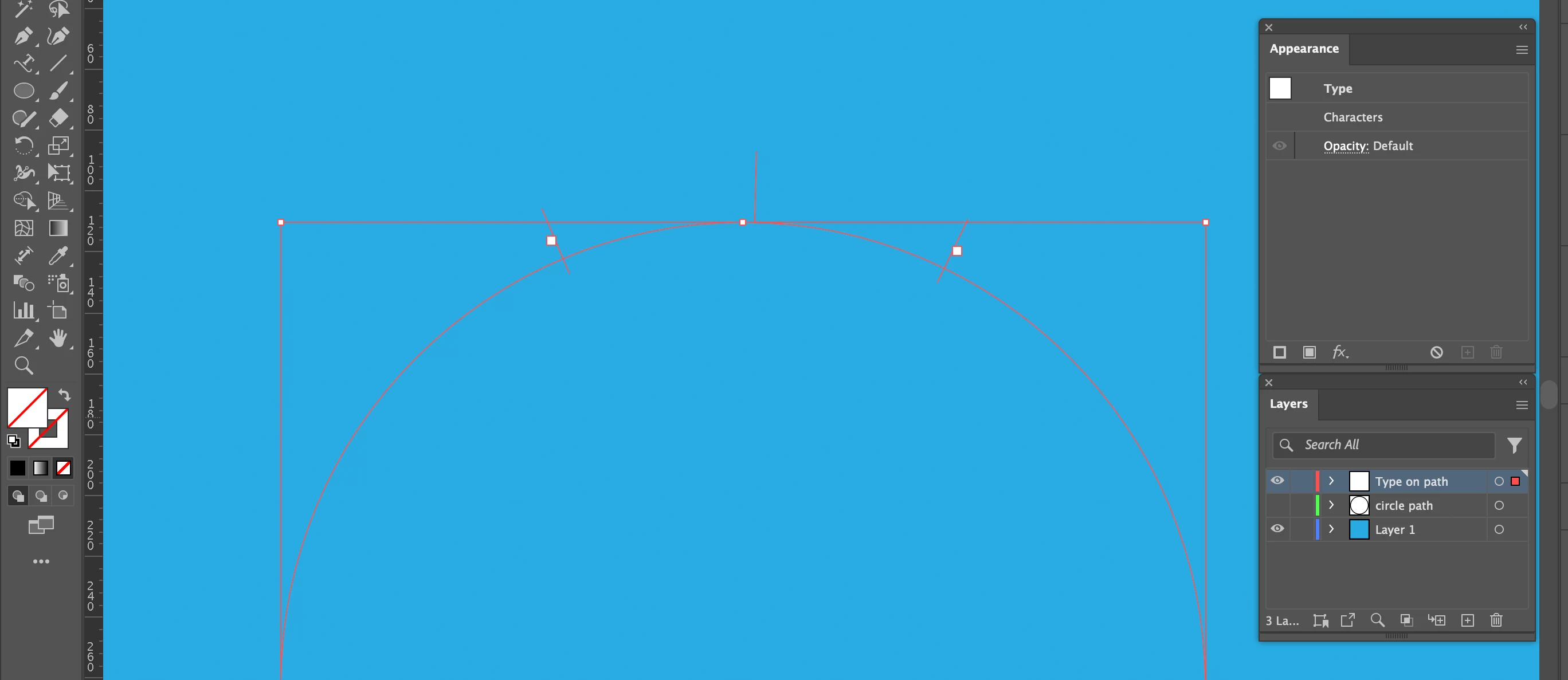
Created a circle and made a copy on a layer below it.
Put text on a path and positioned it to the path center.

Set the black fill of the text to None.

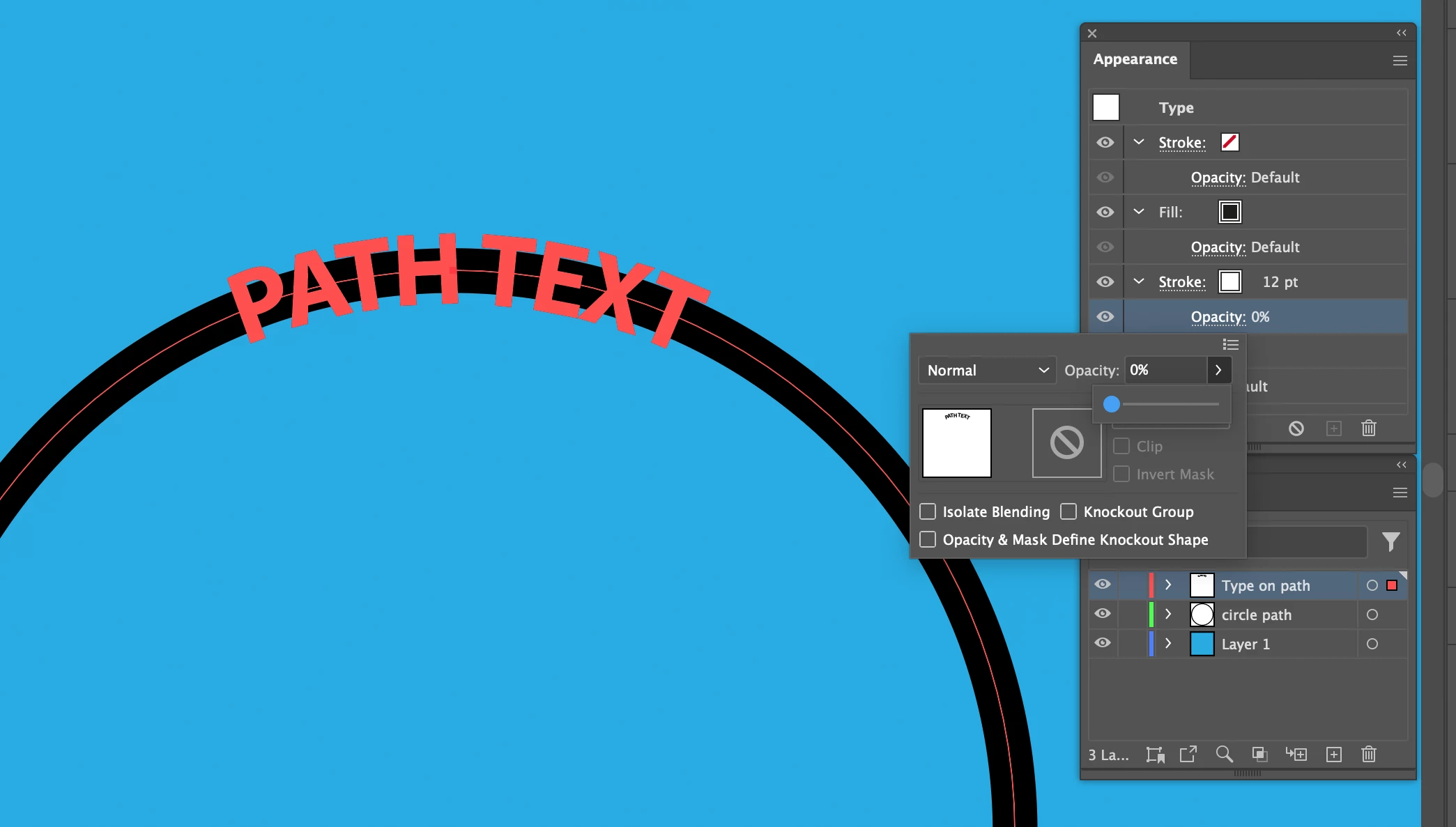
Added a black fill in the Appearance panel
Added a thick white stroke in the Appearance panel and dragged it below the fill.

Set the opacity of the white stroke to 0%

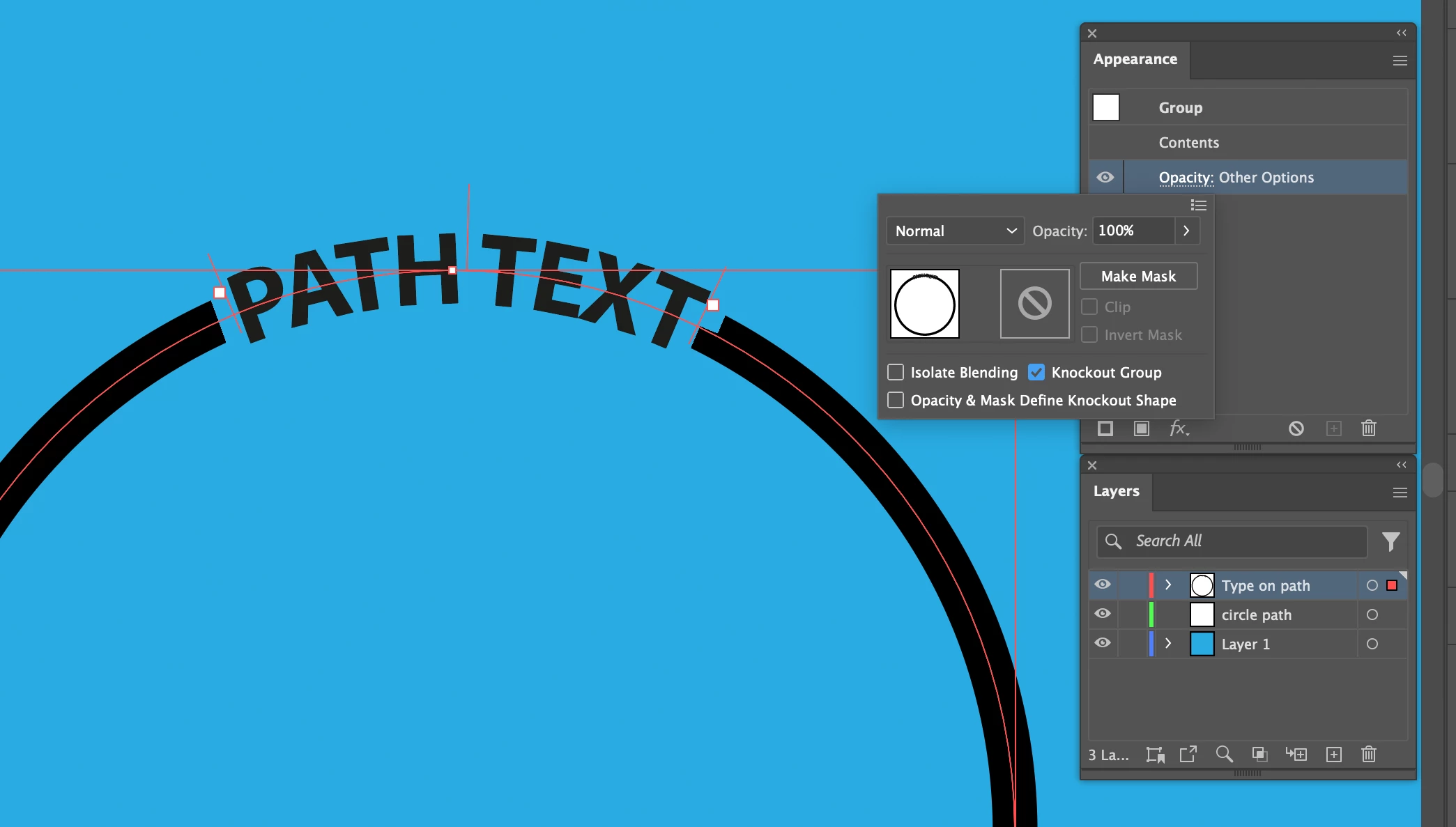
Selected both the text on path and the path below it and made it a Group.
Checked in the Opacity of the Group the Knockout Group to make it transparent.

3 replies

Ton Frederiks
Community Expert
Community Expert
August 25, 2024

You can check this PDF and open it in Illustrator to see how this works.


naren1705Author
Known Participant
August 25, 2024

Thank you, Ton!


Along the advice you had given, I now have managed to achieve what I had wanted. Thank you very much!

I have posted a reminder of the steps on the YouTube. It is a rough cut. I hope I will be able to post a more explanatory video in the coming week. I have acknowledged your guidance.

https://www.youtube.com/watch?v=4K2KCjjyQN0


Thank you and wishing you a great rest of the day!

Naren

Ton Frederiks
Community Expert
Community Expert
August 25, 2024

Thank you, Naren. Good to hear you have. it working now.

Ton Frederiks
Community Expert
Ton FrederiksCommunity ExpertCorrect answer
Community Expert
August 25, 2024

Created a circle and made a copy on a layer below it.
Put text on a path and positioned it to the path center.

Set the black fill of the text to None.

Added a black fill in the Appearance panel
Added a thick white stroke in the Appearance panel and dragged it below the fill.

Set the opacity of the white stroke to 0%

Selected both the text on path and the path below it and made it a Group.
Checked in the Opacity of the Group the Knockout Group to make it transparent.

naren1705Author
Known Participant
August 25, 2024

Cheers!

I see the logic of the steps.

Where I am hit a wall is when I try to drag the stroke of the text below that of the fill of the text. This just would not happen. When I drag the stroke below the fill, it jumps back up.

I wonder where I am going wrong here.

Ton Frederiks
Community Expert
Community Expert
August 25, 2024

Did you first remove the fill when the characters were selected (with the Type tool)?

Does your Appearance panel look exactly as in my screendump?

Ton Frederiks
Community Expert
Community Expert
August 25, 2024

Did you try to paste the copy behind the circle with the text?

naren1705Author
Known Participant
August 25, 2024

Thank you!


I drew a circle. Then copied it. Created a new layer and pasted the circle. I then locked the first layer. 


On the second layer, I 'Typed on path'. Thereafter, I centred and moved the baseline of the text to the centre.

Ton Frederiks
Community Expert
Community Expert
August 25, 2024

I am not sure, but is this what you want?