
jiml17638232
Participant
March 4, 2019
Answered

colour change from lightroom to photoshop (colourspace is the same)

  • March 4, 2019
  • 4 replies
  • 5173 views

Hi as the title suggests i am exporting portraits from lightroom to photoshop for skin retouches/blemishes etc

but the tones etc are changing once exported to photoshop, i have googled etc but all i get is to make sure the colour profiled match in both apps ...which they do

please see below these are both totally unedited

thanks for any help
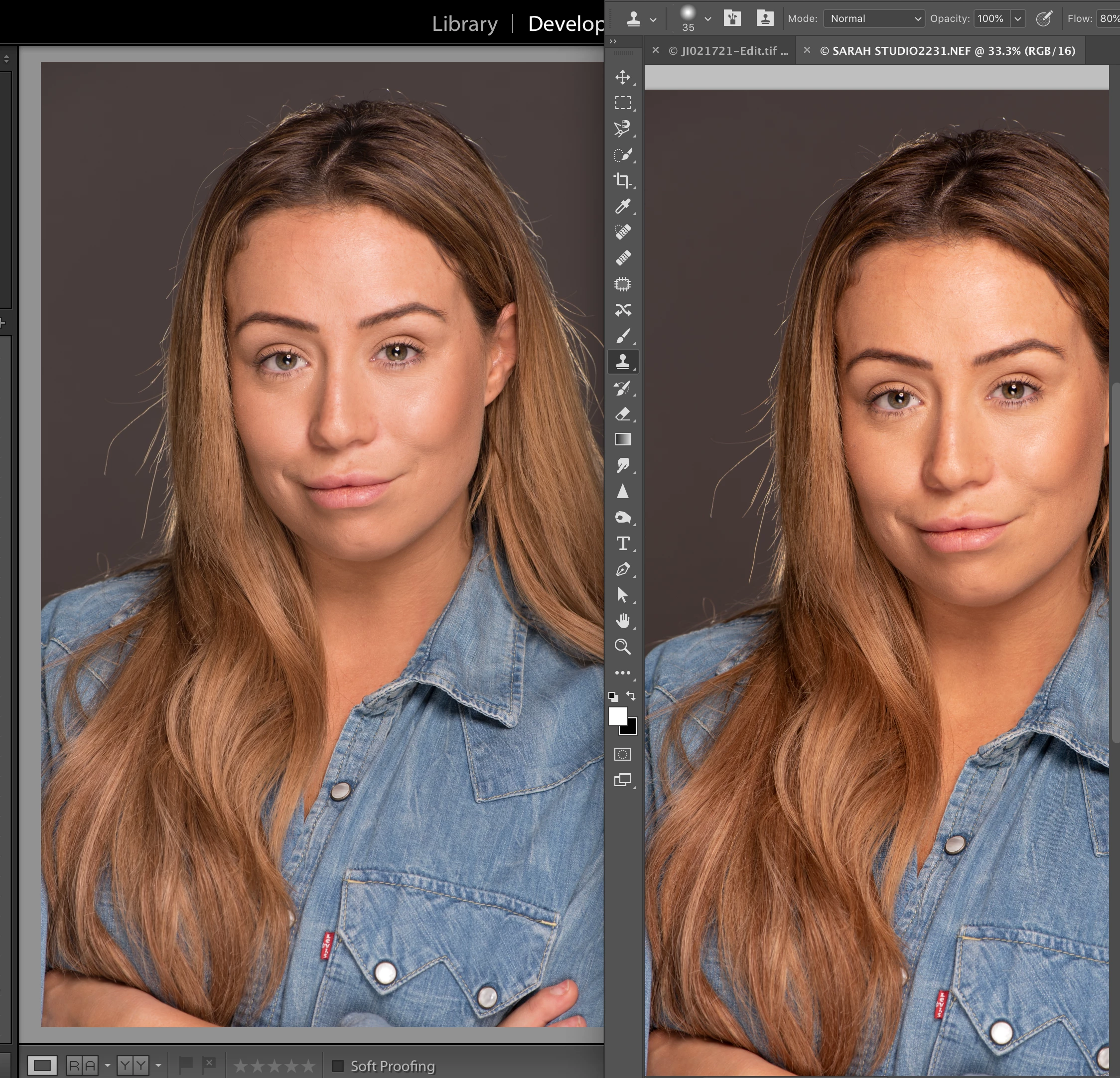
    This topic has been closed for replies.
    Correct answer JohanElzenga

    Lightroom uses an internal color space in the develop module that is not available in Photoshop, so please tell use what color space setting you use for Photoshop in the external editor preferences in Lightroom. Contrary to popular beliefs, the working color space setting in Photoshop is not relevant, but the color management policies are. So please tell us those settings too. Also please tell us the version numbers of Lightroom and Photoshop (and please do not say ‘latest’).

    4 replies

    jiml17638232
    Participant
    March 9, 2019

    Hi all

    thanks so much for all the feedback
    not had time to reply
    So luckily i have a laptop and that didn't have this problem, so i caught up with work on that.

    The cloud was saying i was totally up to date but i wasn't on the desk top, this seems to have fixed the issue.

    Thanks again for all the input there was a lot of things about colour correction i didin't know so that has also been really useful

    JohanElzengaPer BerntsenD Fosse

    Participant
    May 16, 2021

    Hiii! I have the same exact problem as yours, I tried everything, updated / reinstalled Photoshop & Lightroom Classic and still the same issue occur. Any other idea how to resolve this issue? I would really appreciate the help, it's driving me insane!! Thanks so much in advance 🙂 

    D Fosse
    Community Expert
    Community Expert
    March 5, 2019

    This is most likely a bad monitor profile as Per suggests.

    Another thing that could produce a similar effect is if Lightroom is stuck at an old version like 2015.1, but ACR/PS have been correctly updated. A new default camera profile was introduced at that time, and if Lr/ACR are using different camera profiles you see something like this. It happens that the CC app fails to report available updates, so check that actual version numbers in Lr/ACR correspond.

    And just so it's perfectly clear, document profiles and/or working color spaces have nothing whatsover to do with this. The whole point of color management is to seamlessly translate between non-matching color spaces. That's what it does.

    Participant
    May 16, 2021

    Hi D Fosse! I have the same exact problem as stated in this post, I tried everything, updated / reinstalled Photoshop & Lightroom Classic and still the same issue occur. Any other idea how to resolve this issue? I would really appreciate the help, it's driving me insane!! Thanks so much in advance 🙂 

    Per Berntsen
    Community Expert
    Community Expert
    March 4, 2019

    When Lightroom and Photoshop don't match, it's usually caused by a defective or incompatible monitor profile. Try setting the monitor profile to sRGB (use Adobe RGB if you have a wide gamut monitor).

    See http://www.lightroomqueen.com/articles-page/how-do-i-change-my-monitor-profile-to-check-whether-its-corrupted/

    If this fixes the issue, you should ideally calibrate your monitor with a hardware calibrator. This will also create and install a new monitor profile that accurately describes your monitor.

    Playing around with Photoshop's color settings could also cause this, as suggested by JohanElzenga

    It's a persistent myth that profiles and/or working spaces have to match between Lightroom and Photoshop. They don't. Color management will ensure that images display correctly no matter what the profiles or working spaces are. The exception is gamut clipping, but I don't think that's the case here.

    Also, Library and Develop should always display identical colors, and gamut clipping should not be an issue here, because even wide gamut monitors cannot display colors outside Adobe RGB. (although it appears that some wide gamut monitors can display saturated reds that are outside Adobe RGB)

    TheDigitalDog
    Inspiring
    March 4, 2019

    The other problem is, the zoom ratio in PS (and thus LR) isn't at 100% or 1:1. You MUST zoom both to that value to do any meaningful comparisons of tone, color and sharpness.

    Author “Color Management for Photographers" & "Photoshop CC Color Management/pluralsight"
    JohanElzenga
    Community Expert
    JohanElzengaCommunity ExpertCorrect answer
    Community Expert
    March 4, 2019

    Lightroom uses an internal color space in the develop module that is not available in Photoshop, so please tell use what color space setting you use for Photoshop in the external editor preferences in Lightroom. Contrary to popular beliefs, the working color space setting in Photoshop is not relevant, but the color management policies are. So please tell us those settings too. Also please tell us the version numbers of Lightroom and Photoshop (and please do not say ‘latest’).

    -- Johan W. Elzenga
    GoldingD
    Legend
    March 4, 2019

    Also, do not compare what you see in the library module to Photoshop, instead compare what you see in the Develop module.

    JohanElzenga
    Community Expert
    Community Expert
    March 4, 2019

    davidg36166309  wrote

    Also, do not compare what you see in the library module to Photoshop, instead compare what you see in the Develop module.

    The screenshot shows that he does...

    -- Johan W. Elzenga