Hi, first of many thanks to all the great minds in this community. They suggested me how to simulate this automatic open close feature with the help of scripts. I have attached the scripts herewith, I have also attached the screenshot of how to add the script in the Scripts Event Manager tab.
SequentialOpenFiles.jsx - This is the main script with multi-file selection dialog. The user needs to select the files in the drop down list. All the image files are supported. This script will create a text file in the C:\Users\<username>\AppData\Roaming\Adobe\Adobe Photoshop XXXX\Adobe Photoshop XXXX Settings\ directory. That text file will contain the list of all the files selected in the above selection operation (except the very first file). This script will open the very first first file. Successive files will be opened by the event listener script.
function createOpenDialog() {
    try {
        var fileList;
        // DIALOG
        // ======
        var openDialog = new Window("dialog");
            openDialog.text = "Sequential Image Open";
            openDialog.orientation = "column";
            openDialog.alignChildren = ["center","top"];
            openDialog.spacing = 10;
            openDialog.margins = 16;

        // PANEL1
        // ======
        var panel1 = openDialog.add("panel", undefined, undefined, {name: "panel1"});
            panel1.orientation = "column";
            panel1.alignChildren = ["left","top"];
            panel1.spacing = 10;
            panel1.margins = 10;

        var statictext1 = panel1.add("statictext", undefined, undefined, {name: "statictext1"});
            statictext1.text = "Please select the images";

        // GROUP1
        // ======
        var group1 = panel1.add("group", undefined, {name: "group1"});
            group1.orientation = "row";
            group1.alignChildren = ["left","center"];
            group1.spacing = 10;
            group1.margins = 0;

        var edittext1 = group1.add('edittext {properties: {name: "edittext1"}}');
            edittext1.helpTip = "Please select the image files";
            edittext1.preferredSize.width = 500;

        var button1 = group1.add("button", undefined, undefined, {name: "button1"});
            button1.text = "Select ...";
            button1.onClick = function() {
                if ($.os.search(/windows/i) != -1) {
                    fileList = File.openDialog ("Please select the image files" , '*.jpg;*.jpeg;*.tif;*.psd;*.png;*.bmp', true);
                }
                else {
                    fileList = File.openDialog("Please select the image files", getFiles, true)
                };
                var fileNames=[];
                for (var i=0;i<fileList.length;i++) {
                    fileNames[i]=fileList[i].fsName;
                }
                edittext1.text=fileNames;
            }

            function getFiles(theFile) {
                if (theFile.name.match(/\.(txt|csv)$/i) || theFile.constructor.name == "Folder") {
                    return true
                };
            };

        // PANEL2
        // ======
        var panel2 = openDialog.add("panel", undefined, undefined, {name: "panel2"});
            panel2.orientation = "column";
            panel2.alignChildren = ["left","top"];
            panel2.spacing = 10;
            panel2.margins = 10;

        // GROUP2
        // ======
        var group2 = panel2.add("group", undefined, {name: "group2"});
            group2.orientation = "row";
            group2.alignChildren = ["left","center"];
            group2.spacing = 10;
            group2.margins = 0;

        var button2 = group2.add("button", undefined, undefined, {name: "button2"});
            button2.text = "Start";
            button2.onClick = function () {
                if (edittext1.text.length==0) {
                    alert("Please select the image files");
                    return;
                }
                openDialog.close();
                createListFile(fileList);
            }


        var button3 = group2.add("button", undefined, undefined, {name: "button3"});
            button3.text = "Cancel";

        // openDialog.show();
        openDialog.center();
        return openDialog;
    }
    catch(e) {
        alert(e + ': Line ' + e.line);
    }
}

function showDialog(myDialog) {
    return myDialog.show();
}

main()

function main() {
    var openDialog = createOpenDialog();
    showDialog(openDialog);
}


function createListFile(fileList) {
    try {
        if (fileList.length > 0) {
            //Sort the fileList
            fileList.sort(function (a, b) {
                if (app.compareWithNumbers) {
                    return app.compareWithNumbers(a.name, b.name);
                } else {
                    return sortAlphaNum(a.name, b.name);
                }
            });

            var listFile = new File( app.preferencesFolder + "/" + "OpenClose_FileList.txt" );
            listFile.open("a");

            for (var index1 = 1; index1 < fileList.length; index1++) {
                listFile.writeln(fileList[index1]);
            }
            listFile.close();

            //Open the first file
            open(fileList[0]);
        }
    }
    catch(e) {
        alert(e + ': Line ' + e.line);
    }
}
CloseEventListener.jsx - this file should be selected in the Scripts Event Manager tab for Close Document event. So whenever any document will be closed, this script will open the successive file from the above mentioned file list. I have emphasised any because even if a file is opened which is not in the list and then closed, the event will be triggered and the first file from the file list will be opened. After due editing, whenever the file will be closed, this script will delete the first line from the text file. And the operation will continue.
var listFile = new File( app.preferencesFolder + "/" + "OpenClose_FileList.txt" );
listFile.open("r");
var contents = listFile.read();
listFile.close();
var rows = processInputFile(contents);
if (rows.length>0) {
    var file = new File(rows[0]);
    open(file);
    //delete first line
    listFile.open("w");
    for (var i=1;i<rows.length;i++) {
        listFile.writeln(rows[i]);
    }
    listFile.close();
}

function processInputFile(contents) {
    try {
        // Returns: Array [row][column]
        var c = ""; // Character at index.
        var index = 0;
        var maxIndex = contents.length - 1;
        var result = []; // Array of rows.
        var row = []; // Array of columns.
        var rowSum = 0; // Count of row contents.
        var v = ""; // Column value.
        while (index < contents.length) {
            c = contents[index];
            if (c == "\n" || c == "\r") {
                // Reached end of line.
                // Test for CRLF.
                if (c == "\r" && index < maxIndex) {
                    if (contents[index + 1] == "\n") {
                        // Skip trailing newline.
                        index++;
                    }
                }
                // Column and row complete.
                row.push(v);
                rowSum += v.length;
                if (rowSum) {
                    // Add row only when it has content.
                    result.push(row);
                }
                v = "";
                row = [];
                rowSum = 0;
            }
            else {
                // Add character to column value.
                v += c;
                //alert(c);
            }

            if (index == maxIndex) {
                // Reached end of data; flush.
                row.push(v);
                rowSum += v.length;
                if (rowSum) {
                    // Add row only when it has content.
                    result.push(row);
                }
                break;
            }
            index++;
        }
        return result;
    }
    catch(e) {
        alert(e + ': Line ' + e.line);
    }
}
This way the user has to register the event listener file in Photoshop Scripts Event Manager tab -
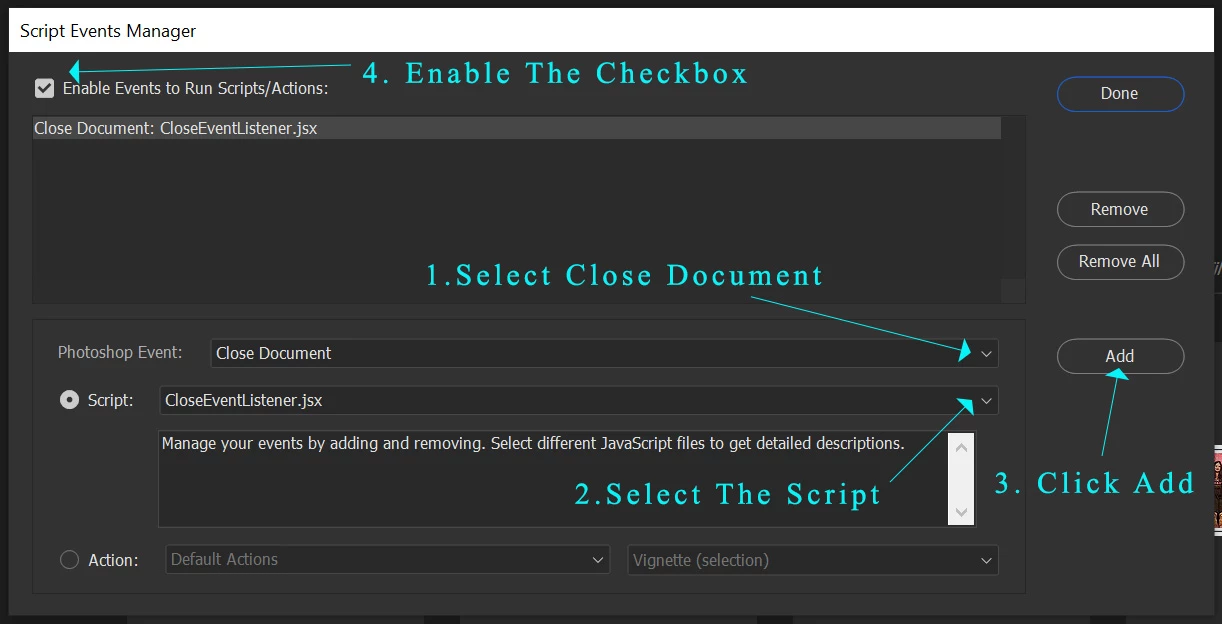
At anytime if the user wants to break the operation, he has to simply uncheck the Enable ... checkbox.
Hope this helps.
Thanks
Nirmalya



 AdChoices