


Exit
  • Global community
    • Language:
      • Deutsch
      • English
      • Español
      • Français
      • Português
  • 日本語コミュニティ
  • 한국 커뮤니티
1

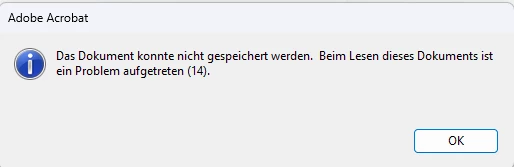
Wiederholte Fehlermeldung - Beim Lesen dieses Dokuments ist ein Problem aufgetreten (14).
New Here ,
Jul 24, 2024 Jul 24, 2024

Anja38638996f3k3_0-1721812812345.png


Ich habe schon recherchiert, habe Acrobat komplett deinstalliert und neu installiert (was wirklich mühselig ist mit den ganzen Anpassungen). Ich bin Inhaberin der Lizenz und kann sie uneingeschränkt nutzen. Trotzdem habe ich seit kurzem immer wieder diese Fehlermeldungen. Es hilft auch nicht, die Datei unter einem anderen Namen oder als pdf mit reduzierter Größe zu speichern, weil es schlicht nicht möglich ist.

Was kann ich noch tun?


TOPICS
General troubleshooting , PDF , Standards and accessibility
2.2K
Translate
Report
Community guidelines
Be kind and respectful, give credit to the original source of content, and search for duplicates before posting. Learn more
community guidelines
Adobe Employee ,
Feb 27, 2025 Feb 27, 2025
LATEST

Hello, 


Sorry for the delayed response and troubled experience:


The error “There was a problem reading this document (14)” in Adobe Acrobat usually indicates that the PDF file is corrupted or damaged. Here are some troubleshooting steps to fix this issue:


1. Update Adobe Acrobat


Ensure you’re using the latest version of Adobe Acrobat, as updates often fix bugs and compatibility issues.

  • Open Acrobat and go to Help > Check for Updates
  • Install any available updates and restart Acrobat.


2. Save the PDF Again (If Possible)


If you can open the PDF partially:

  • Click File > Save As and save it under a different name.
  • Try reopening the new version of the file.


If you received the PDF from an email or download:

  • Re-download the file, ensuring it is fully downloaded before opening.


3. Use “Print to PDF”

If the file opens but throws an error:

  • Open the PDF in Acrobat.
  • Click File > Print.
  • Select Microsoft Print to PDF or Adobe PDF as the printer.
  • Save the newly created PDF and try opening it.


4. Repair Adobe Acrobat Installation

  • Go to Help > Repair Installation and follow the on-screen instructions.


5. Extract Pages (If Only Certain Pages Are Affected)

  • Open the PDF and go to Organize Pages.
  • Try extracting only the working pages into a new PDF file.


If none of these steps work, the PDF may be severely corrupted and may need to be recreated or obtained from a backup.


~Tariq

Translate
Report
Community guidelines
Be kind and respectful, give credit to the original source of content, and search for duplicates before posting. Learn more
community guidelines