


Participating Frequently
January 3, 2023
Question

Adobe Reader displays Wingdings-like characters for a single user only

  • January 3, 2023
  • 4 replies
  • 22040 views

Hello,

I have a real head-scratcher here. We have a single user who cannot properly see a PDF file that was sent to us by a customer. When she opens it, it displays Wingdings-like characters in place of the actual font used in the PDF:
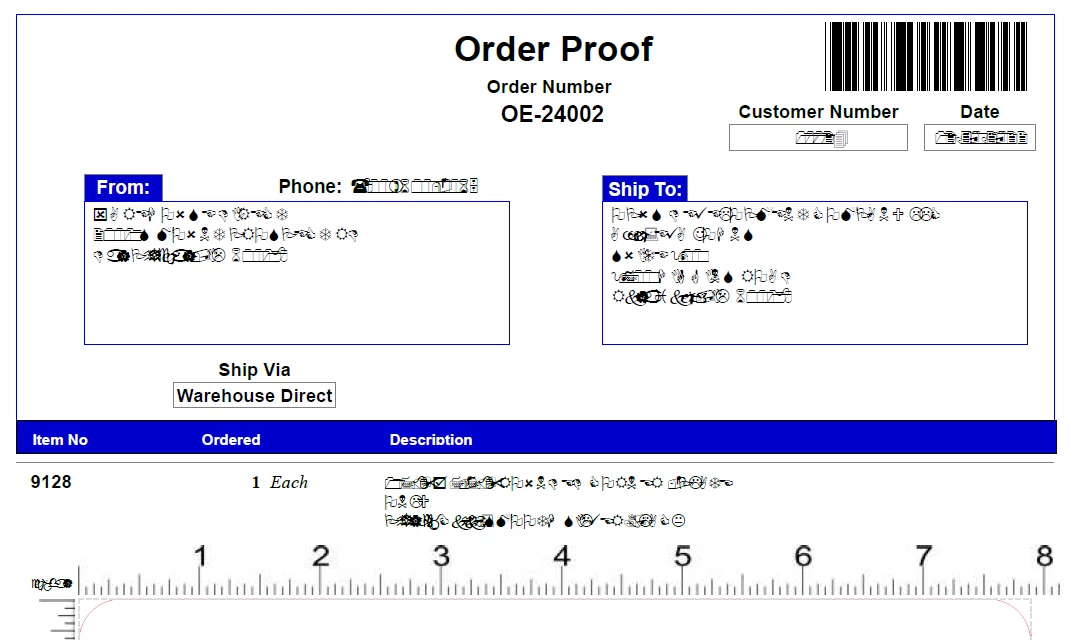
However, whenever anyone else in our company opens this same file, it displays normally. The PDF does not have embedded fonts, but the only fonts used in the document are Arial and Times New Roman. We are all using Windows 10 OS. I checked the user's installed fonts and Adobe Reader settings vs mine (I can see it properly), and they all match.
I've also attached the file.
Any help would be greatly appreciated. This seems to be the only problem file for this user but I don't want the issue to crop up repeatedly.

4 replies

Sil.C
Community Manager
Community Manager
January 11, 2023

Thread locked because OP @marshaw34119649 is acting against our Community Guidelines.

Please refrain going forward or we may have no choice but to ban you from the site.

Bevi Chagnon - PubCom.com
Braniac
January 4, 2023

Looks like a common error: when the PDF was created, that particular font wasn't embedded into the PDF file.

When fonts aren't embedded into a PDF, then the file relies on finding a similar font on the end user's computer/device to display the text.


Seems that your end user doesn't have the correct font on their system, and Reader (or Acrobat, or any other PDF reading app) is swapping in Wingdings.


Solution #1: Re-export the PDF, this time checking the option to embed all fonts into the PDF.


Solution #2: You can attempt to force-embed the fonts into the PDF in Acrobat Pro. See instructions here: https://community.adobe.com/t5/acrobat-discussions/text-changes-to-special-symbols-with-saving-pdf-in-acrobat/m-p/10634321


|    Bevi Chagnon   |  Designer, Trainer, & Technologist for Accessible Documents ||    PubCom |    Classes & Books for Accessible InDesign, PDFs & MS Office |
Participating Frequently
January 4, 2023

You also seem to have missed the part where the PDF was sent to us by a customer, and thus we have no control over how it was exported and whether fonts were embedded or not.

Participating Frequently
January 5, 2023

@marshaw34119649, I did indeed see those comments.

But the problem is still the same: all fonts must be embedded into the PDF to avoid having the swapped characters.


If you really like Wingdings so much that you want to keep the problem as is, then ignore the advice you've recevied in this thread and be happy.


Or you can find a way to address the cause of the problem and one way or another, get the fonts embedded into the PDF. Repeating the 2 methods of doing this:


Solution #1: Re-export the PDF, this time checking the option to embed all fonts into the PDF.

If it's a file from a client, our shop educates our client and guides them on how to check the option to embed fonts into the PDF, and then send us the revised PDF.  We process, review, and remediate countless PDFs in my shop. We've found that the foolproof solution is to educate our customer.


Solution #2: You can attempt to force-embed the fonts into the PDF in Acrobat Pro. See instructions here: How to Embed Fonts in a PDF.  Note that sometimes this method does not work, or Acrobat isn't able to embed all missing fonts.


quote

the only fonts used are Arial and Times New Roman. These are present on both my and the affected user's computer


And as stated above, there are many different variations of Arial and TNR on everyone's workstations. Different font IDs. Different date stamps. Different font names (the computer names, not what we users see in font menus). Etc.

All of these can determine whether the PDF recognizes the workstation's font or not.


Again, this only affects a single user, so it would be pointless to have the customer resend a file that works for everyone else. Instead of doing a "my way or the highway" approach to toruble-shooting and being rude, why don't you tell me how I check the "different font IDs, different date stamps, and different font names" to verify if the user's version of Arial and Times New Roman are in fact the same or different to determine if the font embedding is in fact the problem, since it affects zero other users in our entire 500+-person company.

JR Boulay
Braniac
January 4, 2023

[MOVED TO THE ACROBAT READER DISCUSSIONS]

Acrobate du PDF, InDesigner et Photoshopographe
Amal.
Community Manager
Community Manager
January 3, 2023

Hi @marshaw34119649 


Hope you are doing well and sorry to hear that. It seems like the font is not properly embedded in the PDF file or not present on the user's computer or the user may not have the required permission to use the required font.


Open the Acrobat application go to Edit (Win), Adobe Acrobat (Mac) > Preferences > Page Display > under Rendering, select 'Use local fonts' > Click OK and check if that works. 


For more information about font embedding, please check the help page https://helpx.adobe.com/acrobat/using/pdf-fonts.html


Regards

Amal

Participating Frequently
January 3, 2023

Hi Amal,

Unfortunately I already tried everything you suggested. I suggest you reread my post more carefully.
The fonts are not embedded in the PDF. However, the only fonts used are Arial and Times New Roman. These are present on both my and the affected user's computer.
The settings are already set up so that Use local fonts is checked.

Amal.
Community Manager
Community Manager
January 4, 2023

Hi @marshaw34119649 


Sorry for the confusion. I tried to open the PDF file that you have shared, and its opening fine at my end too. 


What is the version of the Acrobat DC the user is using? To check the version go to Help > About Acrobat and make sure you have the recent version 22.3.20281 (Mac) or 22.3.20282 (Win) installed. Go to Help > Check for updates and reboot the computer once.

Also, try to repair the installation from the help menu (Win Only) and see if that works.

Please try to reset the Acrobat preferences as described here https://community.adobe.com/t5/acrobat-discussions/how-to-reset-acrobat-preference-settings-to-default/td-p/4792082

You may also try to create a new test user profile with full admin rights in Win or enable the root account in MAC and try using the application there and check.

Regards

Amal