Known Participant
March 2, 2017
解決済み

Images as Buttons in a Collage Slide Layout

  • March 2, 2017
  • 返信数 1.
  • 451 ビュー

Hello,

Here is what I am trying to accomplish:

Step 1: Insert approximately 5-6 images on the same slide and arrange them in a collage layout, but all of the images will occupy the left side of the slide.

Step 2: Convert the images into buttons.

Step 3: Have different pieces of text appear on the right side of the slide when learner clicks each image/button.

I figured out how to accomplish steps 1 & 2, however I need help from this point forward.

From the "Properties" panel, I used the "Actions" tab to show the text after the button is clicked, however what I want to happen is that each time the learner clicks a different button on the slide, the text associated with the last button clicked will automatically disappear and be replaced by the text associated with the button that the learner just clicked.

Someone accomplished what I'm trying to do in Captivate with Articulate SL.  If it would be easier, I can send a link to the SL project.  Thanks!

このトピックへの返信は締め切られました。
解決に役立った回答 Lilybiri

Thanks for the warning about rollovers.  A different piece of text will be associated with each button; for example, let's say I am going to insert four different shapes onto the same slide: a circle, square, rectangle, and triangle.  Each shape will function as a button.

Let's say when I click on the circle-shaped button, the following text displays "This is a circle".  When the learner clicks on a different button (shape), such as the square, the text associated with circle needs to disappear and the text associated with the square needs to display, such as "This is a square".  If I group all of the text together, then all the text displays at the same time, which I don't want to happen.  Thanks again.


You always need two commands: you first hide the group, then you show the item that has to be shown.

Since a single or simple command cannot do both, you need an 'advanced' or 'shared' action. Both are created in tha Advanced Actions dialog box (under Project menu). I proposed a shared action, but you could do it with duplicates of advanced actions as well.  I created a quick example. Here is the Timeline:
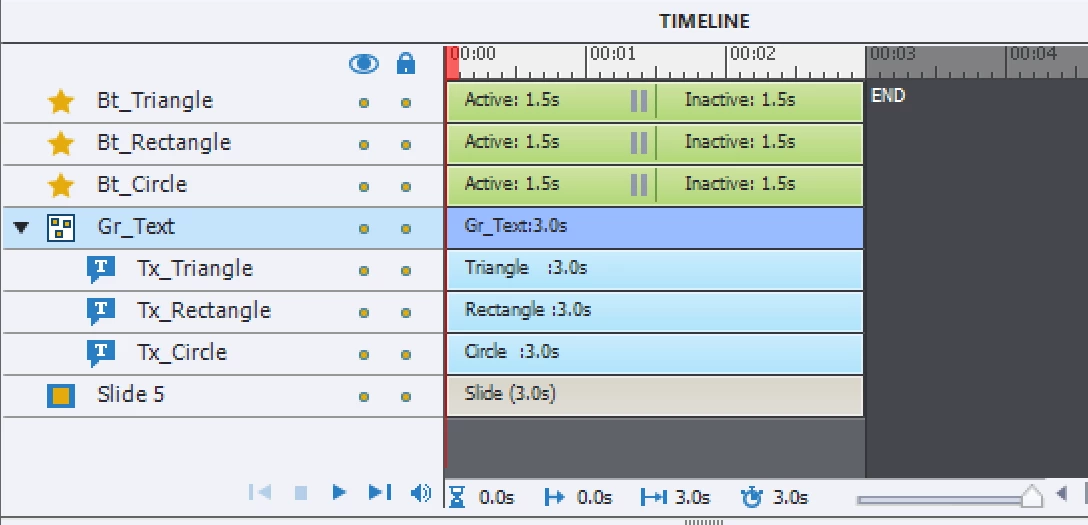
You see 3 shape buttons on top, with Pausing point at the same moment (1,5secs) above a group with 3 texts which are all hidden in Output to start with (use the Eye button in the Properties panel, it has to be barred).

Open the Advanced Actions dialog box from Project menu:
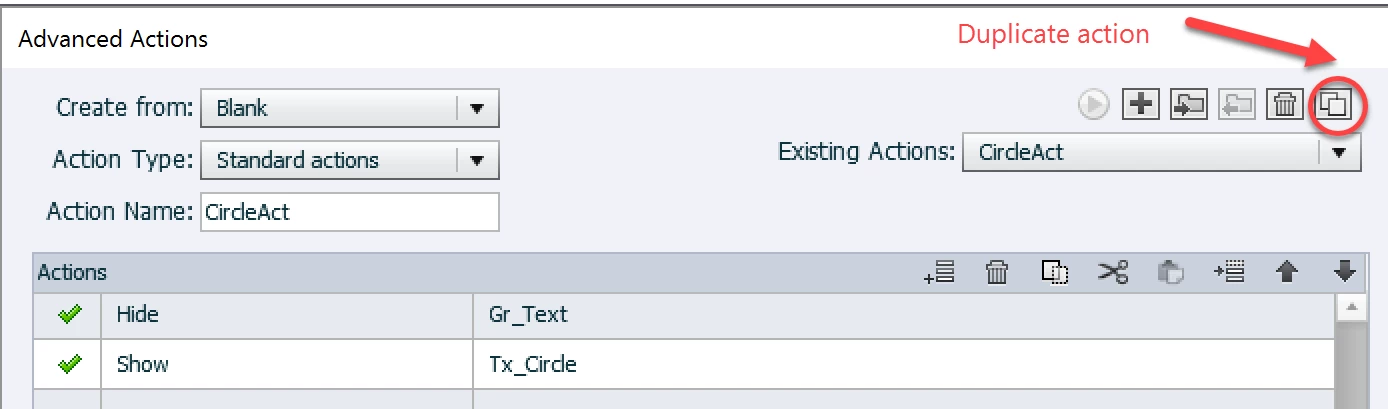
Type in Action name (CircleAct) and double click in the Second column,  first line, you get a dropdown list with actions (like the simple actions in the Properties panel). Choose the command Hide. Double-click in the third column, first line and choose the Group as object. Similar for the second command line. Then save the action.

You can duplicate the action with the indicated button. Change its name, and the second command line, the first remains the same.
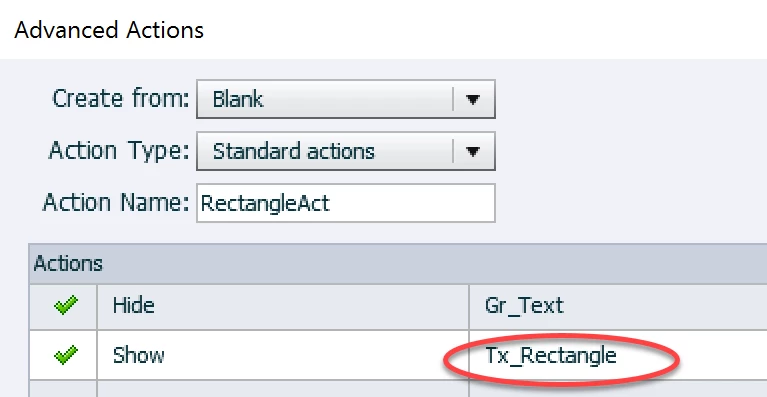
Repeat this as many times as you need the two-command action.

To attach to the shape buttons, go in their Properties panel, Actions tab, open the dropdown list and choose

Execute Advanced Action.

Choose the appropriate action.

Later on you can study the Shared actions articles, because it would be better with shared actions but this will work as well.


返信数 1

Lilybiri
Legend
March 2, 2017

You want all texts to remain visible on the slide. That should be very easy. This is my work flow for such a situation:

  • Group all text objects (CTRL-G)
  • Create a shared action with two commands:
    • Hide Gr_Text
    • Show TextX
  • Define both Gr_Text and TextX as parameters
  • Apply that shared action to each of the shape button (think you used shape buttons that were filled with the images). The first parameter will always be Gr_Text, the second will change with each button, pointing to the correct text object.

Some articles about shared actions:

Dare to Share - part 1 - Captivate blog

Dare to Share - part 2 - Captivate blog

The advantage of shared actions is that you can reuse them over and over again, also in other projects. They appear, with their usage, in the Library

Known Participant
March 3, 2017

Hello and thank you for help.  I learned about Single Actions and how to create one about ten minutes before I posted my question to this forum.  I see that you included links to two of your articles on shared actions, which I also appreciate.  I am going to give it my best shot and follow your steps.  I will provide an update after I follow your steps.  Thanks again.

Lilybiri
Lilybiri解決!
Legend
March 3, 2017

Thanks for the warning about rollovers.  A different piece of text will be associated with each button; for example, let's say I am going to insert four different shapes onto the same slide: a circle, square, rectangle, and triangle.  Each shape will function as a button.

Let's say when I click on the circle-shaped button, the following text displays "This is a circle".  When the learner clicks on a different button (shape), such as the square, the text associated with circle needs to disappear and the text associated with the square needs to display, such as "This is a square".  If I group all of the text together, then all the text displays at the same time, which I don't want to happen.  Thanks again.


You always need two commands: you first hide the group, then you show the item that has to be shown.

Since a single or simple command cannot do both, you need an 'advanced' or 'shared' action. Both are created in tha Advanced Actions dialog box (under Project menu). I proposed a shared action, but you could do it with duplicates of advanced actions as well.  I created a quick example. Here is the Timeline:

You see 3 shape buttons on top, with Pausing point at the same moment (1,5secs) above a group with 3 texts which are all hidden in Output to start with (use the Eye button in the Properties panel, it has to be barred).

Open the Advanced Actions dialog box from Project menu:

Type in Action name (CircleAct) and double click in the Second column,  first line, you get a dropdown list with actions (like the simple actions in the Properties panel). Choose the command Hide. Double-click in the third column, first line and choose the Group as object. Similar for the second command line. Then save the action.

You can duplicate the action with the indicated button. Change its name, and the second command line, the first remains the same.

Repeat this as many times as you need the two-command action.

To attach to the shape buttons, go in their Properties panel, Actions tab, open the dropdown list and choose

Execute Advanced Action.

Choose the appropriate action.

Later on you can study the Shared actions articles, because it would be better with shared actions but this will work as well.
