


- Home
- Illustrator
- Discussions
- Re: Fill Text automatically into a grid of 50x50 s...
- Re: Fill Text automatically into a grid of 50x50 s...

Copy link to clipboard
Copied
Hello. I'm new in Illustrator. I have a job to do and I don't know how to do it. I don't know if this is done with Illustrator. I would be glad if you help.
I've created a square of 1000px / 1000px. Then I turned it into a grid and divided it into 50x50 = 2500 small squares. Then I colored each 10x10 square with a different color with Live Paint. What I want to do is to print a color based specific letter in each of the small squares automatically. Is that possible? I have to automate this process in some way because it will take a lot of time if I do it manually in copy / paste form. I would appreciate it if you have a method in Illustrator and share it.
https://i.hizliresim.com/Nnzgq5.png
{Renamed by MOD}


 1 Correct answer


A script is right - but IMO overdressed.
My "without-script solution":
- change ruler units to px
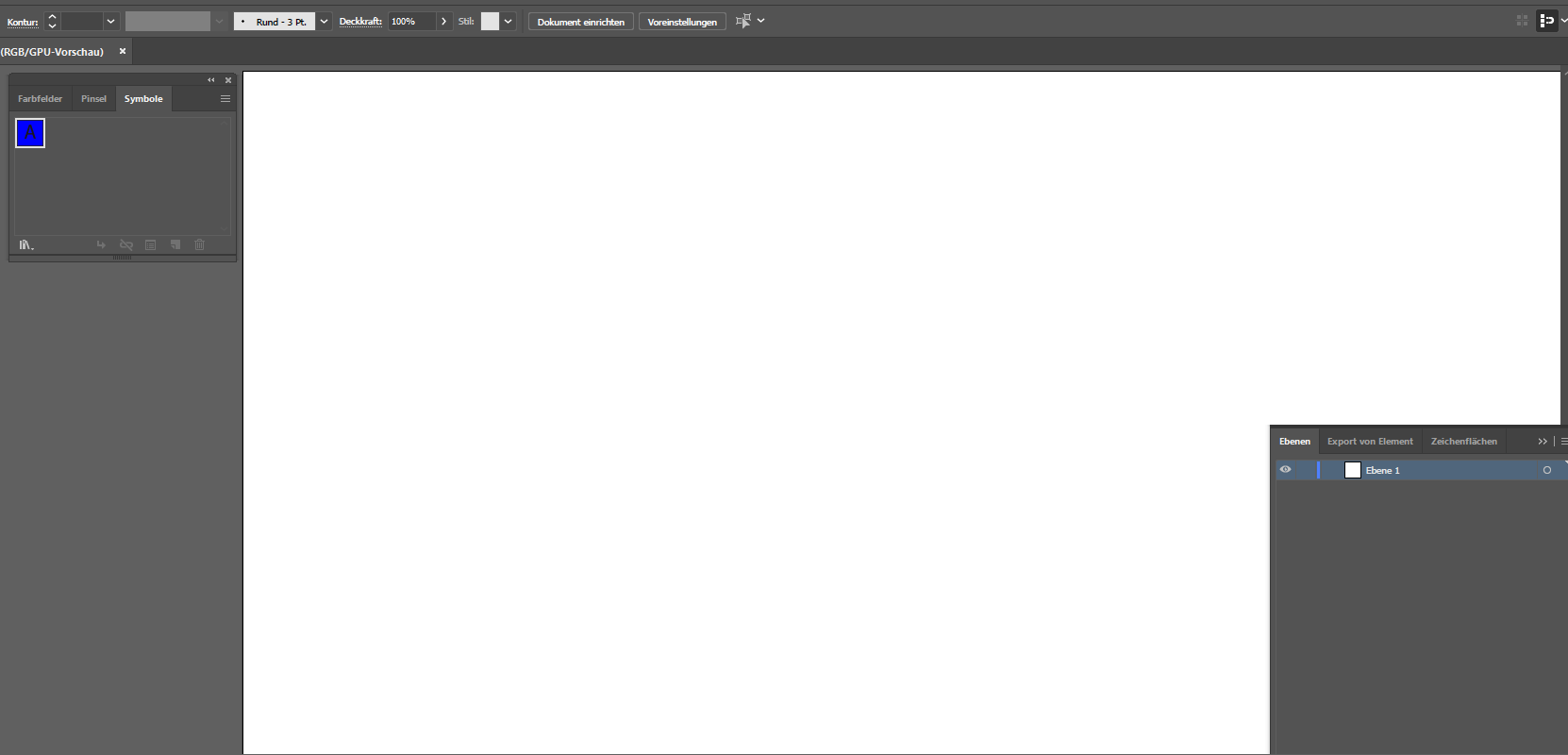
- create one symbol eg 20×20px (rectangle and letter A, both aligned)
- duplicate that symbol in symbol panel as often as you need it
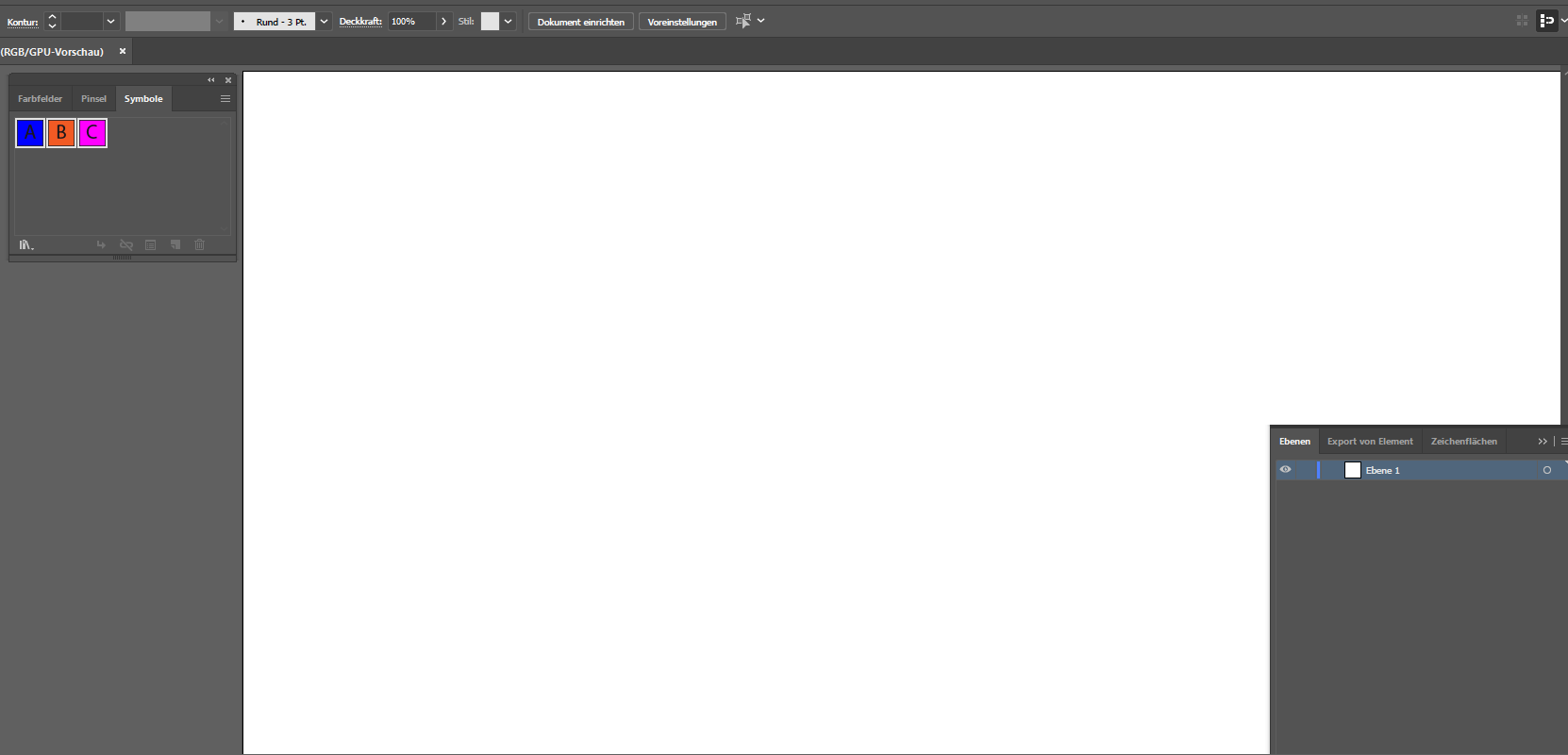
- change the color and the contents of the text of the duplicates
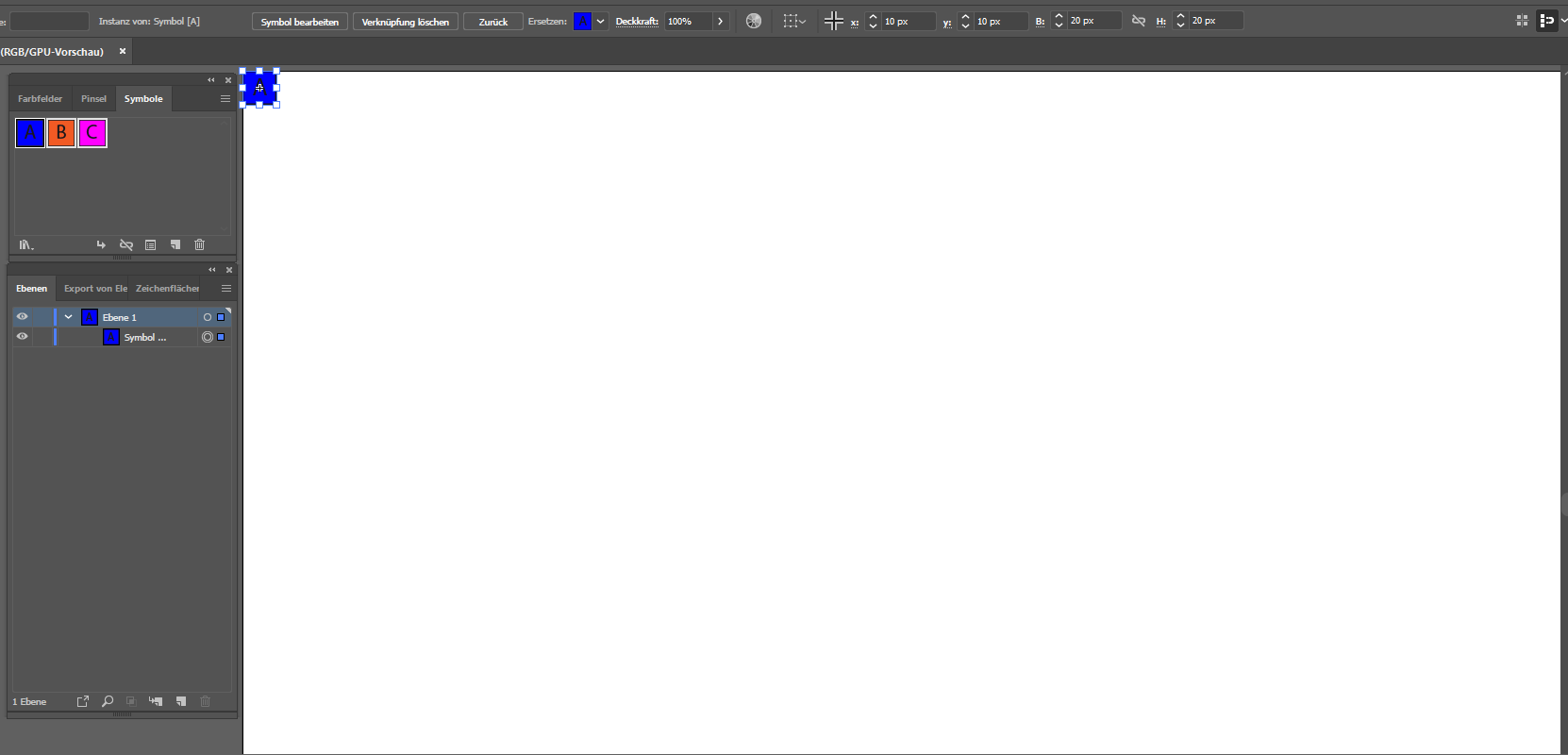
- place a symbol instance and
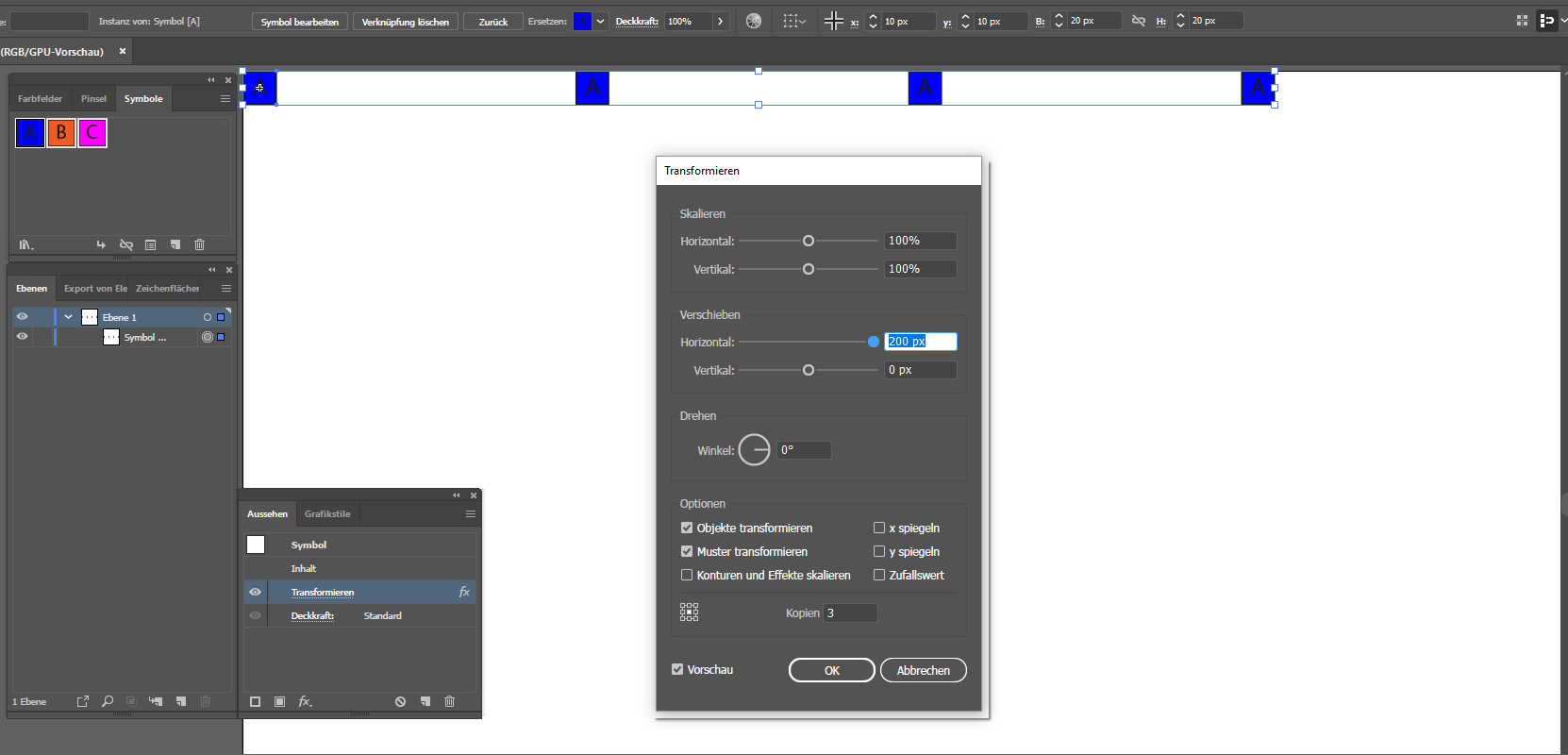
- use transform effect horizontal
- use a second transform effect vertical
- menu: Object --> Expand Appearance
- ungroup three times
- replace the symbol instances
- select all instances
- use transform effe


Explore related tutorials & articles
 13
Replies
13
13
Replies
13


Copy link to clipboard
Copied
If I try to follow your link I get a "403 Forbidden" message.
Can't you use some common file sharing provider like Google Drive?
Copy link to clipboard
Copied
Sory, Kurt Gold. I uploaded it again: https://drive.google.com/open?id=1CytjtDT9lhku3deZLiND1B5_qz9Ru93i


Copy link to clipboard
Copied
Hi there,
This might be possible through scripting hence moving this discussion to Illustrator Scripting forums.
Regards,
Srishti
Copy link to clipboard
Copied
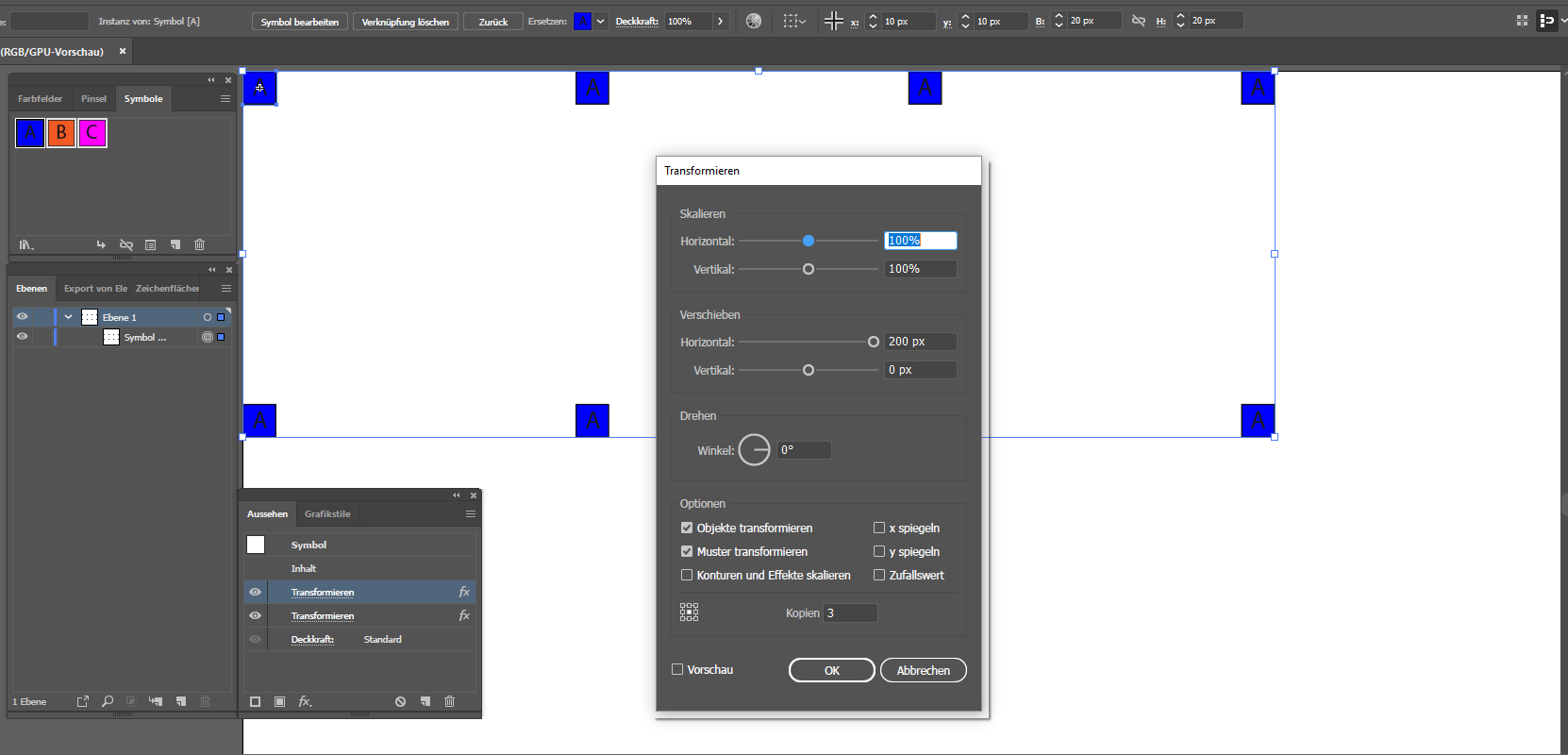
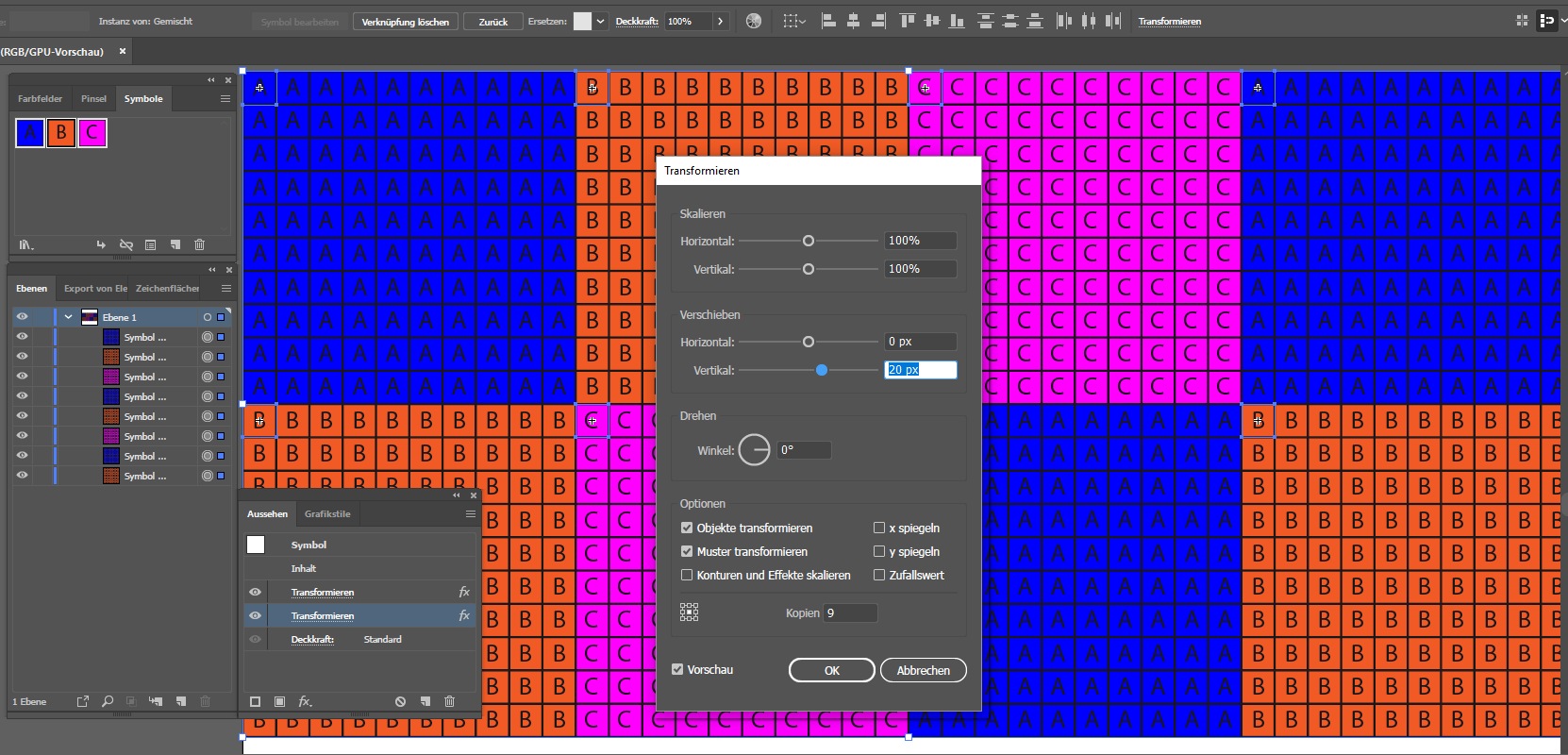
A script is right - but IMO overdressed.
My "without-script solution":
- change ruler units to px
- create one symbol eg 20×20px (rectangle and letter A, both aligned)
- duplicate that symbol in symbol panel as often as you need it
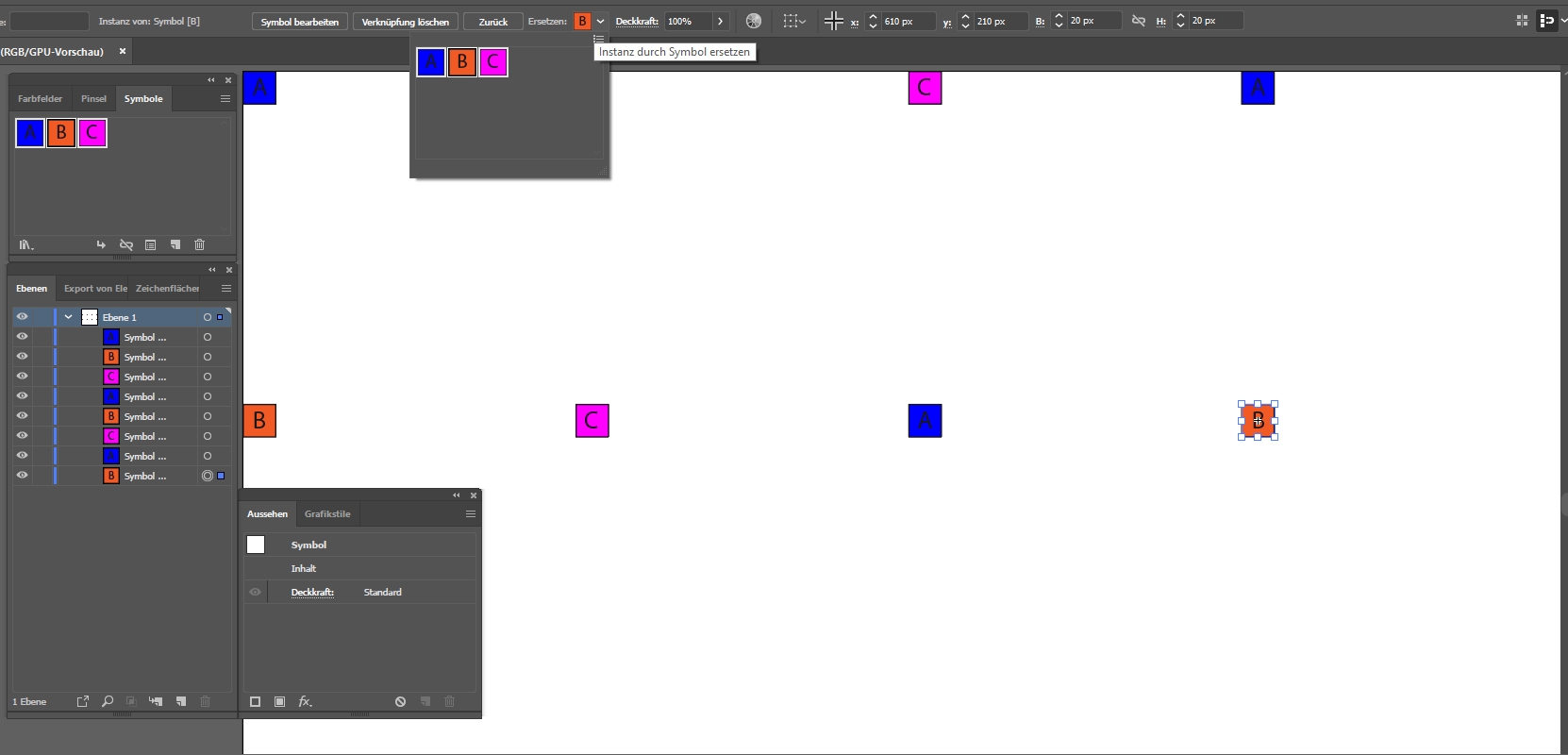
- change the color and the contents of the text of the duplicates
- place a symbol instance and
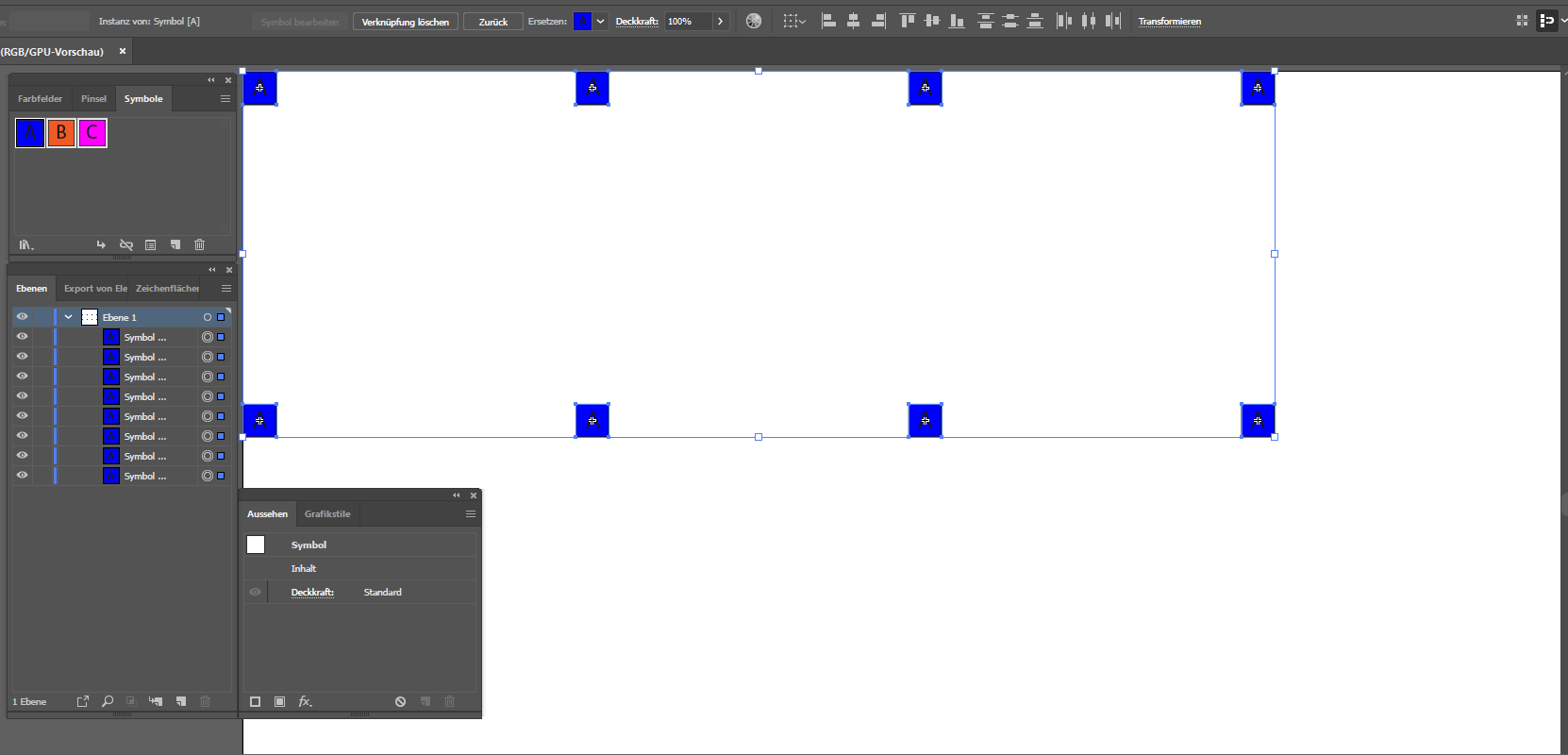
- use transform effect horizontal
- use a second transform effect vertical
- menu: Object --> Expand Appearance
- ungroup three times
- replace the symbol instances
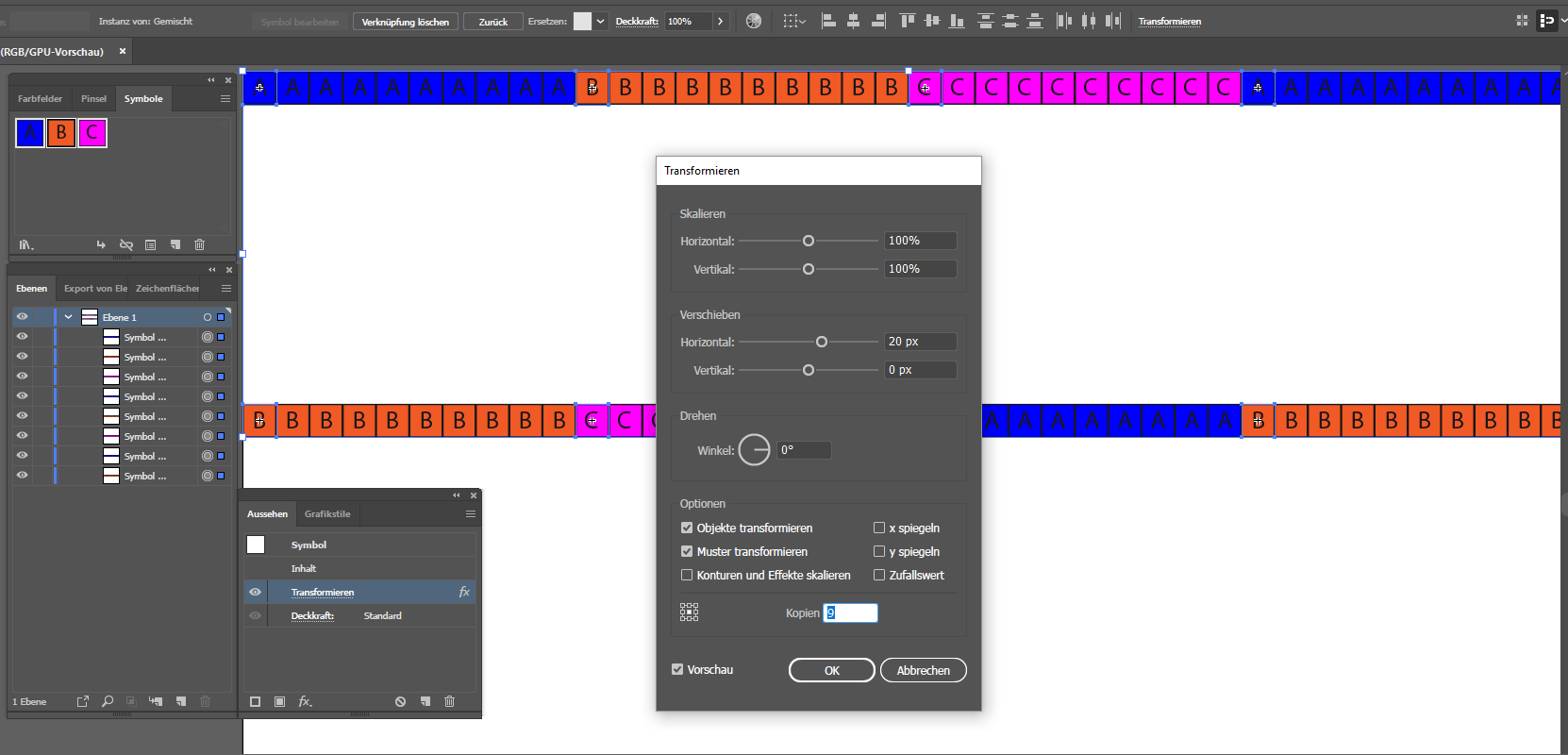
- select all instances
- use transform effect horizontal
- use a second transform effect vertical
Five minutes and: Done
Copy link to clipboard
Copied
You are a Rockstar. Thanks for sharing this.
Copy link to clipboard
Copied
You're welcome.
The big advantage of this method is:
It is absolutely simple to change a 10 by 10 block - select the top left symbol (of the 10 by 10 block) and replace it with another one.
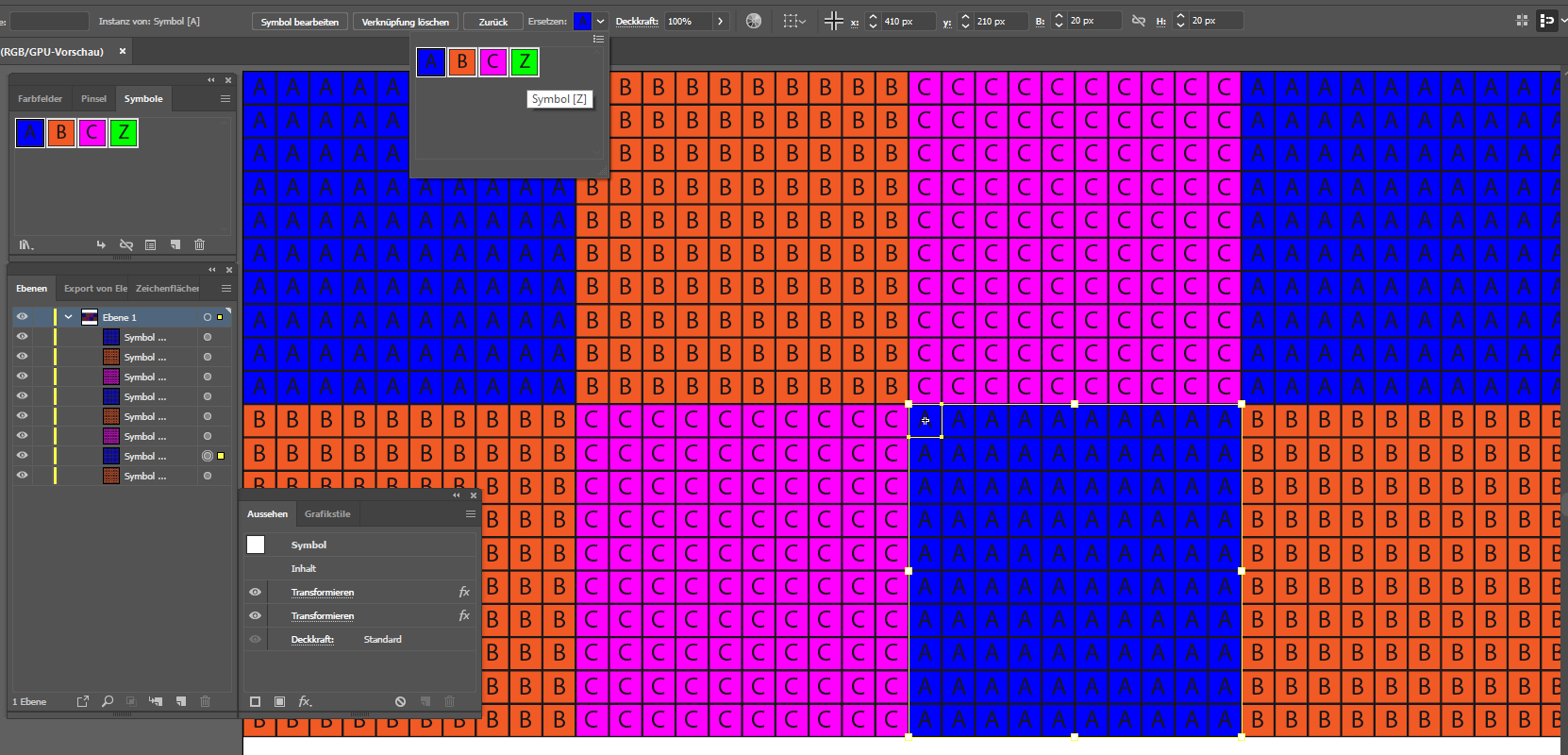
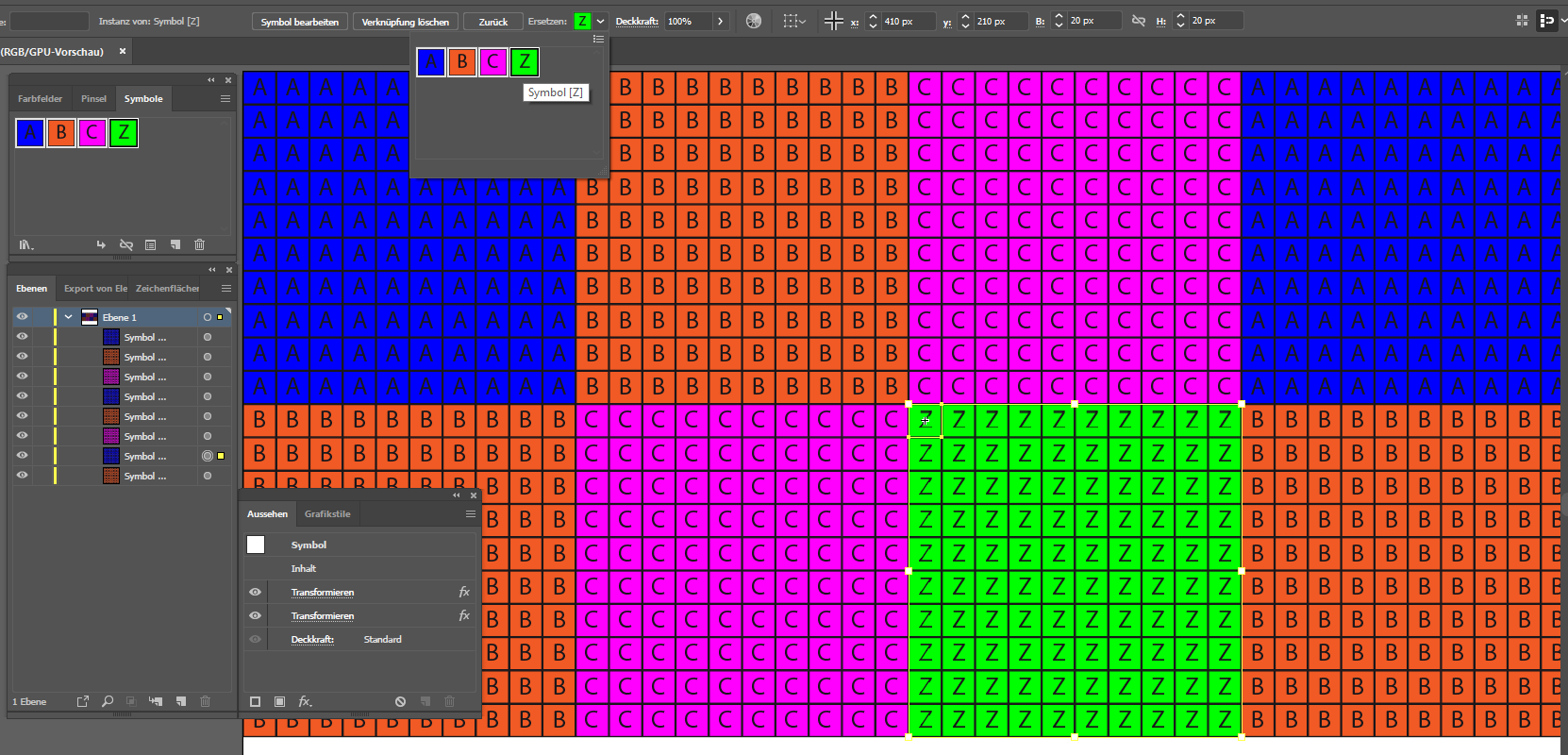
Hope the TO gives a feedback later.

Copy link to clipboard
Copied
Thank you so much, pixxxel schubser.  That was exactly what I was looking for. And thanks to everyone. But I have another question about this topic. What can we do without a script if these little squares are irregular?
https://drive.google.com/open?id=1ZqtyNBT5xmvJolbyAkWjFE8nbfnHqU-C (png)
https://drive.google.com/open?id=1aaUvgIlQY7nzUtNelerKdbomxtowvKw9 (ai)
This is a free beaded bracelet pattern on the internet. Is this a hard job in Illustrator? Can't write letters without a script?

Copy link to clipboard
Copied
1. Expand your Live Paint Group
2. Ungroup your pattern (optional)
create a pattern swatch
3. Select a letter, go to Type->Create Outlines
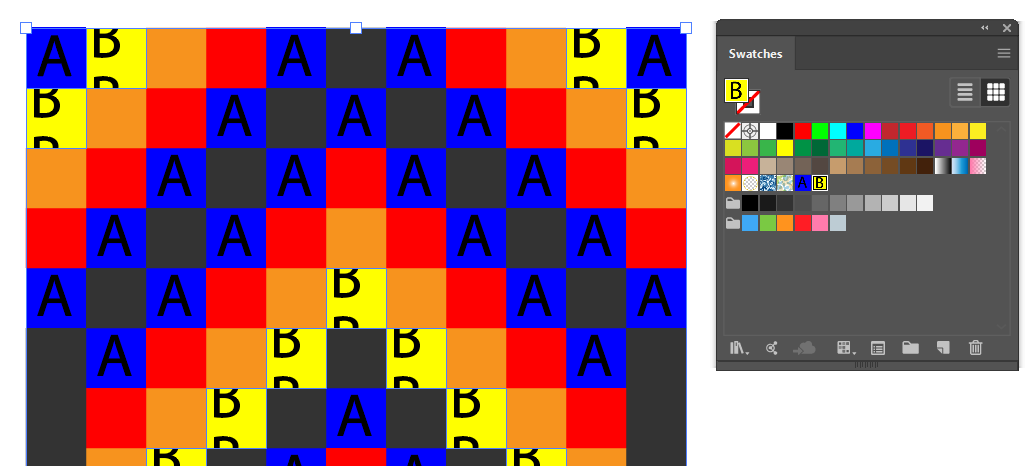
4. Select both the outlined letter and the background color and drag it to the swatches panel to create a pattern swatch
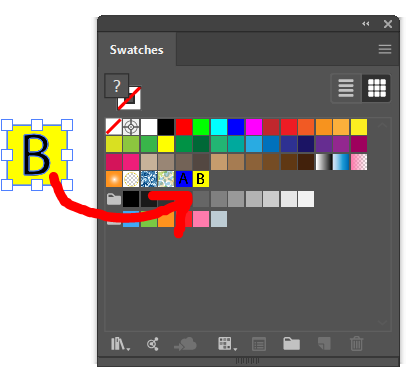
5. Select ONE yellow square in your pattern, then go to Select->Same Fill Color to select all yellow squares
6. Click on the Pattern Swatch you created on step 4 to apply swatch to all squares
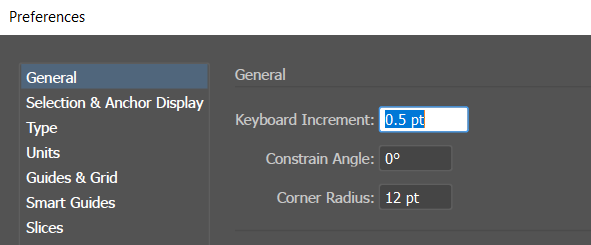
7. Press Ctrl+K to open preferences and change Keyboard Increment to 0.5 pts
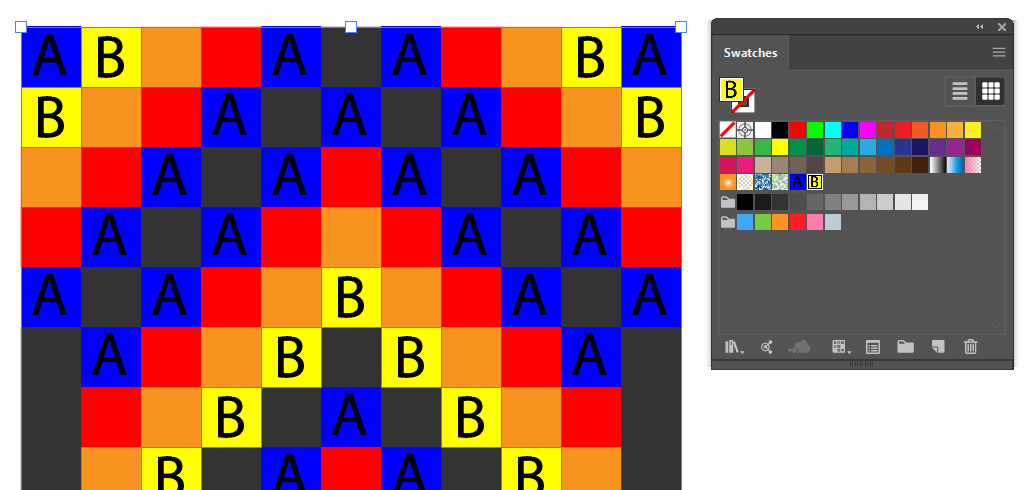
8. Press and Hold the Tilde key on your keyboard "~", then press the arrow keys to move the pattern until it's centered.

Copy link to clipboard
Copied
Copy link to clipboard
Copied
Dear, CarlosCanto. It definitely works. You made my day. Thank you very much!
Copy link to clipboard
Copied
Hi CarlosCanto,
really nice.
Additional to this (second) topic:
There are several (older) replace scripts already exists in the www
eg
findAndReplaceGraphic by Nathaniel V. Kelso
CopyToMultipleObjects by John Wundes
These scripts are very well written and robust and should still work with actual Illustrator versions.
Copy link to clipboard
Copied
Copy link to clipboard
Copied
Hello, I can make your script for Illustrator, contact me by mail.
René Landry


Find more inspiration, events, and resources on the new Adobe Community
Explore Now
 AdChoices