QT PI
Participating Frequently
September 22, 2019
解決済み

Illustrator cc 2018 - White swatch shows gray in object fill - dulls all other color swatches too.

  • September 22, 2019
  • 返信数 4.
  • 5368 ビュー

I saw one other post very similar to this one, but I've had no luck with that solution. 


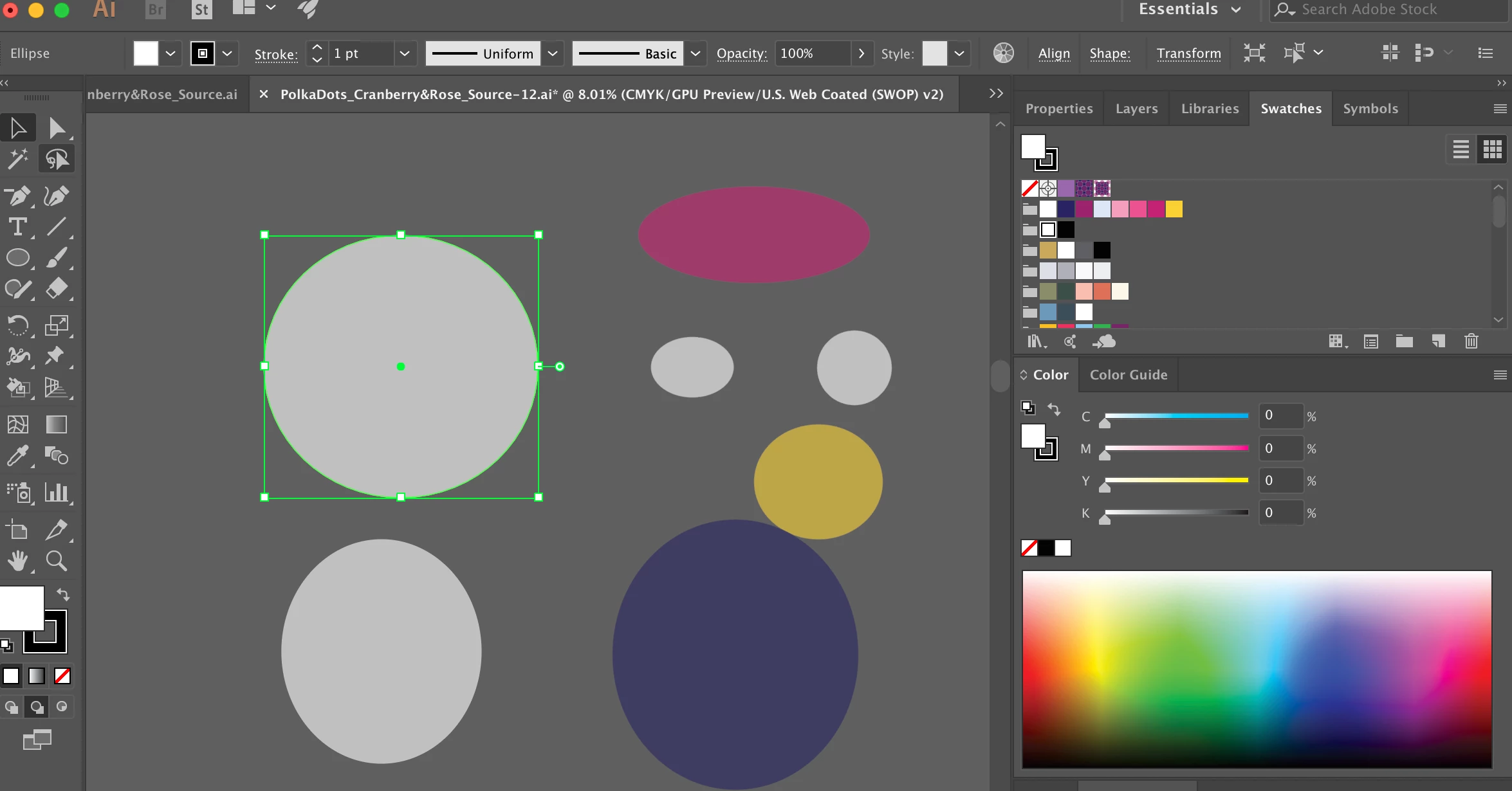
All of the white swatches are appearing gray in the object fill or stroke.  It dulls any other color swatch used, too.  

It does not do this in every file. 

I have made sure everything is in CMYK, not grayscale. 

Here is a screen shot:
 

Thanks for your help!


    このトピックへの返信は締め切られました。
    解決に役立った回答 jane-e

    Look in the Appearance panel and see if anything shows up there.


    Jane

    返信数 4

    tromboniator
    Community Expert
    Community Expert
    September 23, 2019


    Alternatively:


    QT PI
    QT PI作成者
    Participating Frequently
    September 23, 2019
    Eureka! Messing around with the Appearance panel worked!!! I just saw the suggestion on my email, so I did not click over to see your VERY CLEAR ( and much appreciated) pasted illustrations. However, I was able to make some full opacity filled shapes, then I realized all of the dim-shapes were showing up on the green layer. So I was able to select "Reduce to Basic Appearance" & that seems to be the fix. Ahhhh! Thank you! I have a few other files that do this, so I will use the example above to help correct the issue. All the best to you! 🙂 And many thanks to all of those who chimed in to help, also.
    Michael Bullo
    Community Expert
    Community Expert
    September 22, 2019

    @manal_shanableh was talking about an option which resets all preferences. It essentially returns everything back to the original/default settings. It's a great method for fixing odd behaviour.


    https://helpx.adobe.com/au/illustrator/using/setting-preferences.html


    "Press and hold Alt+Control+Shift (Windows) or Option+Command+Shift (macOS) as you start Illustrator. You are prompted to delete the current settings. The new preferences files are created the next time you start Illustrator."

    tromboniator
    Community Expert
    Community Expert
    September 22, 2019

    I would suggest that perhaps you have a reduced opacity applied to the layer containing these objects.

    And the tab at the top of the document in your screenshot shows that it is indeed in GPU view.


    Peter


    QT PI
    QT PI作成者
    Participating Frequently
    September 22, 2019
    That makes sense. I have checked transparency. Upon your suggestion, I went through every layer and everything is saying it is at 100% opacity. Is there another place to look for transparency besides each layer? Just for comparison, I did dim it down to 80%, and it does make it more faint, but at 100%, it is still faint.
    jane-e
    Community Expert
    jane-eCommunity Expert解決!
    Community Expert
    September 22, 2019

    Look in the Appearance panel and see if anything shows up there.


    Jane

    Monika Gause
    Community Expert
    Community Expert
    September 22, 2019

    Does it get better when you work in View > Preview on CPU?

    QT PI
    QT PI作成者
    Participating Frequently
    September 22, 2019
    It is in CPU Preview.
    manal shanableh
    Legend
    September 22, 2019
    did you tried to reset preferences?