


Participant
May 15, 2019
質問

Illustrator - Fill Color Between Two Path

  • May 15, 2019
  • 返信数 5.
  • 25900 ビュー

Hi All,

Newbie here and a stupid question

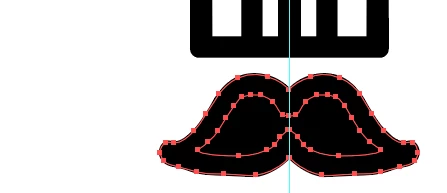
I have drawn two paths and would like to fill color between the paths.

I am getting the below message and then the whole shape is being filled instead of just between using the Live Paint Bucket.

I am doing the same to other paths but it worked.

May I know what I have gone wrong?

Thank you.

Warning message:

Incorrect filled result:
    このトピックへの返信は締め切られました。

    返信数 5

    Srishti Bali
    Community Manager
    Community Manager
    May 17, 2019

    Hi there,

    I would like to know if the steps suggested above worked for you, or the issue still persists.

    Kindly update the discussion if you need further assistance with it.

    Thanks,

    Srishti

    John Mensinger
    Community Expert
    Community Expert
    May 15, 2019

    Now that you've made it a Live Paint group, the suggestions above give you most of the ways out of it.

    But on a more fundamental level, a closed path inside another closed path (which is what you had before you made it a Live Paint object) can be filled in the way you want by simply making them a Compound Path. With both selected, choose Object > Path > Compound Path > Make (or just press Ctrl/Cmd+8).

    Omar.Fathy
    Community Expert
    Community Expert
    May 15, 2019

    The easiest way to do that is to add fill color to the 2 paths and use the shape builder + Alt to delete the shape in the center.

    Doug A Roberts
    Community Expert
    Community Expert
    May 15, 2019

    You can follow Eugenio's instructions above, but my guess is you made a live paint group with just the outer path selected. Do what the error message says; select both paths and either click 'Merge Live Paint' in the control bar or go to Object > Live Paint > Merge.

    Eugenio.NYC
    Participating Frequently
    May 15, 2019

    Hi

    Option 1: you don't have to create a live paint group. Select the 2 shapes and go to object menu, compound path

    Option 2: use the shape builder tool, with bought elements selected, hold down the key alt (option) and click inside

    Option 3: use the Pathfinder panel and use the second icon minus front

    and many other ways

    I hope that helps

    E