


macyf61756121
Participant
February 2, 2018
解決済み

Vector Art, printing pixelated

  • February 2, 2018
  • 返信数 3.
  • 5167 ビュー

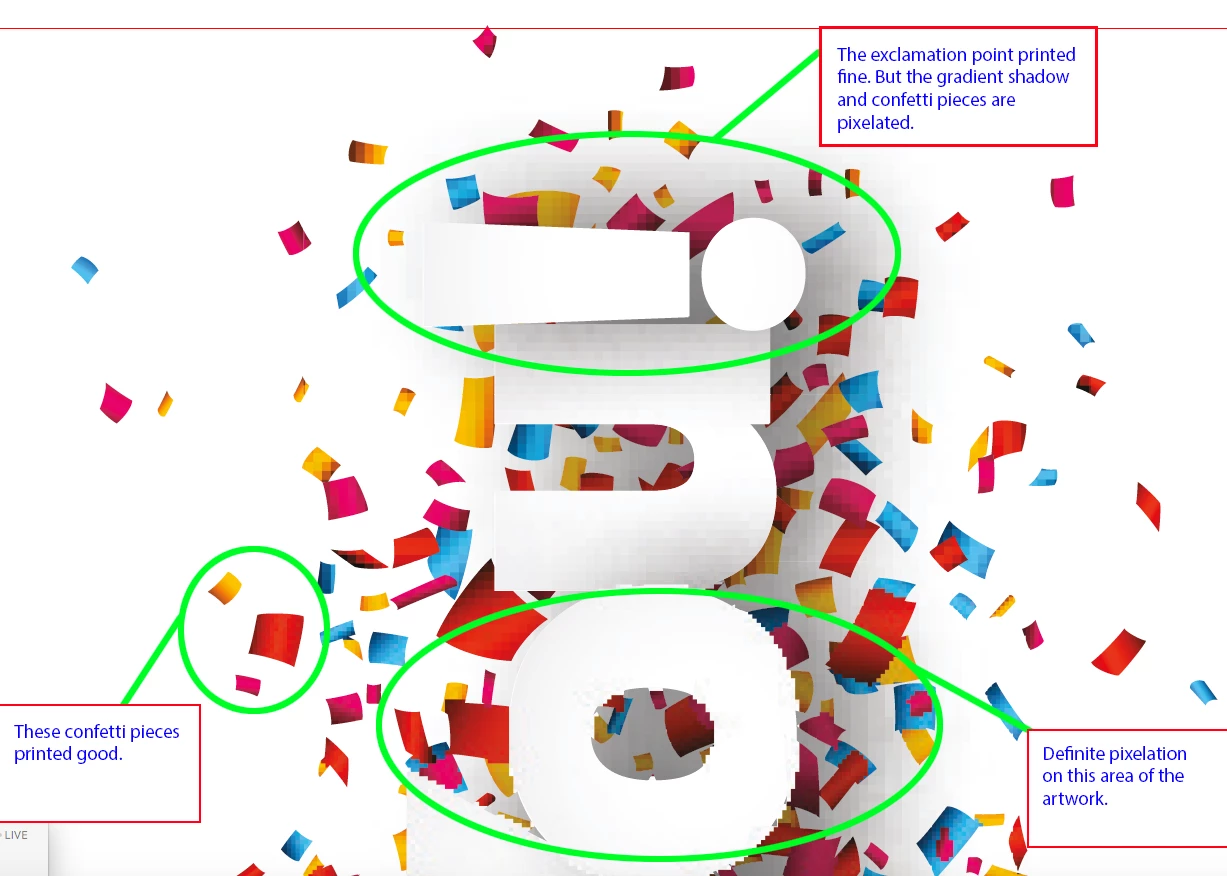
We’ve had issues when printing jobs containing vector artwork that needs to be enlarged 500 - 900% when imported in any layout program to be a usable size, (this is vector art with a document setup as pixels and is the size of a postage stamp, i.e. tiny artwork).

Vector art can be scaled up or down at any size and will look and print great, but….In the past few months, with some of the vector downloads (from various sites), once enlarged it looks and prints like the attached screenshot. My question, is there an advantage to creating vector art very small and as pixels, rather than creating larger artwork and in “inches" for example? I’m guessing the file size might have something to do with it being done that way. But generally, vector files are small in kilobytes/megabytes, so that’s not a big advantage.

The fix is to open the file in Illustrator, scale it to a large size, save and then import it. The issue is that some jobs have been printed on press, before the pixelation is caught by someone, and has to be fixed then reprinted. We’ve also had this happen when printing customer files containing the same type of vector art.

Any thoughts or input on this issue would be greatly appreciated.
    このトピックへの返信は締め切られました。
    解決に役立った回答 Monika Gause

    All input above is great! And does make sense, I've done flatten transparency and considering how small the file dimensions are to make it high resolution for enlargement in Indesign, it makes a huge file in mb. Which took way longer to export to a print pdf, and also a really long time to process for plating. So, getting back to original question.

    My question, is there an advantage to creating vector art very small and as pixels, rather than creating larger artwork and in “inches" for example? I’m guessing the file size might have something to do with it being done that way. But generally, vector files are small in kilobytes/megabytes, so that’s not a big advantage.

    Because if I open any small art in Illustrator, enlarge it 500% save it, import it into Indesign, it doesn't do the pixelation at all.


    Why do you flatten it before importing into InDesign?

    All you have to do is save as an AI file with PDF compatiblity turned on and then place it into your ID file.

    The flattening will then be done in InDesign at the moment when you write a PDF. Or maybe not even then, provided you export a PDF/X-4.

    People usually make small files when preparing artwork for Microstock services. The reason for that is:

    - the services want EPS files

    - in EPS transparency is flattened to pixels

    - pixels make large files

    Of course the EPS files (when saved as EPS 10 from Illustrator) also contain editable AI files.

    返信数 3

    Ray Yorkshire
    Participating Frequently
    February 3, 2018

    Interesting thread - would love to learn more about the printing side

    So  just guessing:

    The area under the text had to be razerised,  bacuse illustrator saw it as the only way to maintain the gradient AND drop shadow apperances together.

    The  lucky confetti on our right just escaped the drop shadows range so is still vector

    The equally fortunate i is sitting pretty on the top of the stack- above the chaos.

    The n gets away with  just a raster shadow?.

    And Ilustrator now tired, probably treated the o  area as a complex region and rasterized it with the excuse '' it will print faster ''.

    Are the files dimensions too small for an increase in the flatten transparency settings to help ?

    Inspiring
    February 3, 2018

    "And Ilustrator now tired, probably..."

    Really?

    Monika Gause
    Community Expert
    Community Expert
    February 2, 2018

    The image has been partially rasterized. Maybe due to effects, maybe due to flattening.

    The drop shadows might be still live effects, so you could try and open Effects  Document raster effects settings and input a higher resolution.

    But the rasterization in the center of the image might actually be flattened to piels. This cannot be solved afterwards.

    Try and open the layers panel in Illustrator to inspect the artwork.

    twaritar3263062
    Participating Frequently
    February 2, 2018

    Moving to Illustrator