


Participant
January 31, 2020
解決済み

Export Hidden Lines From Outline View

  • January 31, 2020
  • 返信数 2.
  • 2645 ビュー

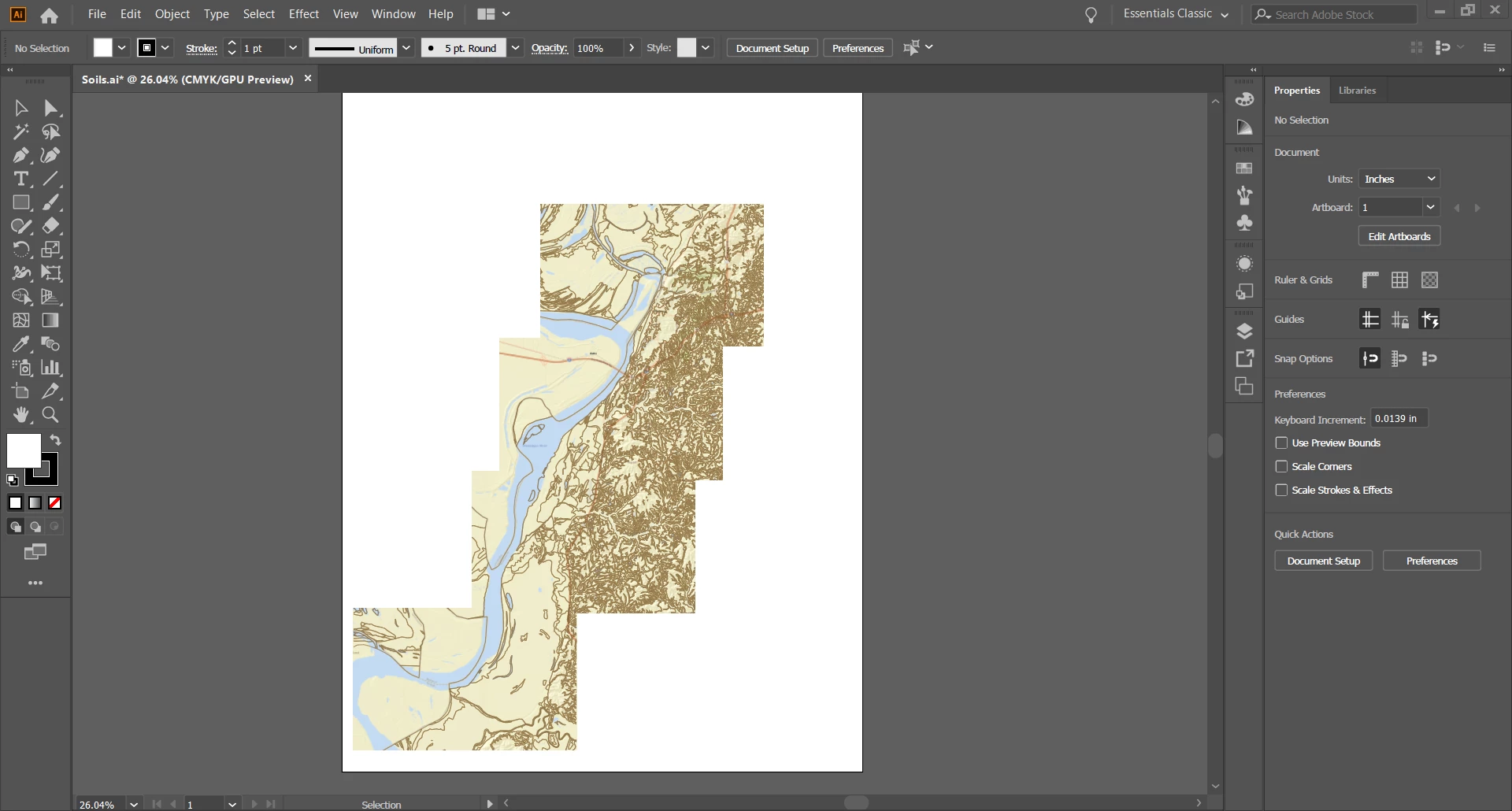
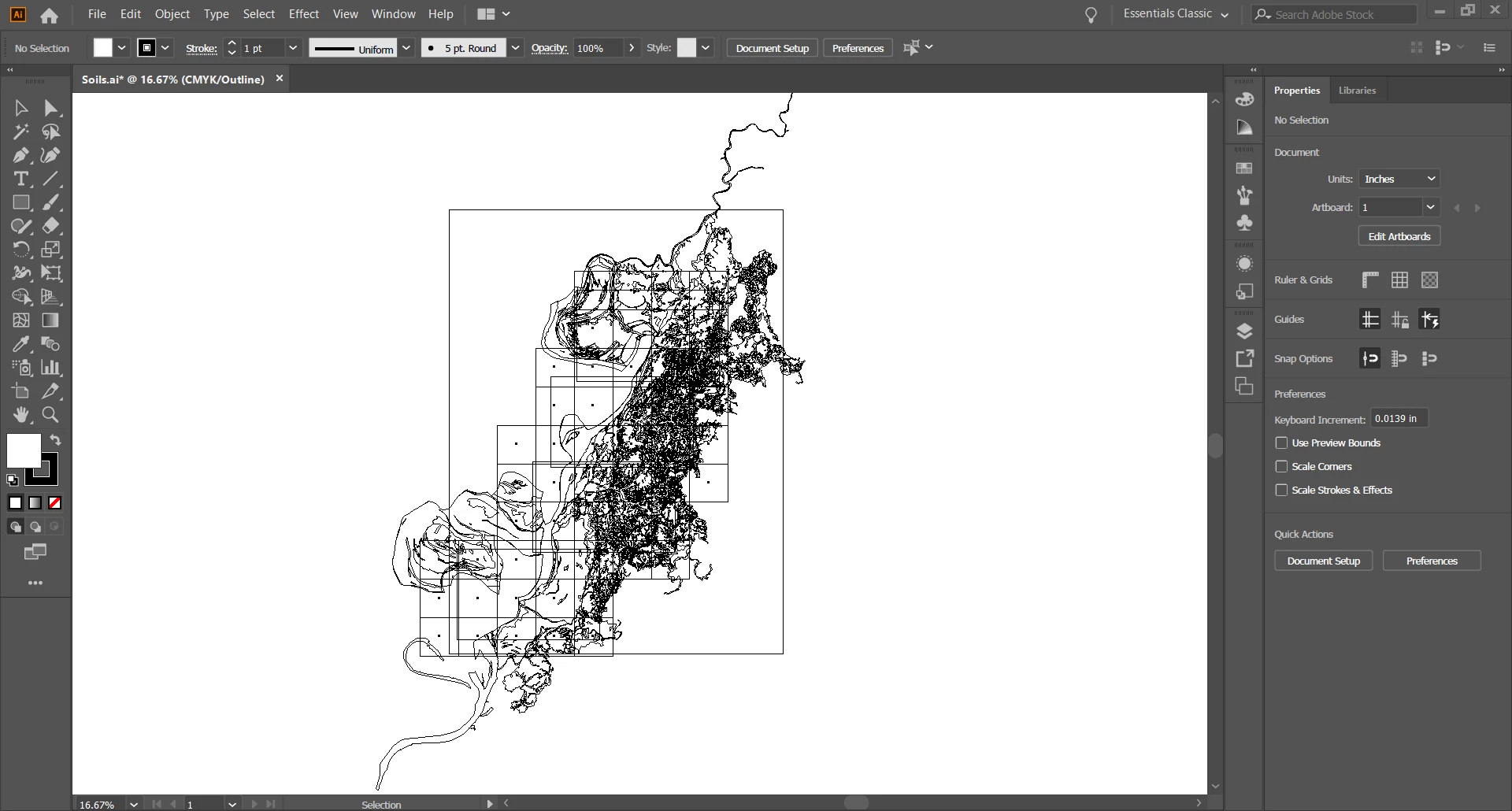
I took a print screen and created a PDF of an arcgis map about an area's soil type. When I open it in illustrator it looks as it does on the website, but upon looking at it in outline view, i notice that the pdf holds more information than it shows. How do I pull out/export the lines from outline view? Attached are images that will hopefully better explain what's happening.
このトピックへの返信は締め切られました。
解決に役立った回答 Luke Jennings

All of the lines you see in outline view are available in preview as well, they may have a stroke & fill of none or are behind other objects. If you go to View> Layers you should see the various elements in your file, Option + click on one of the elements in the layers panel to select the object, once selected, you can move it or re-color it in order to make it visible. You can click & drag the blue selection box to move objects between layers.

Some objects may be cropped by clipping masks, which can also be selected and edited in the Layers panel.

返信数 2

Luke Jennings
Luke Jennings解決!
Inspiring
January 31, 2020

All of the lines you see in outline view are available in preview as well, they may have a stroke & fill of none or are behind other objects. If you go to View> Layers you should see the various elements in your file, Option + click on one of the elements in the layers panel to select the object, once selected, you can move it or re-color it in order to make it visible. You can click & drag the blue selection box to move objects between layers.

Some objects may be cropped by clipping masks, which can also be selected and edited in the Layers panel.

Ton Frederiks
Community Expert
Community Expert
January 31, 2020

You could try Select > Object > Clipping Masks and delete them.

otumile作成者
Participant
January 31, 2020

I don't want to delete them though. I want the lines in order to create the map and export them