
pixeltaker
Inspiring
December 11, 2023
Question

Error message on import

  • December 11, 2023
  • 1 reply
  • 984 views

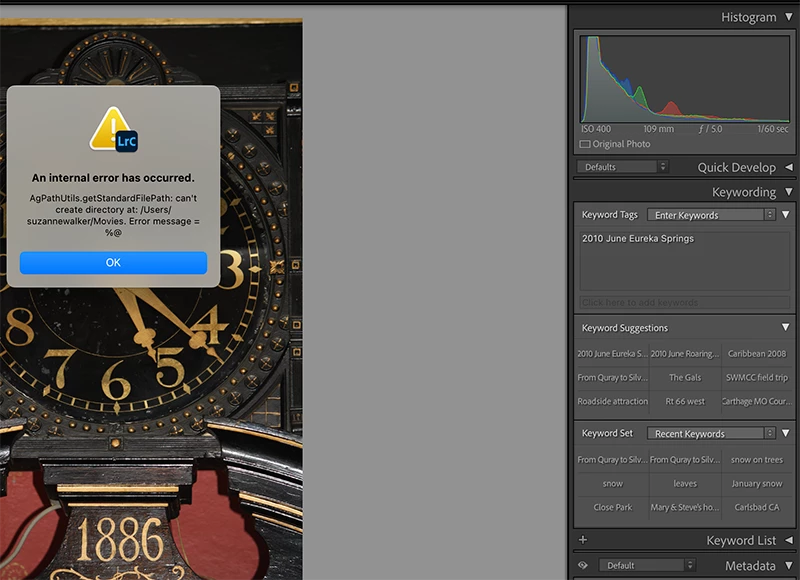
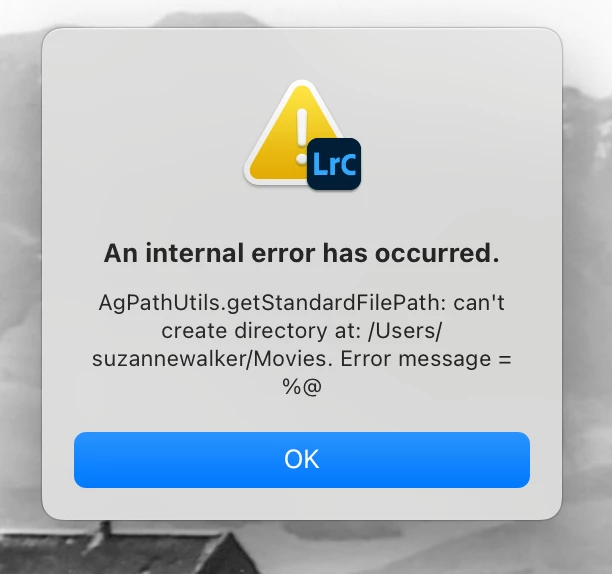
This is the error message I get when trying to import a photo that is on my desktop.
This topic has been closed for replies.

1 reply

JohanElzenga
Community Expert
Community Expert
December 11, 2023

You are trying to copy the imported images into your 'Movies' folder and create a subdirectory in that folder (possibly dated subfolders). So the first question is if you really want to store your imported photos in there? Are these movies? You say 'photo' in your message. If it is indeed not a movie but a photo, then you may have selected this destination folder by mistake. The second question is why Lightroom can't create a subdirectory. This could be a permissions problem. Does Lightroom have 'Full Disk Access'? See Quick Tips: How to give Full Disk Access to Lightroom Classic on macOS


-- Johan W. Elzenga
pixeltaker
Inspiring
December 11, 2023

I have no movies.  I don't even know where to find that folder.  I need more information on how to change 'the destination folder".   So what I am trying to do in LR Classic is import to a folder in my catalog.  I selected the correct folder for import, but when I tick import, the message above shows up.  I've not had this problem before. 

johnrellis
Legend
December 11, 2023

Please show your import dialog. If we don't know exactly what you are doing, then we can't help you solve the problem you get when you are doing it. Describe step by step what your import process is, and illustrate it with screenshots of each step, not just that error dialog again.


There have been a number reports about this error message in the past (see below). When you click Import, LR checks that /Users/<user>/Movies is a folder that it can modify, and if it doesn't exist, it tries to create it, and if that fails, it produces the error message. This occurs regardless of your particular Import settings.  


Troubleshooting steps to resolve this:


1. Triple-check that LR has Full Disk Access (not Files and Folders) permissions:

https://community.adobe.com/t5/lightroom-classic-discussions/quick-tips-how-to-give-full-disk-access-to-lightroom-classic-on-macos/m-p/12913413


2. Restart LR. If that doesn't help, then proceed:


3. In Finder, do the menu command Go > Go To Folder, and type "~" followed by Return. That will open Finder on /Users/<user>/.


4. In that folder, select Movies and do File > Get Info.


5. If Get Info does not show  "Kind: Alias" under General, then post a full-resolution screenshot of the Info window for Movies and stop.


6. If Get Info does show "Kind: Alias", close the Info window and in Finder, move Movies to Trash.


7. If Finder doesn't allow you to move Movies to Trash (newer versions of Mac OS's Finder sometimes won't) then:


a. Start the Terminal app.

b. Copy and paste this exact line:


sudo rm ~/Movies


c. Enter your password when prompted.


8. Restart LR.


9. If you're still getting the error, then do steps 2--4 to post a screenshot of the Get Info window for Movies.


---


Previous reports about this issue:


https://community.adobe.com/t5/lightroom-classic-discussions/can-t-create-directory-at-users-torrikoppenaal-movies/m-p/14004014

https://community.adobe.com/t5/lightroom-classic-discussions/can-t-import-photos-at-all/m-p/13852083

https://community.adobe.com/t5/lightroom-classic-discussions/lightroom-error-can-t-create-directory-at-users-aurora-raso-movies-error-message/m-p/13395240

https://community.adobe.com/t5/lightroom-classic-discussions/unable-to-import/m-p/12933311

https://community.adobe.com/t5/lightroom-classic-discussions/impossible-d-utiliser-lightroom-classique/m-p/12884053

https://community.adobe.com/t5/lightroom-classic-discussions/lightroom-classic-import-error-an-internal-error-has-occurred/m-p/11831168
