



Sameer K
Community Manager
Community Manager
January 10, 2022
Answered

🔎 Quick Tips: How to give Full Disk Access to Lightroom Classic on macOS

  • January 10, 2022
  • 74 replies
  • 280351 views


How to provide Full Disk Access on macOS


Since macOS 10.14 (Mojave), Apple introduced a new privacy structure to help ensure that all applications obtain user consent before accessing documents, downloads, desktop, iCloud Drive, and network volumes. This has been reinforced in newer versions of macOS. This change prevents unauthorized access to user files and folders.


When Full Disk access & Accessibility permissions are needed, users may be asked to or be required to change the setting in System Preferences > Security & Privacy > Privacy for Lightroom Classic manually.   

While for the File & Folders access, the user is prompted to allow or deny when needed. 


Why provide full disk access to Lightroom Classic?

Insufficient or broken permissions may restrict Lightroom Classic from functioning correctly and break your workflows. All tasks that require access to the computer's storage importing/exporting images, cross-app workflows, reading/writing metadata,  and more, behave unexpectedly. It may also lead to missing images, performance issues, unexpected sync issues, and random app crash on launch or while working on a file. 


Watch this video for the steps:



Quick steps to enable full disk access and grant permissions to Lightroom Classic

 Follow these steps to prevent the permissions issues from occurring: 


❶  Go to System Preferences > Security & Privacy > Privacy > Click the Lock icon > Authorize via password > Unlock the lock to allow changes to system settings. 
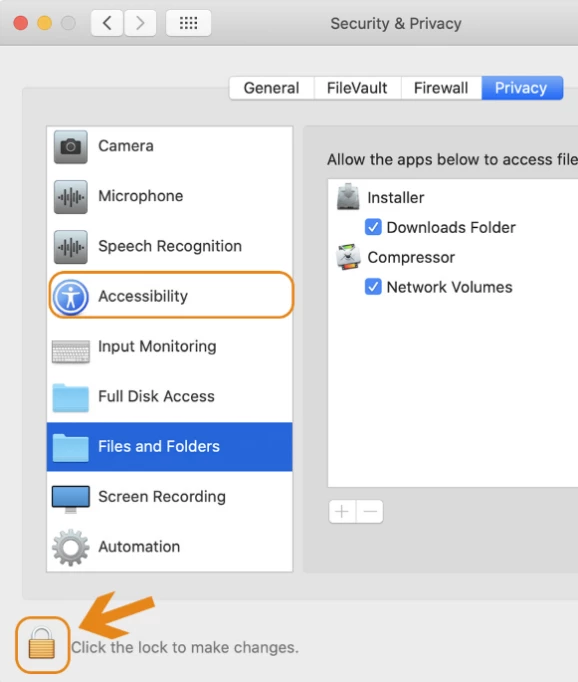


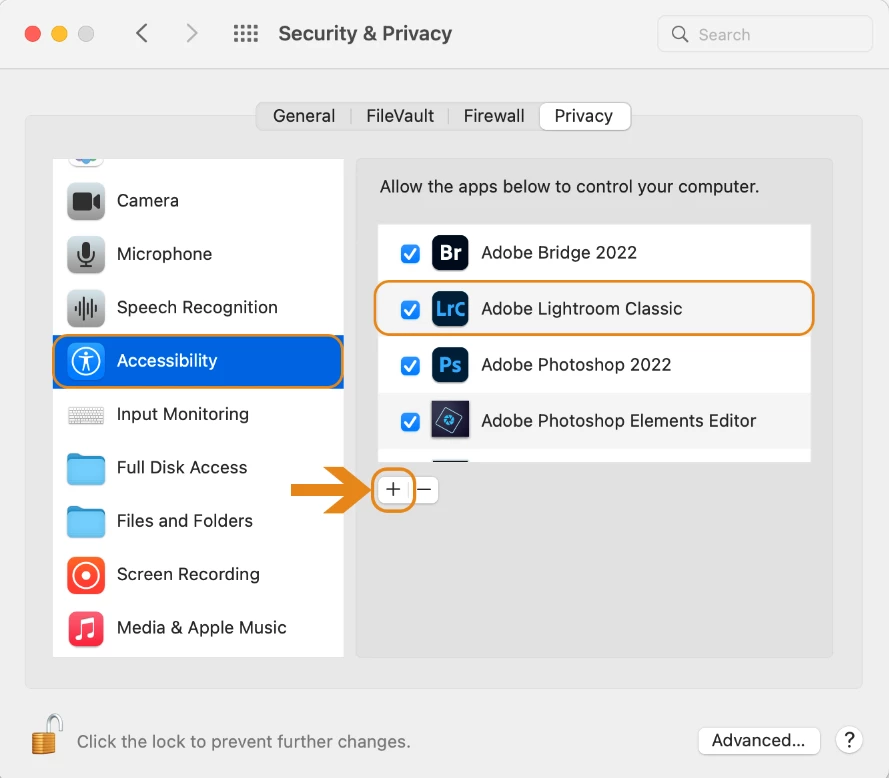
  Add Lightroom Classic by clicking on the (+) button & navigate to the Applications folder on macOS.


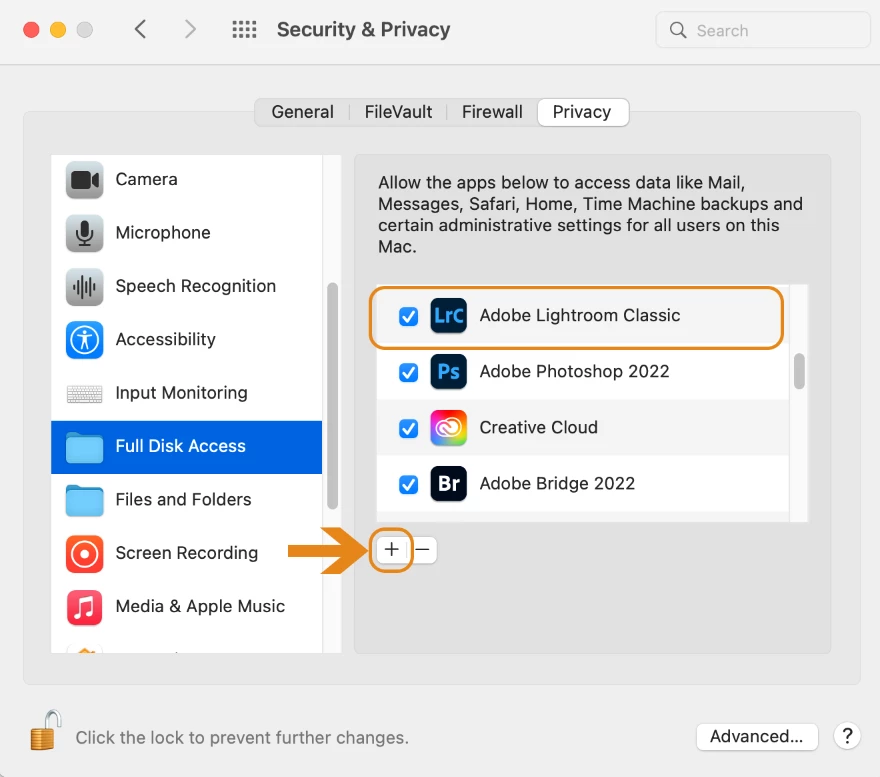
  Go to Full Disk Access and add Lightroom Classic by clicking on the (+) button & navigate to the Applications folder on macOS.
Note: Adding Lightroom Classic under Full Disk Access overrides Files and Folders settings. 


  Click the Lock icon to save the changes. Restart your computer to see the applied changes. 


Stay tuned for more tips to come.


Related links:

Lightroom Classic system requirements 

Quick Tips: Optimize LrC preferences for better performance 

Basic troubleshooting steps to fix issues in Lightroom Classic 


74 replies

John Rangtveit
Participating Frequently
July 31, 2022

Hi!
When opening Lightroom Classic 11.4.1 on my new Macbook Air (2022) this messega pops up.
What do I have to do to solve this? (se enclosed Screndump).
Thank you in advance for helping me.
Regards John R

JohanElzenga
Community Expert
Community Expert
July 31, 2022

@GoldingD wrote:

see:

https://community.adobe.com/t5/lightroom-classic-discussions/quick-tips-how-to-give-full-disk-access-to-lightroom-classic-on-macos/td-p/12913413


Although Lightroom must indeed have full disk access, this error is not caused by that and is probably not solved by giving full disk access. And if the error message does disappear, then it's still the wrong way to solve it.


What the error says is that Lightroom has reset the folder for incoming synced images (images shot on your phone) to the /User folder. Lightroom must not write to this folder however, because that is the System folder that contains the different user home folders. Go to 'Preferences - Lightroom Sync' and change this folder to a folder inside your own home folder. The most logical place is the folder hierarchy where you store your other images.


-- Johan W. Elzenga
Participant
July 28, 2022

I'm unable to import images from an external drive. During the import process the drive is visible but when selected, its shows no files or folders. See attached screen shot. I've also attached a screen shot of the files on the external drive. This just started happening out of nowhere. Any help would be appreciated!


Legend
July 28, 2022

Try this: click on Copy (yes, I know you want to Add, but click on Copy anyway). Then make sure the Destination panel is present on the right hand side and expanded. Then click back to Add.

Participant
July 23, 2022

I've used LrC for a few years and have never had issues importing photos from either my Canon SIM card or Seagate HHD into LrC. However, now when I try to import photos from my SIM card and move then to my drive (technically "copy photos to a new location and add to catalog") I get an error saying "Could not copy a file to the destination folder because it is not writable." Additionally, when I try to import the photos directly into LrC from my Seagate drive, they do not appear on the import menu - "No photos found." Any clue what's going on?

johnrellis
Legend
July 23, 2022

Something changed in Mac OS, and many people are finding they need to grant LR Full Disk Access. See:
https://community.adobe.com/t5/lightroom-classic-discussions/quick-tips-how-to-give-full-disk-access-to-lightroom-classic-on-macos/m-p/12913413


Let us know whether that fixes the problem.

Participant
July 23, 2022

Just followed the steps in the link you shared and everything works perfectly again. Thank you for the help!

Participant
July 19, 2022

I am getting an error message when I try to download to LrC--it started yesterday sporadically but it won't allow anything today, not only from my new CF-B card but older ones too, plus an older SD card.   It's not the reader or the card--I can see the images I want to download, but they just won't download (getting the message in the screenshot below).

Participant
July 13, 2022

LIGHTROOM CLASSIC V11.4.1 Won't Export Any Files


I'm on a Macbook Pro OS 12.4


Help! For some reason lightroom won't export anything from my laptop at the moment. I've tried everything and restarting everything too. Any ideas what it could be or how to fix? When I send files to get exported everything runs normal until the loading bar just stays still and no files get exported so I have to cancel it. Doesn't show any erros happening either.


{Thread title updated by moderator}

Sameer K
Community Manager
Sameer KCommunity ManagerAuthor
Community Manager
July 13, 2022

Hi there,


Thanks for reaching out. We are sorry for the trouble with Lightroom Classic.


Where are the original images stored & what is the destination location for the export to an internal or external drive?

Has this started since you upgraded to macOS v12.4 or updated Lightroom Classic to v11.4.1?

Does the export get stuck with a specific set or collection of images? Could you please share a screenshot of the export dialog box to showcase the settings you are using for export?


Please check this thread and ensure Lightroom Classic is added under  Full Disk Access & Accessibility in the macOS preferences: https://community.adobe.com/t5/lightroom-classic-discussions/quick-tips-how-to-give-full-disk-access-to-lightroom-classic-on-macos/td-p/12913413


Let us know if this helps,

Thanks!
Sameer K

Participant
July 13, 2022

Thank you Sameer! Giving LR full disk access solved the issue, this was extremely unusual as I've been using the same laptop and everything's been running smooth with the last updates.


Best,


Alejandro C

Participant
July 13, 2022

LRC works on my old Macbook pro. When I connect my camera it automatically shows the pictures to import and on my new macbook pro I get a message: "No photos found" My camera shows up but that's it ????? 

johnrellis
Legend
July 13, 2022

@ArmandoJan, did you grant LR Full Disk access as described at the top of this thread?

Participant
July 13, 2022

Thnx John for your reply. Yes I did have all the access set as required etc. In the meantime I found out what the problem was. Apparently (and I find it very strange) LRC could not find the pictures on my camera because of a firmware issue in my EOS5D. Something I did not think of before because up to yesterday on my old MacBook Pro 2019, with exactly the same settings, everything worked perfectly. 

I connected a very recent EOS90D and had no problems whatsoever. That got me thinking. So something in my new notebook required a firmware update in my camera. It works perfectly now.

Kind regards 

Armando 

Inspiring
July 12, 2022

Hello, I have been using a MacMini M 1 for a few weeks.
Unfortunately, this shows with in the latest Lightroom Classic version:
11.4.1 [ 202206241800-b406ce4c ] it does not show any preview photos when importing photos from the Sony A 7 IV. Does anyone have any idea what I need to change? Thanks to all

johnrellis
Legend
July 13, 2022

I just imported a sample A7 IV raw into my LR 11.4.1 without problems.


As a first troubleshooting step, make sure LR has been granted Full Disk access, as described here:

https://community.adobe.com/t5/lightroom-classic-discussions/quick-tips-how-to-give-full-disk-access-to-lightroom-classic-on-macos/td-p/12913413


If that doesn't help, please provide more details about "does not show any preview photos when importing photo." Do you mean the Import window isn't showing the photos at all?  Or is it showing empty thumbnails not displaying any image?  If the latter, after you click Import, do the photos appear in the catalog with proper thumbnails?   Screenshots would go a long way in clarifying what you're seeing.

Participant
July 1, 2022

Hi! I have gone through dozens of these threads and troubleshoted a lot, but I cannot figure out a solution to this problem. I've used the same drive to store my photos for lightroom for the last few years, but recently lightroom stopped allowing me to import anything from it, and it simply won't show anything that's on the drive. It shows up as a source, but when I click on it it says "no photos found". I hit include subfolders, I've changed privacy settings, I've updated the app and the OS system (mac os monterey 12.4), etc. but to no avail. Lightroom will read other external drives and sd cards, so I assume it's a specific issue with this one, but I can't figure out what could possibly be causing it.


Here's a screenshot of what I see:


DdeGannes
Community Expert
Community Expert
July 2, 2022

Make sure you have granted LrC, Photoshop and Adobe Creative Cloud app psecurity and permission full disk access. See the link for additional information.

https://community.adobe.com/t5/lightroom-classic-discussions/quick-tips-how-to-give-full-disk-access-to-lightroom-classic-on-macos/td-p/12913413


Regards, Denis: iMac 27” mid-2015, macOS 11.7.10 Big Sur; 2TB SSD, 24 GB Ram, GPU 2 GB; LrC 12.5,; Lr 6.5, PS 24.7,; ACR 15.5,; (also Laptop Win 11, ver 24H2, LrC 15.0.1, PS 27.0; ) Camera Oly OM-D E-M1.
Participant
July 2, 2022

That's it! Full disk access was not enabled. Thank you so much.

Participant
June 18, 2022

I made change according to given advice through "give full access to lightroom "

Changed manually permissions in folder of external hard drive

Still I get error message when opening lightroom(below)

Can you help me solve this problem, it seems that i dont have acces to my photos any more on external hard drive through lightroom after updating os monterey

Participant
June 18, 2022

johnrellis
Legend
June 18, 2022

[This post contains formatting and embedded images that don't appear in email. View the post in your Web browser.]


@Vesa5EC1wrote, "Changed manually permissions in folder of external hard drive".


Make sure you grant Full Disk Access, as described in step 3 of the original post in this thread. It looks like this: 


Participant
June 15, 2022

I store all of my photos on a hard drive. For some reason when I go into LR Classic it's showing a message for every photo "the file could not be found." I've ran into a similar issue before when I moved the files around and was able to correct it, however, this time it is not giving me the option to. I am also not able to import photos, as when I try to do so it is showing that the hard drive is empty. But my hard drive still appears on the sidebar to the left. Any advice on what to do, or would this more so be an issue with my hard drive?

GoldingD
Legend
June 16, 2022
Participant
June 16, 2022

Thank you! That resolved it