


Participant
June 8, 2024
質問

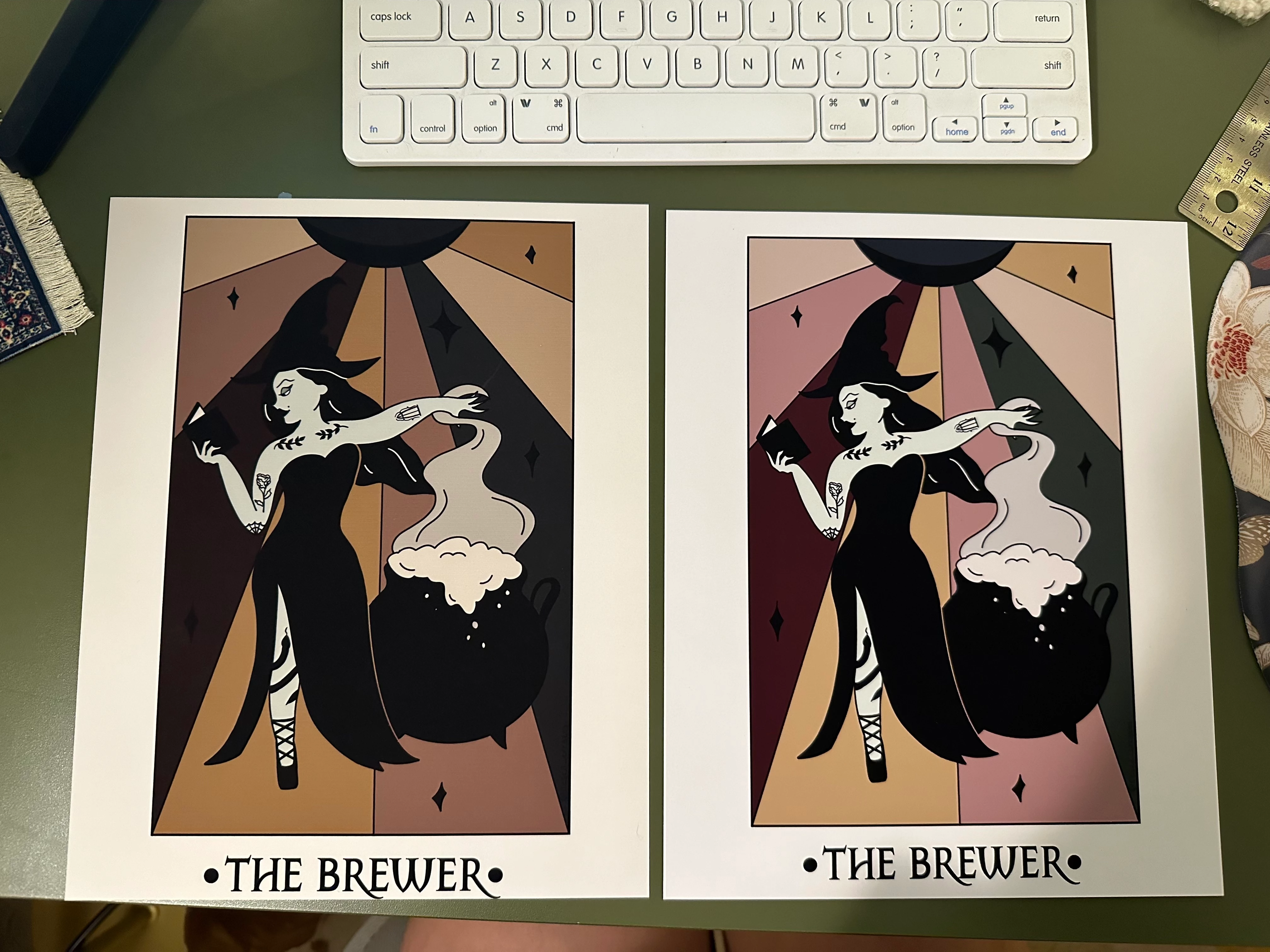
Art prints are printing cropped and dark despite setting changes in photoshop

I am trying to print my digital art onto 8 x 10 paper. I have done this before and have had no issues but when I'm trying now the image is printing out cropped and the colors are all significantly darker. My printer can do edge to edge printing so that isn't a problem here. I've changed paper settings, color management settings, borderless vs border... and I keep getting the same results. I've reinstalled the printer and software too. I just don't understand how I'm using the same files/paper/printer/settings as I usually do but am not getting the same result. Any insight would be SO helpful!


The photo below is an example. Print on the right is what it is supposed to look like, print on the left is what I'm getting right now (darker colors and cropped on the bottom).
 

このトピックへの返信は締め切られました。

返信数 1

Participant
June 8, 2024

Some additional info:

My printer is an Epson ET 8550

I'm printing on red river 60lb premium matte plus 

These prints were created on a canvas size of 8 x 10


Print settings I usually use and have been trying:

D Fosse
Community Expert
Community Expert
June 8, 2024

1 - Why is the document untagged? You always need to make sure there is an embedded color profile. Without it, the file is undefined.


2 - Why are you using a generic gamma 1.8 printer profile? You need to use the correct profile for that specific paper/printer/ink. Red River will provide this profile. They will also tell what to set as media type in the printer driver with this paper. That controls the total amount of ink. Finally, turn off color management in the printer driver to avoid double profiling.


3 - You need to calibrate your display to match printed output. Monitor white needs to be a visual match to paper white. The actual numbers will vary with your working environment, but is usually somewhere in the vicinity of 100 - 120 cd/m². You set this target in your calibrator. But it can also be done manually - if it looks right, it is right. They just need to match visually, so that you see paper white on screen.

D Fosse
Community Expert
Community Expert
June 26, 2024

Turn off color management in the printer driver. Photoshop's color management obviously needs to operate.


To calibrate and profile a display you need a colorimeter and profiling software. Any serious Photoshop user will have that. Photoshop's whole architecture revolves around this.


This is a short answer because I'm on my phone and can't type too much 😉


It appears you have tried to assign the printer profile to the document. Don't do that! The document needs to be in a standard color space. That's sRGB, Adobe RGB or ProPhoto.


All color management requires two profiles, a source and a destination. Don't mix them up. One is converted into the other. They can't be the same - that cancels everything out and disables all color management.


Never work with untagged files. Always make sure there is an embedded profile. You keep a check on this here:


To get a correct preview on screen, monitor white needs to be a visual match to paper white. If your screen is too bright, your prints will come out too dark. You should see paper white on screen. Having a calibrator will help you get consistent and reproducible results - but in a pinch, you can just use your eyes and adjust the monitor white point visually.


A calibrator will also do a lot of other things, such as write a monitor profile that Photoshop will use to display your files correctly and accurately. A calibrator is essential equipment.