


Inspiring
June 26, 2023
質問

Can't get pencil to snap...

  • June 26, 2023
  • 返信数 4.
  • 1163 ビュー

I've seen a few other posts here but cannot get the pencil to snap.

As an example, I have a square 16x16 pixel brush with a 16x16 pixel grid.
I would think that would almost be enough, but here's the result...
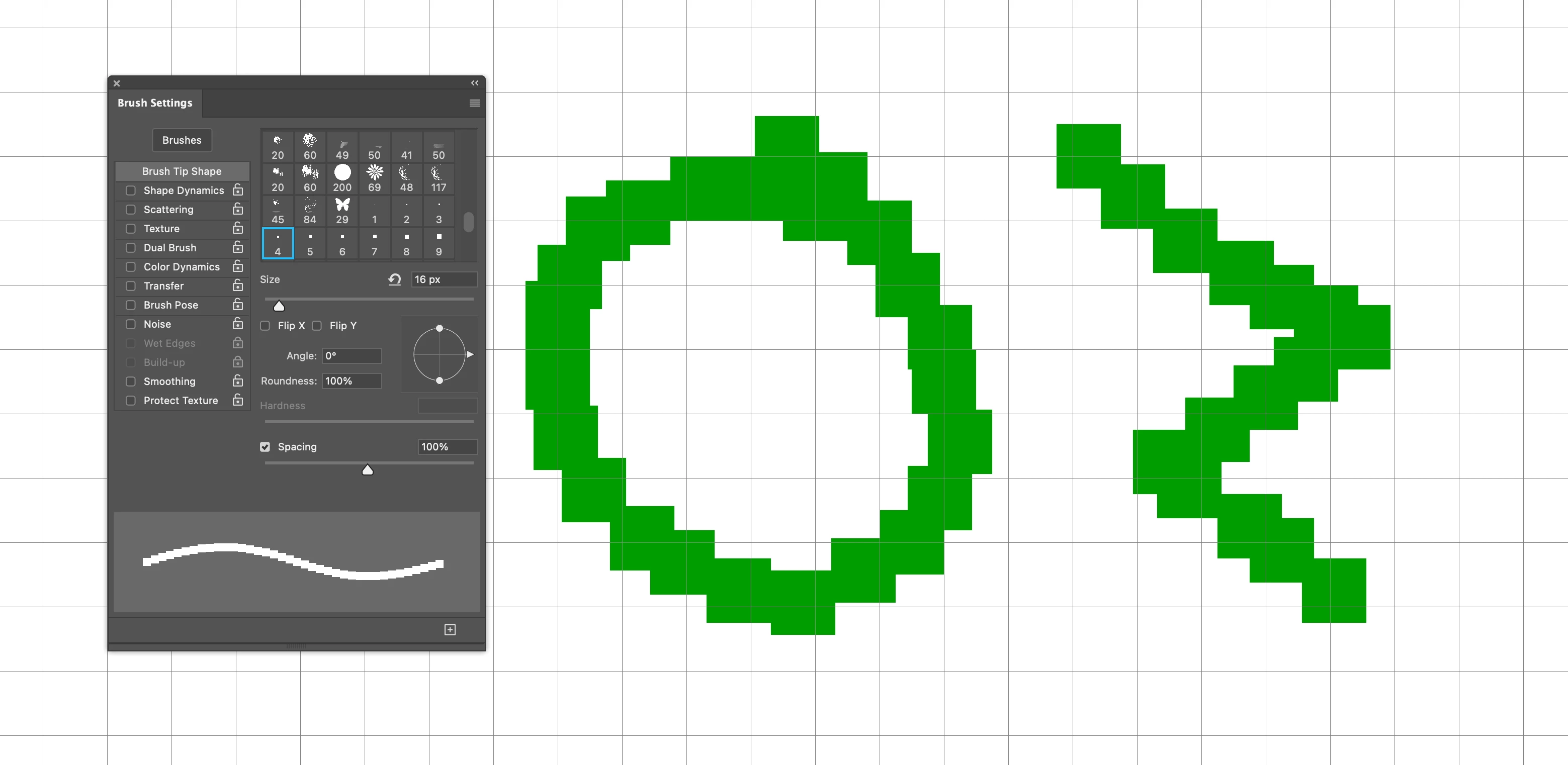
My goal is to draw with the pencil & have the grid squares filled precisely.

So, I'm sure I'm missing something...  but haven't found the solution yet...

Any help appreciated!

このトピックへの返信は締め切られました。

返信数 4

Semaphoric
Community Expert
Community Expert
June 30, 2023

If you have the Grid in Photoshop set to 16 pixels and a 16 pixel square Pencil, zoom in more that 500% to show the pixel grid. Then use both grids; the Pencil will snap to the Pixel Grid, and the main grid helps you place the cursor appropriately.

Note that th Pixel Grid isn't visible over white, so I added a gray fill to show it.

melissapiccone
Community Expert
Community Expert
June 29, 2023

Maybe try making a square hard brush? This reminds me of my days making cockpits for flight sims - I had 16 colors to use and did it one pixel at a time in the early 90's. Otherwise I like th sugesstion of of making it smaller and upsizing.

Melissa Piccone | Adobe Trainer | Online Courses Author | Fine Artist
turner111作成者
Inspiring
June 29, 2023

"Maybe try making a square hard brush?"
That's how my example above was done... 😉

melissapiccone
Community Expert
Community Expert
June 29, 2023

I see that, I guess I didn't express what was in my brain when I responded. Maybe a 4x4 pixel brush  or just do 1 pixel at a time. If you do 1 pixel at a time it will for sure be in a grid - the pixel grid. Not sure how successful you will be with actually painting - drawing a line with anything other than a single pixel.


With the larger brush you will probably have to just click to place one brush stroke at a time. Kind of like one pixel at a time only bigger. 

Melissa Piccone | Adobe Trainer | Online Courses Author | Fine Artist
c.pfaffenbichler
Community Expert
Community Expert
June 29, 2023

On further trying I can get the Pencil Tool to snap, but the distance to the Guide or grid-line needs to be pretty small (see linked page) and I don’t see an option to change the 8px-setting. 

https://helpx.adobe.com/photoshop/using/grid-guides.html


But it does not achieve the result I think you are after anyway. 

The snapping applies to the center of the cursor and affects the movement in one direction, not a placement within squares. 

c.pfaffenbichler
Community Expert
Community Expert
June 29, 2023

The Reference states: 

»Snapping helps with precise placement of selection edges, cropping marquees, slices, shapes, and paths. However, if snapping prevents you from correctly placing elements, you can disable it.«

No mention of painting Tools. 


Have you considered working at 1/16th size and then upsampling with »Nearest Neighbor«? 

The Filter Mosaic might also provide an approach. 


Could you elaborate on the motivation or necessities behind this exact task? 

turner111作成者
Inspiring
June 29, 2023

Thanks - regarding snapping, as mentioned, the pencil tool snaps to something, but I'm not sure what. So, I guess it's either supposed to snap properly or not at all, and it's currently doing neither... 🙂

I have a number of reasons to want to do this, but fundamentally, I want to trace over existing artwork (or create new artwork) to create vector art that represents a relatively low-resolution source. The artwork needs to be aliased, and doing it in vector makes it pretty manageable in layers; trying to convert from a bitmap and create an aliased, limited-color result is not working.

I'm thinking there must be some way to do this... hm....

c.pfaffenbichler
Community Expert
Community Expert
June 29, 2023

I don’t quite get your workflow. 

The Pencil Tool does not create vector output, so what do you mean by »doing it in vector«? 

Why 16px by 16px exactly? 


Can you post a before- and after-example for the tracing-case?