


Inspiring
February 22, 2016
解決済み

Colors not converting properly from AI to Photoshop

  • February 22, 2016
  • 返信数 7.
  • 29060 ビュー

Using Adobe Creative Cloud... When importing an .ai file into Photoshop, colors are not importing across accurately... particularly grey tones.

Source .ai file is in RGB color space. Problem persists regardless whether importing into sRBG or RGB Color in Photoshop...

The example below is only grey tones but the file is color RGB... for some reason, don't seem to be having this problem with other colors, just grey tones in the color space.

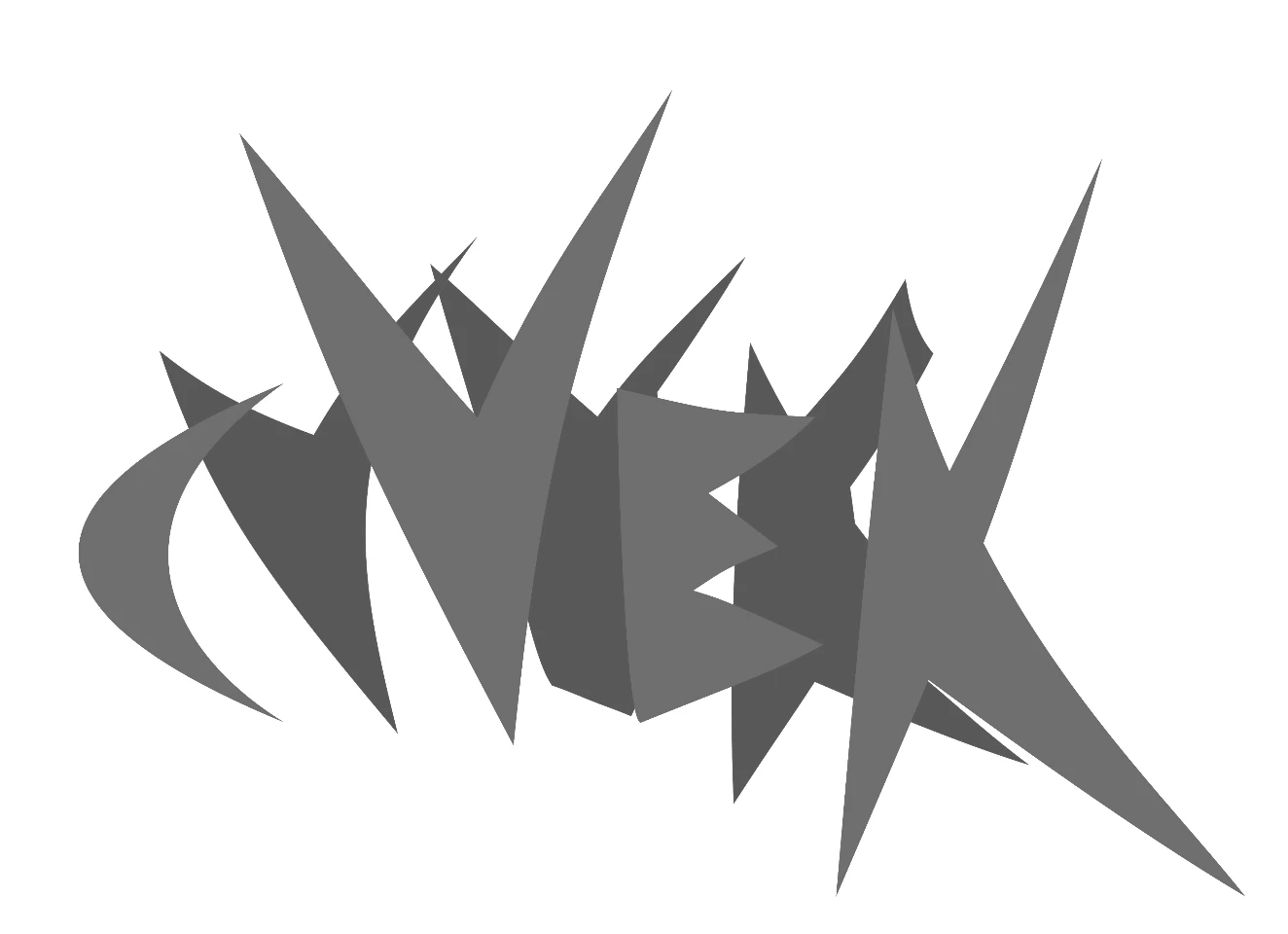
following attachment is a screenshot from Illustrator >>
following attachment is what it looks like one imported/rasterized into Photoshop >>
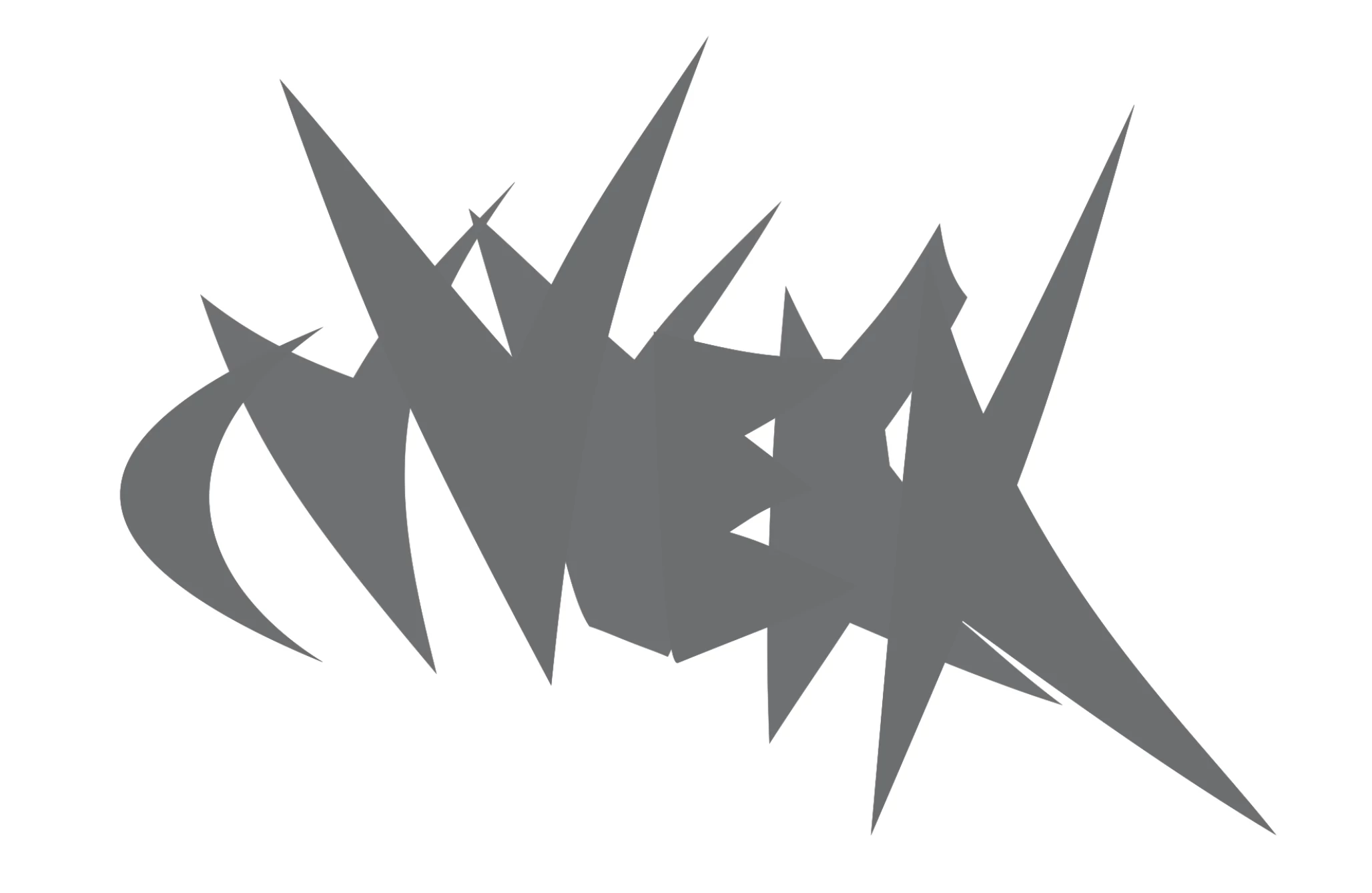
What is going on here? Clearly these greys are not translating properly, and yet it should be the same hexadecimal code.

I have been having this problem for over a year with various drawings... if it were a temporary glitch with a certain version of Adobe Creative Cloud, I imagine it would have been fixed by now

このトピックへの返信は締め切られました。
解決に役立った回答 D Fosse

Hi

I'v been following this thread since day one, trying to understand the Op problem.

We do (in my studio) add IA stuff to PS all the time without any problem (like since 20 years).

I'm Off of this thread. ( I don't understand the Op workflow) I prefer to get headache with other matters.

I wish I could add my 2¢ in the matter, but you are in good hands with all the experts around here.

Good luck.

Pierre


What the OP does wrong is define swatches as a K value, in other words grayscale.

As it turns out Ai does not properly color manage grayscale, hence the shifting gray values when you go to Photoshop, which does color manage grayscale. RGB and CMYK both work fine.

That's basically it.

So this is an Illustrator problem; not a Photoshop problem. Maybe the Ai team thought color management wasn't necessary with grayscale, since there's no color in it...

返信数 7

D Fosse
Community Expert
Community Expert
May 6, 2016

OK, I did what I should have done a long time ago: I did some testing.

My theory seems to hold. Here's a bit from an sRGB .ai file, and the central gray area was defined as RGB vs grayscale. They appear identical in Ai.

When defined as K, and exported to PDF, it opens in Photoshop like this. First with Photoshop's working gray as dot gain 20%:

So that's a bit lighter. With working gray gamma 2.2, it looks like this:

Closer, but still not a perfect match.

So then I tried again, but this time, the gray area is defined as RGB. And now they all display identically in Photoshop, and identical to the .ai original:

My immediate suspicion here is that Illustrator doesn't color manage grayscale at all, but I'd need to do more testing to get to the bottom of that. In any case - always define swatches as RGB or CMYK, and you'll be fine (but stay in the main document color mode). Then color management works and does its thing. Avoid grayscale (K) values.

c.pfaffenbichler
Community Expert
Community Expert
May 7, 2016
always define swatches as RGB or CMYK, and you'll be fine (but stay in the main document color mode).

Yeah.

postrophe
Inspiring
May 7, 2016

Hi

I'v been following this thread since day one, trying to understand the Op problem.

We do (in my studio) add IA stuff to PS all the time without any problem (like since 20 years).

I'm Off of this thread. ( I don't understand the Op workflow) I prefer to get headache with other matters.

I wish I could add my 2¢ in the matter, but you are in good hands with all the experts around here.

Good luck.

Pierre

D Fosse
Community Expert
Community Expert
May 6, 2016

Edit - written before I saw Danny's post. Taken together they should probably cover most scenarios.

Just a few general tips for safely working with grayscale images.

For offset print, convert using the "working gray - black ink" option (see screenshot above). Paste the result into the K channel in a new CMYK file, so that it prints on the black plate only. This will now for all intents and purposes be a standard CMYK file that should be handled correctly everywhere.

For screen/web, I usually just convert to sRGB and think no more of it. But if you set your working gray to gamma 2.2, you should be safe in most circumstances and see the image correctly.

Desktop printers always expect RGB data, so the same here, just convert. If you need to print with black/gray inks only, there's usually a setting in the printer driver to take care of that.

D Fosse
Community Expert
Community Expert
May 5, 2016

My, this is getting confusing. I've suggested that the other thread is locked, and we continue the discussion here.

D Fosse
Community Expert
Community Expert
May 5, 2016

In Photoshop it's possible to avoid these problems.

For RGB you can set working gray to gamma 2.2, which corresponds to Adobe RGB. For ProPhoto you'd use 1.8. There's even an sGray profile that corresponds to sRGB.

For CMYK, you can load the K tone response curve as working gray:

But Illustrator / InDesign don't have a working gray, so there's no way to know how grayscale is handled under the covers. All you know is that it should emerge as 0-0-0-K, but the actual tone response curve is a mystery.

apexSolarKiss作成者
Inspiring
May 6, 2016

Where is it that I adjust the Gamma to 2.2? in Photoshop? Where and how?

Will this affect the rest of my colors?

Andrew S Klug // ASK
D Fosse
Community Expert
Community Expert
May 5, 2016

Parallel posting in both threads:

And as far as I can make out, the dark gray ellipses are defined as grayscale:

Grayscale is a can of worms. It will render according to working gray in Photoshop, so that's the least of the problems.

But Illustrator and InDesign have pretty poor grayscale support. In a PDF it should export as CMYK, 0-0-0-K, but with the tone response curve of that particular CMYK profile. This is not the same as a default working gray in Photoshop. AFAIK none of the dot gain profiles correspond exactly to any given CMYK profile.

So cp is right, this particular problem should go away with a little more discipline and consistency in setting up the document.

But aside from that I agree that Ai's and Id's grayscale support leaves a lot to be desired. Photoshop is doing it right.

c.pfaffenbichler
Community Expert
Community Expert
May 5, 2016

In the ai file there appears to be a mixture of RGB and CMYK colors.

D Fosse
Community Expert
Community Expert
February 22, 2016

Hex values mean nothing. Hex is a leftover from before color management was invented. In the same way, "RGB" means nothing, that's just a generic color model.

You need to get specific with icc profiles. sRGB? Adobe RGB? ProPhoto RGB? They all produce different colors with the same numbers, and that includes hex numbers. Make sure all apps are set up to embed the profile when saving, and to preserve that embedded profile when opening. They will be at default settings.

To make things simple for a start, use Bridge to synchronize color settings, and pick one of the presets.

Grayscale is a special case that comes with its own set of grayscale icc profiles. So you should also make sure that Photoshop isn't opening your RGB file as grayscale.

apexSolarKiss作成者
Inspiring
February 22, 2016

Thank you for the quick response and for greatly increasing my understanding.

I am familiar with ICC profiles in Photoshop and have experience using them to calibrate output to digital c-prints, however I was not aware of their presence in AI.

As far as AI is concerned, I only see the option of selecting RGB or CMYK...

If I am able to set a specific ICC profile in AI, can you kindly indicate where/how this might be done?

As far as Photoshop is concerned, I am definitely NOT opening/converting the file into grayscale. As mentioned in my initial query, I have attempted to import the "RBG .ai file" (no specific ICC profile) into Photoshop as both RBG and sRBG, the mismatch persists in both.

Finally, I do use Adobe Bridge and would be very happy if I could use Bridge to streamline this process.

Can you kindly start at the beginning? I have an .ai file (with no specific ICC color profile embedded) that I would like to rasterize via photoshop (or Bridge) preserving the color as closely as possible...

Thanks, Andrew

Andrew S Klug // ASK
D Fosse
Community Expert
Community Expert
February 22, 2016

andrewklug wrote:

(with no specific ICC color profile embedded)

That's probably it. With no embedded profile, Photoshop will assign the working space, which may not be right.

In Illustrator (as in Photoshop), the default working color spaces and policies are controlled in Edit > Color Settings:

There is also Edit > Assign Profile, which you would use here. Since you don't know which one is the right one, you'll just have to try until it looks right. Then save the file with that profile embedded.

Unlike Photoshop, Illustrator does not have a Convert To Profile option, which recalculates the numbers to preserve appearance in a profile change. That would seem like an omission, since this is the one you use all the time in Photoshop. But there are good reasons for this. Illustrator is an offset print/CMYK-centric application, and CMYK to CMYK conversions should always be avoided in content that has black-plate-only areas like text and graphics. That's just to give an explanation for it.

Photoshop's color settings should always have Color Management Policies set to "Preserve Embedded Profiles". This means your Illustrator file, with embedded profile, will be read and interpreted correctly in Photoshop, and the colors be maintained as they are in Illustrator.

Which color space you set as working RGB in Ps/Ai isn't all that important. It's just a fallback default. The really important setting is the "preserve" policy. However, until you know more, sRGB is probably the safest choice with the least potential for problems.

In Bridge, you synchronize color settings here, again under Edit > Color Settings. Set up in one of the main apps, and Save out the color settings file. Then use Bridge to load across all apps:

Rajashree Bhattacharya
Community Manager
Community Manager
February 22, 2016

Moving to Photoshop.

Regards

Rajashree

apexSolarKiss作成者
Inspiring
February 28, 2016

I have attempted to open the .ai as a Smart Object in Photoshop, the color mismatch problem persists. This question remains unresolved, I have followed the suggestions of D Fosse but to no avail, and he appears to have bowed out claiming lack of experience opening PDFs in Photoshop. Is there someone else who can assist?

Andrew S Klug // ASK
postrophe
Inspiring
February 28, 2016

Hi

At this point, could it be possible you post that ( .ai ) file somewhere (zipped or else), so that someone can try reproduce this. ?

Pierre