


Copy link to clipboard
Copied
Bonjour.
J'ai besoin de votre aide svp !
Comment supprimer l'effet de transparence en bordure d'une sélection lors d'un copié/collé ?
voici en image le problème :
Crop de l'image de base, avec la ligne de la sélection
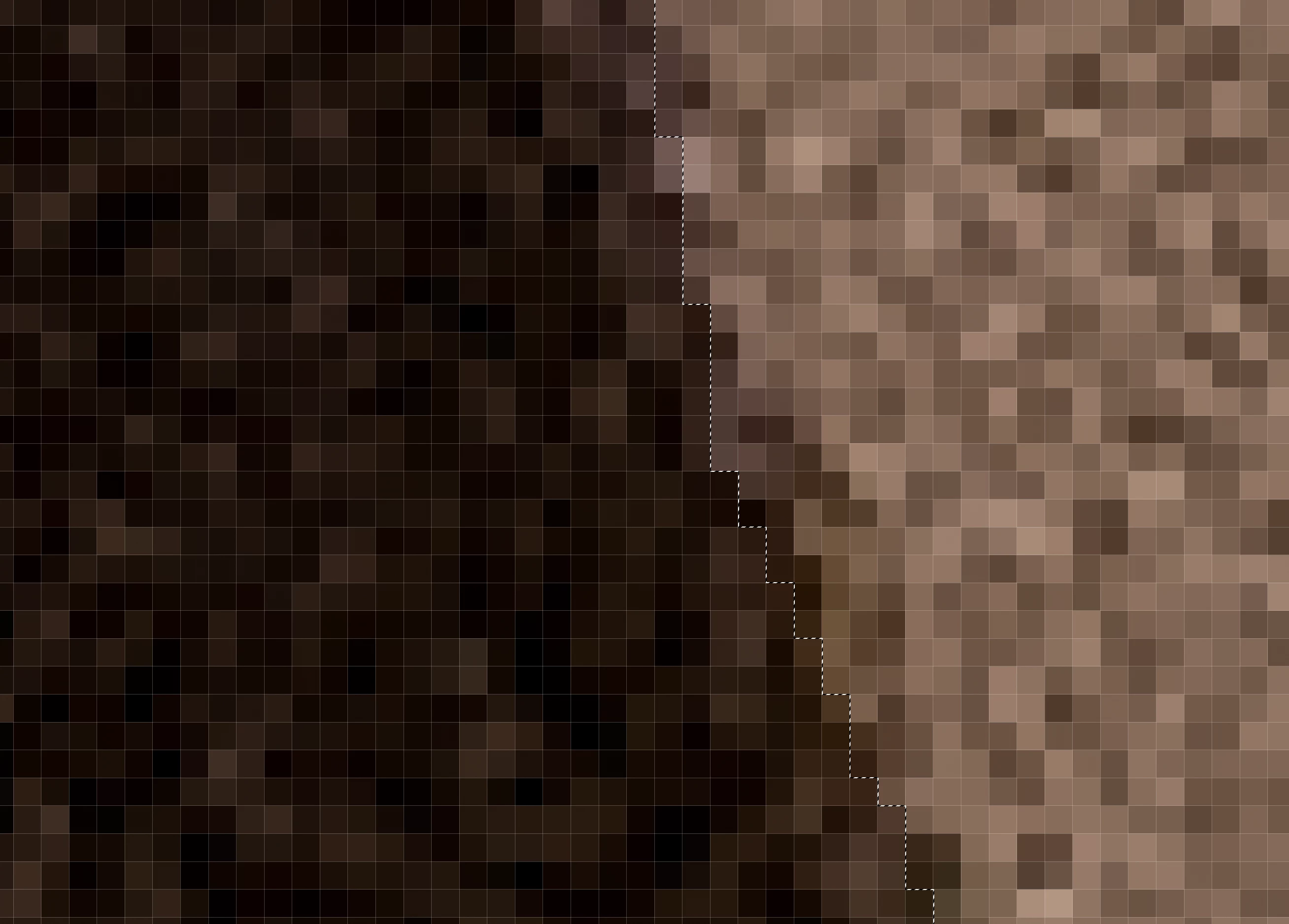
image de la partie collée sélectionnée (avec cette bande en transparence de part et d'autre de la selection)
(le damier de transparence du calque n'est pas visible ici lorsque je dépose la capture d'écran)
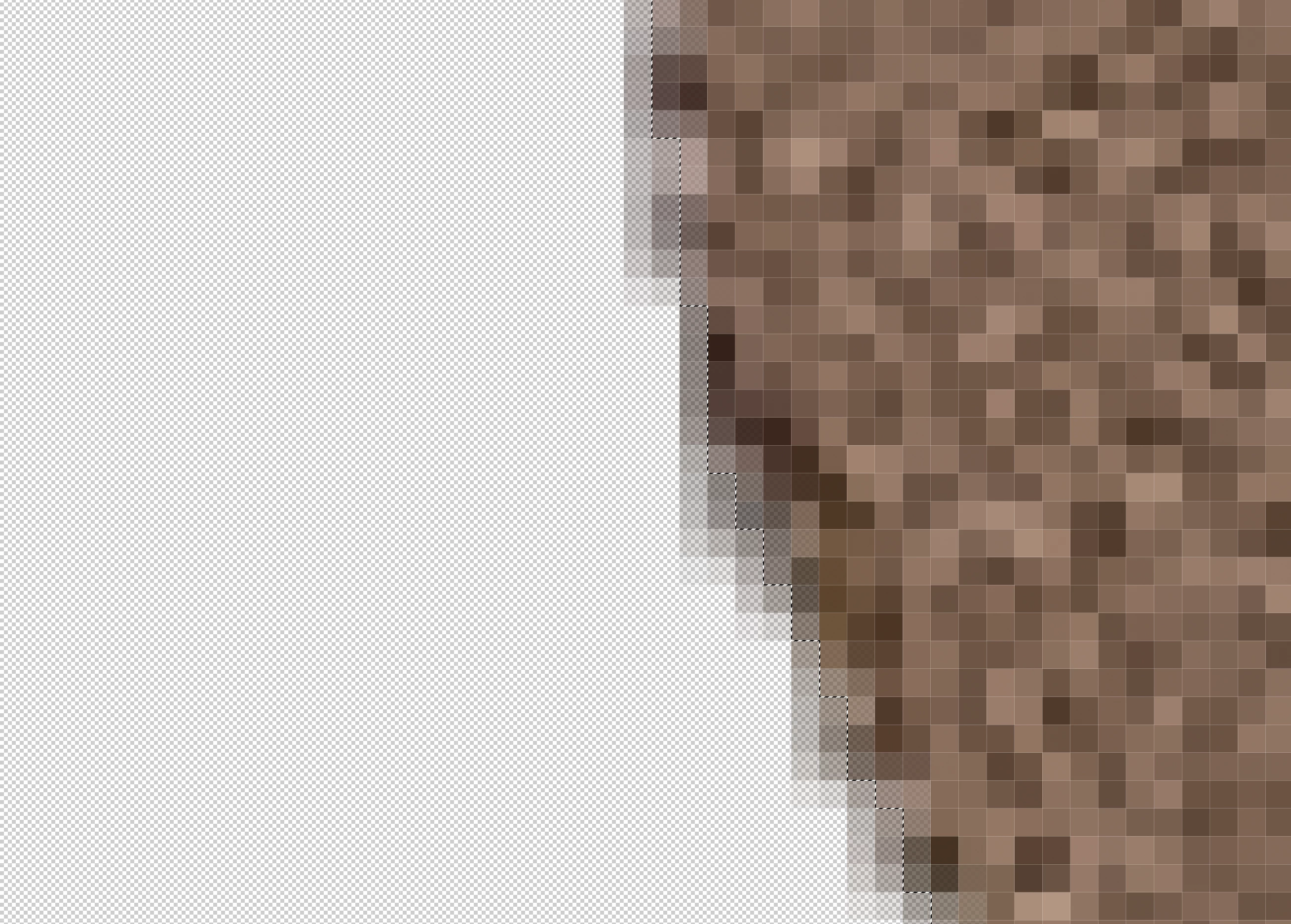
image de la partie collée sélectionnée inversée (avec cette bande en transparence de part et d'autre de la selection)
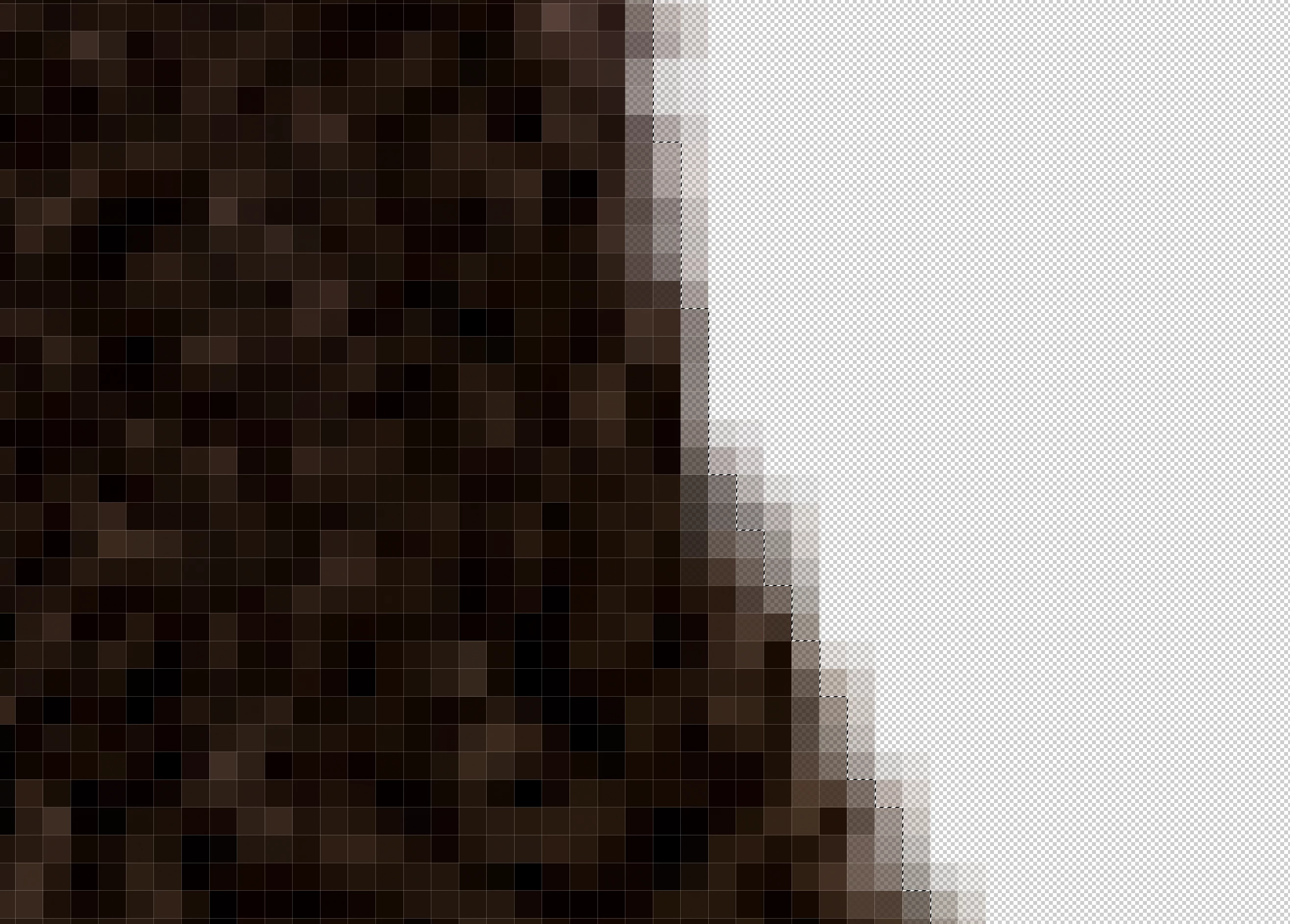
Image recomposée des deux parties collées avec une bande moins dense à l'endroit de rencontre
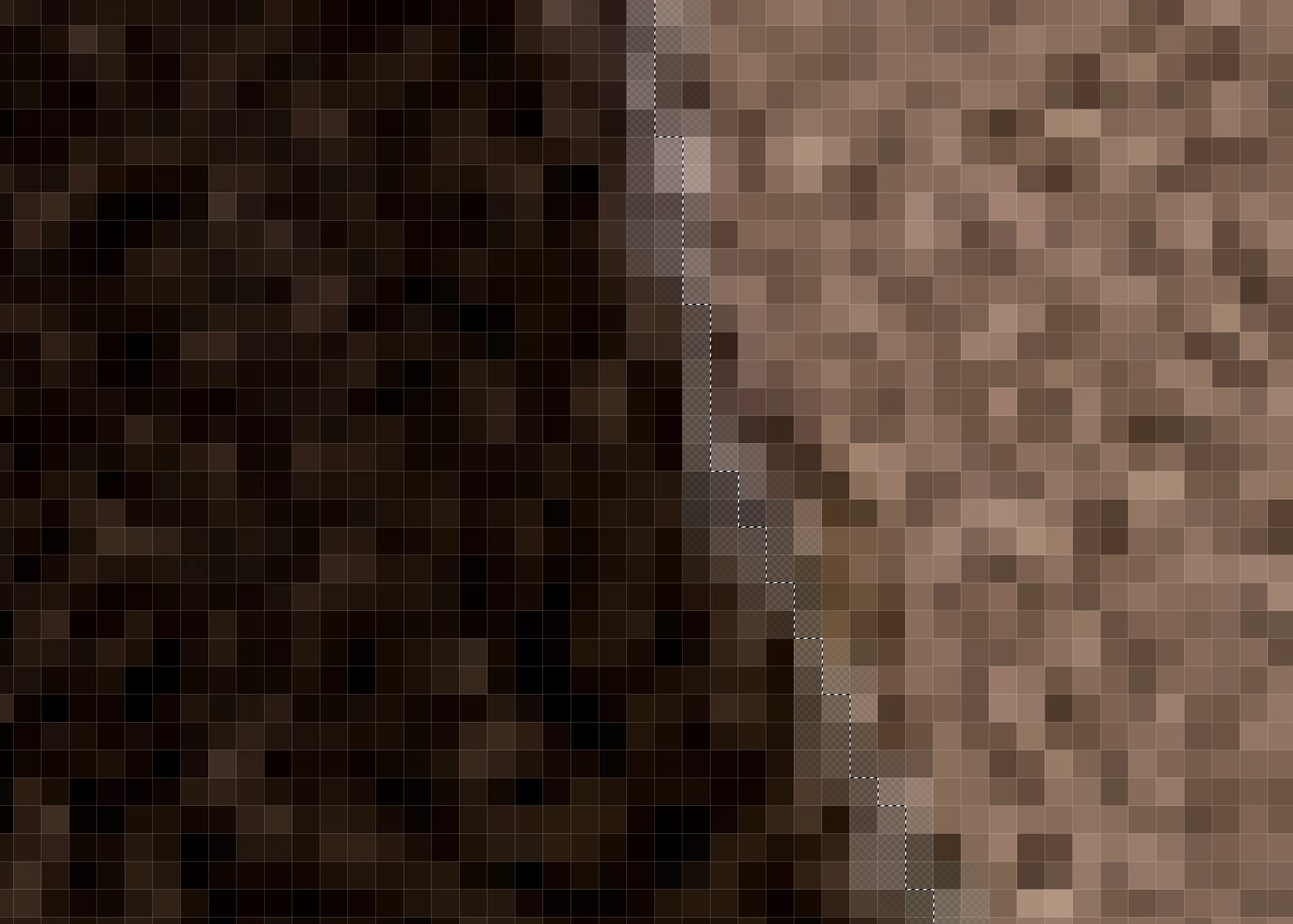
Bug ou je fais quelque chose de faux (je suis de loin pas un féru de PS)
Merci de votre aide
Hi @Cedders1453,
Thank you for clarifying that you’re aiming for a sharp separation between the sky and the ground without the transparency band you’ve been noticing. You’ve done a good job narrowing this down.
Since you mentioned you are selecting the sky, one reliable alternative is Select > Sky. This option creates a dedicated mask of the sky, and you can then refine it using Select > Modify for a crisp edge.
I hope it helps!
Best,
Anshul Saini
Copy link to clipboard
Copied
Je suis sur macOS 15.6.1 et PS 26.10.0
Copy link to clipboard
Copied
@Cedders1453 you are zoomed in to actual pixel depth - how does the image look at 100%?
Copy link to clipboard
Copied
zoomed at 70% the lign is visible
Copy link to clipboard
Copied
Copy link to clipboard
Copied
Hi @Cedders1453, welcome to the community!
When you make your selection, could you check the top adjustments bar to see if Feather is set to 0 px and Anti-alias is turned off? That should help make your selection sharper and avoid those bits of transparency.
Let me know if that does the trick!
Alek
Copy link to clipboard
Copied
I made the selection with the tool speed selection, so i don't have these option
Copy link to clipboard
Copied
I try with the lasso (L) or magnetic lasso (L) , or the other tools for selection and i don't have this problem.
It seems this exist only with the speed tool selection.
Do you think it is possible to adjust this tool so it work without transparency ?
Copy link to clipboard
Copied
@Cedders1453 check your Photoshop Settings/Image Processing and change to "Cloud (detailed results)" for the first option. The other options can be set to "More Stable" instead of "faster". That may help.
Copy link to clipboard
Copied
with the tool object selection i also have this transparency but really biger than the speed tool.
I really don't know how to manage this selection on this picture !
Any idea or proposition ?
Here is a screenshot :
Copy link to clipboard
Copied
What are you trying to select in this photo?
Copy link to clipboard
Copied
I'm trying to select the sky ( to manage the settings of this part) and after with the reverse selection, the ground to manage it with other settings. And the selection must be sharp not faded.
Copy link to clipboard
Copied
Hi @Cedders1453,
Thank you for clarifying that you’re aiming for a sharp separation between the sky and the ground without the transparency band you’ve been noticing. You’ve done a good job narrowing this down.
Since you mentioned you are selecting the sky, one reliable alternative is Select > Sky. This option creates a dedicated mask of the sky, and you can then refine it using Select > Modify for a crisp edge.
I hope it helps!
Best,
Anshul Saini
Find more inspiration, events, and resources on the new Adobe Community
Explore Now