


Known Participant
January 6, 2024
解決済み

cropping images without hair in Photoshop 2023

  • January 6, 2024
  • 返信数 4.
  • 1315 ビュー

Hello professionals
imac Sonoma, Photoshop 2023 subscription
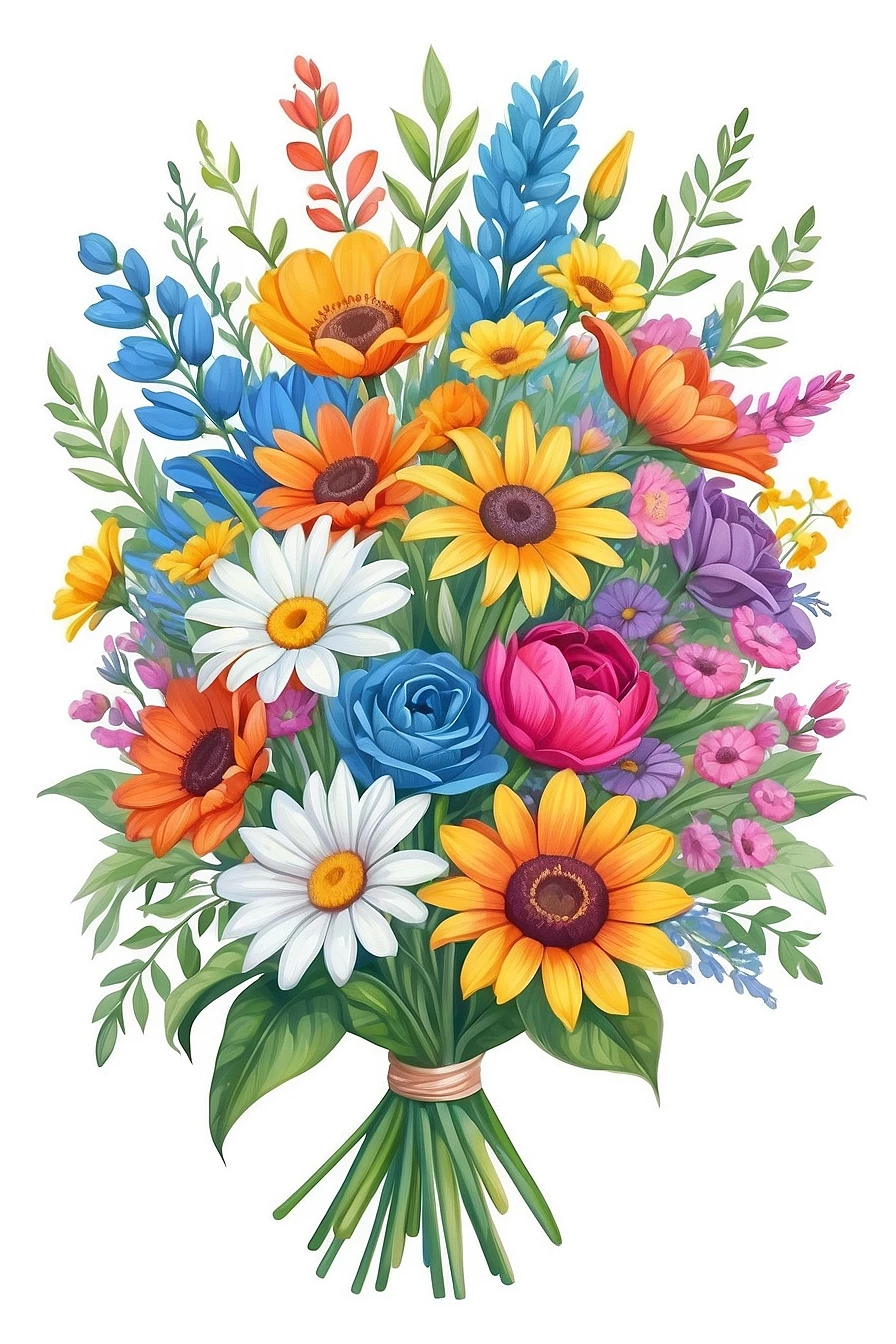
I'm a beginner in Photoshop, I would like to crop an image, for example a flower star with many small, fine branches, as well as images with exposed elements that are not connected to the actual main image.
Is there a video/tutorial on how I can clear something like this without leaving any parts white? my pictures usually have a white background. I've already tried simple exemptions that don't produce the desired quality.
I would appreciate some constructive help
Susan

このトピックへの返信は締め切られました。
解決に役立った回答 davescm

No problem - shout out if you get stuck.

Dave

返信数 4

davescm
Community Expert
Community Expert
January 8, 2024

In such images, I like to use channels to create a mask.

1. Look for the channel with the most contrast. In this case, the blue channel works

2. Make a duplicate of that channel and switch to that dupliacte channel (using visibility icon in the channels panel)

3. Go to image adjustments and make a curve to increase the contrast between wanted and unwanted parts

4. Set a brush to overlay blend mode (in the options bar) and paint around the edges with black/white to fully whiten the light parts and darken the dark parts. Switching the brush to normal blend mode quickly covers up black in the central area.

5. When done hide make a selection from that adjusted channel and then use layer>layer mask>Hide selection which adds a mask hiding the white areas of the duplicate channel


The second example used the same principles although it did require a little more black brush painting with the main character body.


Dave

jane-e
Community Expert
Community Expert
January 8, 2024

@AYSUKA 


I'll add one small thing to Dave's solution, which I like: be sure to save in a format that supports transparency and layers. Save in TIFF or PSD so you can make edits.


In case you are sending the files to others:

  • PNG supports transparency but not layers. You can make a copy in this format, but keep the original for potential edits.
  • JPEG does not support transparency or layers. Don't use it.


Jane

Conrad_C
Community Expert
Community Expert
January 7, 2024

The problem is that both of these are very difficult examples for background removal.


Most of the quick, built-in, and AI-powered background removal techniques (Object Selection tool, Select Subject command, etc.) depend on something being relatively easy to isolate: A clear hard outline, one unique background color, no background areas enclosed within the subject like between crossed flower stems, etc. With the first example of the flowers, white is a nice solid background color, so you can try Select > Color Range, Magic Wand tool, or similar to take advantage of the solid white background as a first step to a mask. However, there are also those background areas enclosed by the stems, and also the white flowers, that add more time and work.


For the first image, I was able to get most of the way there using the following techniques. Unfortunately, none of them are intuitive to a beginner, so you would need to study each technique enough to understand each of them on their own, and then understand how to combine the techniques to get to the not-quite-finished point I did in the picture below.


1. Set up the initial, overall mask based on the background color. Choose Select > Color Range. Set image preview to Black Matte to clearly see what’s getting masked. Sample the white background. Adjust Fuzziness until the preview shows the best-looking edge. Click OK.


2. Convert the selection to a mask. In the Layers panel, click the new mask button (a shortcut for Layer > Layer Mask > Reveal All). This takes the selection created by Color Range, and makes a mask out of it. But now the problem is that the white flowers got included in the mask (because they are the same color as the background).


3. Exclude the white flowers from the mask. This can be as easy as using the Object Selection tool to select a flower in one click, then fill that selection with the foreground color (using Edit > Fill, or its keyboard shortcut, or the paint bucket fill icon in the Contextual Task Bar).


4. Clean up mask edges, because there may be fringing and gaps. With the mask selected, open Select and Mask (using Select > Select and Mask or its keyboard shortcut, or by clicking the Select and Mask button that appears in the Properties panel when a mask is selected, or in the options bar when a selection tool is active.) In Select and Mask, use Radius and the Global Refinements to clean up the mask edge further.


I did not spend the additional time needed to clean it up completely; you can see in my mask that there is still some background leaking through some interior mask areas of partial opacity. A first step in addressing that might be to push their mask tones to white using Image > Adjustments > Levels or Curves, or with the Dodge/Burn tools. If those sound like techniques that also involve their own study and learning curve…they are. (Some of those might be fixed using the Refine Edge Brush tool that’s inside Select and Mask.)


I took a quick look at the second image of the boy and decided not to spend much time on it, for a few reasons. The background is not white, the background color is part of many areas in the subject, and many of the lines have soft edges. Although it isn’t hard to get started and mask out most of the background, those reasons will make it challenging and time-consuming to fully isolate the subject and cleanly finish all of the lines and edges, especially with all of the semi-transparent musical graphics around the boy. I mean, it’s possible…but it could take a lot of time to address many small areas.

AYSUKA作成者
Known Participant
January 8, 2024

@Conrad_C 
I thank you for your great effort 

Stephen Marsh
Community Expert
Community Expert
January 7, 2024

@AYSUKA 


As @jane-e mentions, this isn't cropping* – use layer masking instead. Convert a single flattened image Background to a layer then read up on how to mask.


https://helpx.adobe.com/au/photoshop/using/masking-layers.html


Your two images are very different and have different levels of complexity and different considerations.


* Back in the day one often heard the term "deep etch", however, some also used the term "clear cropping" to indicate the removal of a background. That being said, cropping has a traditional photographic and technical meaning in Photoshop which has nothing to do with background removal.

AYSUKA作成者
Known Participant
January 7, 2024

 thanks for the reply

jane-e
Community Expert
Community Expert
January 7, 2024

@AYSUKA 


Images can only be rectangles, so when you crop, you will have a rectangle. You can leave some white or remove some of the flowers.

https://helpx.adobe.com/photoshop/using/crop-straighten-photos.html


I think what you what instead of Crop is an image that has transparency where there is currently white. Try Remove Background:

https://helpx.adobe.com/photoshop/using/quick-actions/remove-background.html


Save in a format that supports transparency: either PSD or TIFF. Don't save as a JPEG or the white will return.


Jane


AYSUKA作成者
Known Participant
January 7, 2024

Hello Janethanks for the reply

sorry that was a wrong translation, I meant removing the background and not cropping it