

Participant
October 2, 2023
質問

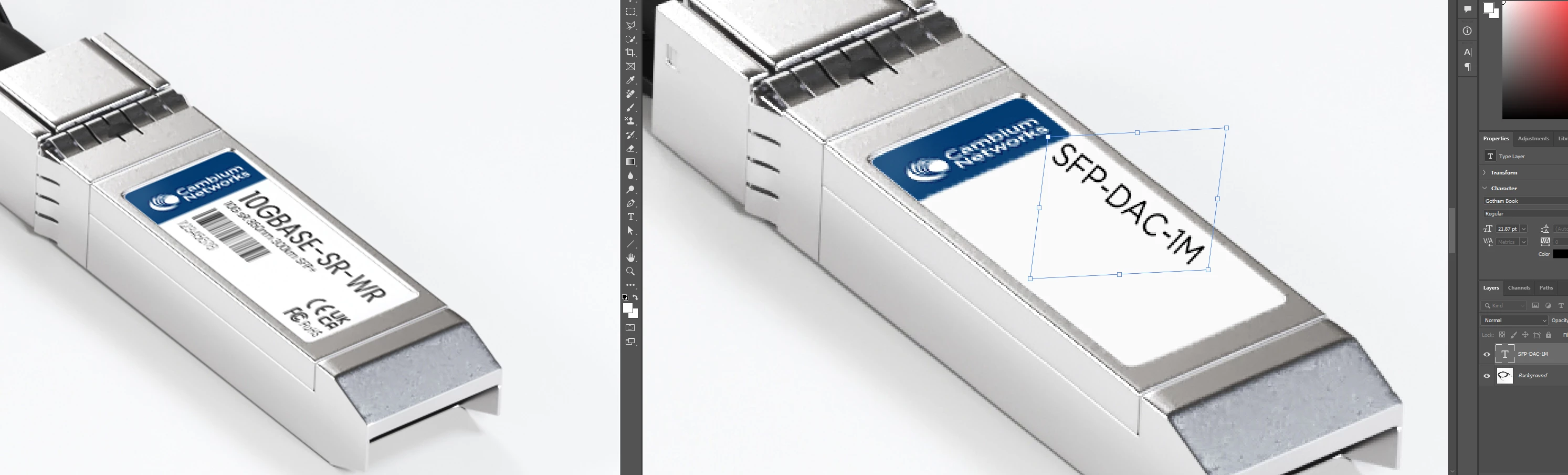
How do i get my text on the (Right) image to line up the same as the image on the (Left) Image?
  • October 2, 2023
  • 返信数 2.
  • 216 ビュー

How do i get my text on the (Right) image to line up the same as the image on the (Left) Image?

このトピックへの返信は締め切られました。

返信数 2

Trevor.Dennis
Community Expert
Community Expert
October 2, 2023

Try this


Make your type layer and make it a Smart Object like Myra suggested.

Double click the Smart Object to open it in a new window, and add Canvas (I used Relative and (I think) doubled the width and quadrupled the height) . Then reposition the text in the new window. Ctrl s to save the change, but leave the edit window open.  Note: I am afraid this is not an exact method, but you can fine tune it until it is right.


In your main window, hold down Ctrl and drage the corners to fit the lable.  One advantage of making the type layer a Smart Object is the corner handles will always remain on the object corners, so you can fine tune. 

If you text is not in the right position, go to the SO edit window. Move the text and Ctrl s to save.  You can edit the Type layer in the SO edit window as well of course.


Hah!  I am actually quite pleased with this wee work around.  I was going to suggest Vanishing Point, but I rarely use it and would have had to work out how to insert the text into the Vanishing Point's perspective grid.  If someone knows how to do that and could describe for me/us, that would be cool.


Trevor.Dennis
Community Expert
Community Expert
October 2, 2023

I have just thought that we can accurately determine how big to make the canvas size in the Smart Object edit window by using the Ruler tool.  With a simple two dimensions to remember situation like this, drag the ruler and get the length from the Options Bar.  You can see I used the centre for the long side, but I used the far end (longer) height, to be sure you are not stretching pixels (which wouldn't be relevent with a Type layer as it is vector).


You can also log the dimensions using the Measurment Log window.  This works by clicking on Record Measurment to add the current value to the log.


In the SO edit window, open the Canvas Size and uncheck Relative and insert the values.  The only thing that really matters with this is that a) the window is at least the pixel size of where it is going to fit, and b) that the aspect ratio is correct, to keep the text aspect ratio right.  I would probably double the values and work with a bigger window, and scale it down with Free Transform (Holding down Ctrl and dragging the corner handles).


Myra Ferguson
Community Expert
Community Expert
October 2, 2023

After you set your text, convert the text layer to a Smart Object (right-click in the Layers panel and select Convert to Smart Object or go to Layers > Smart Objects > Convert to Smart Object), and go to Edit > Perspective Warp. Then adjust the Smart Object containing the text to match the perspective.