



Valentina ♡
Inspiring
October 3, 2023
質問

How to add a black mask instead of white mask?

  • October 3, 2023
  • 返信数 1.
  • 5301 ビュー

Hello.(this question is modify by me as I wrote 'layer' instead of 'mask'. 
So the question is:  Often,  I see in tutorials photoshops, that when they add a new mask, the mask is black , not white.
  
I don't understand if is a normal mask or why is black instead of white?  
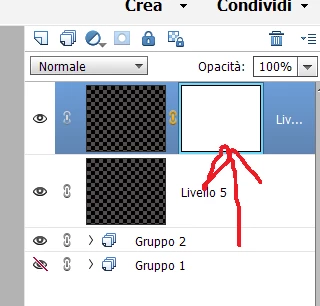


Thank you in advance for the help!


返信数 1

c.pfaffenbichler
Community Expert
Community Expert
October 4, 2023

Layer > New Fill Layer > Solid Color? 

Valentina ♡
Valentina ♡作成者
Inspiring
October 9, 2023

Thank you for the answer. Sorry I expressed wrong my question and in my photos it was not clear what type of "layer" , because my images show a sort of transparent or grey color layer. 
Moreover, it was not a layer what I was trying to change color, but it was a mask


I will edit my first question and adjust it, just in case someone need the same option.


I wanted to add a mask (not grey but black). But usually if one add a new mask is always white. To have a black mask, we have to click on 'new mask' button (in the levels panel) +  ALT. And the new mask will be black. 


ALT + click on add mask button, and the mask will be Black 😄


^^

Conrad_C
Community Expert
Community Expert
October 10, 2023

Just FYI and to add to the info in the link, what the button does is also in the menu commands:

Layer > Layer Mask > Reveal All/Reveal Selection (white mask)

Layer > Layer Mask > Hide All/Hide Selection (black mask)


Also, if you add the Ctrl key (or Command key on macOS) when clicking the Add Mask button, it creates a vector mask instead of a pixel mask. There are also accessible alternatively through menu commands:

Layer > Vector Mask > Reveal All

Layer > Vector Mask > Hide All

Layer > Vector Mask > Current Path (if a path is selected)