


Participant
September 4, 2018
解決済み

How To Select The Actual Pixels Of "Blending Mode" or "Blend If"

  • September 4, 2018
  • 返信数 2.
  • 687 ビュー

Hi there

I am having an issue trying to figure out if there is any way to select the blend if's actual pixels.

I am having a trouble with it

so i have a layer of specific color

under that color layer i have a portrait with its highlights on the face and etc.

What i want to do is to be able to apply the color layer to the highlights of underlying layer of person portrait and to be able to select the actual pixels of the color that is blended, or in other words, i want that color layer ( that is already blended) to be selected in some way

I understand how the blending works and i am able to use the blend if option i hope i didn't confuse anyone with that.

I just simply want to know if there is a way to select the already blended pixels?

Any Help would be much appreciated, i am thinking maybe with channels it would be possible
このトピックへの返信は締め切られました。
解決に役立った回答 Norman Sanders

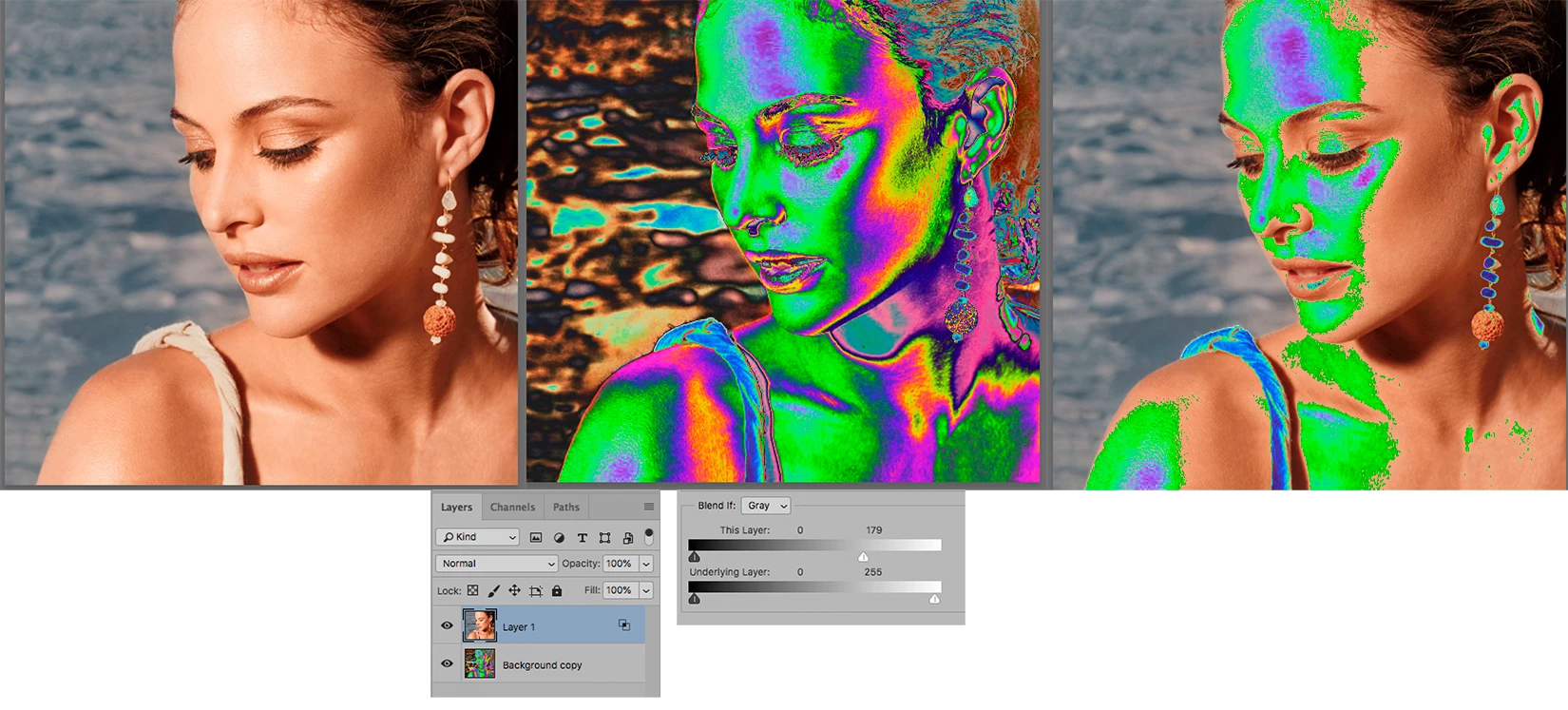
DFrom your description it seems you have a Portrait layer and a Color layer. You plan to use Blend If to place Color layer information in the highlight area of the Portrait. If that is the case, you currently have the two Blend If layers transposed. In Blend If "This Layer" should be the Portrait Layer and "Underlying Layer" should be the Color layer. Then, assuming the area in the Portrait layer is a specular highlight or something similar, moving the top right slider slowly to the left will replace the specular highlight in the Portrait with the color of the Underlying layer. (The Underlying layer may be an image or flat color.)

(Double click to see example in larger size)

返信数 2

Norman Sanders
Legend
September 4, 2018

DFrom your description it seems you have a Portrait layer and a Color layer. You plan to use Blend If to place Color layer information in the highlight area of the Portrait. If that is the case, you currently have the two Blend If layers transposed. In Blend If "This Layer" should be the Portrait Layer and "Underlying Layer" should be the Color layer. Then, assuming the area in the Portrait layer is a specular highlight or something similar, moving the top right slider slowly to the left will replace the specular highlight in the Portrait with the color of the Underlying layer. (The Underlying layer may be an image or flat color.)

(Double click to see example in larger size)

harutm3737作成者
Participant
September 4, 2018

thanks norman, i didn't quitely get all your steps but you helped me out with the fact that you said i was supposed to select the portrait layer in front of color layer.

so what i actually did to select the pixels of the blend if

i moved the protrait layer on the top, i applied the blend if on the current layer, then when the highlights got selected i color ranged and grabbed the pixels of highlights and then changed it to my desired color and it actually worked! Thank you guys

c.pfaffenbichler
Community Expert
Community Expert
September 5, 2018

To me your descriptions are still unclear and I suspect your use of Color Range is wasteful as the same result might be achieved without any Selections.

Please elaborate and post meaningful screenshots.

c.pfaffenbichler
Community Expert
Community Expert
September 4, 2018

Actually your question does not seem to be fully clear to me.

Please elaborate with the help of meaningful screenshots.

And if you want a Layer Mask instead of a Blend if setting why don’t you just load the underlying image’s luminance (edit: as a Selection) and use it (with the necessary Adjustments) as a Layer Mask?

harutm3737作成者
Participant
September 4, 2018

i don't want a layer mask, i want the blend if affect to be selected as actual pixels

but i found a solution after digging it a little bit

thank you anyways