


Participating Frequently
March 29, 2022
解決済み

I just plugged my laptop into my new 4k Monitor and now Photoshop is lagging. Help?

  • March 29, 2022
  • 返信数 2.
  • 2661 ビュー

Hello!


I'm using Photoshop 23.2.2 on my laptop.

Laptop: 

Intel(R) Core(TM) i7-6700HQ CPU @ 2.60GHz 2.59 GHz

8.00 GB of RAM

Windows 10 Up to Date

64-bit operating system, x64-based processor

NVIDIA GeForce GTX-960M


I just got a 4k Monitor to use for drawing. Everything seems to work fine on the screen except when I use photoshop. When I open photoshop the navigator flickers, the menus take a really long time to open, and moving the canvas/brushstrokes/zooming are all heavily delayed. I haven't been able to find any advice on this. Can you guys help?
このトピックへの返信は締め切られました。
解決に役立った回答 Chris 486

Hi Jesse!


960M can handle a 4k monitor but it might struggle when needing to preform heavier GPU tasks. Check to make sure your GPU Drivers are updated. 


If that doesn't work, does performance help if you disable your gpu under settings?


another thing to check is to turn your 4k monitor down in resolution to see fif adobe works better.


Help for other trouble shooting below. let us know what you find out.

Troubleshoot Photoshop graphics processor (GPU) and graphics driver issues (adobe.com)


返信数 2

mglush
Community Expert
Community Expert
March 29, 2022

Hi,

This may sound obvious, but is it possible that your laptop is not strong enough to handle this new 4K monitor? Also, did you check to see if your monitor is compatible with your laptop? I would check those first (including Drivers), and then see if adding more RAM or using a Scratch Disk might help. Do you have an external drive that is considerably free that you can use as a Scratch Disk? This might free up some room to work.

Michelle


Participating Frequently
March 29, 2022

Michelle!


Thanks for your suggestsions and asking the hard questions! You're probably right about my laptop being on the weaker side but I'm on the hunt to double up my RAM (16GB) so hopefully that will smooth things out a bit. Yeah, the monitor is compatible and I actually do have an external hardrive with plenty of space that I could use as a scratch disk. I don't quite know how to do that yet but you have sent me in the right direction. Off to do some research for me!

mglush
Community Expert
Community Expert
March 29, 2022

Jesse,

I'm so glad to hear that Chris's suggestion helped!


Scratch disks are pretty straight forward. Plug in the disk that you want to use as a Scratch disk and then go to Preferences>Scratch Disks, and check the box next to the External drive you want to use and then relaunch Photoshop.

Have fun with your new monitor!

Michelle

Chris 486
Community Expert
Chris 486Community Expert解決!
Community Expert
March 29, 2022

Hi Jesse!


960M can handle a 4k monitor but it might struggle when needing to preform heavier GPU tasks. Check to make sure your GPU Drivers are updated. 


If that doesn't work, does performance help if you disable your gpu under settings?


another thing to check is to turn your 4k monitor down in resolution to see fif adobe works better.


Help for other trouble shooting below. let us know what you find out.

Troubleshoot Photoshop graphics processor (GPU) and graphics driver issues (adobe.com)


Participating Frequently
April 5, 2022

Update:


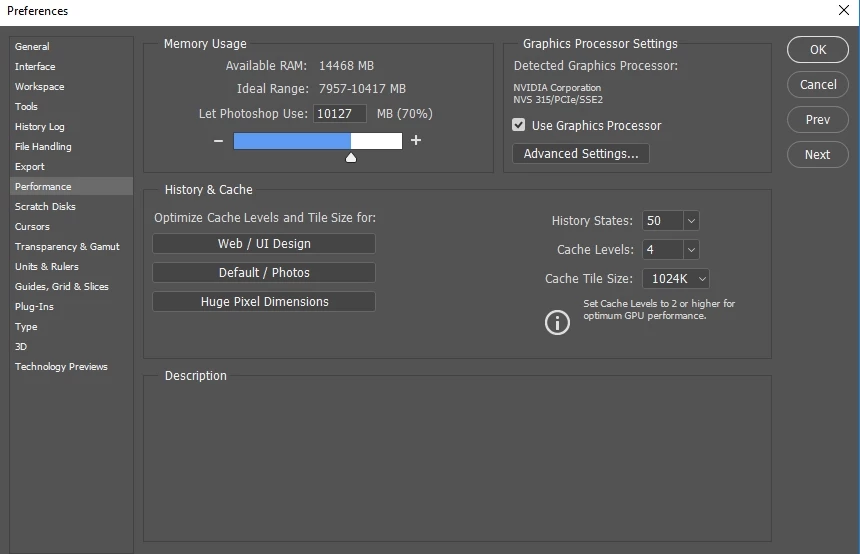
I upgraded to 16GB of RAM and everything seems to run smooth for the most part. The problelm is I have a weaker GPU that I can't upgrade as it is a part of the motherboard. Photoshop doesn't support splitting the difference between two video cards. So, I have to deactivate the GPU in Photoshop for the program to become mostly usable. However, there is one bug that I do have to deal with now that I don't really understand. I'm hoping there may be some unknown fix, but I suspect it's just that Photoshop can't really reason my two GPU's.


New (minor) Problem: 

Without the GPU active, I lose quality of life features like the animated zoom and the color picker UI when choosing colors. Managable as losses go. Though when I do a certain amount of editing parts of my canvas incrementally freeze until (if I don't close and reload) I only have a small amount of the actual canvas is usable. This means I need to periodically close my project to reload the canvas, therefore making it useful. Is there any setting that I can deactivate or activate to help resolve this issue? Or do I need to wait for a (wishful) future update?


Thanks for the help!

Participating Frequently
April 5, 2022

Additionally I have watched the performance of my computer during use and neither of the Graphics Cards seem to be struggling at all when this happens. They both equally stay below 5% memory usage.