


Known Participant
March 7, 2019
解決済み

Images look over saturated in Photoshop, regardless of profile.

  • March 7, 2019
  • 返信数 3.
  • 19194 ビュー

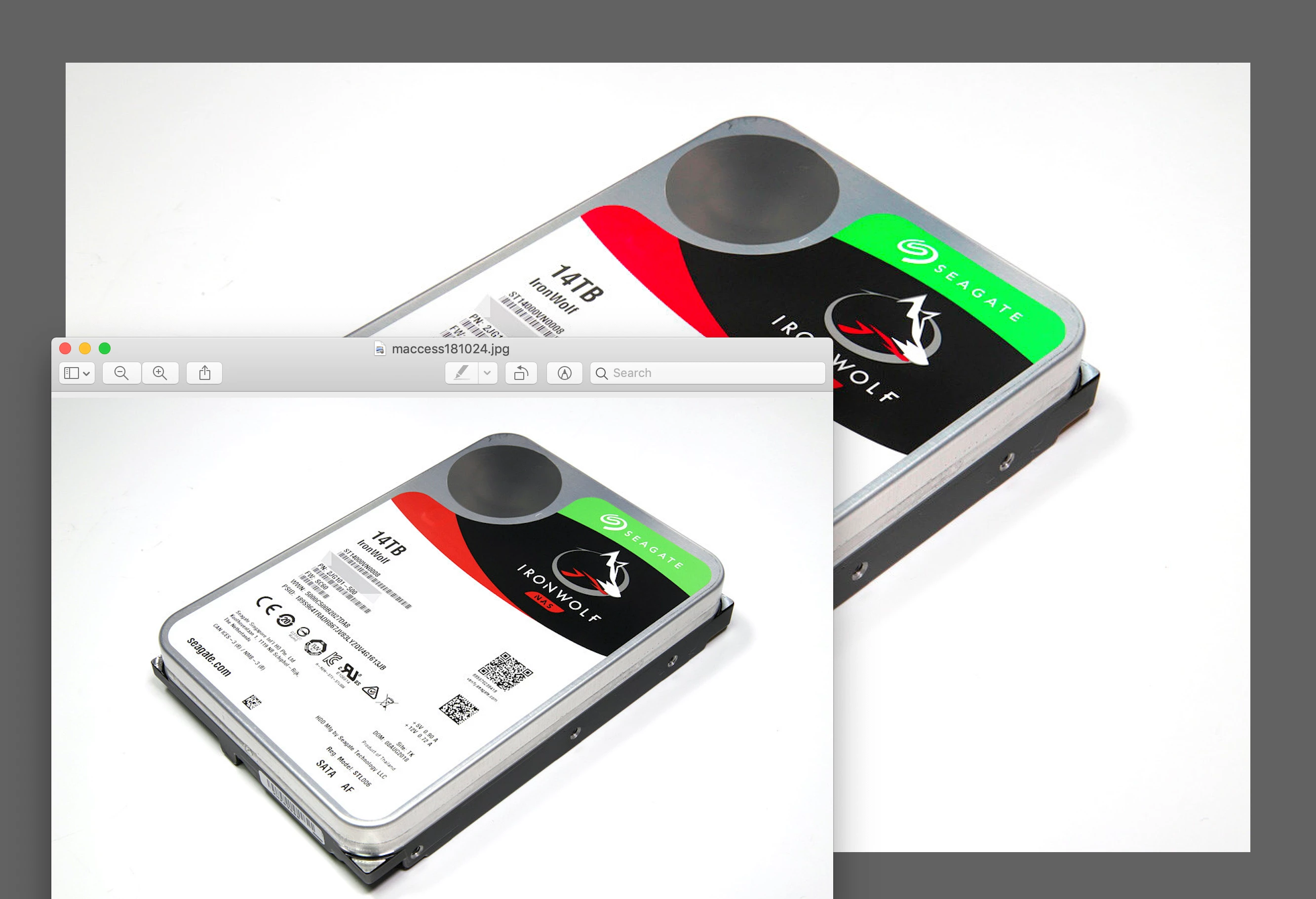
I'm having problems importing images into Photoshop that have no color profile. The problem is that whatever option I select in the 'Embedded Profile Mismatch' popup screen, the image looks very oversaturated once it shows up. This typically happens with images that come from the internet. They look fine in my browsers, and they look the same in Preview. It's only when I open the image in PS that it looks very oversaturated. I have attached a screen dump of the image opened in PS and in Preview (left). What I don't understand is how neither of the options in the 'Embedded Profile Mismatch' give me a look that resembles the one I get in Preview or in my browser. Any ideas?
このトピックへの返信は締め切られました。
解決に役立った回答 Michael Bullo

Hi Marsel,

Try going to…

     Edit > Assign Profile

and assigning a profile to your untagged files (ie those with no embedded profile). The sRGB profile would be the best place to start.

Michael

返信数 3

D Fosse
Community Expert
Community Expert
March 7, 2019

Wait a second. Are you just clicking the radio buttons, or are you actually trying different profiles in the rolldown? That's what you need to do.

The advantage of the Missing Profile warning is that you get to try different profiles immediately, so that you can assign what looks like the right one.

Known Participant
March 8, 2019

Well, that's the thing - it doesn't matter which profile I select from the pull-down menu, the results are all the same (no change). It used to work, but it no longer does.

Everything is up to date, and I tried rebooting - nothing helps.

D Fosse
Community Expert
Community Expert
March 7, 2019

Never work with untagged material. Assign the correct profile ASAP. Untagged images on the internet can be safely assumed to be sRGB, so that's the profile to assign.

Newer versions of Safari (and Firefox and Chrome) assign sRGB to all untagged material. This is what allows correct color management to proceed - which is absolutely required with wide gamut displays, whether traditional wide gamut or the Apple variety P3. If the browsers didn't do that you'd get oversaturation.

Michael Bullo
Community Expert
Michael BulloCommunity Expert解決!
Community Expert
March 7, 2019

Hi Marsel,

Try going to…

     Edit > Assign Profile

and assigning a profile to your untagged files (ie those with no embedded profile). The sRGB profile would be the best place to start.

Michael

Known Participant
March 7, 2019

Thank you very much, that helped.

But shouldn't I be able to get the same results when opening the image and assigning an sRGB profile to it while opening? Whatever I select in that profile mismatch window, the image doesn't change its colors. I can't remember this behavior, which is why I'm confused.

Willis Orr
Participant
September 24, 2020

Michael - all those boxes are checked because I want to know when I open a file that has no or the wrong color profile. Assigning a profile in the Color Profile Mismatch popup window has no effect on the appearance of the image, it's only the Menu > Assign Profile option that you suggested that works. It's very confusing.


Marsel,

Try going to Edit > Color Settings and then when the "Color Settings" window pops up look under Advanced Controls and if the box next to "Desaturate Monitor Colors By" is checked, uncheck it. I hope this helps.