is there a Script for Batch Resizing and side by side photos.
Basically i will take two photos and want to put them side by side but with particular dimensions. so the script has to first resize both of them and then put them side by side and later save them.
Now i want to resize my photos for the particular Social media sites.
Instagram
Pinterest
Tumblr
Facebook
Twitter
We Heart It
I am comfortable changing the script to my liking and am eager to learn, thanks
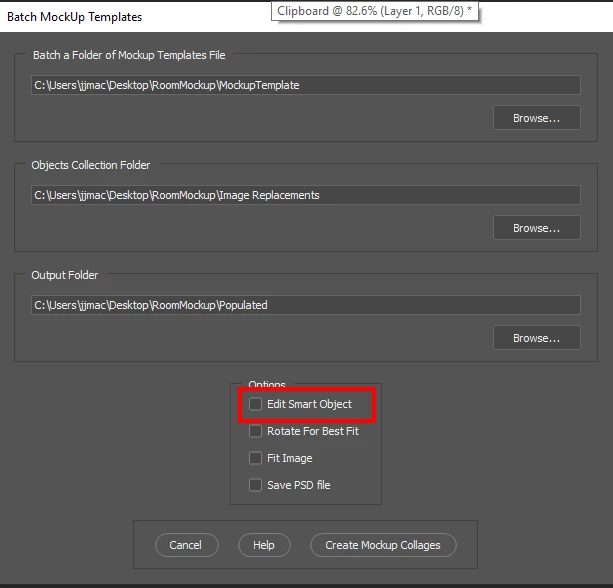
Please do not use private message to me. I can not type or spell and jive private messaging does not even offer spell checking which I need and sometimes use. The script is in my toolkit I wrote for Photoshop and it requires the preferences script in the package to work. Also private messaging will not help other know where the download is. The script name is BatchMockupTemplates.jsx you would need to use its Edit option for your image vary in size and you need to create Mockup Templates for each social media site that are compatible with my scripts. Your Left and Right image sets need to be is the source image folder's sub folders obj0 and obj1. You need to read some of my packages documentation about mockup templates.... The script is quite simple and straight forward and populate images in file sort order It does no paring or matching. Users are responsible for that. If each object folder has a set of file names like Image1, Image2, Image3 etc set would match up.
Photo Collage and Mockup Toolkit
Photoshop scripting is powerful and I believe this package demonstrates this. Here is a video showing a 5 image collage PSD template being populated with images
The package includes four simple rules to follow when making Photo Collage Template PSD files so they will be compatible with my Photoshop scripts.
Size the photo collage templates for the print size you want - width, height and print DPI resolution.
Photo collage templates must have a Photoshop background layer. The contents of this layer can be anything.
Photo collage templates must have alpha channels named "Image 1", "Image 2", ... "Image n".
Photo collage templates layers above the background layers must provide transparent areas to let the images that will be placed below them show through.
There are eighteen scripts in this package they provide the following functions:
HelpPhotoCollageToolkit.jsx - Online Help
TestCollageTemplate.jsx - Used to test a Photo Collage Template while you are making it with Photoshop.
CollageTemplateBuilder.jsx - Can build Templates compatible with this toolkit's scripts.
LayerToAlphaChan.jsx - Used to convert a Prototype Image Layer stack into a template document.
InteractivePopulateCollage.jsx - Used to interactively populate Any Photo Collage template. Offers most user control inserting pictures and text.
ReplaceCollageImage.jsx - use to replace a populated collage image Smart Object layer with an other image correctly resized and positioned.
ChangeTextSize.jsx - This script can be used to change Image stamps text size when the size used by the populating did not work well.
PopulateCollageTemplate.jsx - Used to Automatically populate a Photo Collage template and leave the populated copy open in Photoshop.
BatchOneImageCollage.jsx - Used to Automatically Batch Populate Collage templates that only have one image inserted. The Collage or Image may be stamped with text.
BatchMultiImageCollage.jsx - Used to Automatically Batch Populate Any Photo Collage template with images in a source image folder. Easier to use than the interactive script. Saved collages can be tweaked.
PasteImageRoll.jsx - Paste Images into a document to be print on roll paper.
BatchPicturePackage.jsx - Used to Automatically Batch Populate Any Photo Collage template with an image in a source image folder. Images Rotates for best fit.
BatchPicturePackageNoRotate.jsx - Used to Automatically Batch Populate Any Photo Collage template with an image in a source image folder.
PopulatePicturePackage.jsx - Used to Automatically populate a Photo Collage template Fill with the same single image and leave the populated copy open in Photoshop.
PCTpreferences.jsx - Preferences Use in several of the above scripts. Edit this file to change default settings and add layer styles.
BatchReplaceOneObject.jsx - Used to populate simple Mockup templates. Simple Mockup have one rule the top layer must be a Smart Object Layer it contents will be replaced and a Jpeg file saved.
BatchUpdateSmartObject.jsx - Used to populate simple Mockup templates like BatchReplaceOneObject script but can update more than a single smart object layer.
BatchMockupTemplates.jsx - Used to populate mutiple Mockup Template that need to be populated eith the same replacement image objects.
Mockup Support Added
I created my Photoshop Photo Collage Toolkit nine years ago and Avoided supporting Templates that used Smart Object layers to warp, to add perspective, to rotate, add any distortion to images. Because replacement Image file needed to have exactly the same Aspect Ratio, Size and Print resolution as the Object in the Template's smart object layers object. Lately there have been some threads in Adobe Photoshop scripting forums dealing with updating/populating products Mockups Templates that have prototype smart object layers that need to be updated to create the output mockup files. These were good threads and prompted me to do some thinking.
So like my Photo Collage Template design has four simple rules. I came up with four simple rules for Mockup templates. I find that I can easily modify Photo Collage Templates and Mockup Template files I download from the web so they comply with my Photo Collage Template rules or my Simple Mockup Template rules. Mockup templates may be far from simple the only simple part is they are easy to update. So I have add support to my Photo Collage Toolkit to support Mockup templates.
Simple Mockup Templates Four Rules
Simple Mockup Templates Only the Smart Object Layer on the top of the Template layers stack will be updated then a Jpeg file saved.
Only Photoshop Objects are support in the top smart objects layers. That is they can not be Object File that are not supported by Photoshop like Camera RAW Files or Illustrator file like .ai, .svg. I suggest these objects should be PSD or PSB that Photoshop creates. Avoid using PNG objects in Mockup template. For when replace content is used to replace .png objects within a .psd template which has your png's object the replace content operation is very slow.
The first None Smart Object Layer near the top of the layer stack Marks the end of Smart Object Layers the will be updated. Lower Smart Object Layers only update if they share top layers objects.
The Replacement Image Collection need to be in sub folders named obj0, obj1, obj2, .... objN. Each folder must contains the same number of replacement Image files.
You can see the effect of the different aspect ratios on image composition as the vary the normal Landscape ranges 5:4, 4:3, 3:2. even square. The image area size support on various social media sited were not well suited for those aspect ratios. for two images. Instergram would need wide landscape or tall portrait, and Pinterest and Tumblr need a Portrait aspect ratio. so I went with Landscape. You can there are some composition issue with the results for Instergram, Pinterest and Tumblr.
Please do not use private message to me. I can not type or spell and jive private messaging does not even offer spell checking which I need and sometimes use. The script is in my toolkit I wrote for Photoshop and it requires the preferences script in the package to work. Also private messaging will not help other know where the download is. The script name is BatchMockupTemplates.jsx you would need to use its Edit option for your image vary in size and you need to create Mockup Templates for each social media site that are compatible with my scripts. Your Left and Right image sets need to be is the source image folder's sub folders obj0 and obj1. You need to read some of my packages documentation about mockup templates.... The script is quite simple and straight forward and populate images in file sort order It does no paring or matching. Users are responsible for that. If each object folder has a set of file names like Image1, Image2, Image3 etc set would match up.
Photo Collage and Mockup Toolkit
Photoshop scripting is powerful and I believe this package demonstrates this. Here is a video showing a 5 image collage PSD template being populated with images
The package includes four simple rules to follow when making Photo Collage Template PSD files so they will be compatible with my Photoshop scripts.
Size the photo collage templates for the print size you want - width, height and print DPI resolution.
Photo collage templates must have a Photoshop background layer. The contents of this layer can be anything.
Photo collage templates must have alpha channels named "Image 1", "Image 2", ... "Image n".
Photo collage templates layers above the background layers must provide transparent areas to let the images that will be placed below them show through.
There are eighteen scripts in this package they provide the following functions:
HelpPhotoCollageToolkit.jsx - Online Help
TestCollageTemplate.jsx - Used to test a Photo Collage Template while you are making it with Photoshop.
CollageTemplateBuilder.jsx - Can build Templates compatible with this toolkit's scripts.
LayerToAlphaChan.jsx - Used to convert a Prototype Image Layer stack into a template document.
InteractivePopulateCollage.jsx - Used to interactively populate Any Photo Collage template. Offers most user control inserting pictures and text.
ReplaceCollageImage.jsx - use to replace a populated collage image Smart Object layer with an other image correctly resized and positioned.
ChangeTextSize.jsx - This script can be used to change Image stamps text size when the size used by the populating did not work well.
PopulateCollageTemplate.jsx - Used to Automatically populate a Photo Collage template and leave the populated copy open in Photoshop.
BatchOneImageCollage.jsx - Used to Automatically Batch Populate Collage templates that only have one image inserted. The Collage or Image may be stamped with text.
BatchMultiImageCollage.jsx - Used to Automatically Batch Populate Any Photo Collage template with images in a source image folder. Easier to use than the interactive script. Saved collages can be tweaked.
PasteImageRoll.jsx - Paste Images into a document to be print on roll paper.
BatchPicturePackage.jsx - Used to Automatically Batch Populate Any Photo Collage template with an image in a source image folder. Images Rotates for best fit.
BatchPicturePackageNoRotate.jsx - Used to Automatically Batch Populate Any Photo Collage template with an image in a source image folder.
PopulatePicturePackage.jsx - Used to Automatically populate a Photo Collage template Fill with the same single image and leave the populated copy open in Photoshop.
PCTpreferences.jsx - Preferences Use in several of the above scripts. Edit this file to change default settings and add layer styles.
BatchReplaceOneObject.jsx - Used to populate simple Mockup templates. Simple Mockup have one rule the top layer must be a Smart Object Layer it contents will be replaced and a Jpeg file saved.
BatchUpdateSmartObject.jsx - Used to populate simple Mockup templates like BatchReplaceOneObject script but can update more than a single smart object layer.
BatchMockupTemplates.jsx - Used to populate mutiple Mockup Template that need to be populated eith the same replacement image objects.
Mockup Support Added
I created my Photoshop Photo Collage Toolkit nine years ago and Avoided supporting Templates that used Smart Object layers to warp, to add perspective, to rotate, add any distortion to images. Because replacement Image file needed to have exactly the same Aspect Ratio, Size and Print resolution as the Object in the Template's smart object layers object. Lately there have been some threads in Adobe Photoshop scripting forums dealing with updating/populating products Mockups Templates that have prototype smart object layers that need to be updated to create the output mockup files. These were good threads and prompted me to do some thinking.
So like my Photo Collage Template design has four simple rules. I came up with four simple rules for Mockup templates. I find that I can easily modify Photo Collage Templates and Mockup Template files I download from the web so they comply with my Photo Collage Template rules or my Simple Mockup Template rules. Mockup templates may be far from simple the only simple part is they are easy to update. So I have add support to my Photo Collage Toolkit to support Mockup templates.
Simple Mockup Templates Four Rules
Simple Mockup Templates Only the Smart Object Layer on the top of the Template layers stack will be updated then a Jpeg file saved.
Only Photoshop Objects are support in the top smart objects layers. That is they can not be Object File that are not supported by Photoshop like Camera RAW Files or Illustrator file like .ai, .svg. I suggest these objects should be PSD or PSB that Photoshop creates. Avoid using PNG objects in Mockup template. For when replace content is used to replace .png objects within a .psd template which has your png's object the replace content operation is very slow.
The first None Smart Object Layer near the top of the layer stack Marks the end of Smart Object Layers the will be updated. Lower Smart Object Layers only update if they share top layers objects.
The Replacement Image Collection need to be in sub folders named obj0, obj1, obj2, .... objN. Each folder must contains the same number of replacement Image files.
The way I read the Append they were going to have a script to create the side by side image that they wanted to resize these for use on the different social media sites. I only address the resize portion of their project. IMO they did not provide sufficient Information as to how the first part combing two images side by side is to be done. No information was provided about the source images or combined image size. If all image are not the same size and have the same aspect ratio. They need to design how they want to handle size differences which could be very complex. If all images are the same size there is no problem jointing two image side by side it not an issue. If side by side order is an issue all that is needed is the file name sort order image will be process in that order. If image are various sizes and can have any aspect ratio they need to design a process as to how they want to combine images. That would not be easy to design and without any knowledge about source images possible sizes and aspect ratio and target combined size it may be impossible to design.
If there is a desired side be side Image size. A two image template can be created and image populated into both half's. However, if Source image can be any size and any aspect ratio. The populated templates may not always have an acceptable composition because of how images will be resized and fitted into position.
the pinterest one is alright, i guess or can it also be improved?
From the very beginning I told you. You need to realize it is not possible to composite any two image that have any arbitrary aspect ratio into any third image that may have any arbitrary aspect ratio and always have an acceptable composition. To preserve your image full content there would be unacceptable boarders and with resizing to fill the third image aspect ratio there will be image content loss. Its all about aspect ratios. With planning some range of aspect ratios will work well. If the T-shirt Image had the same aspect ratio as the Instergram image area the t-shirt image would not get a cropped look it would be your full image content in there. If you do not want any cropping of your images you can use the Edit and Fit Image options. There will be boarders you will most likely find not acceptable. And it is still all about Aspect Ratios differences.
You could use Adobe Plug-in Script Fit Image recorded into into actions for each social media site. Or download and install the Image Processor Pro Plug-in Script. You can save your images for up to 10 social media sites in a single run of the Image Processor Pro plug-in.
If besides resizing you want to channe the images Aspect Ratio you would l need to include Croping actions to change an image's aspect ration. The Action coul includ your script the to make the the Aspect Ratio Crop or you could nes my Plug-in Script AspectRatioSelection ine your Action to set a centered Aspect Ration Selection you could crop to.




 AdChoices