


Participant
July 12, 2022
解決済み

Photoshop 23.1.1: in View, Screen Mode, Standard I do not get the right-hand-side menus, layers etc

  • July 12, 2022
  • 返信数 3.
  • 1838 ビュー

Photoshop 23.1.1, on MacBookPro Monterey OS 12.4, on Safari 15.5.

In View, Screen Mode, Standard I do not get the right-hand-side menus (layers, type, all other functions), whereas if I choose View, Screen Mode, Full Screen Mode with Manu Bar I loose the top row (3 colored dots, file names, etc).

How can I get the old-time usual full menus both on the right and on top?

Also, I appear to have lost the possibility to change the vertical height of a typeface!!

Can someone please help me?

Thanks a lot in advane,

Luigi B
このトピックへの返信は締め切られました。
解決に役立った回答 Kevin Stohlmeyer

I can tell by your first screen shot that your right side is extended beyond the boundries of your screen. Click the Green fit in screen button from the Mac OS and your panels are probably just off screen.

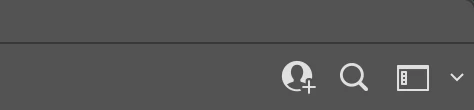
On the far top right you should be seeing these icons - these are missing and your "Adobe Photoshop 2022" is not centered on screen.


返信数 3

Conrad_C
Community Expert
Community Expert
July 14, 2022

I know you said you have used Photoshop for a long time, but just to help clarify what is going on and what is normal…


@luigi252161562q0a wrote:

In View, Screen Mode, Standard I do not get the right-hand-side menus (layers, type, all other functions),


The “right-hand side menus” are formally not menus, but panels. The panel arrangement and visibility are controlled by the workspaces, and that’s why a suggestion was to reset the current workspace. Specifically, that means either choose Window > Workspace > Reset [current workspace], or to go back to how it is originally, choose Window > Workspace > Essentials and then reset that in case it is modified.


@luigi252161562q0a wrote:

whereas if I choose View, Screen Mode, Full Screen Mode with Manu Bar I loose the top row (3 colored dots, file names, etc).


That is normal. The “top row (3 colored dots, file names, etc)” are in the standard macOS document title bar. But if you switch to any Full Screen Mode, all window borders go away (that is what Full Screen Modes have done for 30 years), so the top document window title bar (which contains the 3 dots and file names) also goes away. So that is normal.


The only option on the View > Screen Mode submenu that shows the document title bar is Standard Screen Mode, and again that has been true for 30 years. The only thing that has changed is that in versions of Photoshop after the Application Frame was added, the three dots are in the application frame, and the document title is in the tab row within the application frame.


If you want document windows to float free, so that the three dots and title are together in a document title bar, you must make sure they are not tabbed (choose Window > Arrange > Float All in Windows), or disable the Application Frame (Window > Application Frame).


@luigi252161562q0a wrote:

Also, I appear to have lost the possibility to change the vertical height of a typeface!!


Do you mean the font size? If a type layer is selected and the Window > Character or Window > Properties panels are open, that option should be in those panels. If those two panels are closed, the font size option should still be available in the options bar, unless the options bar is closed (Window > Options).


A lot of this is sounding like panels that you expect to be open are closed. If you are positive your preferred panel arrangement (workspace) is active, post a screen shot of how it looks so we can figure out what’s wrong.

Participant
July 15, 2022

Thanks a lot for your courtesy in devoting time to my issue.

You state correct things, but maybe some newer realities are slipped through too.

It is not the same to have tabs of various files or to have floating windows thereof, to clutter the space.

I will attach hereafter screen grabs of the two different screen modes, that illustrate my issue. Right now, in order to work on files from the panels I have to switch to FullScreen, thereby loosing tabs and top menu bar. 

Also, and I sincerely apologize for my unintentional disrespect for the accepted Adobe taxonomy, I used to be able to regulate the hight of a letter by percentage, without opening another window.

I am often baffled by how programmers have to justify their salary, by necessarily having to modify layouts that have worked very well, often making them more limited, more difficult or plainly unfriendly. And I absolutely do not refer solely to Adobe!

Thanks,

Luigi

Kevin Stohlmeyer
Community Expert
Community Expert
July 15, 2022

I can tell by your first screen shot that your right side is extended beyond the boundries of your screen. Click the Green fit in screen button from the Mac OS and your panels are probably just off screen.

On the far top right you should be seeing these icons - these are missing and your "Adobe Photoshop 2022" is not centered on screen.


Jeff Arola
Community Expert
Community Expert
July 14, 2022

It might help if you posted some screenshots or a short video clip of what your seeing.


Adobe employees do monitor this forum and respond to posts.


If you mark this thread as a bug that might get more attention from adobe.


Kevin Stohlmeyer
Community Expert
Community Expert
July 12, 2022

Try going to Window>Workspace and resetting your workspace.

Otherwise the Tab key toggles panel visibility. Shift+Tab hides just the side panels while Tab hides all.

Participant
July 13, 2022
Thanks a lot for answering my query.
I did try both of your suggestions (workspace and tab) but in my Standard Screen Mode I get nothing.
It is just a shame that Adobe is not interested enough to give directly a piece of advice to someone paying $20/month to use a faulty Photoshop once every other week!
Thanks for trying,
Luigi
Kevin Stohlmeyer
Community Expert
Community Expert
July 13, 2022

Are you connected to an external monitor at all?