


Participant
May 27, 2025
解決済み

Photoshop is lagging significantly

  • May 27, 2025
  • 返信数 2.
  • 1392 ビュー

I'm experiencing an issue that I haven't been able to resolve.

Photoshop on my laptop is lagging significantly, even when working with small files. Every action I take—such as zooming in and out—takes a few seconds to respond. This lag only occurs when my graphics processor (NVIDIA GeForce RTX 3050 Ti) is active in Photoshop.
Here are my current settings in Photoshop:
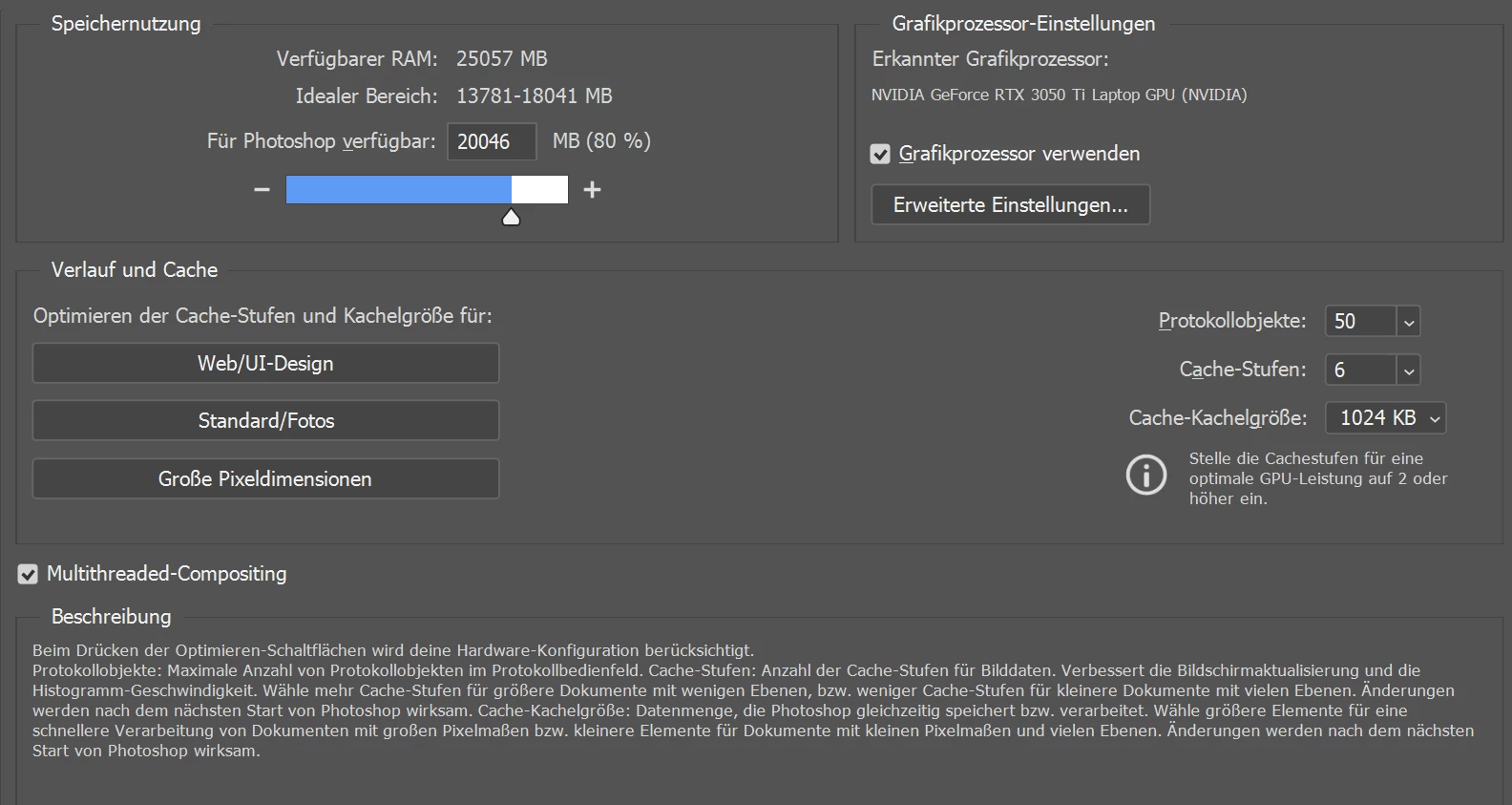
Photoshop version I'm currently using is: 26.7.0


When I disable the graphics processor, Photoshop runs much more smoothly. However, it becomes unstable and crashes frequently, especially when working with larger files (over 3000 px in width or height) than the crashes happen all the time, and it is much, much worse.

I’ve already contacted Adobe support. They attempted to fix the issue, but unfortunately, nothing changed.

Here are the specifications of my laptop:

  • Processor: 11th Gen Intel(R) Core(TM) i7-11370H @ 3.30GHz

  • RAM: 32 GB (31.8 GB usable)

  • Graphics Card: NVIDIA GeForce RTX 3050 Ti

  • System Type: 64-bit operating system, x64-based processor


If anyone has experienced something similar or knows a solution, I would really appreciate your help.

Thank you in advance!

解決に役立った回答 Nik Hagialas

Hey! As an update - disabling the Intel driver seems to have fixed it! I'm not sure what happened that made it suddenly not work, but Photoshop is running smoothly now. Thank you for the recommendation!


As another update and for anyone else that may experience this issue -- disabling my Intel driver was not allowing my laptop to go into sleep mode, so with some further investigation I realized that downloading Parsec created another display adapter driver and was the true culprit. I turned back on my Intel Driver and turned off the Parsec one and Photoshop is running smoothly again.

返信数 2

Participating Frequently
June 12, 2025

Just wanted to say that I am having the same issue today (and was not having this issue yesterday). My brush strokes from my cintiq pen are delayed (as opposed to slow), and this is happening even when I use my mouse to make a stroke. I have updated my cintiqu, graphics card, and updated from a Photoshop 2024 version to the new 2025 version (v 26.7) and the problem persists.

I have a slightly lower end rig than the OP, but have never had issues like this with Photoshop before.

AxelMatt
Community Expert
Community Expert
June 13, 2025

@Nik Hagialas  Please provide a copy of your 'System Info'. This can be get from the Photoshop menu item Help > System Info. There's a copy button in the System Info dialog. Press this button and paste the info into your next forum post.


My System: Intel i7-8700K - 64GB RAM - NVidia Geforce RTX 3060 - Windows 11 Pro 25H2 -- LR-Classic 15 - Photoshop 27 - Nik Collection 8 - PureRAW 6 - Topaz Photo AI
Participating Frequently
June 13, 2025

@Nik Hagialas  This isn't the system info we need. I've wrote in my post how to get the system info.


As you wrote you have an integrated GPU – UHD Graphics 630.

Try to disable it. Sometimes the dual GPUs are causes problems.

Go to Device manager in Windows and the to the section Display adapters. If the UHD Graphics 630 is enabled, right click it and choose Disable.


Hey! As an update - disabling the Intel driver seems to have fixed it! I'm not sure what happened that made it suddenly not work, but Photoshop is running smoothly now. Thank you for the recommendation!

Sameer K
Community Manager
Community Manager
May 27, 2025

Hey, @Andreas5FE2. Welcome to the Photoshop Community. I'll help you figure this out. Please share the system info from Photoshop Help > System info > Copy and paste into a text document > Upload and attach here.


Does it behave as mentioned after a specific set of steps? Have there been any recent changes to your system? For example, have you recently installed any antivirus software, system updates, or web extensions? Is your Laptop plugged into power while you use Photoshop? 


As a test, try these steps:

1 - Go to Preferences > Performance > Advanced Settings > Disable/uncheck GPU Compositing & restart Photoshop. 

2 - Try disabling the integrated Intel GPU while using only the Nvidia GPU when you use Photoshop. Follow here for the steps: https://adobe.ly/3KWDW6r


Let me know how it goes. Thanks!
Sameer K

(Type '@' and type my name to mention me when you reply)

Andreas5FE2作成者
Participant
June 2, 2025

Dear @Sameer K ,

first fo all thank you for the quick reply.
Please find the system info file attached.

quote

As a test, try these steps:

1 - Go to Preferences > Performance > Advanced Settings > Disable/uncheck GPU Compositing & restart Photoshop. 

2 - Try disabling the integrated Intel GPU while using only the Nvidia GPU when you use Photoshop. Follow here for the steps: https://adobe.ly/3KWDW6r


I have tried all the steps and unfortunately nothing helped.
Thank you again for your help

Sameer K
Community Manager
Community Manager
June 5, 2025

Thanks for sharing the details.
1 - Try to disconnect additional monitors. 

2 - Update the GPU drivers for the Intel GPU adapter; follow the content here: https://adobe.ly/4dP4nbP;

3 - Follow the steps here to optimize the performance for Photoshop: https://adobe.ly/4dPg3LG;


Thanks! 

Sameer K

(Type '@' and type my name to mention me when you reply)