Inspiring
December 29, 2020
解決済み

How to change CameraRaw settings in Photoshop CS 6 settings with ExtendScript?

  • December 29, 2020
  • 返信数 4.
  • 1864 ビュー

Hello,


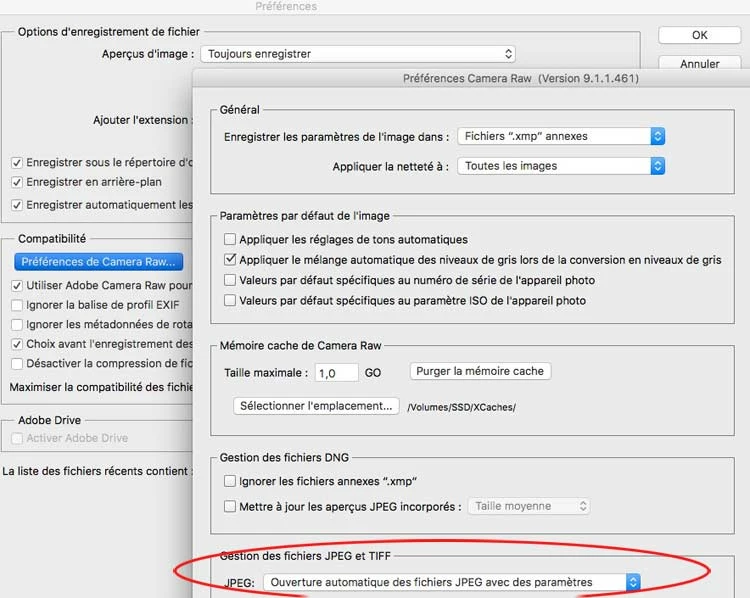
In my Photoshop CS 6 (Mac) settings, CameraRaw is set to only open RAW images, but sometimes I have to open JPG images in CameraRaw. This can be done manually by modifying a specific setting: Photoshop Settings -> Files -> CameraRaw Settings -> Files Settings

(I don't know the labels in english as I have a french localized Photoshop version)


Is there a way with ExtendScript to change this specific setting? I would like a script to easily switch between "Use CameraRaw to open JPG files with parameters / Always use CameraRaw to open JPG files".


Thank you.
 

このトピックへの返信は締め切られました。
解決に役立った回答 Stephen Marsh

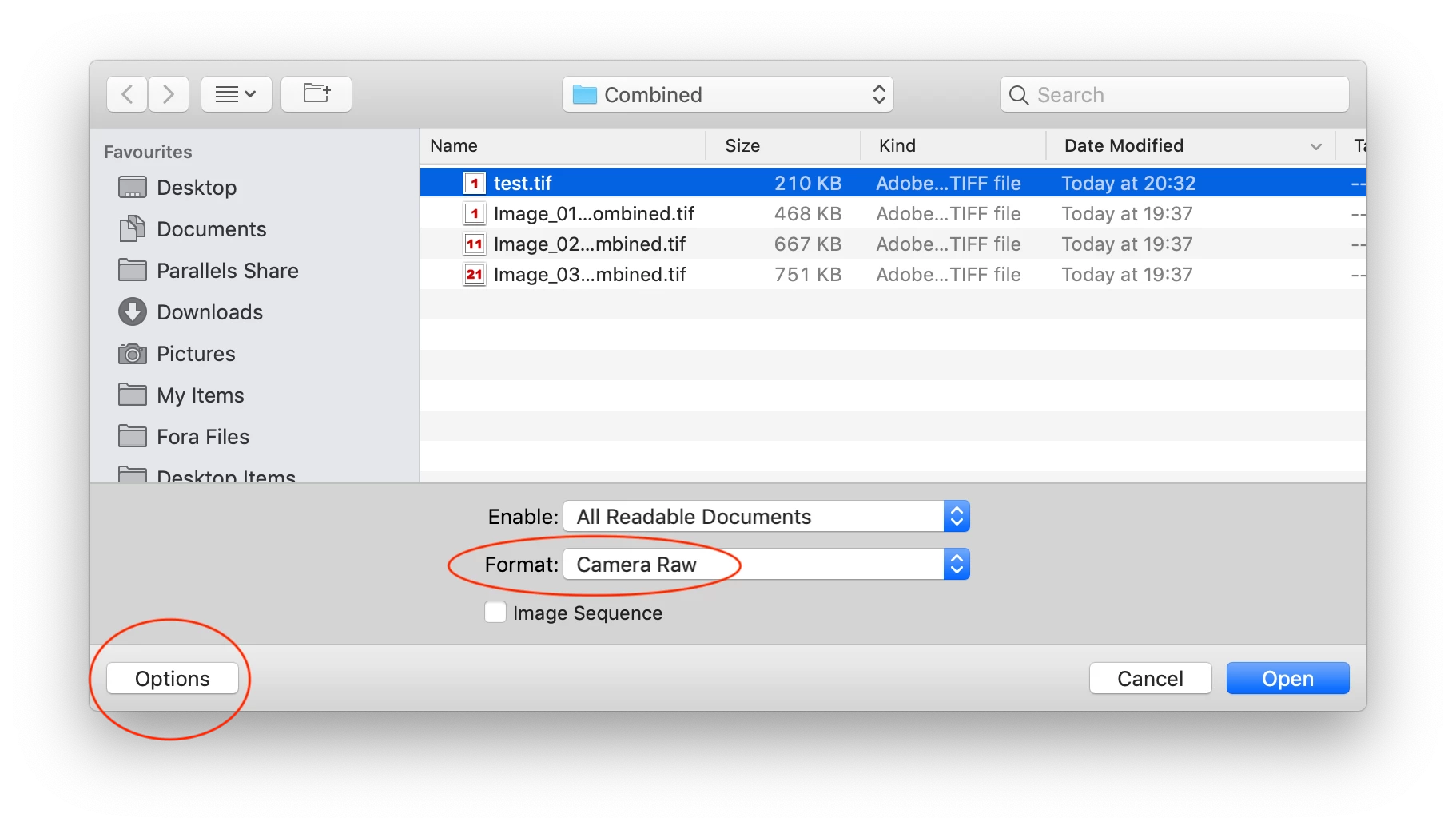
On the Mac, one can set the standard open options to force a supported TIFF or JPEG to open into ACR:


Another approach would be to force the JPEG/TIFF to open via:


OpenDocumentType.CAMERARAW


Obviously more code is required than just that snippet, however, I couldn't get that to work, but I hacked at the following script and it did work:


//community.adobe.com/t5/photoshop/how-to-record-button-click-on-action/td-p/10858184
var forceACR = File.openDialog("Please select a JPEG or TIFF file");
var d = new ActionDescriptor();
d.putBoolean(stringIDToTypeID("dontRecord"), true);
d.putBoolean(stringIDToTypeID("forceNotify"), true);
d.putPath(stringIDToTypeID("null"), forceACR);
var d1 = new ActionDescriptor();
d.putObject(stringIDToTypeID("as"), stringIDToTypeID("Adobe Camera Raw"), d1);
d.putBoolean(stringIDToTypeID("smartObject"), true);
d.putBoolean(stringIDToTypeID("overrideOpen"), true);
executeAction(stringIDToTypeID("open"), d, DialogModes.ALL);


返信数 4

Stephen Marsh
Community Expert
Community Expert
January 2, 2021

A tantalising glimpse of another possibility here from Kukurykus:


https://www.ps-scripts.com/viewtopic.php?f=66&t=40499&p=169250&hilit=xml#p169250


Kukurykus
Legend
January 2, 2021

You probably find it in:

File(preferencesFolder.fullName + '/' + (bt = BridgeTalk).getDisplayName(bt.appSpecifier) + ' Prefs.psp')
Legend
January 1, 2021

On windows edit file

C:\Users\USERNAME\AppData\Roaming\Adobe\CameraRaw\Defaults\Preferences.xmp


the line with: "crs:JPEGHandling="


On Mac find this file yourself.

Stephen Marsh
Community Expert
Community Expert
January 2, 2021

Ah, the backdoor approach! I like it, it is obvious in hindsight and offers a different method... It should be possible to script the editing of the XML file directly (I have tried but it is beyond my current abilities)...


On the Mac, it will be similar to this path:


/Users/user account name here/Library/Application Support/Adobe/CameraRaw/Defaults/Preferences.xmp


crs:JPEGHandling="OpenIfHasSettings"
crs:JPEGHandling="Disable"
crs:JPEGHandling="OpenIfSupported"


Stephen Marsh
Community Expert
Community Expert
January 2, 2021

The following script will open the folder, which is defaulted to a hidden directory on Windows OS:


/* Open ACR Defaults Folder - Universal */

#target photoshop

app.bringToFront();

openACRdefaultsDir();

function openACRdefaultsDir() {
    var os = $.os.toLowerCase().indexOf('mac') >= 0 ? "mac" : "windows";
    if (os === 'mac') {
        // alert("It's a Mac!");

        acrDirMac();

        function acrDirMac() {
            var acrDefaultsDirMac = '~/Library/Application Support/Adobe/CameraRaw/Defaults/'; // Preferences.xmp
            var acrDefaultsDirMacOpen = Folder(acrDefaultsDirMac);
            acrDefaultsDirMacOpen.execute();
        }

    } else {
        // alert("It's Windows!");

        acrDirWin();

        function acrDirWin() {
            var acrDefaultsDirWin = '~/AppData/Roaming/Adobe/CameraRaw/Defaults/'; // Preferences.xmp
            var acrDefaultsDirWinOpen = Folder(acrDefaultsDirWin);
            acrDefaultsDirWinOpen.execute();
        }

    }
}


P.S. If you have a suitable program set to open XML files, you can add the Preferences.xml to the end of the directory path.

Stephen Marsh
Community Expert
Stephen MarshCommunity Expert解決!
Community Expert
December 30, 2020

On the Mac, one can set the standard open options to force a supported TIFF or JPEG to open into ACR:


Another approach would be to force the JPEG/TIFF to open via:


OpenDocumentType.CAMERARAW


Obviously more code is required than just that snippet, however, I couldn't get that to work, but I hacked at the following script and it did work:


//community.adobe.com/t5/photoshop/how-to-record-button-click-on-action/td-p/10858184
var forceACR = File.openDialog("Please select a JPEG or TIFF file");
var d = new ActionDescriptor();
d.putBoolean(stringIDToTypeID("dontRecord"), true);
d.putBoolean(stringIDToTypeID("forceNotify"), true);
d.putPath(stringIDToTypeID("null"), forceACR);
var d1 = new ActionDescriptor();
d.putObject(stringIDToTypeID("as"), stringIDToTypeID("Adobe Camera Raw"), d1);
d.putBoolean(stringIDToTypeID("smartObject"), true);
d.putBoolean(stringIDToTypeID("overrideOpen"), true);
executeAction(stringIDToTypeID("open"), d, DialogModes.ALL);


frmorel作成者
Inspiring
December 30, 2020

Thank you for you replies.


Stephen, I always drag and drop images on Photoshop, so I didn't know this wonderful "Options" button in Open dialog 🙂

Your script works fine. A "try/catch" can be added to avoid an error alert if the user clicks on the Cancel button in CameraRaw:


//community.adobe.com/t5/photoshop/how-to-record-button-click-on-action/td-p/10858184
var forceACR = File.openDialog("Please select a JPEG or TIFF file");
var d = new ActionDescriptor();
d.putBoolean(stringIDToTypeID("dontRecord"), true);
d.putBoolean(stringIDToTypeID("forceNotify"), true);
d.putPath(stringIDToTypeID("null"), forceACR);
var d1 = new ActionDescriptor();
d.putObject(stringIDToTypeID("as"), stringIDToTypeID("Adobe Camera Raw"), d1);
d.putBoolean(stringIDToTypeID("smartObject"), true);
d.putBoolean(stringIDToTypeID("overrideOpen"), true);

try {
	executeAction(stringIDToTypeID("open"), d, DialogModes.ALL);
} catch (error) {
	// user has cancelled CameraRaw dialog
}


frmorel作成者
Inspiring
December 31, 2020

Stephen,

Any idea about how to make your script handle several images in one pass?

Camera Raw allows to open several images, so it's possible to apply an image setting to all opened images. This feature is very convenient.

Embedding your script in a repeat structure only tells Camera Raw to open the images one by one.

c.pfaffenbichler
Community Expert
Community Expert
December 29, 2020

I don’t have CS6 installed anymore (as it would not run on my OS) so I cannot test this, but have you tried recording the changing of the setting with ScriptingListener.plugin? 

frmorel作成者
Inspiring
December 30, 2020

I tried ScriptListener without success: whenever I turn JPG for CameraRaw on or off, it records the same thing.

I don't know what this script is doing but it doesn't modify Photoshop settings.


var idsetd = charIDToTypeID( "setd" );
    var desc2 = new ActionDescriptor();
    var idnull = charIDToTypeID( "null" );
        var ref1 = new ActionReference();
        var idPrpr = charIDToTypeID( "Prpr" );
        var idGnrP = charIDToTypeID( "GnrP" );
        ref1.putProperty( idPrpr, idGnrP );
        var idcapp = charIDToTypeID( "capp" );
        var idOrdn = charIDToTypeID( "Ordn" );
        var idTrgt = charIDToTypeID( "Trgt" );
        ref1.putEnumerated( idcapp, idOrdn, idTrgt );
    desc2.putReference( idnull, ref1 );
    var idT = charIDToTypeID( "T   " );
        var desc3 = new ActionDescriptor();
        var idlegacyPathDrag = stringIDToTypeID( "legacyPathDrag" );
        desc3.putBoolean( idlegacyPathDrag, true );
    var idGnrP = charIDToTypeID( "GnrP" );
    desc2.putObject( idT, idGnrP, desc3 );
executeAction( idsetd, desc2, DialogModes.NO );