


Sincerus_Renatus
Participant
November 12, 2018
質問

Putting "Crop and Straighten Photos" into a macro - CS6 (Win)

  • November 12, 2018
  • 返信数 3.
  • 857 ビュー

Hi everyone,

I’m in the process of batch-cropping and rotating a massive archive of TIFF scans, all saved in a zillion of different folders with an intricate nested structure. I’ve quickly put together a simple action in Photoshop CS6 (Win) based on “Crop and Straighten Photos”. It does the job brilliantly and works like a breeze.

The only issue is that “Crop and Straighten Photos” also duplicates the window, so end up with two: 1) the original image, and 2) the cropped and de-skewed version of the latter, with the suffix ‘copy’ appended to its filename. Please see snapshot.
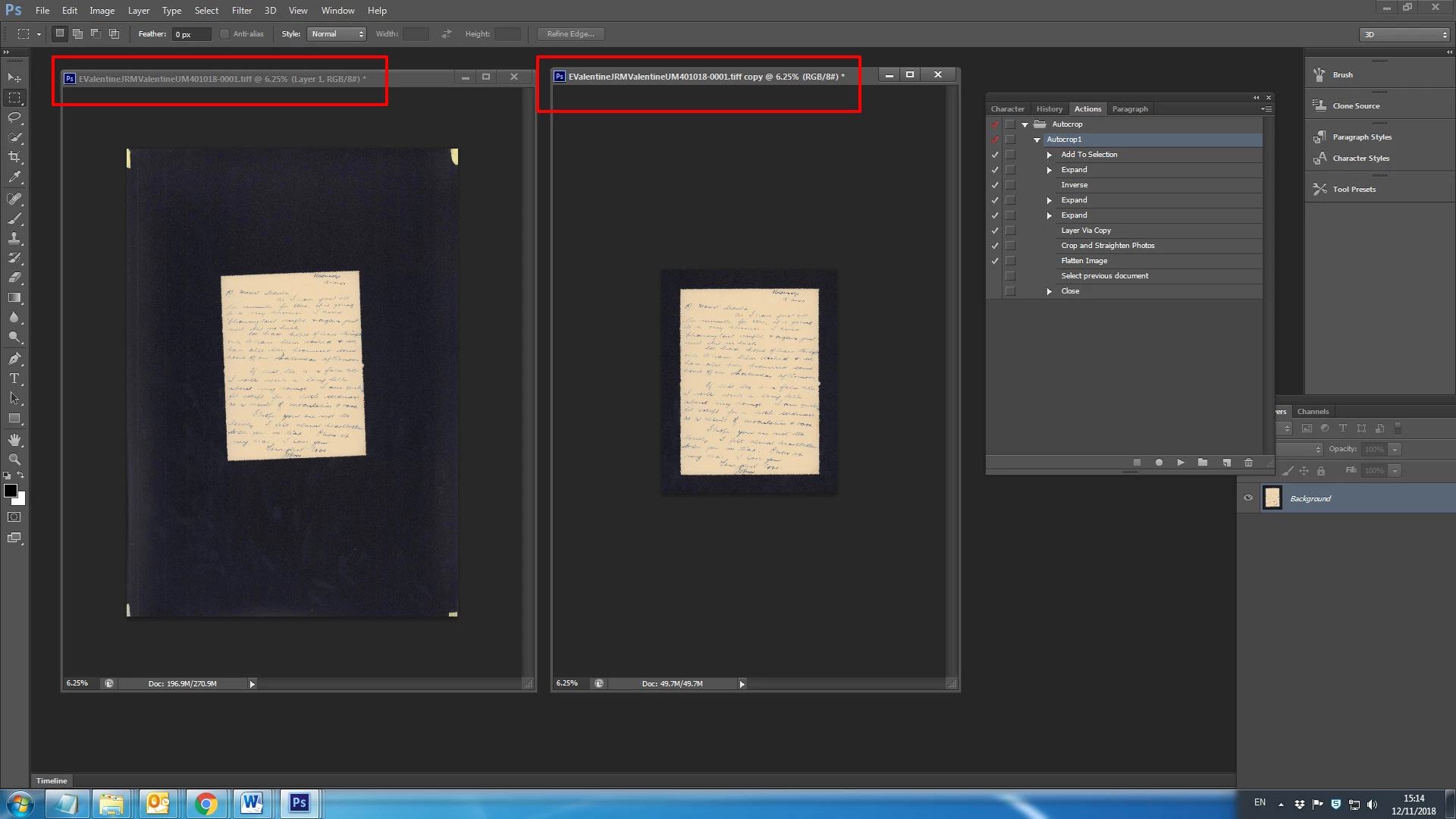
Getting rid of the original image is fairly simple (the last two lines of the actions do exactly that) but unfortunately I end up with a different filename, which leads to all sorts of difficulties.

a) If I use the standard batch panel, I cannot set “Save and close” as destination. The filename is now different so PS keeps prompting for a destination folder and a file name. From the PS’s perspective it makes a great deal of sense (it’s dealing with something new) but a manual input every time completely negates the whole point of batch processing…

b) If I choose to use “Image processor” or “Image Processor Pro” I get a different issue. For some obscure and rather frustrating reasons, both tools don’t close the file at the end of the action. Since each file is the region of 90MB, after a while PS crashes. Adding a line with a “Close” command leads to nothing. What I get is just another prompt for a destination folder and a file name.

Please take into account that the folders structure must remain unchanged, and having all outputs files in the same folder is not the best solution as I have to edit literally thousands of folders.

I’m a fairly knowledgeable PS user and I’ve systematically tried and tested every conceivable combination of action end commands and batch options, including – or course – “Override action”. Nope. I’ve researched extensively online and tried all solutions suggested: including changing History states, reverting PS to original settings and working with a droplet. Nope again.

Any help would be massively appreciated.

Many thanks

sr

このトピックへの返信は締め切られました。

返信数 3

Stephen Marsh
Community Expert
Community Expert
November 12, 2018

If crop and straighten photos is a script, then it could possibly be edited to remove the copy on the filename. It appears to be a plug-in.

I can confirm all of your findings, I believe that this is a job for scripting, however it is more complicated than my beginner scripting can handle.

The following script could be modified, I have tried however I am out of my depth:

Re: scripting and Crop and Straighten photos

Or these?

Re: Batch Crop & Straighten

creating an action to crop straighten and save

Or perhaps this? (does not recurse into sub-folders, saves JPEG with copy in name, which would all need to be edited)

http://www.tranberry.com/photoshop/photoshop_scripting/PS4GeeksOrlando/IntroScripts/cropAndStraightenBatch.jsx

Bojan Živković11378569
Community Expert
Community Expert
November 12, 2018
Adding a line with a “Close” command leads to nothing. What I get is just another prompt for a destination folder and a file name.

My $0.02. Your close step is simple Close or Close > Saving: no. There is huge difference between those two steps: first (close 2 action in screenshot) will always display dialog (if there is any change in the document) while second will just close document without any question (close action in the screenshot).

Sincerus_Renatus
Participant
November 18, 2018

> My $0.02. Your close step is simple Close or Close > Saving: no. There is huge difference between those two steps: first (close 2 action in screenshot) will always display dialog (if there is any change in the document) while second will just close document without any question (close action in the screenshot).

Good guess, but it was the first thing I tried. Close > Saving: yes always display a dialog; Close > Saving: seems to be ignored by PS. Therefore the document remains open.

barbara_a7746676
Community Expert
Community Expert
November 12, 2018

When using the Automate > Batch processing, do you have "Override Action 'Save As' Commands File Naming" checked?

Sincerus_Renatus
Participant
November 12, 2018

I've tried either ways. Unfortunately the issue crops up regardless of the setting. Thanks. ap