DanielZapata
Participant
April 4, 2018
解決済み

Anybody having trouble with PNG's with the new Update of Premier Pro 2018 April 3rd?

I cant get Premier to read PNG's, I make them in Photoshop and export them as PNG's but when they come in Premier is all the weird crap.

I already clear the cache, re installed, re exported, started  new project, I cant get it t work! WHAT THE CRAP IS HAPPENING!!!

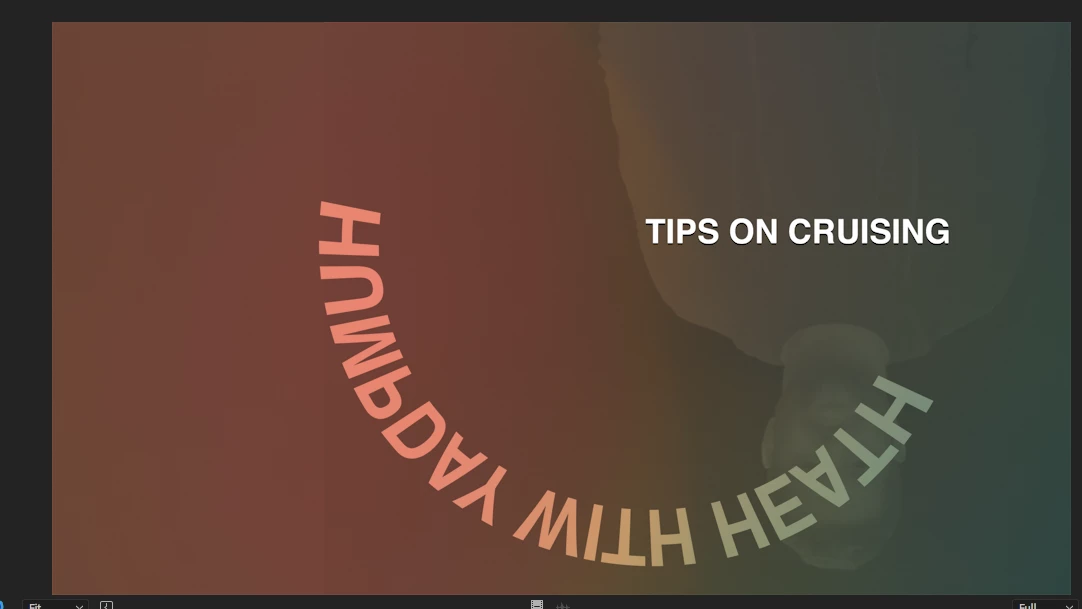
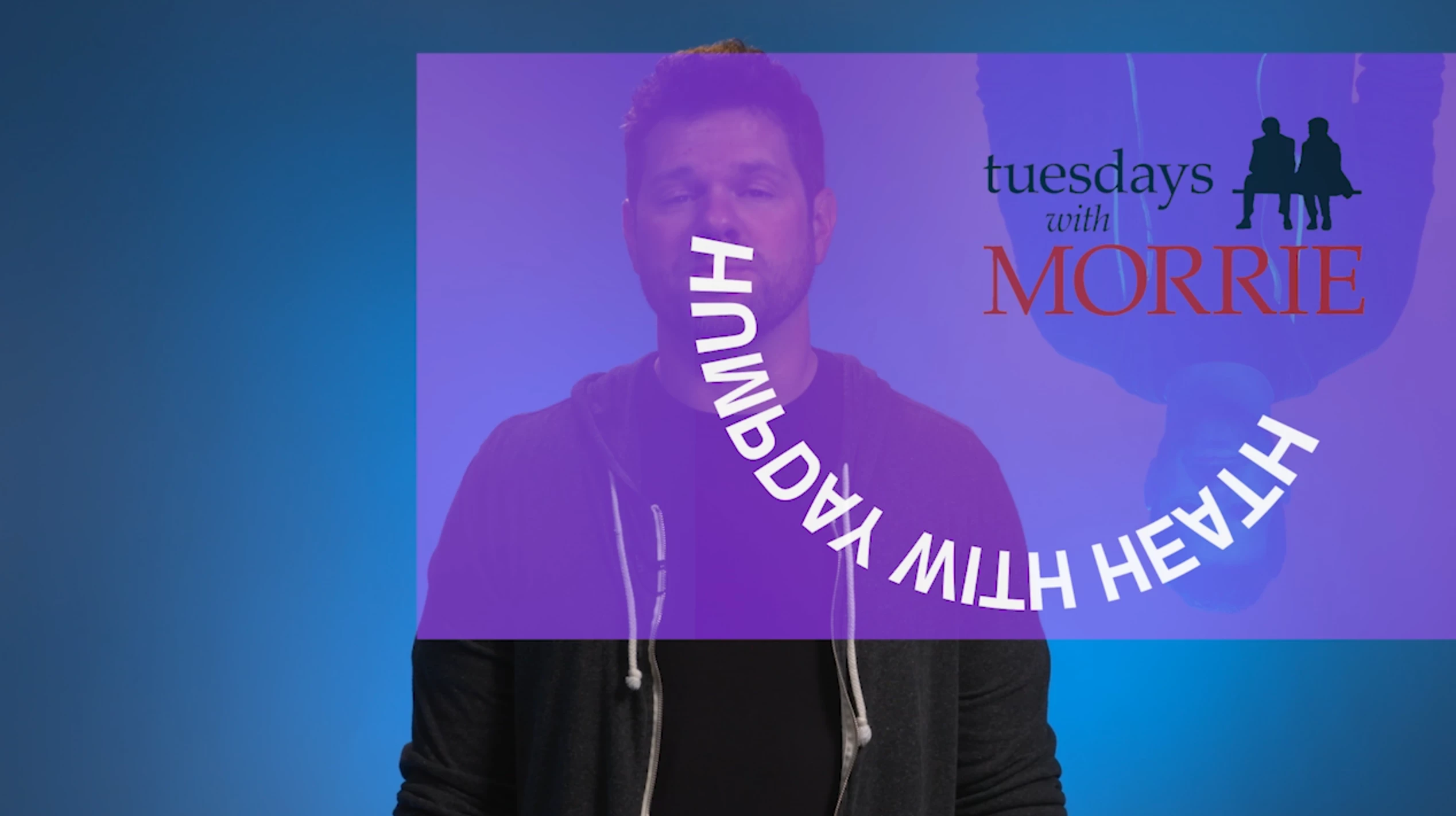
This are two pictures of PNG's it is one title, but Premier is merging all the PNGS in to one picture, same with the one below, it suppose to say TIPS on crussing, not all that weird color and reverse shadow going on.... this is totally wrong!!
このトピックへの返信は締め切られました。
解決に役立った回答 Vinay Dwivedi

Hi,

The patch has been released and live now. This patch includes bug fix related to PNG's.

Bug fixes in Premiere Pro versions 12.1 and 12.1.1

//Vinay

返信数 61

Participant
April 9, 2018

Same issues here, and nesting is not solving the problem. I updated and now have wacked out sketchy png sequences with a life of their own. They decide at will when to work fine or when to glitch out in a crazy pattern that looks like my images been hacked in the by someone in the 80s. This is really now working well for being able to deliver to clients. I guess I will re-install the old version. My trust in Adobe creating quality software I can rely upon is gone. Very frustrating and disappointing because I have loved Premiere and Adobe products for years, and now have little to no patience left. 

Participating Frequently
April 18, 2018

It's the Big Ball of Mud.

Participating Frequently
April 8, 2018

Yes, I'm having the same problem.  Most of my imported png files have some other weird file attached to them.  I keep trying to fix it in Photoshop but every time I reimport it does the same thing.  So frustrating.  Trying to finish my film and I have many png's in the project. 

Participating Frequently
April 8, 2018

I do too. I've tried almost every method recommended and I am still having issues. I have not tried converting the PNGs to TIFFs, which some people have recommended.

I have seen people say that it is mostly Mac users (which I am) however it seems to be happening with Windows users too, so I rule that out. I do have an older model, and I'm told by people its my graphics card that is the issue?

I'm expecting a new computer next week (switching back to PC) so hopefully I don't see this happen when I make the switch, but then there is the potential for new problems arising with already pre-saved sequences on Mac.

I just wish I could chat with someone at Adobe but they are closed today. We all really need some consolation.

Participating Frequently
April 7, 2018

I also am having issues. Can Adobe just fix it already? I'm irritated with updated software.

Participant
April 6, 2018

I found a work around! (that helped me at least)

I brought all my PNGs into After Effects and saved them as .MOV files with transparent backgrounds.

If you don't know how to save with transparent backgrounds, this was helpful: Quick Tip: Exporting with Alpha Channels in After Effects - The Beat: A Blog by PremiumBeat

I then brought the new MOV files into Premiere and put them in place of the PNGs. It was annoying to add the transitions all over again, but it worked! Deleting all PNGs from my project helped too. Anytime there was just one in the sequence, my whole video would render messed up. I too had a deadline today, and spent about 4 hours trying to figure out the problem. This was the best solution I could find for the time being.

I hope Adobe fixes this soon!

Participant
April 8, 2018

This was the only workaround that worked for me. I tried the others mentioned above and in other threads, but nothing seemed to work except importing the image sequence into AE and exporting as animation with alpha channel. The .mov was then imported into PP, and used instead of the PP-created image sequences...

An extra step in the workflow, but at least it worked. I had 3 different image sequences that were all affected by this. They all worked fine with v12; upgraded to the latest version a few days ago, and then client wanted a minor change the video, and when I exported, all the image sequences were messed up.

Hopefully a fix will be coming soon. This is annoying.

R Neil Haugen
Legend
April 8, 2018

Another user posted that by simply nesting the clips with png alpha they were then treated properly.

Neil

Everyone's mileage always varies ...
Known Participant
April 6, 2018

Haven't got time to go back though the thread to see if someone else has come up with this but the only way to fix it is to replace all of the .png files as .psd.  Finished a TVC this morning full of .png graphics and animations.  Saved them all as .psd and it's perfect.  You're not off the hook Adobe.  Still has to be fixed.  Shame!

Highway Zero
Participant
April 13, 2018

Worked for me! Thanks for taking the time to find a workaround and posting it here.

Better than I can say about Adobe's skunkworks crew. You're not off the hook for this!

Participant
April 5, 2018

I found this fix on an other thread:

Find the original png file in the project viewer, right click -> Modify -> Interpret Footage.

Under the Alpha Channel category, select "Conform Alpha Premultiplication To:

And also select the box: Premultiplied Alpha

Shout out to user andrewh20613583 for the fix

Participating Frequently
April 5, 2018

I'm sorry that I do not have an answer from Adobe regarding this problem. I went back to the older version, but this is not a solution. I use Premiere not professionally, but it's an expensive program for me. I am looking for other software outside of Adobe ...

Participant
April 5, 2018

Yes, definitely a thing.  Brought the whole shop to a halt this morning.    We upgraded to 12.1 at close of business last night and fortunately caught it before we did a ton of work today.   Sequences with PNGs with transparency are "ghosting" and displaying over other PNGs in the timeline.   Same as described by many other posters.   However the suggestions of re-loading/shifting the in/out points did not fix the problem reliably and it would still appear at random.   If you're on deadlines like we are, Downgrading back to 12.0 is unfortunately the only way to solve this mess immediately if you can't wait for Adobe to fix.  Or I suppose another would be to go make ProRes 4444 quicktimes with alphas of all your still graphics and cut them back in.   (but then, what other bugs have we not discovered yet)

Fortunately it's not too hard to downgrade with the app manager. But if you've already converted a project and done some work in 12.1, remember you can't re-open the project in 12.0 once you downgrade.   Here is what we did to work-around on OS X:

1) BEFORE YOU DOWNGRADE... Open the new 12.1 version of your project or projects, export any sequences you have changed or created since you upgraded, --regardless of if they are currently experiencing the PNG bug--   Use "Final Cut Pro XML"

2) Then downgrade by going to the creative cloud app manager, select "installed apps" tab and where it says OPEN next to Premiere Pro, click the little arrow and choose "Other Versions" and then choose 12.0.   You need to be closed out of all your CC apps of course.

3)  For good measure we downgraded Adobe Media Encoder at the same time to 12.0 using same method.  No idea if there were bugs, but seemed like the smart play to keep these two apps matched since we rely on it a lot.

4)  Once 12.0 is reinstalled, make a brand new and fresh "rescue" project and import the XML sequences you previously exported.   If you want to rejoin them into a preexisting 12.0 project (or autosave backup)  Leave that rescue project open and open up the old projects at the same time and copy and paste those sequences where you want them.   (Note, the reason for this extra step is for some reason could not import the XML sequences directly)

5)  You'll get a new copy of the sequence and all it's related clips in your bin and will need to do some project housekeeping.  Generally the things you'll lose will depend on the complexity of your sequences, we lost some keying effects and audio stuff.  But at least we're back in action with only a few hours lost.

Hope this helps someone.  And remember, at least it's not Avid.

Community Manager
April 5, 2018

I have found a reproducible case and filed an internal Adobe bug. Someone will follow up on this thread. Thank you so much for reporting the issue.
Dan Ramirez
Character Animator QA

Community Manager
April 16, 2018

I've tested a fix for this bug in an internal build here at Adobe, but I have no visibility into when it will specifically be released.

Thanks so much for the feedback and you have my sincerest apologies that this bug shipped in a public release.

Dan Ramirez

Character Animator

QA Engineer

Known Participant
April 16, 2018

Hi Dan,

When you ship this release I need to be completely assured it will fully function on my hardware:

Mac Mini Late 2012 - 2.3 GHz Intel Core i7 running MAC OSX High Sierra 10.13.4

I also need to know if it will automatically skip the corrupt editions After Effects, Media Encoder and Premier Pro: or will it be a two stage update?

Like most people affected by this bug, my loyalty to Adobe software has become questionable and there has been a substantial financial cost to our business.

Participant
April 5, 2018

Same - On the line with them for 3 hours today. Total waste of time. They kept the claim open and just told me the senior developers were working on it. Downgraded to version 12.

niclasl17667651
Participant
April 5, 2018

Happened me today as well. And I've got a deadline. Jippiiiie!

This is really bad.