
Participant
January 31, 2022
Answered

Premiere Pro: Troubles viewing and editing my sequence

  • January 31, 2022
  • 2 replies
  • 281 views

When I select a sequence to edit in Premiere, it doesn't show up (view below).
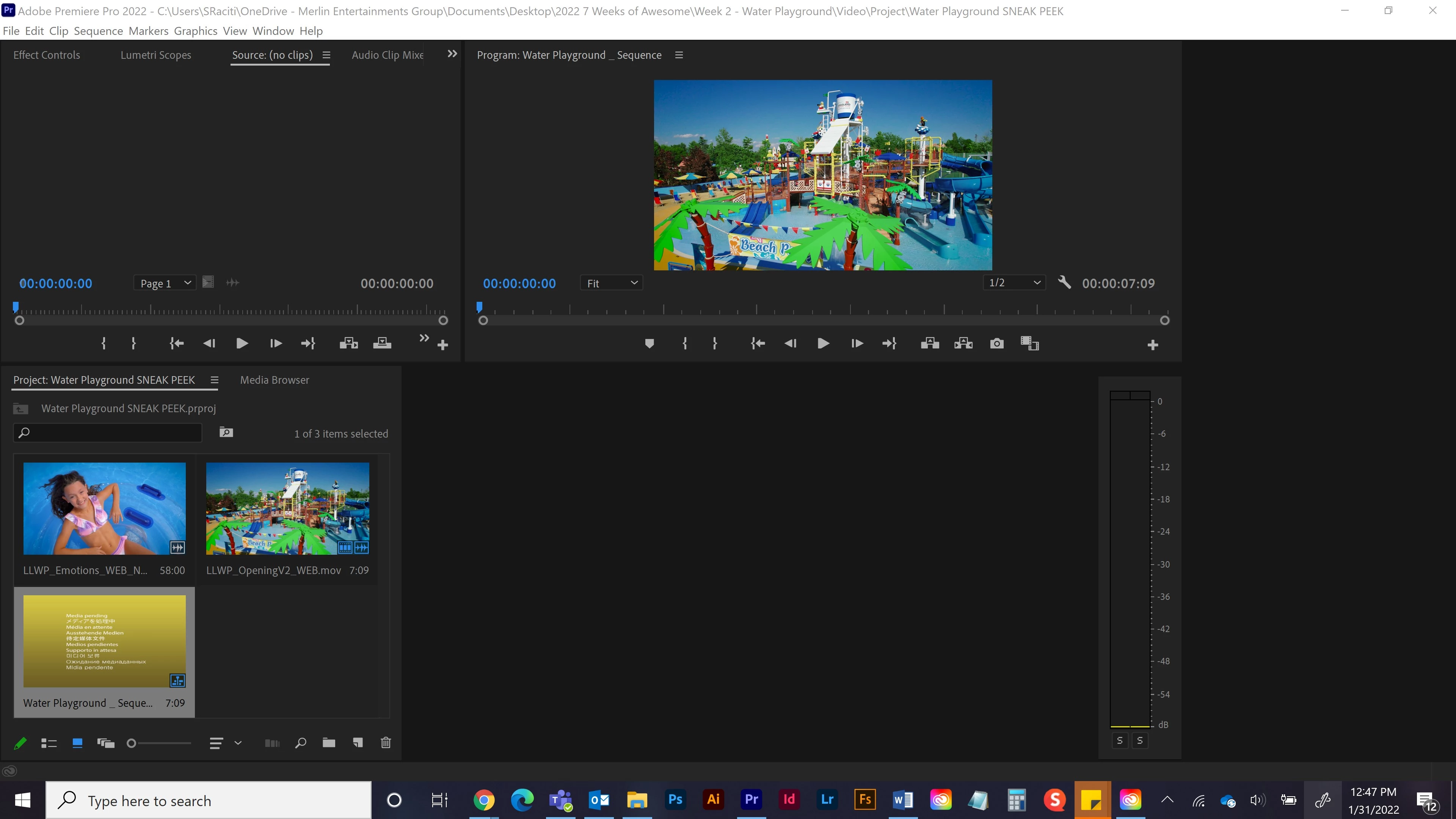
 

If somehow I do manage to get it to appear after three minutes of random clicking, I cannot move the playhead to edit it, even though the video above shows I am scrubbing through it.
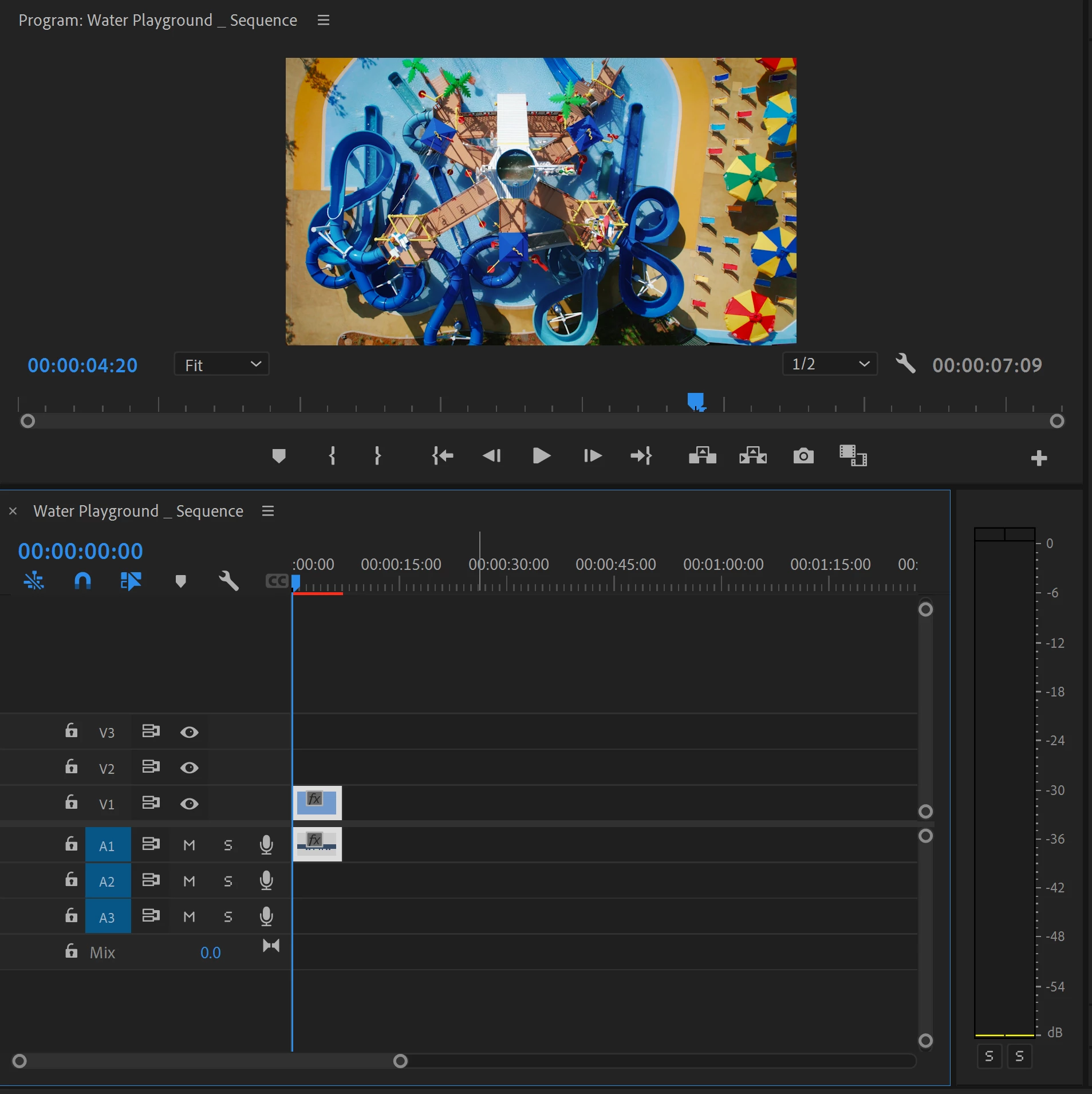
My premiere is up to date as well as my computer. I tried uninstalling and reinstalling and using an older version of Premiere. I am working off of Dell Laptop with windows 10.

Please help! This has been happening for about a week now. 


This topic has been closed for replies.
Correct answer Peru Bob

Delete the Media Cache and Media Cache files:
https://community.adobe.com/t5/premiere-pro/faq-how-to-clear-your-media-cache-in-30-seconds-in-premiere-pro-2020/m-p/11017257/thread-id/260446?page=1

If that doesn't work, try resetting the preferences:
https://community.adobe.com/t5/premiere-pro/faq-how-to-reset-trash-preferences-in-premiere-pro/td-p/8236158?page=1

If that doesn't work, try resetting the Workspaces:
Reset a workspace
Reset the current workspace to return to its original, saved layout of panels.
1. Do one of the following:
• Click the Workspace menu icon and select Reset to Saved Layout.
• Choose Window > Workspace > Reset to Saved Layout.
from here:
https://helpx.adobe.com/premiere-pro/using/workspaces.html

If that doesn't work, try Preferences > Audio Hardware and set Input to None.

If that doesn’t work, try updating or rolling back your graphics driver directly from the video card manufacturer’s site. If NVIDIA, do a clean installation of the latest Studio Driver (NOT the Game Driver)

If that doesn't work, try creating a new project and import the old one into it.

Also, please help us help you:
https://community.adobe.com/t5/premiere-pro/faq-what-information-should-i-provide-when-asking-a-question-on-this-forum/td-p/3929027?page=1

2 replies

Peru Bob
Community Expert
Peru BobCommunity ExpertCorrect answer
Community Expert
January 31, 2022

Delete the Media Cache and Media Cache files:
https://community.adobe.com/t5/premiere-pro/faq-how-to-clear-your-media-cache-in-30-seconds-in-premiere-pro-2020/m-p/11017257/thread-id/260446?page=1

If that doesn't work, try resetting the preferences:
https://community.adobe.com/t5/premiere-pro/faq-how-to-reset-trash-preferences-in-premiere-pro/td-p/8236158?page=1

If that doesn't work, try resetting the Workspaces:
Reset a workspace
Reset the current workspace to return to its original, saved layout of panels.
1. Do one of the following:
• Click the Workspace menu icon and select Reset to Saved Layout.
• Choose Window > Workspace > Reset to Saved Layout.
from here:
https://helpx.adobe.com/premiere-pro/using/workspaces.html

If that doesn't work, try Preferences > Audio Hardware and set Input to None.

If that doesn’t work, try updating or rolling back your graphics driver directly from the video card manufacturer’s site. If NVIDIA, do a clean installation of the latest Studio Driver (NOT the Game Driver)

If that doesn't work, try creating a new project and import the old one into it.

Also, please help us help you:
https://community.adobe.com/t5/premiere-pro/faq-what-information-should-i-provide-when-asking-a-question-on-this-forum/td-p/3929027?page=1

Participant
February 8, 2022

This worked! Thank you so much!

Ann Bens
Community Expert
Community Expert
February 8, 2022

Please be specific: what out of the long list worked?

Ann Bens
Community Expert
Community Expert
January 31, 2022


Participant
January 31, 2022

I've done that, but still nothing. In order for it to appear, I click the "window" tab 4 times but even still the playhead does not move and I am unable to edit the sequence.