deanr78548626
Inspiring
August 19, 2020
Answered

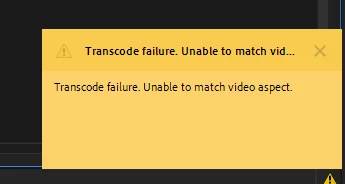
Transcode Failure: Unable to Match Video Aspect

  • August 19, 2020
  • 3 replies
  • 15636 views

Hello,


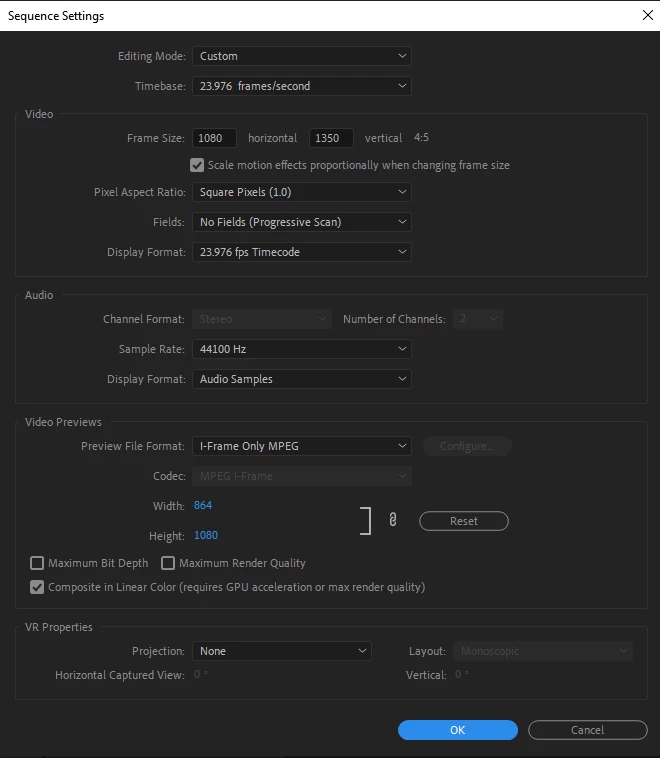
I'm trying to render and replace a dynamic linked clip, but I keep getting this error message: "Transcode Failure: Unable to Match Video Aspect". I've tried every kind of video format to encode with and they all come up with the same error message. My timeline is 1080x1350 (for Instagram). Would love for this to be fixed, I know I can export through After effects and click replace clip, but then I lose the option of switching it back to the Dynamic Linked version. Even then, this should be working inside of Premiere anyway. Thank you! 


Correct answer Phillip Harvey

Well, in Premiere whether you render from the Sequence menu or choose Render and Replace, you're encoding a separate video file, so even those options are somewhat similar. That is where I'm saying you may as well just export it straight from After Effects, because in every scenario you are choosing a codec and letting a software encode a video. And if you're doing Render and Replace then you have to replace with original every time you make an update in AE and then do Render and Replace again, (so you might even save a step by just rendering a preview in Premiere).


In Premiere you can right click on a piece of media and choose Replace Footage (just like in AE):
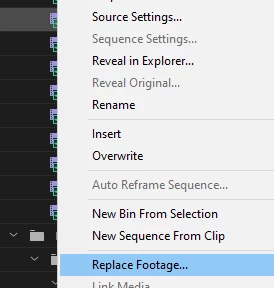
So if you go the method of iterating when you export from AE:

Shot_01_VFX_01

Shot_01_VFX_02

Shot_01_VFX_[...]

You just replace the file in Premiere with the new one you just exported from AE and it will update the replaced shot in your sequence(s). To me that's roughly the same amount of work as what you're doing already - but without any of the entanglements that come with Dynamic Link.


And the other option was simply to overwrite the file when you export from AE and use the same name. When you go back to Premiere the file should update (although I recommend not having your playhead over the clip you're about to replace in Premiere because you can get a glitched frame there until you restart Premiere).


I don't have a video, but hopefully that was illustrative - or maybe I just repeated myself 😞


I know it may not be what you're looking for - it's a slight adjustment to what you're doing. But in my experience and from what I've seen working in various agencies and production companies, this is a far more stable way to go. Personally, I don't maintain a dynamic link unless it's a very simple and temporary personal project (although I will almost always use it to send clips or sequences to AE.) It may not help you that much on your current project (maybe the specific shot), but just something to think about for future reference. Again - I know it's frustrating. You want it to work. It won't be the last time this or another software doesn't work exactly how you want it. You just gotta adapt to what does work and hopefully not office space your computer in the process 😉


3 replies

Community Expert
August 22, 2020

I know this isn't the "solution" that you want, but I personally recommend just exporting things from After Effects. Yes, in theory dynamic link is great and it should work perfectly, but it's not a perfect world. Sometimes you have to just find the things that do work.


A couple benefits of the above workflow from my POV:

- It's more typical in a professional setting where you may be working with other artists/animators. You can use dynamic link to send things to AE, but usually the link is broken after that. If you are ever in a larger setting collaborating with other designers, you'd already be more attuned to that workflow.

- Less to go wrong (more stability). Exhibit A: your situation. Exhibit B: archiving, sharing or moving the project. Dynamic links just aren't as reliable to get working in those situations.

- It's not really that different. For example, if you have a dynamically linked After Effects composition it's probably not going to play very well in Premiere without being rendered. When you render in Premiere you are creating a video file that lives on your hard drive. So you're still waiting and you're still creating a video file. So why not just do the waiting and rendering on the After Effects side? When the clip comes into Premiere it'll work great. All the processing is done. This is especially true if you're using a proper intermediate codec on your AE export (which you should be). If you need to make an update in After Effects you can either 1) iterate and replace the file in Premiere: add a _02, _03 (which is typically done in a collaborative setting), or 2) if you're the one overseeing everything you can choose to just overwrite the previous file, then it will save a step in importing or replacing.


Just my 2 cents.

deanr78548626
Inspiring
August 22, 2020

Hi Phillip,


Appreciate your help and this IS a good workflow, but just not what I'm looking for. I feel like the guy in Office Space with the printer when it comes to issues like this. I'm usually tweaking VFX a lot before I send videos to clients, I also have a TON of separate Dynamic Linked clips in a single sequence, so having the render and replace option is great because I can revert back to the dynamic link directly on the timeline without importing it again or creating a video track to put the exported versions over. Is there a way to do this without the render and replace option? If I exported out of After Effect, brought the exports into my timeline, how can I tell Premiere to do basically the same thing as Render and Replace? Is that what the overwriting tool is? If so, how can I use it? Thanks. 

Ann Bens
Community Expert
August 22, 2020

I would use a standard sequence setting and crop the file on export.

deanr78548626
Inspiring
August 22, 2020

I appreciate the help, but the render and replace tool doesn't give me the option to choose a standard frame size. Even then, why are so many solutions just workarounds? Why can't this just be fixed? 

Participating Frequently
August 21, 2020

How is this possible.  I see this all over the site. It is just nuts that you can't use a video editor to edit video.


I imported 1 clip, then I cut it up into segments and tried to save the project cuts as individual clips.  This error is preventing it, all presets fail.  It is supposed to transcode it?  how can any framesize be holding it back?  You know handbrake is free, I am sure you could use that instead of whatever it is that makes premiere break doing the most simple tasks on the planet.  This is incredibly frustrating.  Maybe one day you will build it for the users, and not for the tinkerer that wants to constantly work around simple bugs to do simple things. 

very frustrated @32 dollars a month for years...and users still the last on the list 


deanr78548626
Inspiring
August 22, 2020

Yeah, this REALLY slows down my workflow. Not sure why this wasn't patched. I've heard some people say "well, it's a weird frame size so that's probably why it doesn't work" but literally the reason why I'm sticking with Adobe is because of it's broader functionality for social media frame sizes!!! So annoying. Like and share this thread so we can bring it to Adobe's attention.