crafteefox
Participating Frequently
April 13, 2018
Answered

Exporting a 'pattern' art board

  • April 13, 2018
  • 4 replies
  • 36397 views

Hi

I am looking for some advice about exporting an artboard with a repeat pattern on. I have done this a number of times to have fabric printed and have had no problems. I made the pattern using the pattern function, form a new artboard - rectangle - swatch and then export as. Today I have been doing this but have found I am just exporting the art board and it just looks likes multiple art boards, rather than a seamless pattern (so you can see the lines around the art board and the pattern doesn't flow). Can anyone advise as to what I'm doing wrong. Despite doing a short course and spending hours on Illustrator I am still a novice so hoping any advice doesn't also go over my head!

Many thanks
    This topic has been closed for replies.
    Correct answer Ton Frederiks

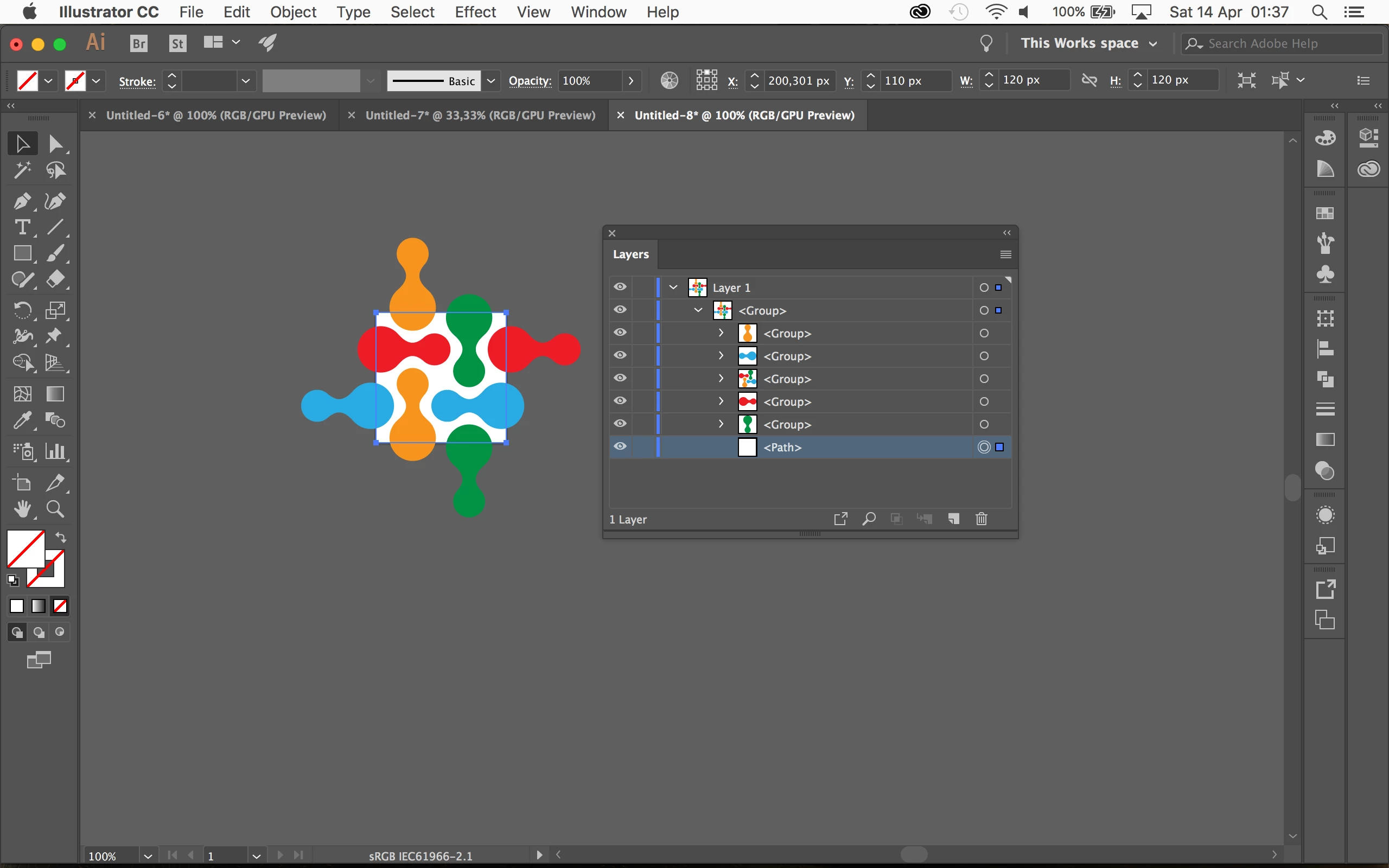
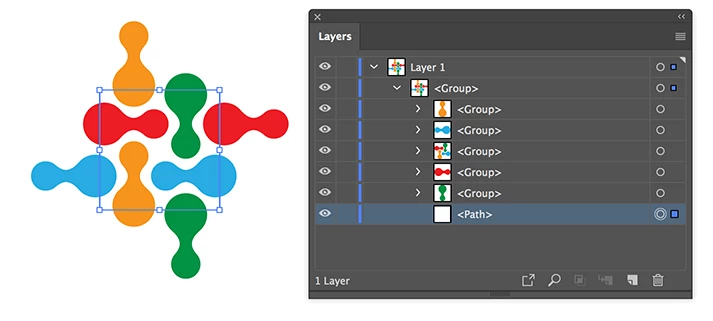
    If you want just to export a single tile, try this:

    Drag the pattern swatch from the Swatches panel to the Artboard.

    Open the Layers panel and select only the rectangle at the bottom of your pattern.

    Select Object > Artboards > Fit to Selected Art

    Export the Artboard.

    4 replies

    Participant
    October 5, 2022

    Posting a art broad

    Monika Gause
    Community Expert
    Community Expert
    October 5, 2022
    quote

    Posting a art broad


    By @Fatima26451064wwiw


    This is an old thread.

    Can you please create a new one and describe your issue in detail?

    Ton Frederiks
    Community Expert
    Ton FrederiksCommunity ExpertCorrect answer
    Community Expert
    April 13, 2018

    If you want just to export a single tile, try this:

    Drag the pattern swatch from the Swatches panel to the Artboard.

    Open the Layers panel and select only the rectangle at the bottom of your pattern.

    Select Object > Artboards > Fit to Selected Art

    Export the Artboard.

    crafteefox
    Participating Frequently
    April 14, 2018

    Thanks Ton Frederiks. That's what I thought I needed to do I just couldn't work out how to get the original tile out of the pattern. It's worked!

    Many thanks - and to everyone for answering my query.

    Ton Frederiks
    Community Expert
    Community Expert
    April 14, 2018

    Good to hear that worked for you!

    chanaart
    Community Expert
    Community Expert
    April 13, 2018

    When you created the patten was it seamless or the object did not match! you need to look at the pattern in the pattern maker to see that it is seamless.

    Here is a great example of Seamless pattern in AI by Robin Schneider.

    Adobe for Fashion: Creating Seamless Pattern Repeats in Multiple Color Ways using Adobe Illustrator - YouTube

    crafteefox
    Participating Frequently
    April 13, 2018

    Thanks for your reply. It was seamless in the pattern. I think the problem is that I am just exporting the tile without isolating the original pattern. I need to do that. Thanks for the tutorial - I'll look at that.

    Michael Riordan
    Inspiring
    April 13, 2018

    Can you post a screen capture? Or the exported image file so we can better understand what you need?

    crafteefox
    Participating Frequently
    April 13, 2018

    Thanks. Here's what it looks like when I've exported it into the design website. It comes up as distinct tiles rather than a repeat.

    Michael Riordan
    Inspiring
    April 13, 2018

    If you have a pattern element that runs off the left side of the pattern bounds then you also have to have that identical element running IN on the right side of the pattern bounds. Or if at top, it needs it's corresponding partner coming in at the bottom. Anything that touches an edge will just look cut off unless you mirror it at the other side. An easy workaround is to not let anything touch the edges of the pattern bounds but that can look divided/ spaced out as well. The overlap helps the illusion but you have to build it properly.