antoan peichevp2008195
Participant
May 4, 2019
解決済み

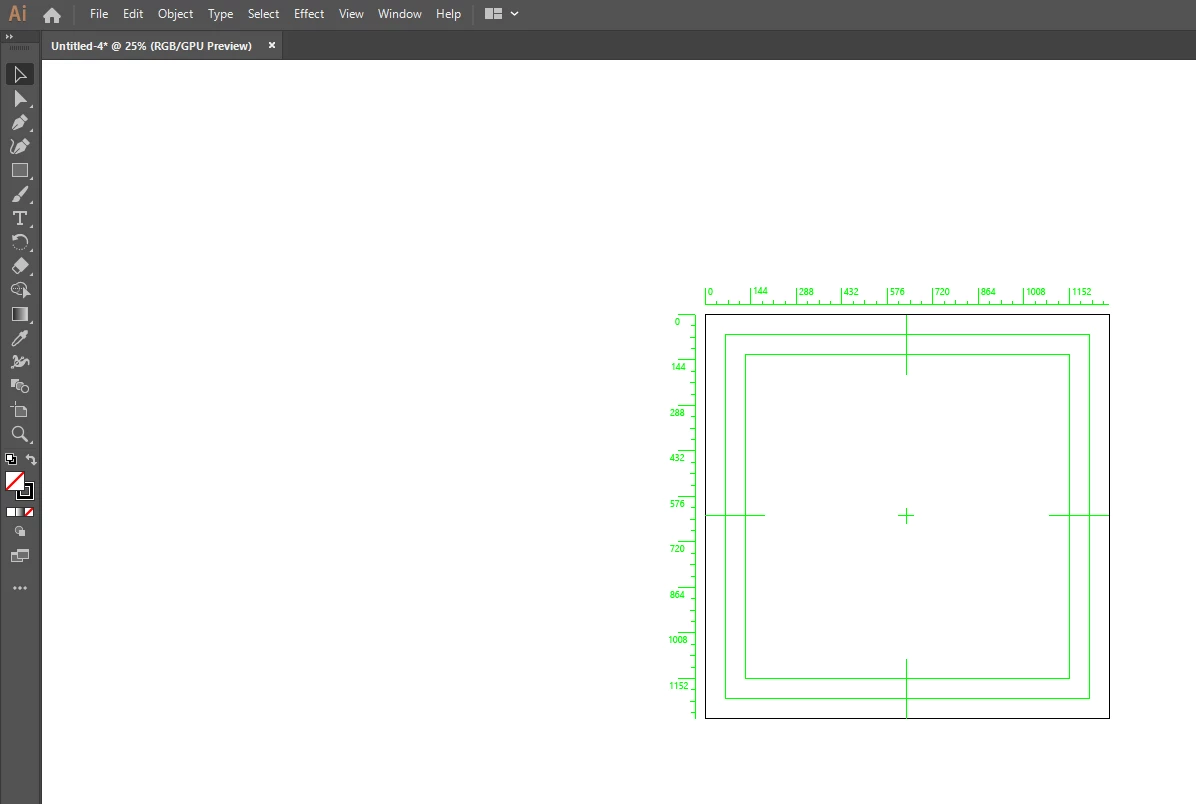
Green thing in center that i can't remove

  • May 4, 2019
  • 返信数 4.
  • 1663 ビュー

Im new and i can't remove this.

このトピックへの返信は締め切られました。
解決に役立った回答 edgrimley

When you created the document apparently you selected Video and Film as the profile. Close that tab and start again, File-New then select Print as your profile from the drop-down list..

返信数 4

pixxxelschubser
Community Expert
Community Expert
May 4, 2019

I wrote an How-to-do-instruction in this older thread: Re: Starting with Illustrator, problem with background and artwork

Kurt Gold
Community Expert
Community Expert
May 4, 2019

Or, if you want to hide the marks and the rulers in an existing document, just open the Artboard Options dialog (double click the Artboard tool in the Tools palette or use the Artboard palette flyout menu) and disable all options in the Display section. Then go to View > Rulers > Hide Video Rulers.

Inspiring
May 4, 2019

That looks like crop marks template items including bleed.  You should be able to a.) deselect it in your preference file ( Illustrtor > Preferences ) and b.) look at your layers and see if there is a layer that has those green items on it.  If so, you can turn it off and lock it ( deselect the eyeball and select the lock on that specific layer ).  You could also take a look at your Page Setup in the Print dialogs.  You might be able to deselect trim marks there as well.

Inspiring
May 4, 2019

Or, do what Ed says ( never heard of that option in the "new" dialog ).  Thank you for the information.  I hope it works.

edgrimley解決!
Participating Frequently
May 4, 2019

When you created the document apparently you selected Video and Film as the profile. Close that tab and start again, File-New then select Print as your profile from the drop-down list..