


Geckoz100
Known Participant
November 28, 2023
Question

I can't export transparent PNG from AI Adobe Stock image # 657247757

  • November 28, 2023
  • 3 replies
  • 539 views

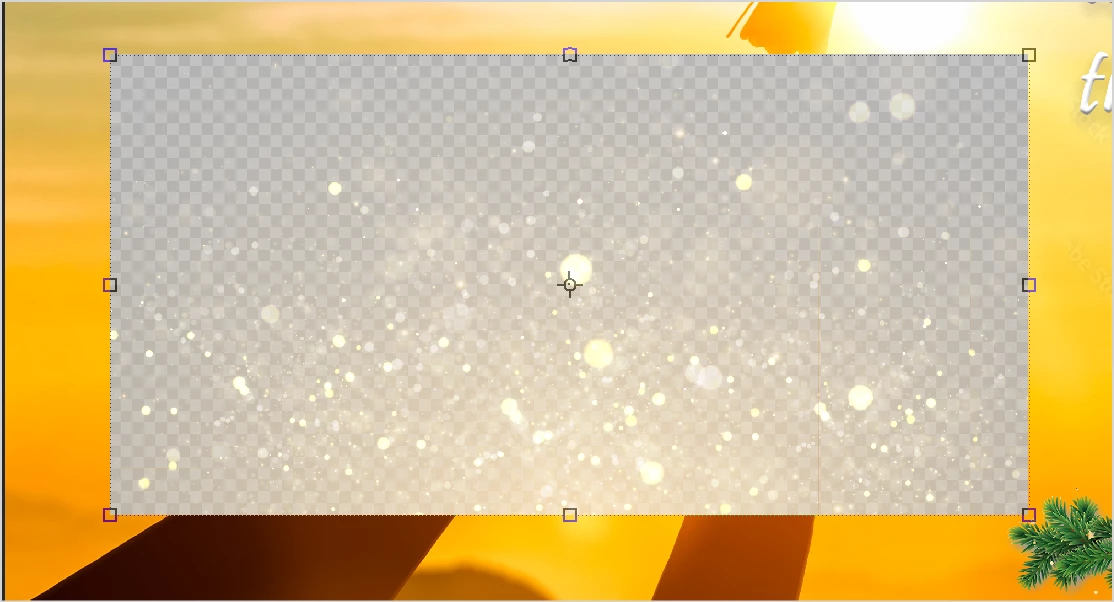
I'm just a beginner with Illustrator and can't figure out a way to export a transparent PNG of this light-effects image (Adobe Stock # 657247757 in AI format).  When I drop the PNG into a Photoshop layout, I just get a grid background instead of transparency.  Would greatly appreciate any help.


This topic has been closed for replies.

3 replies

Geckoz100
Geckoz100Author
Known Participant
November 30, 2023

I posted this above by mistake under my work login......

I figured it out -- I had done it once before and couldn't remember.  Just in case this helps someone, here's how I did it:


In Illustrator, disable the group of elements that has the grid background.  It can make the graphic look like a horrible mess with very dark areas.  Export it as a PNG with transparency.  Then when you drop the PNG it into Photoshop in a new layer, open the Blending Options for that layer, and select "Screen".  You can then adjust Opacity to get the desired strength of the effect. See attached images.

 
Participant
November 30, 2023

I figured it out -- I had done it once before and couldn't remember.  Just in case this helps someone, here's how I did it:


In Illustrator, disable the group of elements that has the grid background.  It can make the graphic look like a horrible mess with very dark areas.  Then when you drop it into Photoshop, open the Blending Options for that layer, and select "Screen".  See attached images.

Monika Gause
Community Expert
Community Expert
November 28, 2023

THat grid is in the file.

You have to download an AI file, delete the background and then it will most probably still not work as you want. These images do typically only owkr in Illustrator. SO you have to replace the background with whatever you want to have there.  See this: https://youtu.be/Tiqm5hdQA5A