


Participant
February 12, 2026
質問

InDesign 2026 CTRL+D Place Dialog Search Not Working on Windows

  • February 12, 2026
  • 返信数 4.
  • 58 ビュー

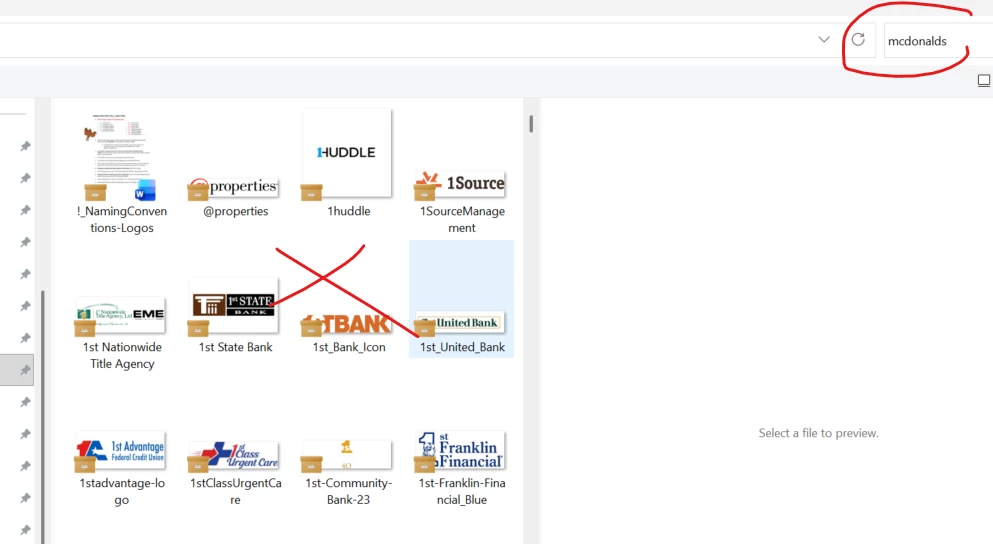
When I click CTRL+D (place tool) through InDesign and try to search something in my folders, the search tool doesn’t work. I can be in the logos folder and type in “mcdonalds” and it wont search for mcdonalds logos. 

The only way I can bypass this is if I open the folder separately and not within InDesign. But doing that is super inconvenient and a pain. And this tool used to work perfectly.

Does anyone know what happened and how I can get it to work again? I tried asking this question before but they said I was in the wrong community. So then I tried copy/pasting it in this community and it said its already been answered. But no one has actually answered it for me! And I can’t delete that original comment. So I feel like I am stuck. Hopefully re-wording this question helps.
 

    返信数 4

    Abhishek Rao
    Community Manager
    Community Manager
    February 13, 2026

    Hi ​@alanna_5408,


    I hope the expert’s suggestion helped resolve the issue. Could you please confirm if by latest you mean InDesign 21.2 or any other version of 2026, and also share your exact Windows OS version?

    In the meantime, kindly try the suggestions shared by the experts and let me know if that helps. If the issue still persists, please test the behavior in Windows Safe Mode and also under a new local admin user profile to rule out any third-party extensions, background services, or account specific settings that might be interfering.


    Looking forward to your update.

    Abhishek

    Mike Witherell
    Community Expert
    Community Expert
    February 13, 2026

    Reset your preferences:

    Preferences > General … click “Reset Preferences on Quit”

    Backup your numerous customizations:

    File > User Settings > Export User Settings

    Mike Witherell
    Community Expert
    February 13, 2026

    This usually isn’t an InDesign issue itself it’s the operating system file dialog. When you press Ctrl+D, InDesign is basically just opening the Windows file browser inside the app.

    A few things worth checking:

    Make sure you’re searching in the correct scope. Sometimes the dialog is set to search only the current folder rather than subfolders, or vice versa.

    Try clicking once in the folder before typing the search field can sometimes lose focus when opened from InDesign.

    If you recently updated Windows or InDesign, Windows indexing can break. Rebuilding the search index in Windows settings has fixed this for some people.

    Also check if the dialog is set to filter file types if it’s set to only show certain formats, search results can appear empty.

    If search works normally in File Explorer but not in the Place dialog, it’s usually an indexing or permissions quirk rather than anything wrong with the document/app itself.

    Bill Silbert
    Community Expert
    Community Expert
    February 13, 2026

    What version of InDesign and what exact version of Windows are you using? I tried doing a search in InDesign version 20.4.1and it worked perfectly.

    alanna_5408作成者
    Participant
    February 13, 2026

    The latest 2026 version. It worked for me before, and just stopped working out of no where.

    Bill Silbert
    Community Expert
    Community Expert
    February 13, 2026

    In that case try resetting your InDesign preferences. this will restore the program to its defaults. Hopefully this will fix the issue.

    To rest preferences on Windows:

    You can try the quick way of resetting on a PC which is to hold down Ctrl + Alt + Shift when launching InDesign and respond affirmatively when asked if you want to reset. There have been some recent reports that the window asking if you want to reset is not popping up but that the prefs are being reset anyway. If this works great but if it doesn’t you may have to manually delete them.

    To do so:

    On Windows 7 and above the preference files are hidden. To find them go to the Control Panel and open Folder Options and then click the View tab. Then select “Show hidden files and folders” or “Show hidden files, folders or drive options” in Advanced Settings. Then delete (or rename) the folder at the end of this path: C:\Users\<USER>\AppData\Roaming\Adobe\InDesign\<Version #>\<Language>. Make sure that InDesign is closed when you do this. When you relaunch the program it will create  new preference files and the program will be at its default settings.

    The advantage of manually deleting preference files is that after you’ve reset up the program (make sure that no document window is open) to your liking, you can create copies of your personalized “mint” preference files (make sure that you quit the program before copying them—that finalizes your customization) and use them in the future to replace any corrupt versions you may need to delete.