


Inspiring
February 8, 2021
Question

InDesign Rulers showing incorrect measurments, and extra trash lines on the ruler
  • February 8, 2021
  • 6 replies
  • 1770 views


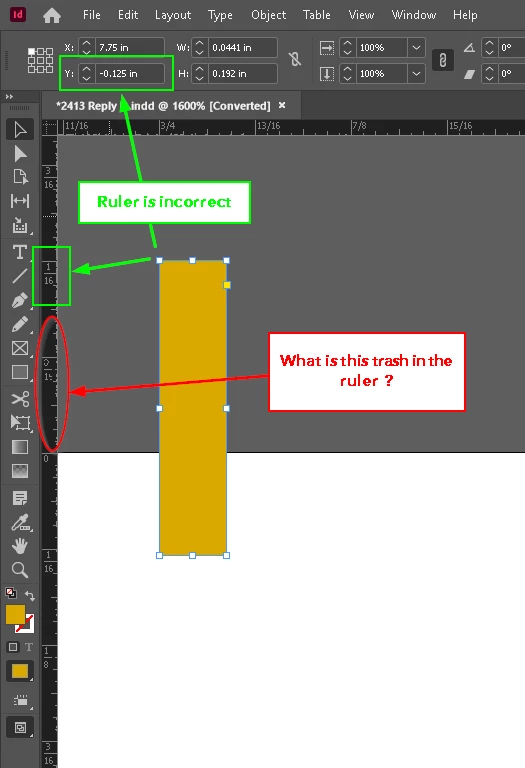
The ruler is showing incorrect measurements, and it appears to be in the area outside of the page size. I also see a lot of extra trash lines on the ruler, making it very difficult to edit art and drag the element edge to create a .125" bleed.
Is this something associated with my computer, a font, or are others seeing this ?
16.1 x64
Windows 10 Pro

This topic has been closed for replies.

6 replies

SanyamTalwar
Community Manager
Community Manager
February 9, 2021

As per the snapshot, the Y coordinate is 1/16 above 0 which is negative, hence you observe the value as -0.125 in. This is working as designed.

X and Y coordinates are defined as per the ruler and can be negative as well which is shown in the image.

Feel free to reach out to me at santalwa@adobe.com for any queries.


Regards

Sanyam Talwar

Scott Falkner
Community Expert
Community Expert
February 10, 2021

-0.125˝ is one eighth, not one sixteenth.

Mike Witherell
Community Expert
Community Expert
February 8, 2021

I think this could be a major contributor to the problem:

"I am using InDesign via RDP from home, to my work desktop."


What is "RDP"?

Mike Witherell
Inspiring
February 8, 2021

Microsoft - Remote Desktop Protocol

Barb Binder
Community Expert
Community Expert
February 8, 2021

I hear you. If it doesn't make a difference, you can file a bug report here:

https://indesign.uservoice.com/


~Barb 

~Barb at Rocky Mountain Training
Barb Binder
Community Expert
Community Expert
February 8, 2021

This is a basic function that should always work.


I agree. Did you try resetting prefs as per my link? Is your graphics card driver up to date?


~Barb

~Barb at Rocky Mountain Training
Inspiring
February 8, 2021

I'll have to rebuild the preferences later, when workload allows, but I'm skeptical.

Barb Binder
Community Expert
Community Expert
February 8, 2021

Hi @tshelhorse:


Are you aware that you can enable bleedlines to make this easier for you? For an existing document just go to File > Document Setup. The red bleed lines will appear outside the paper edges, allowing you to snap elements to them without having to zoom in so much. 


If you think the zero point is off on the rulers just double click the little square where the left and the top rulers intersect. That will reset the zero point to the top left corner of the paper.


Finally I've never seen that trash in the rulers. I don't work in inches though, I work with my rulers set to picas, which may come in to play, not sure. Does zooming out clean them up? What about rebuilding cache and preferences? You may need to work through the entire post to get the results you need.

https://www.rockymountaintraining.com/adobe-indesign-rebuilding-preferences-cache/


~Barb 

~Barb at Rocky Mountain Training
Inspiring
February 8, 2021

I am aware of these settings, for the bleed lines, but the rulers should display correctly regardless of the setting.
Double clicking the Ruler zero point clears the trash lines, but they return as soon as I move the cursor around on the art.
...but the "Y" axis ruler alway displays the wrong dimension.
This is a basic function that should always work.
Zero the rulers, select an object, and the rulers and the coordinate box should show the same.

Mike Witherell
Community Expert
Community Expert
February 8, 2021

When you right click the rulers, what are the measurements set to? Are they what you expected?

What happens if you change Windows display font scaling or Edit > Preferences > UI Scaling?

Mike Witherell
Inspiring
February 8, 2021

Right-Click on the ruler shows inches, as expected.

I unchecked the box:
Preferences > UI Scaling > For High-PPI Displays, Scale the User Interface


FYI

I am using InDesign via RDP from home, to my work desktop.

Inspiring
February 8, 2021

Same problem after the preference change and restarting InDesign