To elie_di
Again you misinterpret. I am not talking about closing an image. I am talking about closing a catalog.
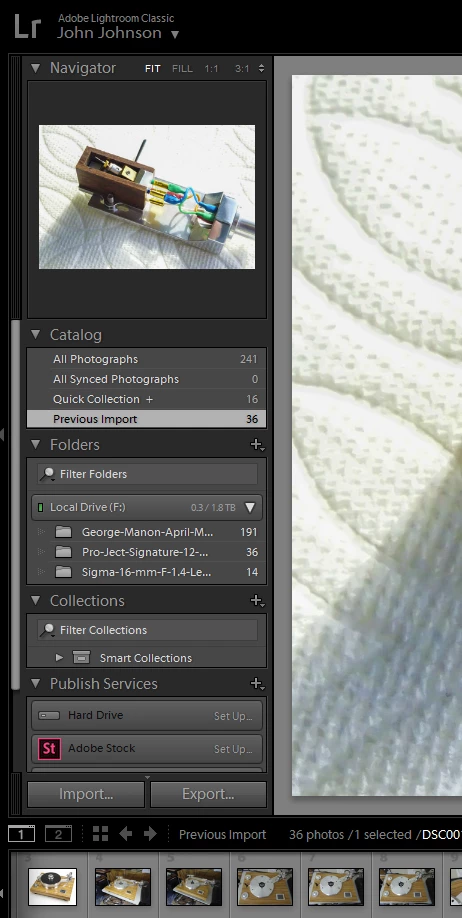
I opened a catalog, shown below:
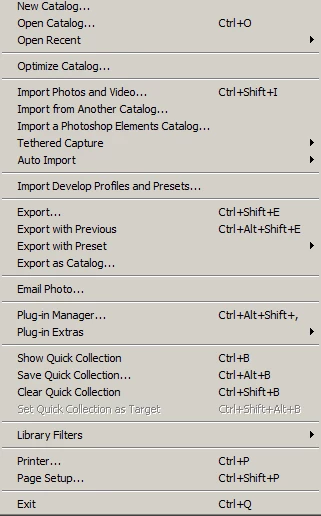
Then, I went to File, Import Photos and Video:
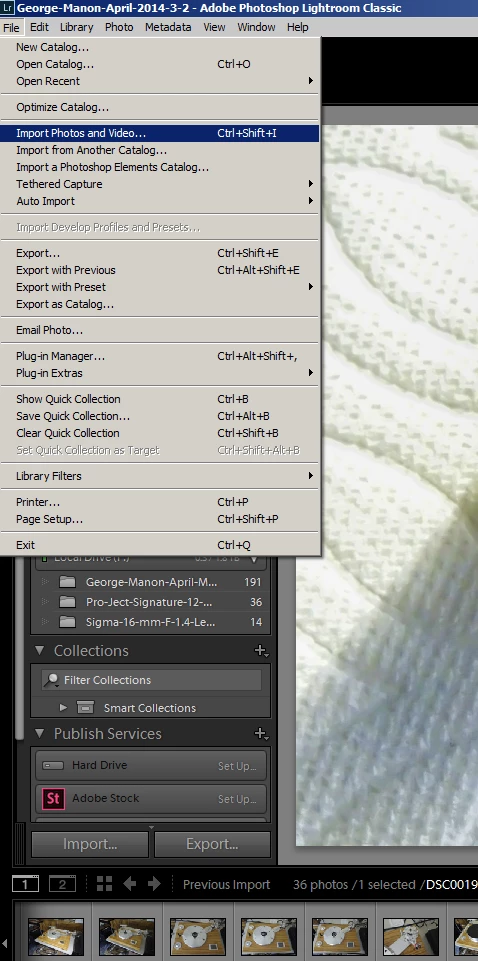
I browsed to the folder that I wanted to add photos to the open catalog, and all the photos in the open catalog at the bottom horizontal photo bar disappeared. Only the new photos from the folder where I wanted to import photos from were visible. No photos from the open catalog.
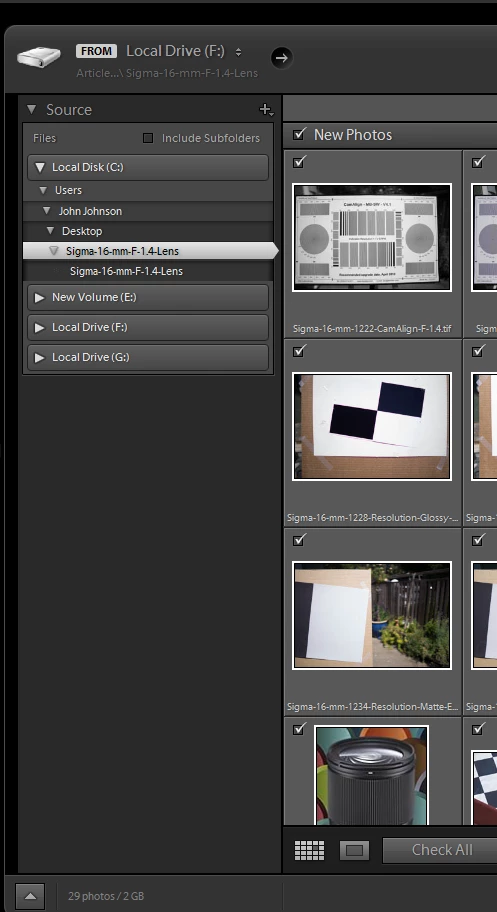
I selected Import and only the photos from the new folder were now visible. None of the photos from the originally open catalog were visible in the horizontal photo bar at the bottom. So, the active catalog's original array of photos were gone.
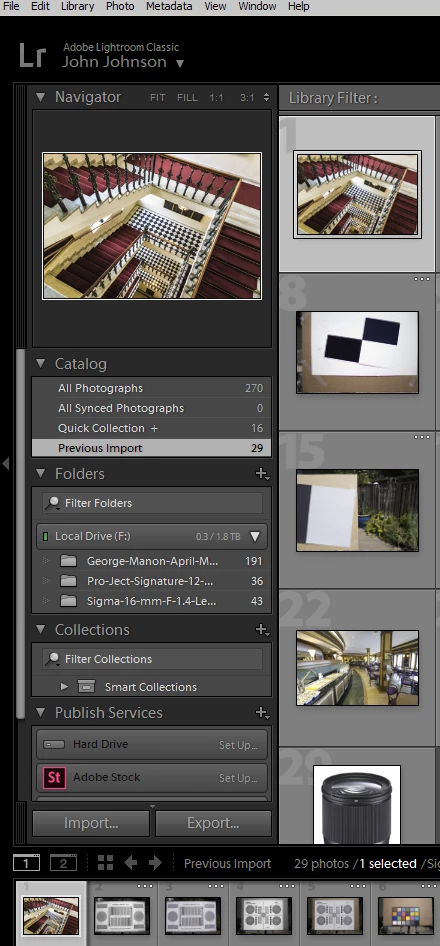
I now find that I had to re-create the original catalog because the new photos were the only ones in the original catalog. None of the original photos were there. They had been deleted when I imported photos to the original catalog. I discovered this when I exited Lightroom, rebooted it, and opened the lrcat catalog in the original directory where it had been located. None of the original photos were in that catalog now. Only the new ones.
You are correct about the very weak thinking, but wrong about who it refers to.
There needs to be a new term in the world of programs: garbageware.
https://forums.adobe.com/people/John+Johnson+10 wrote I browsed to the folder that I wanted to add photos to the open catalog, and all the photos in the open catalog at the bottom horizontal photo bar disappeared. Only the new photos from the folder where I wanted to import photos from were visible. No photos from the open catalog. |
You did not lose any photos. What you see is normal.
Please look closely at the left side of the screen that you showed, under Catalog. Notice that the highlighted collection is "Previous Import." Those are the photos you just imported. Now look at the same list under "All Photographs." It says you have a total of 270 photos in the catalog. If you click that, you'll see all the photos you already imported.
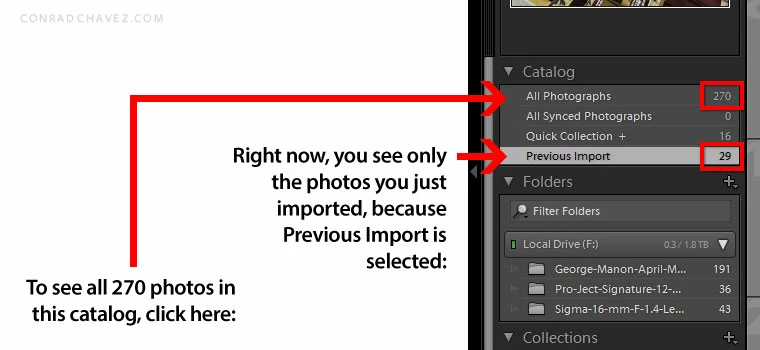
The only reason it looks like photos disappeared is that Lightroom is currently showing you only the photos you just imported. At any time, you can click anything on the left side — a folder, a collection, Previous Import, or All Photographs — and you will see that no photos have been lost, they are all there.
Based on what we see in your screen shots, no images are missing, there is no need to keep creating catalogs. You simply need to change which set of photos is currently being viewed. Don't panic if the film strip is empty; if the folder you selected contains no images, then the filmstrip should show no images.
Lightroom is not unusual, compared to current software. Many newer programs work this way now, where they use a database where you can manage many photos or files at once. It sounds like you are used to older programs like Photoshop and Word, where you open and close individual documents. You don't have to do that in Lightroom; all photos are always available for you to work on. That's the advantage. As you gain experience, you'll learn how you can take advantage of this to process many photos, in bulk, much faster than a program like Photoshop where you have to open photos one at a time.
Keep an open mind and stick with it, and you'll get there. You called it "garbageware," but remember that this software is a favorite of many working professionals.



 AdChoices